Browser Video Editing for Social Clips: Trim, Subtitle, Export
A lightweight video workflow for teams that need fast social clips: trim accurately, generate subtitles, and publish in multiple aspect ratios.
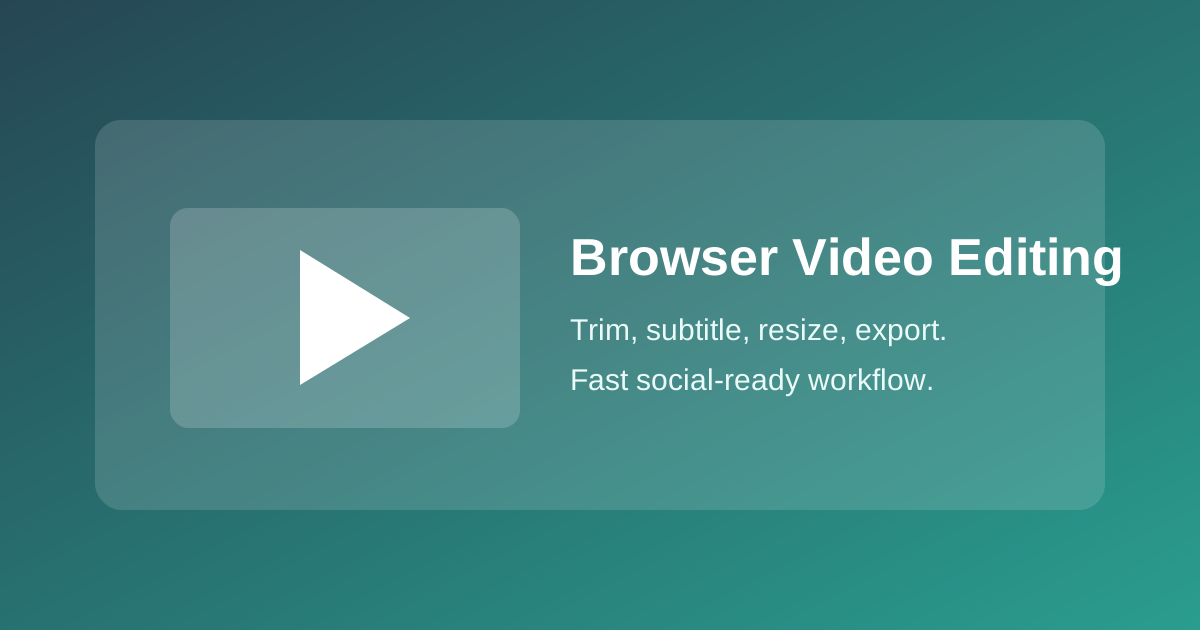
Browser Video Editing for Social Clips: Trim, Subtitle, Export
You do not need a heavy desktop suite for every social clip. For many publishing teams, browser-based editing is faster and easier to scale.
Step 1: Cut to one message
Most clips perform better when each video communicates one clear point.
- Remove intro dead time.
- Start with the key sentence or action.
- Keep the first version short, then adapt by platform.
Step 2: Generate subtitles early
Subtitles are not a finishing touch. They are part of the core edit.
- Add subtitles right after rough cut.
- Correct names and product terms manually.
- Keep lines short enough for mobile screens.
Step 3: Export per aspect ratio
One size does not fit all channels.
- 9:16 for short-form feeds
- 1:1 for flexible social placements
- 16:9 for blog embeds and YouTube-style layouts
Step 4: Keep audio clean
Users tolerate average visuals more than bad audio.
- Normalize levels.
- Remove hiss where possible.
- Keep background music below voice.
Team handoff template
Use a minimal handoff note for each clip:
- Final message
- Target channels
- Duration limit
- Subtitle language
- Deadline and owner
With this structure, teams can publish more frequently while keeping consistent quality.