Construction Permit Notice Photo OCR Cleanup: A Practical Field Guide
A practical guide for turning construction permit notice photos into readable OCR notes, clean PDFs, and searchable records for project admins and field teams.

Construction Permit Notice Photo OCR Cleanup: A Practical Field Guide
Construction permit notices are easy to photograph and surprisingly hard to use later. A field coordinator may snap a posted notice on a fence, a subcontractor may forward a blurry phone image, and the office team may need one specific number three weeks later: permit ID, issue date, site address, contractor name, inspection phone line, or expiration date. If the photo is tilted, reflective, cropped too tightly, or full of background clutter, optical character recognition can turn a simple record into a messy manual hunt.
This guide is for construction administrators, project coordinators, property managers, inspectors, and small contractors who need practical records from posted permits without building a complex document system. The goal is not archival perfection. The goal is readable evidence, dependable OCR text, and a clean file package that someone else can open months later and understand quickly.
We will cover how to capture better permit notice photos, clean them before OCR, decide what belongs in a PDF packet, and name files so they make sense outside your own inbox. ConvertAndEdit tools can help with several parts of this process, including Image OCR, AI Photo Editor, Compress Image, Convert Image, and Image to PDF.
Why permit notice photos fail OCR
Permit notices look simple because they are mostly text. In the field, they are rarely simple images. They are often taped behind plastic, stapled to plywood, zip-tied to fencing, posted beside other notices, or photographed through glare while someone is standing in a muddy access path.
OCR systems struggle when letters are distorted, partly hidden, or visually mixed with non-document details. A permit notice photo can contain fence diamonds, screw heads, wrinkles, water drops, shadows, dirt, stamped marks, handwritten notes, QR codes, logos, and safety signs behind or beside the main page. Even when the human eye can infer the text, OCR may split columns incorrectly or confuse similar characters.
Common OCR errors in permit photos include:
0andOmixed in permit numbers.1,I, andlswapped in contractor names or reference IDs.- Issue dates misread when slash marks are faint.
- Street numbers joined to street names.
- Inspection phone numbers split across unrelated lines.
- Fine-print conditions ignored entirely.
- QR code blocks interpreted as random characters.
- Logos or seals inserted into the text output as nonsense.
A good cleanup process reduces those errors before OCR instead of trying to repair every line afterward.
What to capture from a permit notice
Before thinking about editing, decide what information matters. A permit notice may contain more text than your office actually needs. Capturing the right fields makes review faster and prevents over-processing.
For most project records, the important fields are:
| Field | Why it matters | Common capture problem |
|---|---|---|
| Permit number | Used for inspections, renewals, and public lookup | Similar characters, glare across ID line |
| Site address | Connects the notice to the correct property | Cropped street suffix or unit number |
| Permit type | Explains the approved activity | Small text or boxed categories |
| Applicant or contractor | Helps verify responsibility | Long names broken across lines |
| Issue date | Needed for timelines and status checks | Faint date stamp or handwritten update |
| Expiration date | Prevents missed renewals | Often near fine print |
| Inspection contact | Useful for scheduling | Phone numbers split or blurred |
| Conditions or notes | May affect site requirements | Dense paragraphs at the bottom |
You do not need to extract every decorative element. If the notice includes a city logo, QR code, or department seal, preserve it visually in the photo or PDF, but do not treat it as OCR text unless it contains required record information.
The capture checklist for posted permits
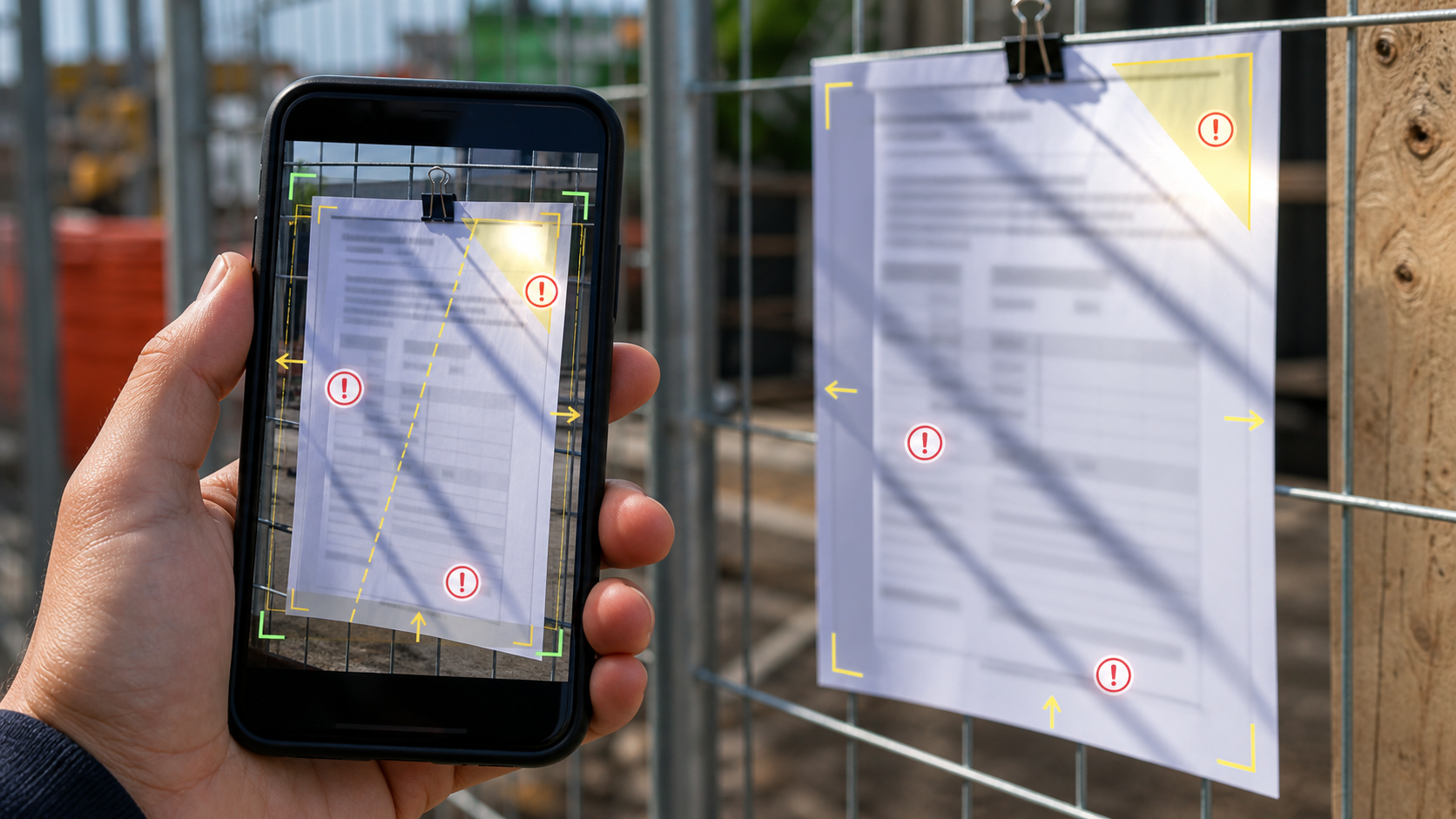
The best OCR cleanup starts before the image reaches a tool. A thirty-second capture routine can save ten minutes of office repair.
Use this checklist when photographing posted permits:
- Stand directly in front of the notice, not at a diagonal.
- Fill most of the frame with the notice, but leave a small border around all edges.
- Tap to focus on the permit number or main text block.
- Take one full-page photo and one close-up of the permit number and dates.
- Avoid flash if it creates glare on plastic sleeves.
- Shield strong sunlight with your body if shadows do not cover the text.
- Take a second photo from a slightly different angle if plastic reflects the sky.
- Include a wider context shot showing where the notice is posted.
- Check the photo before leaving the site.
That last point matters most. If the permit number is unreadable on your phone screen, it will not magically become reliable OCR later.
For posted notices behind wrinkled plastic, take at least three shots: one straight-on, one slightly from the left, and one slightly from the right. Reflections move with the camera angle. One image may hide the issue date while another reveals it clearly.
Separate evidence photos from OCR photos
A common mistake is trying to make one image do everything. The best evidence photo is not always the best OCR photo.
An evidence photo should prove context. It may show the construction fence, entrance, posted notice area, adjacent address marker, or jobsite boundary. It helps answer, “Was this notice actually posted at the site?”
An OCR photo should favor text extraction. It should be straight, close, evenly lit, and cropped around the document itself. It does not need to show the entire fence or surrounding conditions.
For reliable records, keep both:
| Photo type | Include | Avoid |
|---|---|---|
| Context evidence | Fence, doorway, site marker, notice location | Extreme close crop with no surroundings |
| OCR source | Full notice, square framing, readable text | Busy background and steep angle |
| Detail backup | Permit ID, dates, contact lines | Whole-page clutter if the field is tiny |
When you later create a PDF packet with Image to PDF, place the OCR-friendly notice image first, then the context image, then any detail close-ups. This order helps reviewers find the important information quickly while still preserving field evidence.
Cleaning the photo before OCR
OCR works best when the document area is clear, level, and high contrast. You usually do not need dramatic editing. In fact, aggressive filters can make small text worse. The best cleanup is restrained.
Start with these adjustments:
- Crop to the notice, leaving a narrow margin.
- Straighten the page so text lines are horizontal.
- Increase exposure only if the page is dark.
- Add mild contrast if gray text lacks separation.
- Reduce background clutter outside the document.
- Keep the original image as a backup.
If the image is in a format your office tools do not handle well, use Convert Image to create a practical format such as JPG or PNG before sharing. For most permit photos, JPG is fine when the image remains readable. PNG can help when the notice contains small text, sharp black lines, or screenshots from a municipal portal.
Use AI Photo Editor carefully for problems like distracting background objects, uneven lighting, or minor visual cleanup around the posted notice. Do not use editing to change permit content, remove official marks, alter dates, or make uncertain text appear certain. For compliance records, the edited version should support readability, not rewrite evidence.
A simple rule helps: if the edit changes the meaning of the notice, it does not belong in the record package.
When to crop and when to keep the full page
Cropping improves OCR because it removes background noise. It can also create risk if you cut off official context. The answer is usually to keep two versions: one full notice image and one OCR crop.
Use a tight crop when:
- Fence patterns or plywood grain confuse OCR.
- The notice occupies less than half the photo.
- The image includes other posted notices nearby.
- The OCR tool is reading background signs as part of the document.
- You only need text from the permit notice itself.
Keep the full page when:
- The document border proves the notice was fully captured.
- Official seals or QR codes sit near the edge.
- Fine print continues close to the margin.
- The notice includes handwritten updates outside the main text box.
- A reviewer may need to compare layout or authenticity.
For a clean package, label these versions plainly. For example:
2026-06-18_1240-pine_st_permit_full.jpg2026-06-18_1240-pine_st_permit_ocr_crop.jpg2026-06-18_1240-pine_st_permit_detail_dates.jpg
A reviewer should not have to open every file to understand what each one contains.
Running OCR without losing judgment
Once the image is cleaned, run it through Image OCR. Treat the output as a draft, not as a certified transcript. OCR is excellent for making text searchable and copyable, but permit records often include codes and names where a single character matters.
After OCR, compare the text against the image and verify these high-risk fields manually:
- Permit number.
- Street address.
- Contractor or applicant name.
- Issue and expiration dates.
- Phone numbers.
- Inspection reference codes.
- Any listed conditions.
Look especially for character substitutions. Permit identifiers can look like random strings, which makes them harder for OCR to infer from context. A natural language sentence gives clues; a permit ID does not.
If you need to share the OCR text with a project manager, include uncertainty clearly. Use notes like:
Permit number appears to be BLD-2026-1048; verify against source image.Expiration date unclear due to glare; close-up image included.Inspection phone line verified manually from detail photo.
This is better than silently pasting questionable OCR into a project tracker.
A practical cleanup sequence
Here is a reliable sequence for turning field photos into usable records:
- Save the original images in a dated folder.
- Choose the sharpest full notice photo.
- Create a cropped copy for OCR.
- Straighten and lightly improve contrast.
- Convert the image if needed for compatibility.
- Run OCR on the cleaned crop.
- Manually verify key fields.
- Compress sharing copies if file size is too large.
- Combine final images into a PDF packet.
- Store the OCR text beside the PDF or in your project notes.
This sequence keeps the original intact while giving the office a clean working version. If someone questions the extracted text later, you can return to the unedited source photo.
File size choices for permit records
Permit notice photos are often overlarge because modern phones capture high-resolution images. A single photo may be 4 MB to 12 MB even though the notice text only needs a fraction of that detail for review. Large files slow down email threads, project management uploads, and municipal correspondence.
Use Compress Image when you need smaller sharing copies, but check readability after compression. Thin text, stamped dates, and small phone numbers can degrade quickly.
A practical file size target depends on use:
| Use case | Suggested approach | Quality priority |
|---|---|---|
| Internal quick review | Compressed JPG | Readable main fields |
| Permit number extraction | PNG or high-quality JPG | Sharp characters |
| External dispute or audit | Original plus cleaned copy | Preserve evidence |
| PDF packet for email | Moderate compression | Balance size and clarity |
| Long-term archive | Original image retained | Maximum source fidelity |
Never keep only the compressed version if the record may become important. Store originals in a source folder and create smaller copies for circulation.
A simple handoff package for office review

A good permit notice handoff should be boring in the best way: obvious, complete, and easy to search. The office reviewer should not need to ask which photo matters or whether OCR text has been checked.
Create a handoff package with four parts:
| Item | Purpose |
|---|---|
| Original photo folder | Preserves field evidence exactly as captured |
| Cleaned OCR image | Gives OCR the best readable source |
| OCR text note | Makes permit details searchable and copyable |
| Combined PDF | Gives managers and external partners one review file |
Use Image to PDF to combine the cleaned notice image, context image, and detail close-ups into a single PDF. Put the most useful image first. If the packet starts with a wide fence shot, the reviewer may miss the actual permit details.
A strong PDF order is:
- Clean full notice photo.
- Cropped OCR version.
- Close-up of permit number and dates.
- Close-up of contact or inspection instructions.
- Wider context photo showing posting location.
If you need to add several site photos, keep them after the permit details. The first pages should answer the administrative question quickly.
Naming files so they survive forwarding
Many permit records fall apart because files are named IMG_4821.jpg or Permit photo new final.jpg. Once forwarded through email, downloaded from chat, or uploaded to a shared folder, the context disappears.
Use a consistent naming pattern:
YYYY-MM-DD_site-or-address_document-detail_version.ext
Examples:
2026-06-18_1240-pine-st_permit-notice_original.jpg2026-06-18_1240-pine-st_permit-notice_ocr-crop.png2026-06-18_1240-pine-st_permit-notice_ocr-text.txt2026-06-18_1240-pine-st_permit-packet_review.pdf
Keep names lowercase if your team uses cloud storage or construction management systems that sort files automatically. Avoid vague labels like latest, fixed, or new. Dates and addresses are more useful.
If there are multiple permits at the same site, include the permit type or number:
2026-06-18_1240-pine-st_electrical-permit_ELE-2041_ocr-crop.jpg2026-06-18_1240-pine-st_building-permit_BLD-1048_packet.pdf
This makes search practical even without a formal document database.
Handling QR codes, seals, and stamped updates
Many modern permit notices include QR codes or official seals. OCR tools may ignore them, distort them, or output random characters. That is usually acceptable. The visual record matters more than extracting the QR pattern as text.
For QR codes:
- Keep the QR code visible in at least one full notice image.
- Do not crop it out of the evidence version.
- Do not rely on OCR to interpret it.
- If the QR code links to a public permit page, record the destination separately after opening it.
For seals and logos:
- Preserve them visually.
- Do not try to sharpen them so heavily that the document looks altered.
- Do not treat logo text as a required OCR field unless it identifies the issuing department.
For stamped or handwritten updates:
- Take a detail close-up.
- Verify manually.
- Mark uncertain characters in your notes.
- Keep the original source image.
Handwritten changes are especially risky. OCR may skip them entirely or produce plausible but wrong text. If a handwritten expiration extension or inspection note affects the project, manual review is required.
Common cleanup mistakes to avoid
Small teams often over-edit permit photos because they want a clean-looking document. Clean-looking is not the same as reliable.
Avoid these mistakes:
- Cropping off the permit number because it sits near the top edge.
- Increasing contrast until faint stamps disappear.
- Removing shadows in a way that also removes pencil or handwriting.
- Compressing the only copy until fine print becomes unreadable.
- Renaming files without the site address or date.
- Combining unrelated permits into one PDF without clear order.
- Trusting OCR output without checking IDs and dates.
- Editing official content to make it look more legible.
The strongest record package keeps evidence and readability together. It shows the source, provides a cleaned version, and makes the extracted text easy to verify.
Example: from phone photo to searchable record
Imagine a superintendent sends three photos from a posted building permit. One is a wide shot of the fence, one is a full notice photo with glare near the bottom, and one is a close-up of the permit number.
A practical office cleanup might look like this:
- Save all three originals in a source folder.
- Choose the full notice photo as the main image.
- Crop a copy around the notice, leaving a small border.
- Straighten the crop and apply mild contrast.
- Use Image OCR to extract text from the cleaned crop.
- Compare the permit number against the close-up photo.
- Compare the site address against the wide context photo if visible.
- Create a short text note with verified fields.
- Use Image to PDF to create a packet with the cleaned notice, close-up, and context shot.
- Compress the PDF or images only if they are too large to share.
The final result is not just a prettier image. It is a searchable record with enough visual backing for someone else to trust it.
Quality check before you archive
Before closing the task, perform a quick review. This catches most problems before they become future rework.
Use this quality checklist:
- The original source photo is still saved.
- The cleaned image does not alter official content.
- The permit number has been checked against the image.
- The site address is complete.
- Dates are verified or marked uncertain.
- The OCR text is searchable and readable.
- The PDF packet opens correctly.
- File names include date and site context.
- Sharing copies are small enough to send but still readable.
- Any uncertain field is clearly noted.
If one of these items fails, fix it before uploading the record to a shared folder. Permit documentation is usually needed later, when the person who took the photo may not remember the details.
Final thoughts
Construction permit notice photos sit between field evidence and administrative records. Treating them as casual snapshots creates avoidable friction: unreadable IDs, missing dates, bloated attachments, and OCR text that cannot be trusted. Treating them as documents makes them far more useful.
The practical system is simple: capture a clear OCR image and a context image, keep the original, clean only for readability, verify critical fields manually, and package the result with sensible names. ConvertAndEdit tools can help with the core steps: extract text with Image OCR, prepare images with Convert Image, reduce sharing size with Compress Image, and create a review packet with Image to PDF.
A few extra minutes at capture and cleanup can save hours of searching later, especially when permit questions appear during inspections, closeout, renewals, or owner reporting.