App Store Review Screenshot Evidence Packet Workflow for Small SaaS Teams
A practical workflow for turning messy app screenshots, receipts, support captures, and short notes into a clean review evidence packet for mobile app submissions.
App Store Review Screenshot Evidence Packet Workflow for Small SaaS Teams
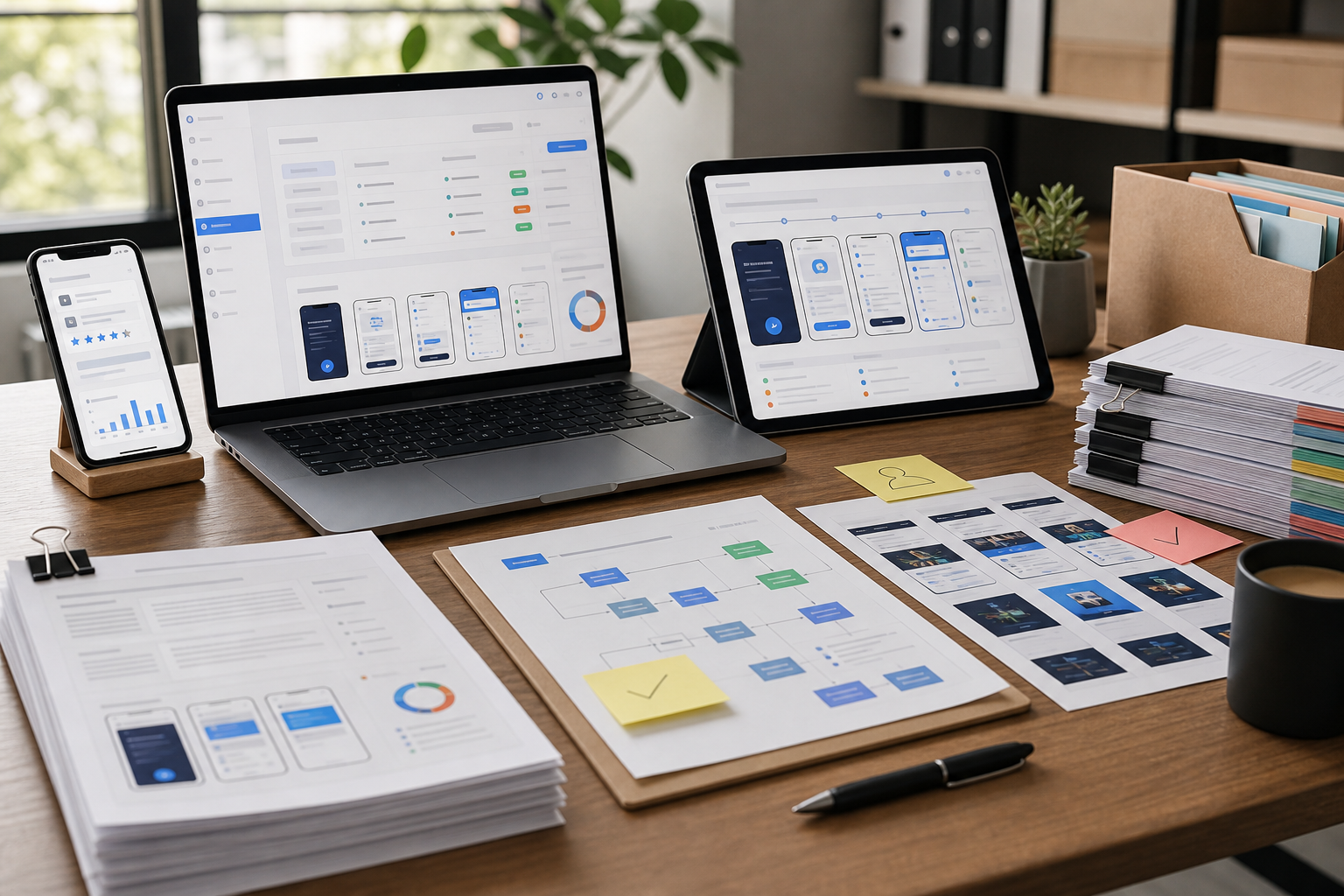
App review problems often look like engineering problems, but many of them are evidence problems. A feature works, the policy explanation is reasonable, the account state is legitimate, and the user flow is intentional. The rejection still arrives because the reviewer could not see enough context, could not reproduce the right state, or had to interpret a scattered collection of screenshots, notes, and attachments.
For small SaaS teams shipping mobile apps, this creates an awkward gap. You may not have a release operations role, a compliance designer, or a dedicated submission manager. A product manager, founder, QA lead, or support engineer ends up assembling proof from simulator screenshots, production captures, admin panels, billing states, test credentials, and sometimes signed PDF documentation.
A review evidence packet is a simple answer to that mess. It is a compact set of cleaned screenshots, short notes, and supporting PDFs that explains one review-sensitive area of the app. It does not replace the app submission form or the official review notes. It gives your team a repeatable way to prepare the visual proof behind those notes.
This guide focuses on a practical browser-based workflow: collect the evidence, clean the screenshots, standardize image size and format, convert image groups into PDFs when needed, merge supporting material, and keep a small audit trail so the next release is easier.
When This Workflow Is Worth Using
You do not need a full evidence packet for every release. A typo fix, minor UI polish release, or routine dependency update can usually move through normal submission notes. The packet becomes useful when a reviewer may need context that is hard to communicate in a single sentence.
Use this workflow when the release touches account access, subscriptions, payments, permissions, moderation, medical or financial disclaimers, user-generated content, login-gated features, marketplace listings, or any feature that behaves differently depending on account state. It is also useful when a previous review was rejected and your team needs to show exactly what changed.
The goal is not to overwhelm the reviewer with material. The goal is to make your own submission notes more precise and make internal release handoff less fragile. If your release manager, developer, and support lead can all understand the same packet in two minutes, you have probably built the right level of detail.
A good packet is especially helpful for teams where production reality is more complex than the demo path. For example, a B2B app may have trial users, paid users, suspended users, invited users, admin users, and external collaborators. A consumer app may have a first-run state, a denied-permission state, an upgraded state, and a region-specific state. Screenshots let you explain those states without turning the review notes into a long essay.
What Belongs in a Review Evidence Packet
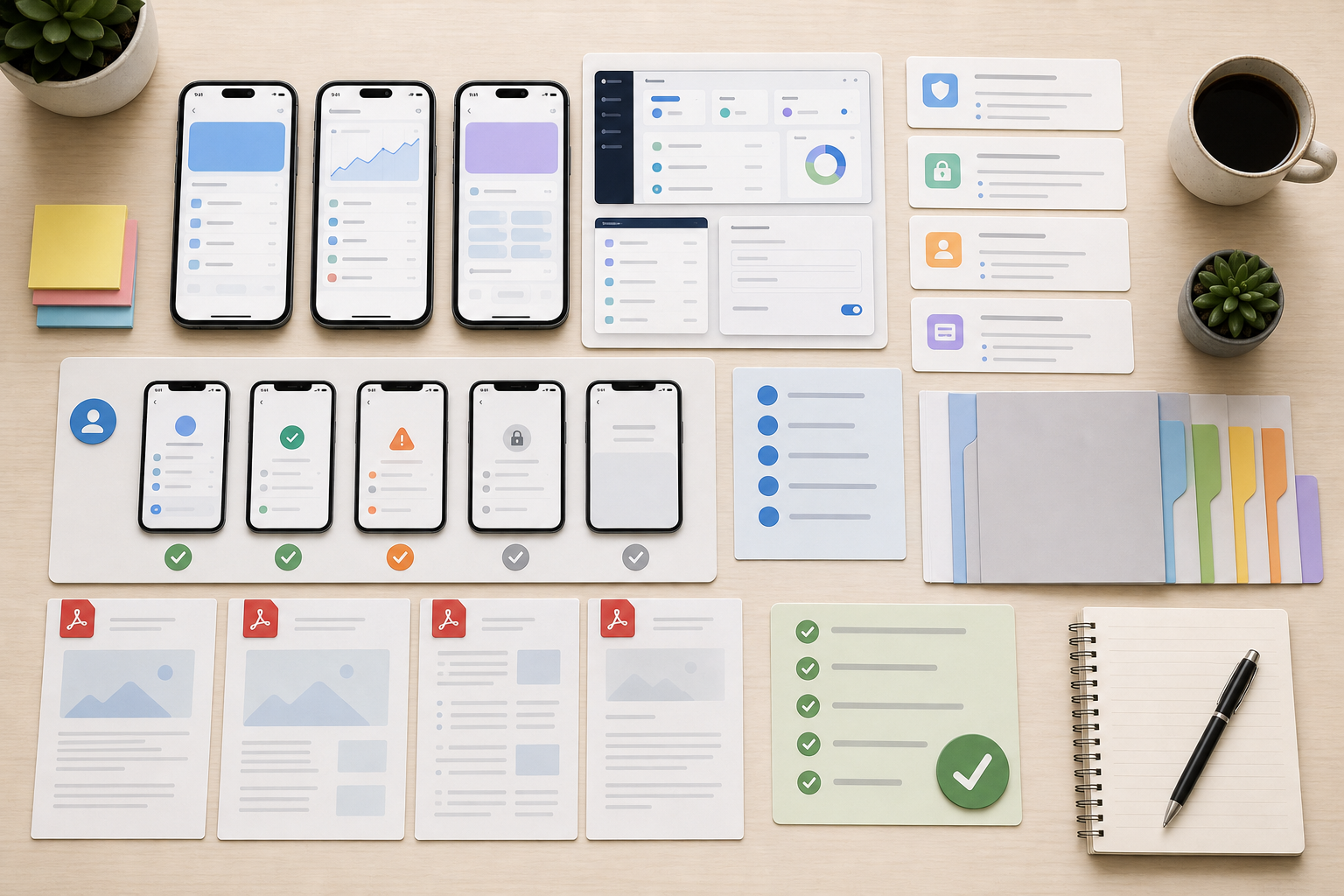
A review evidence packet should be narrow. One packet should explain one review-sensitive topic, not the whole product. If you try to document every screen in the app, the packet becomes a second app manual, and nobody will maintain it.
Start with these asset groups:
| Evidence type | Use it for | Keep it concise by |
|---|---|---|
| Entry screenshots | Showing where the reviewer starts | Capturing the first visible screen after login or onboarding |
| State screenshots | Showing the exact feature, permission, or account condition | Including only the screens needed to understand the state |
| Transition screenshots | Showing what happens before and after an action | Limiting to key steps, not every tap |
| Admin or backend proof | Showing configuration, entitlement, or approval state | Cropping to the relevant panel and removing unrelated data |
| PDF support material | Showing signed policy docs, review letters, or external approvals | Merging only the pages that apply to the release |
| Short notes | Explaining the purpose of each group | Writing plain English captions outside the image, not inside it |
Do not put confidential customer data, private account records, access tokens, production secrets, or unnecessary employee information into the packet. Even if the packet is for internal use, it will often be copied into tickets, shared with support, or referenced during a rushed release window. Treat it like something that may travel.
A small packet might contain six mobile screenshots and a one-page PDF. A larger packet for a complex subscription or permission issue might contain fifteen screenshots, two cropped admin captures, and a merged PDF with supporting policy material. If it needs more than that, split it into separate packets by topic.
Naming the Packet Before You Edit Anything
The easiest way to lose time is to start editing screenshots before deciding what the packet is about. Give the packet a name first. The name should include the release, platform, feature area, and reason.
Good examples:
ios-4-8-subscription-upgrade-review-evidenceandroid-2-3-location-permission-context-packetios-5-1-moderation-reporting-rejection-followupandroid-3-0-invite-only-login-demo-state
Avoid vague names like review screenshots, app store stuff, or latest evidence. These names become useless after the next release.
Inside the packet folder, use simple subfolders:
rawfor unedited screenshots and PDFscleanfor edited imagespdffor generated and merged PDF filesnotesfor the short explanation file or release ticket copy
This structure matters because the raw captures are your fallback. If a crop is too tight, a compression setting is too aggressive, or someone asks for the original context, you can return to the untouched file without retaking every screenshot.
Capture Rules for Review-Safe Screenshots
A strong packet starts before editing. If the screenshots are inconsistent, dark, cluttered, or full of unrelated data, cleanup becomes slower and less reliable.
Use one device size per flow where possible. Mixing a small phone, tablet, simulator, and production device in the same sequence makes the packet harder to scan. If you need both phone and tablet evidence, separate them into their own groups.
Capture the full screen when the surrounding context matters. Capture a cropped region only when the rest of the screen contains private data or irrelevant UI. For mobile app review evidence, full-screen captures are usually better for user flows, while cropped captures are better for backend configuration proof.
Before taking screenshots, reset temporary visual noise. Close debug banners, dismiss development toasts, remove notification overlays, and avoid capturing the keyboard unless the keyboard state is relevant. If you use a simulator, set a stable status bar state when your tooling allows it.
For flows involving permissions, capture the app screen before the permission prompt, the permission prompt itself if allowed by your process, and the app state after the user chooses the expected option. This three-step pattern is much clearer than a single screenshot of a settings screen.
For account states, use dedicated test accounts. Do not use real customer data to prove a review scenario. If a realistic account is required, seed a test account with safe sample data that resembles production structure without exposing production records.
The Screenshot Cleanup Pass
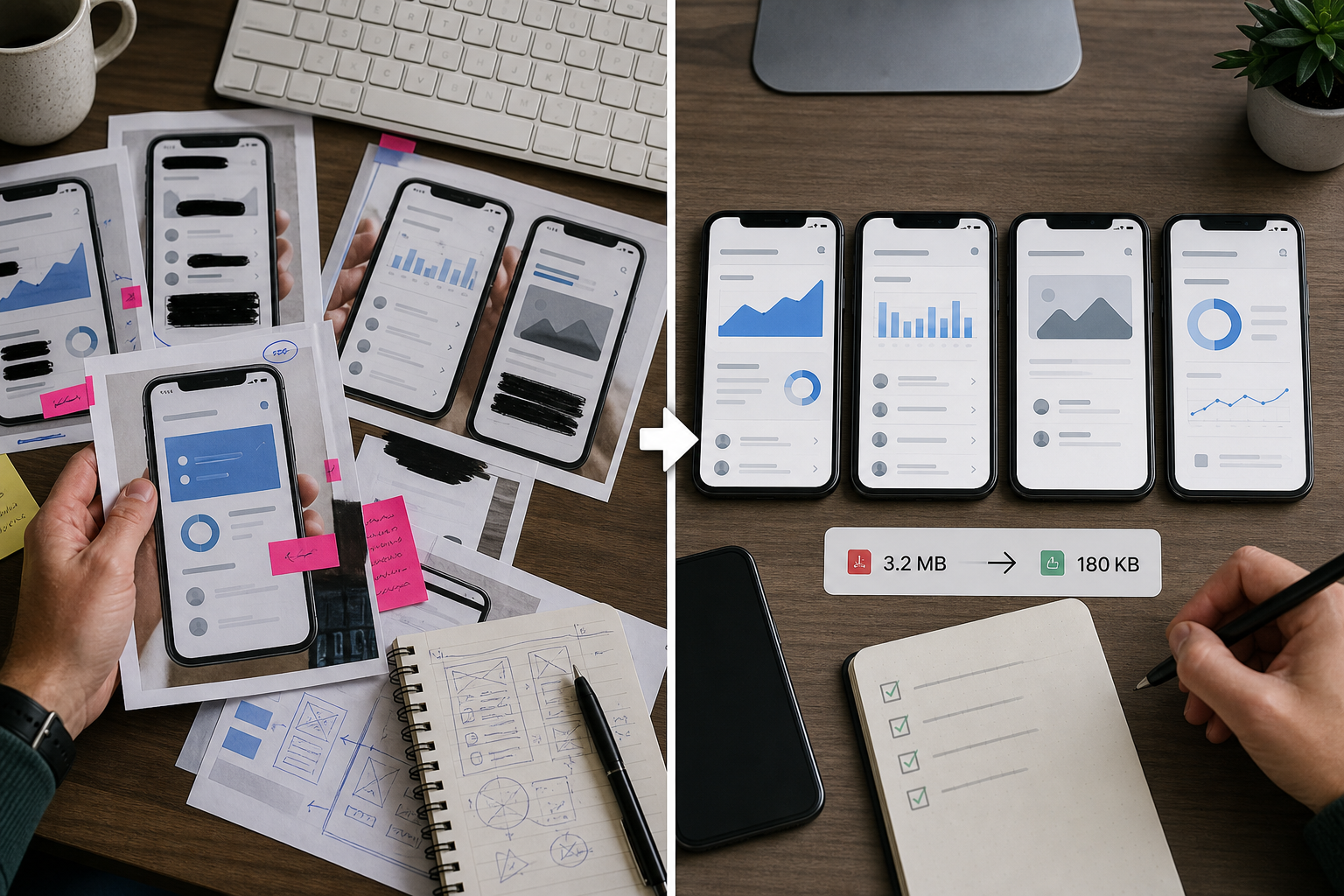
The cleanup pass is where the packet becomes readable. The goal is not to make marketing screenshots. The goal is to remove distractions, protect sensitive details, and keep the evidence faithful to the product.
Start by cropping only what is unnecessary. If the screenshot shows a mobile screen, keep the full app frame unless the edges contain unrelated desktop material from a simulator or capture tool. If the screenshot shows an admin dashboard, crop to the relevant panel but leave enough surrounding UI to prove where the setting lives.
Next, redact private details. Use solid blocks or clean replacements for names, emails, phone numbers, account IDs, tokens, internal URLs, and anything that would be unsafe in a ticket attachment. Do not blur small secrets. Blur can sometimes be reversed poorly, and it often looks messy after compression. A solid redaction is clearer.
If a screenshot has a small visual defect that would distract from the evidence, use a careful cleanup tool rather than retaking the entire flow. For example, a stray cursor, a simulator toolbar edge, or a temporary overlay can often be removed with the AI photo editor. Keep these edits conservative. Do not change the meaning of the interface, the result of a user action, or the visible policy-relevant state.
Then normalize the dimensions. If screenshots come from different devices, use resizing only when it helps the packet scan cleanly. The resize image tool is useful for making a set of captures consistent before building a PDF or uploading them to a ticket. Keep the aspect ratio intact unless there is a deliberate reason to crop.
Finally, compress the cleaned images. App screenshots often contain thin UI lines and small text, so aggressive compression can damage the very evidence you are trying to show. Use image compression to reduce file size, but inspect the result at normal zoom and at 200 percent. If small labels, toggles, or badges become fuzzy, back off the compression setting.
A practical cleanup checklist:
- Keep raw originals untouched.
- Crop desktop chrome, not app context.
- Redact secrets with solid shapes.
- Preserve all policy-relevant UI states.
- Resize consistently across a sequence.
- Compress only after crop and redaction.
- Reopen the final files before adding them to the packet.
Choosing Image Formats Without Overthinking It
Most teams waste time debating image formats at the wrong level. For review evidence packets, the format choice should follow the content.
Use PNG for screenshots with crisp UI text, icons, table lines, and flat interface colors. PNG files can be larger, but they preserve fine edges well. If the screenshot is the main proof, clarity matters more than squeezing every kilobyte.
Use JPEG for photo-heavy evidence, such as site photos, physical packaging, device photos, or real-world proofs. A JPEG is usually smaller for photographic content and good enough when text is not the main evidence.
Use WebP when your internal tools and submission workflow handle it cleanly. WebP can produce compact files, but it can create friction if someone later needs to paste the image into a PDF editor, legacy ticket system, or review form that expects PNG or JPEG. When compatibility matters, keep PNG and JPEG as the default.
If you need to switch formats for consistency, use convert image after cleanup. Format conversion should usually be the last image step before PDF assembly or upload. Converting early can create duplicates that are hard to track.
For most app review packets, a simple rule works well: PNG for interface screenshots, JPEG for camera photos, PDF for assembled evidence.
Turning Image Groups Into PDF Pages
A PDF is useful when the evidence needs to travel as one file. It is easier to attach one organized PDF to an internal review ticket than to attach twenty images and hope everyone opens them in the right order.
Use image to PDF when you have a sequence of cleaned screenshots that should be read together. Before converting, order the filenames with numbers:
01-login-entry.png02-subscription-screen.png03-upgrade-confirmation.png04-entitlement-active.png05-settings-access.png
The numbers are not decoration. They prevent accidental reordering when files are sorted alphabetically, dragged into a browser, or uploaded from another operating system.
For each PDF page, aim for one major screenshot or one small group of closely related screenshots. Do not cram nine phone captures onto one page unless the goal is a quick visual index. Review evidence should be readable without zooming constantly.
If you have notes, keep them outside the images when possible. A short text page at the start of the PDF can explain the packet better than tiny captions embedded under screenshots. Embedded text can become hard to read after compression and may be missed by people scanning thumbnails.
A good first page includes:
- Release version and platform.
- Feature or policy area.
- Date prepared.
- Test account type, without credentials.
- One-sentence summary of what the packet proves.
Keep credentials, private reviewer instructions, and sensitive operational details in the official secure review fields or internal release system, not in a widely shared PDF.
Merging Supporting PDFs Cleanly
Some app review scenarios involve documents that already exist as PDFs: policy acknowledgments, content rights confirmations, safety review notes, medical disclaimers, educational approvals, or partner documentation. These should not be mixed randomly with screenshots.
First, remove irrelevant pages from supporting PDFs before merging. If a partner agreement is fifty pages and only two pages relate to the release, do not attach the whole document unless your legal or operations process requires it. Large unrelated documents slow everyone down and increase privacy risk.
Then merge the generated screenshot PDF with the supporting documents using PDF merge. Put the screenshot explanation first, then the supporting documents. The reviewer or internal stakeholder should understand why the documents are included before seeing them.
A useful order is:
| Section | Purpose |
|---|---|
| Cover note | Explains the packet in plain English |
| App screenshots | Shows the actual user-facing flow |
| Admin or configuration captures | Shows account state or feature configuration |
| Supporting PDF pages | Provides external or formal proof |
| Change record | Notes what changed since the previous rejection or release |
If the merged PDF becomes too large, compress the image files before PDF generation rather than repeatedly compressing the final PDF. Recompressing a PDF again and again can make screenshots soft and harder to read.
Using OCR as a Quality Check
OCR is not only for extracting text from scanned documents. It can also be used as a quality check for review evidence. If OCR cannot read important labels in your cleaned screenshot, a human reviewer may struggle too, especially after the image is pasted into a ticket or compressed by another system.
Run key screenshots through image OCR when small text matters. You are not trying to create a perfect transcript. You are checking whether important labels, warnings, plan names, permission explanations, or status messages remain legible.
This is especially useful for:
- Subscription plan screens with small legal text.
- Permission education screens.
- Safety or moderation notices.
- Account status banners.
- Backend configuration captures.
- Receipts or invoice screenshots.
If OCR misses the critical text, inspect the image at normal size. The issue may be low resolution, over-compression, poor crop boundaries, or a screenshot taken from a scaled browser window. Fix the image before adding it to the packet.
OCR can also help you find accidental private data. Paste the extracted text into a temporary scratch note and search for email signs, phone patterns, user IDs, or internal domain names. Do not keep that scratch note unless it belongs in your internal process.
A Practical Packet Workflow From Start to Finish
Here is a complete workflow a small team can use during release week.
1. Define the review question
Write one sentence that explains the reason for the packet. For example: "This packet shows that invited users can access read-only project data without seeing billing settings." If you cannot write that sentence, the packet scope is probably too broad.
2. List the required states
Identify the states that must be visible. A subscription flow might need trial, upgrade screen, successful purchase state, and entitlement access. A permission flow might need pre-permission education, system prompt context, denied state, and enabled state.
3. Capture raw evidence
Take screenshots in order. Save them immediately into the raw folder. Do not rename them creatively yet; just make sure nothing is missing.
4. Remove unsafe or irrelevant content
Crop, redact, and clean the screenshots. Use conservative edits. If a screenshot needs heavy alteration to be shareable, retake it with a safer test account instead.
5. Standardize size and format
Resize related captures to a consistent width. Convert files only when needed. Keep interface evidence crisp.
6. Compress with inspection
Compress final images, then reopen them. Look at small labels, icons, dividers, and status chips. The packet is only useful if the proof remains readable.
7. Assemble the PDF
Convert image groups into a PDF, merge supporting documents, and check the final page order. The first page should explain the purpose without forcing someone to inspect every screenshot.
8. Store the packet with the release
Attach the final packet to the release ticket, review task, or internal changelog. Keep raw files nearby but do not attach them everywhere by default.
9. Reuse the structure, not the content
For the next release, copy the folder structure and checklist, not old screenshots. Old evidence can mislead a reviewer if the UI or policy behavior changed.
Decision Table: Screenshot, Image PDF, or Merged Packet?
Not every situation needs the same output. Use this table to choose the lightest format that still explains the issue.
| Situation | Best output | Why |
|---|---|---|
| One visible UI fix | Single cleaned PNG | Fast to inspect and easy to attach |
| Three-step user flow | Ordered image PDF | Preserves sequence and context |
| Rejection follow-up with documents | Merged PDF packet | Connects screenshots with supporting proof |
| Backend configuration proof | Cropped PNG plus short note | Avoids exposing unrelated admin data |
| Policy-sensitive feature launch | Full evidence packet | Creates internal alignment before submission |
| Large set of raw QA captures | Do not send as-is | Needs selection, redaction, and ordering first |
The best output is the one a tired reviewer or teammate can understand quickly. More files do not mean more clarity.
Common Mistakes That Make Packets Hard to Trust
The most common mistake is editing screenshots so heavily that they look like mockups. Review evidence should look like the actual app. Clean edges and redactions are fine. Rewriting UI copy, moving interface elements, or painting over meaningful states is not.
Another mistake is mixing production and staging evidence without labels. If a screenshot comes from staging, say so in the packet note. If it comes from production using a test account, say that too. Ambiguous environments create unnecessary back-and-forth.
Teams also forget to show the entry point. A screenshot of a final state may prove that a feature exists, but not how the reviewer reaches it. Include the screen or menu that leads into the feature when discoverability matters.
Over-compression is another quiet failure. A packet can look fine as thumbnails but fail when someone zooms into a small disclosure line. Always inspect the final PDF, not just the source images.
Finally, avoid turning the packet into a policy argument. The packet should support your explanation, not replace it. Keep the official review notes concise and use the packet as backup for the exact visual states.
A Lightweight Template You Can Reuse
You can adapt this structure for a release ticket or a short first page in the PDF:
Packet name: ios-4-8-subscription-upgrade-review-evidence
Prepared for: iOS 4.8 review submission
Feature area: Subscription upgrade and entitlement access
Prepared on: 2026-05-09
Environment: Production app with internal test account
Summary: This packet shows the upgrade entry point, confirmation state, and active entitlement screen after purchase.
Included evidence:
01 Login and account entry
02 Subscription upgrade screen
03 Confirmation state
04 Active entitlement access
05 Account settings visibility
Supporting documents: Subscription terms excerpt, pages 2-3
Privacy notes: Personal data redacted; no production customer records included
Keep the wording plain. The value is in consistency, not legal styling.
Final Review Before Submission
Before the packet is attached or referenced, do a five-minute review with fresh eyes. Open the final PDF or final image group, not the working folder.
Check these points:
- The first page or note explains the packet purpose.
- The screenshots appear in the correct order.
- The app version and platform are clear.
- Sensitive data is redacted.
- The critical UI text is readable.
- The file size is reasonable for your ticketing or submission workflow.
- Supporting documents are relevant and not excessive.
- The packet does not contradict the official review notes.
If the packet was created after a rejection, add a short change record: what was rejected, what changed, and which screenshots show the change. Keep dates specific. A clear change record helps your own team avoid resubmitting the same unclear evidence.
Keeping the Workflow Sustainable
The best review evidence process is boring. It should not require design software, a custom script, or a meeting every time a release touches a sensitive flow. A small set of browser tools, a stable folder structure, and a consistent checklist are usually enough.
ConvertAndEdit tools fit naturally into this kind of release operation because the work moves across formats: screenshots need cleanup, image sizes need standardizing, files need compression, image sequences need PDFs, and PDFs sometimes need merging. The important part is sequencing the steps carefully. Capture first, clean second, standardize third, assemble last.
A well-built packet will not guarantee an approval, and it should not make unsupported claims about what a reviewer will decide. What it can do is reduce ambiguity. It gives your team a shared source of truth, makes review notes easier to write, and helps future releases avoid repeating the same evidence scramble.
For a small SaaS team, that is often enough to turn app review from a last-minute panic into a repeatable release task.