Conference Badge Photo OCR Cleanup: A Field Guide for Sponsor Lead Lists
A practical guide for turning messy conference badge photos into cleaner OCR inputs, with capture tips, crop rules, file checks, and handoff notes for event teams.

Conference Badge Photo OCR Cleanup: A Field Guide for Sponsor Lead Lists
Sponsor teams often leave an event with a camera roll full of badge photos. Some are sharp. Some are tilted. Some have glare from plastic sleeves. Some include two badges, a coffee cup, half a booth counter, and a thumb. The next problem comes later: someone tries to turn those photos into a usable lead list, and optical character recognition struggles with names, companies, titles, and email addresses that looked readable in the moment.
This guide is for small event teams, field marketers, booth staff, association volunteers, and sales operations people who need a practical way to clean up badge photos before extracting text. It is not a replacement for a dedicated badge scanner, CRM app, or consent policy. It is a practical rescue method for the very common situation where the source material is a set of ordinary images captured during a busy event.
The goal is simple: make each badge image boring, centered, readable, and consistent before OCR. A clean image will not magically fix a missing email address or a badly printed badge, but it can reduce preventable errors and make review faster. Tools like Image OCR, Resize Image, Compress Image, and Image to PDF are useful at different points, depending on whether your next step is text extraction, manual review, or a shareable packet for another team.
Why Badge Photos Are Harder Than Normal Documents
A conference badge looks simple, but it is a difficult OCR target. It is usually a small object photographed under imperfect lighting, often inside a glossy holder, often with mixed typography. A single badge may contain a large first name, a smaller full name, a company, a job title, a booth or session code, a QR code, a sponsor mark, an event logo, and a color stripe that tells staff something meaningful at the venue but confuses extraction later.
Unlike a scanned page, a badge photo rarely has a clean rectangular boundary. It may be hanging from a lanyard, turned slightly, curved by the plastic sleeve, or partially covered by the clip. The camera may focus on the person or the table instead of the badge. Background clutter can introduce extra text from booth signage, flyers, tablecloth branding, or nearby badges.
OCR engines are good at reading clear text. They are less good at deciding which text matters when an image contains ten competing regions. Your cleanup task is not to make the picture prettier. It is to remove ambiguity.
The Badge Photo Problems That Break OCR
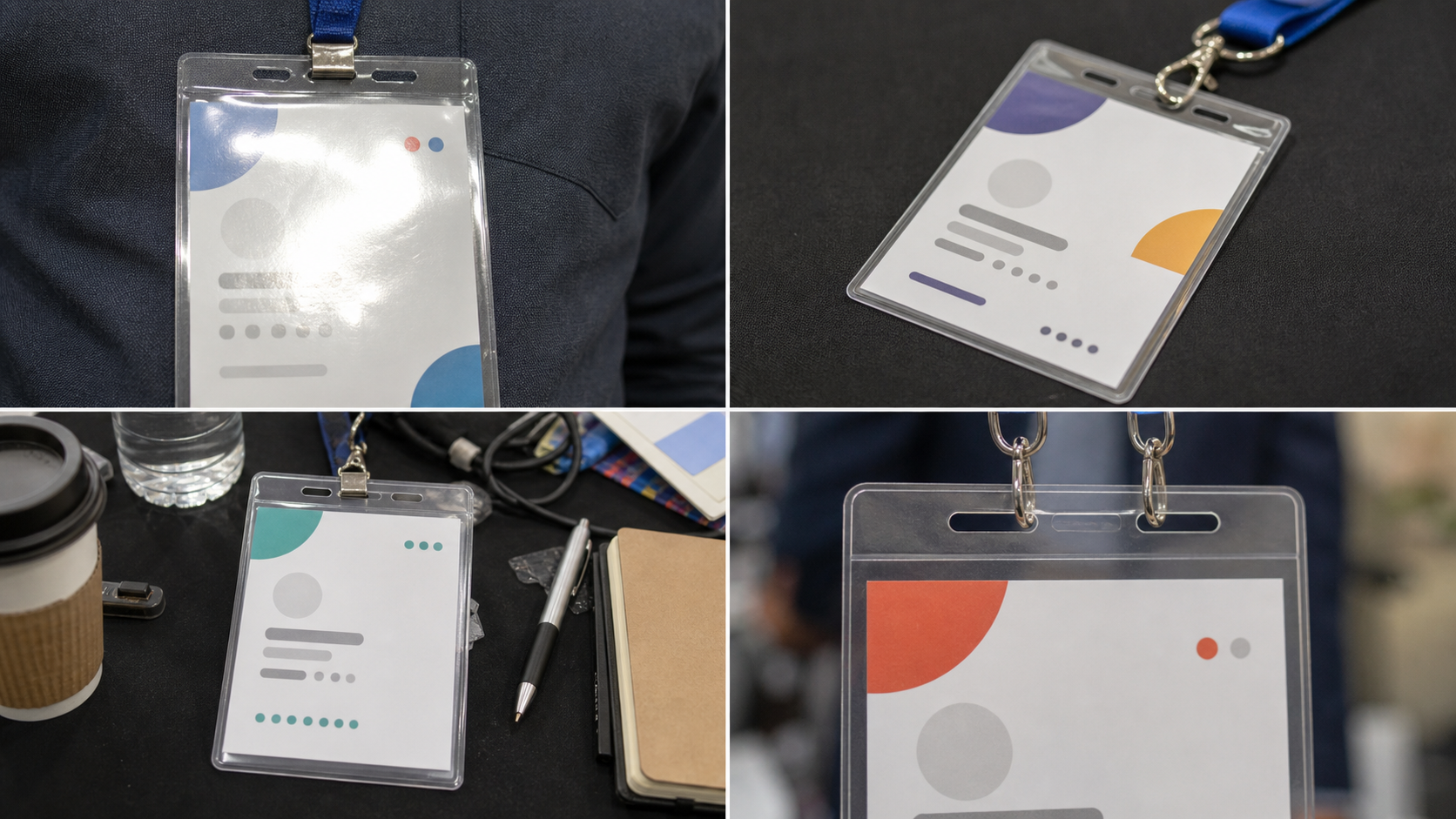
Before editing anything, sort the images by failure type. This is faster than treating every photo as unique. Most messy badge images fall into a small number of repeatable categories.
| Problem | What it does to OCR | Best first action |
|---|---|---|
| Glare on plastic sleeve | Hides letters or creates bright streaks that split words | Retake if possible; otherwise crop tightly and increase local contrast carefully |
| Badge photographed at an angle | Warps line spacing and makes text look uneven | Straighten and crop before extraction |
| Multiple badges in one frame | OCR mixes names and companies | Split into one image per badge |
| Busy booth background | Pulls in unrelated text from signs and flyers | Crop aggressively around the badge |
| Low resolution | Makes small company names and emails unreadable | Use the original image, not a chat-compressed copy |
| Motion blur | Smears thin strokes in names and titles | Retake if possible; sharpening only helps slightly |
| Over-compression | Creates blocky artifacts around letters | Re-export at a higher quality or use the original source |
| Dark badge holder shadow | Reduces contrast at the edges | Adjust brightness and contrast before OCR |
The highest-value cleanup is almost always cropping. If the badge fills only 20 percent of the frame, the OCR tool has to inspect a large amount of irrelevant material. If the badge fills most of the image and is upright, the extraction result usually becomes easier to review even when the photo is not perfect.
Capture Rules for the Next Event
If you still have a chance to influence how the images are captured, set a few simple rules for booth staff. These rules should fit on a note in the team chat before doors open.
Hold the badge flat. Plastic sleeves bend, rotate, and catch light. If the attendee is comfortable with it, ask them to hold the badge still at chest height or place it on the booth counter for a moment. Avoid photographing the badge while it swings from a lanyard.
Fill the frame with one badge. Leave a little margin around all sides, but do not include the attendee, the booth wall, or surrounding paper unless that context is needed for another reason. One badge per image is much easier to process than a group shot.
Tap to focus on the smallest useful text. The large first name may look sharp even when the email or company line is soft. Focus should favor the smallest text you expect to extract.
Turn off harsh flash when it creates glare. Flash can help in dim rooms, but it often bounces off badge sleeves. If flash creates a white stripe through the name or company, move under better ambient light or angle the badge slightly while keeping it readable.
Keep the camera parallel to the badge. A small angle is fine, but avoid diagonal photos that make the top of the badge much wider than the bottom. Perspective distortion is a common reason small text is misread.
Do not rely on screenshots of messaging apps. When booth staff send badge photos through chat apps, the platform may resize or compress them. Ask for original files whenever possible, especially for end-of-day processing.
These capture rules are plain, but they save the most time. Cleanup can improve a usable photo. It cannot recover letters that were never captured clearly.
A Practical Cleanup Pass Before OCR
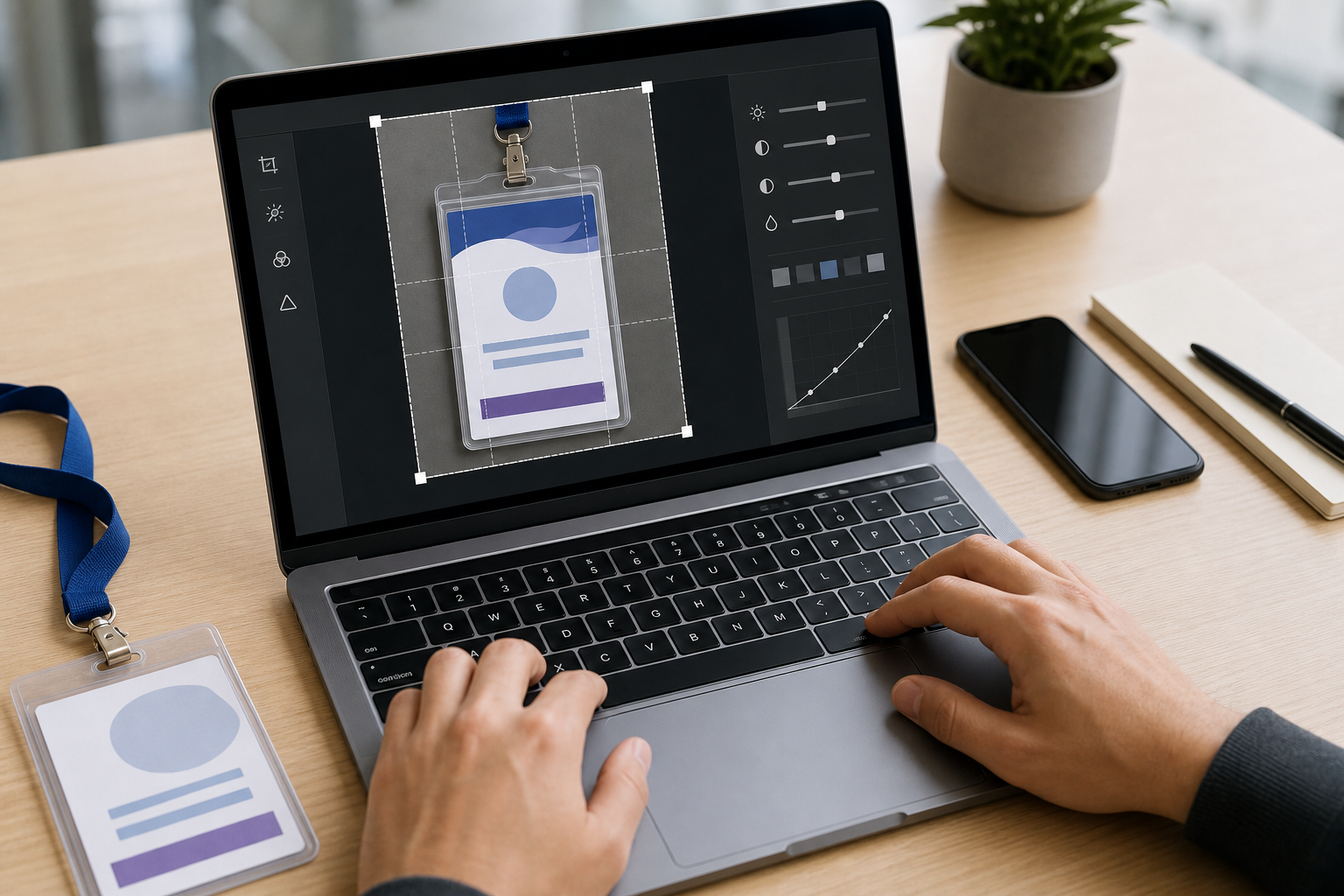
Start with a copy of the original images. Keep the untouched originals in a dated folder. Then create a working folder for cleaned images. This protects you from accidental over-editing and gives your team a fallback if a crop or export setting turns out to be too aggressive.
Step 1: Remove Non-Badge Space
Open each photo and crop around a single badge. Include the full printed area, not just the name. Leave a narrow margin so the OCR engine can detect boundaries, but remove tables, hands, signs, other badges, and lanyards when they are not needed.
For a photo with two badges, create two separate cropped images. Do not hope the OCR tool will separate them correctly. If two people are in one frame, their names and companies can merge into a single inaccurate record.
A good crop should make the badge feel like the subject, not an object somewhere inside a room photo. If the badge text is vertical because the phone was rotated, rotate the image before OCR.
Step 2: Straighten the Badge
If the badge is tilted, straighten it enough that the main text lines are horizontal. OCR tools can handle some rotation, but clean horizontal lines reduce review time. Straightening also helps when the badge has a name in large type and supporting fields in smaller type.
Do not over-correct perspective unless the image is badly skewed. Heavy perspective edits can stretch letters and make the smallest text worse. A modest straighten is usually better than an aggressive transformation.
Step 3: Improve Contrast Without Crushing Detail
Badge photos often have gray shadows, dim hall lighting, or glossy glare. Increase brightness and contrast gently. The target is readable letter edges, not a dramatic image. Avoid pushing the background to pure white if it causes thin letters to disappear.
If the badge uses pale gray text for job titles or company names, be conservative. Many event badges look clean to the eye but use low-contrast design choices that are fragile under editing.
Step 4: Resize Only When Needed
OCR benefits from enough pixel detail. If your cropped badge is tiny, avoid making it smaller. If your image is extremely large, resizing can make uploads faster, but do not shrink the badge until small text becomes hard to inspect at 100 percent zoom.
A practical rule: after cropping, the badge should still be large enough that the smallest useful text is readable on a laptop screen without zooming heavily. If you need to normalize image dimensions before upload, Resize Image can help, but keep readability ahead of neat file sizes.
Step 5: Compress After Review, Not Before Extraction
Compression is useful for sharing image sets or archiving cleaned files, but compression before OCR can damage letter edges. If you need smaller files, test one or two examples first. Look closely at company names, email addresses, and small title lines.
Use Compress Image after the OCR pass when your main concern is storage or transfer size. If compression must happen earlier, use settings that preserve crisp text and avoid repeated save cycles.
File Naming That Makes Review Faster
Badge cleanup is not only visual. File naming affects how easily a human can verify extracted text.
Use a simple pattern that carries event context and sequence number. For example:
2026-summit-booth-a-001.jpg
2026-summit-booth-a-002.jpg
2026-summit-evening-reception-001.jpg
Avoid names like IMG_4829_final_final.jpg. They do not help anyone connect the image to a session, booth shift, or batch. If several staff members are collecting photos, include a station or collector code rather than a person name when possible.
A consistent file name also helps when an OCR result needs manual correction. If record 037 looks suspicious, the reviewer can open the matching image quickly.
What to Extract and What to Ignore
Not every piece of text on a badge should become a lead field. Before running OCR, decide which fields matter.
| Badge element | Usually useful? | Notes |
|---|---|---|
| Full name | Yes | Verify spelling manually when the name is important |
| Company | Yes | Watch for sponsor logos or venue names being mistaken for company names |
| Job title | Sometimes | Often small, abbreviated, or omitted |
| Yes, if present | Must be reviewed carefully because one wrong character breaks it | |
| Phone | Sometimes | Many badges do not include it; do not infer it |
| Event name | Usually no | Often repeated on every badge and should not become a company field |
| Sponsor marks | No | Common source of false company names |
| QR code text | Only with the right scanner | OCR is not the same as QR decoding |
| Badge type | Sometimes | Terms like speaker, staff, exhibitor, or press may matter |
This decision table prevents over-collection. It also gives the reviewer permission to ignore noisy text. A badge may contain fifteen visible text elements, but your lead list may need only four.
Running OCR on Cleaned Badge Images
Once the images are cropped, straightened, and readable, run OCR on a small test batch first. Ten images are enough to reveal whether the cleanup choices are working. Use Image OCR to extract text from individual badge images or small groups, then inspect the output against the source photos.
Look for repeated errors. If every company name is missing, the crop may be too tight or the company line may be too small. If the event title appears in every record, the crop may include a header area that is visually dominant but operationally useless. If emails are full of mistakes, the source image quality may not be good enough for automation and should be marked for manual entry.
Do not treat OCR output as a finished lead list. Treat it as a draft that reduces typing. Names, companies, emails, and phone numbers deserve human review before import into a CRM, mailing list, or sponsor report.
A Review Pattern That Catches Real Errors
Review extracted text in the same order every time:
- Confirm the image contains one badge.
- Check the full name against the largest name line.
- Check the company against the company line, not against a logo in the background.
- Check the email character by character if present.
- Check whether the job title is useful or too uncertain.
- Mark unreadable fields as blank instead of guessing.
The last point matters. Guessing creates bad records. A blank field is honest and can be followed up later. A guessed email or company name can create bouncebacks, duplicate accounts, or awkward outreach.
When to Use PDF Packets Instead of Loose Images
Sometimes the next person in the chain does not need editable image files. They need a review packet. For example, a sponsor manager may want to scan through all badge images from a dinner event, or an operations lead may need a visual record of captured contacts before the images are archived.
In that case, convert cleaned images into a PDF after the OCR pass. Image to PDF is useful when you want a single file that contains the visual source material. Keep the PDF organized by event segment or booth shift rather than creating one giant file for a multi-day conference.
A PDF packet is best for review and handoff. It is not the best primary source for OCR if you still have the original images. Use the cleanest direct image files for extraction, then make the PDF for people who need to inspect or approve the batch.
Handling Privacy and Consent Without Overcomplicating the Task
Badge photos can contain personal information. Event teams should handle them deliberately. This guide is not legal advice, and different events have different rules, but the operational basics are straightforward.
Capture only what your team has a legitimate reason to process. Do not photograph unrelated attendees in the background when a cropped badge image is enough. Keep originals and cleaned copies in controlled folders. Limit access to people who need to review or process the data. Delete duplicates and unusable photos when they are no longer needed.
If the event has an official lead capture policy, follow it. If your sponsor agreement specifies how attendee data can be used, follow that too. Image cleanup should support responsible handling, not create a side channel around event rules.
Quality Levels: Rescue, Usable, and Clean
Not every badge image deserves the same effort. Sort images into three quality levels so the team does not waste time polishing hopeless files.
| Level | Signs | Action |
|---|---|---|
| Clean | Text is sharp, badge is upright, one badge per image | Crop if needed, run OCR, review quickly |
| Usable | Slight angle, mild shadow, small text still readable | Crop, straighten, adjust contrast, then run OCR |
| Rescue | Blur, glare over key fields, partial badge, tiny text | Try cleanup only if the lead is important; otherwise mark for manual follow-up |
This prevents a common time sink: spending five minutes trying to recover a badge where the company line is simply not visible. For a large event, the best result often comes from processing clean and usable images efficiently, then creating a short exception list for rescue cases.
Common Mistakes That Create Bad Lead Data
The first mistake is cropping too late. Teams often run OCR on full camera images and then wonder why the output contains booth slogans, sponsor names, and random signage. Crop first.
The second mistake is compressing too early. Compression that looks acceptable for viewing may damage the small strokes in email addresses and company names. Use original files for OCR whenever possible.
The third mistake is trusting the largest text. Many badges make the first name huge and the last name smaller. OCR may extract the first name confidently and miss the rest. Reviewers should always compare against the full badge, not just the first line of output.
The fourth mistake is mixing batches. If booth photos, reception photos, speaker badges, and staff badges are all dumped into one folder, review becomes harder. Separate by context. The source context often explains why certain fields are missing or why a badge type matters.
The fifth mistake is importing before cleanup. Once bad OCR output enters a CRM or spreadsheet, cleanup becomes a data problem instead of an image problem. It is faster to improve images and review carefully before import.
A Field Checklist for Event Teams
Use this checklist when preparing badge photos for OCR:
- Keep original badge photos in a separate folder.
- Remove duplicates and obvious non-badge images.
- Split multi-badge photos into one image per badge.
- Crop out booth clutter, signage, hands, and table objects.
- Rotate and straighten the badge before extraction.
- Preserve enough resolution for small text.
- Avoid compression until after OCR review.
- Run a small OCR test batch before processing everything.
- Review names, companies, and emails against the image.
- Mark uncertain fields as blank instead of guessing.
- Create a PDF packet only when a visual handoff is useful.
- Store and delete files according to the event data rules.
This is intentionally plain. Badge OCR cleanup succeeds when the process is consistent, not when the edits are fancy.
Example: Turning a Messy Badge Batch Into a Reviewable List
Imagine a two-person sponsor team collects 180 badge photos during a trade show. The photos come from two phones. About 120 are clean enough to read immediately, 40 are tilted or cluttered, and 20 are blurry, glared, or missing key fields.
A practical pass might look like this:
First, create folders for originals, cleaned images, OCR output, and exceptions. Copy all photos into originals and never edit those directly.
Second, remove accidental images: booth selfies, product shots, blank tables, and duplicates. This may reduce the set from 180 to 165.
Third, crop all remaining images to one badge each. If five photos contain two badges, split them into separate files and number them clearly. The set might become 170 cleaned badge images.
Fourth, straighten the tilted images and adjust contrast only where needed. Do not spend time beautifying clean images.
Fifth, run OCR on 15 examples. If the output looks reasonable, continue with the rest. If company names are consistently missing, inspect whether the crop or image size is the issue before processing the full batch.
Sixth, review the extracted text against the image. Clean records move forward. Uncertain records go into an exception sheet with the image file name and a note such as email unreadable or company hidden by glare.
Finally, create a PDF packet from the cleaned images if a sponsor lead needs visual review. The PDF is a reference, while the reviewed spreadsheet is the working lead list.
Where ConvertAndEdit Fits
For this kind of task, use tools in a simple order. Start with image cleanup decisions, not file conversion. Crop and rotate in your preferred editor if you already have one. Use Resize Image when you need consistent dimensions without losing readable detail. Use Image OCR after the badge image is focused on the text that matters. Use Compress Image only after you have verified that the extracted text is acceptable or when the images are being archived. Use Image to PDF when the cleaned visual record needs to be handed to another person as one document.
The important idea is sequencing. OCR should see the clearest, least cluttered version of the badge. Reviewers should see file names and images that make verification fast. Shared packets should come after the extraction and review stage, unless the packet itself is the deliverable.
Final Notes
Conference badge photo OCR is a cleanup and review task, not a one-click data capture miracle. The best results come from boring source images: one badge, straight, close, sharp, and free of surrounding text. If the capture is messy, the next best move is to crop away ambiguity, preserve letter detail, and review the OCR output with a clear standard for uncertainty.
For sponsor teams and event operators, the payoff is practical. Cleaner badge photos reduce typing, reduce false company matches, and make lead review less chaotic after the event. The method is simple enough to use after a long show day, but structured enough to keep a shared lead list from becoming a pile of guesses.