PCB Silkscreen Photo OCR Cleanup: A Practical Guide for Electronics Repair Notes
A practical guide for turning messy circuit board photos into readable OCR notes, searchable repair records, and clean PDF handoffs without losing tiny labels.
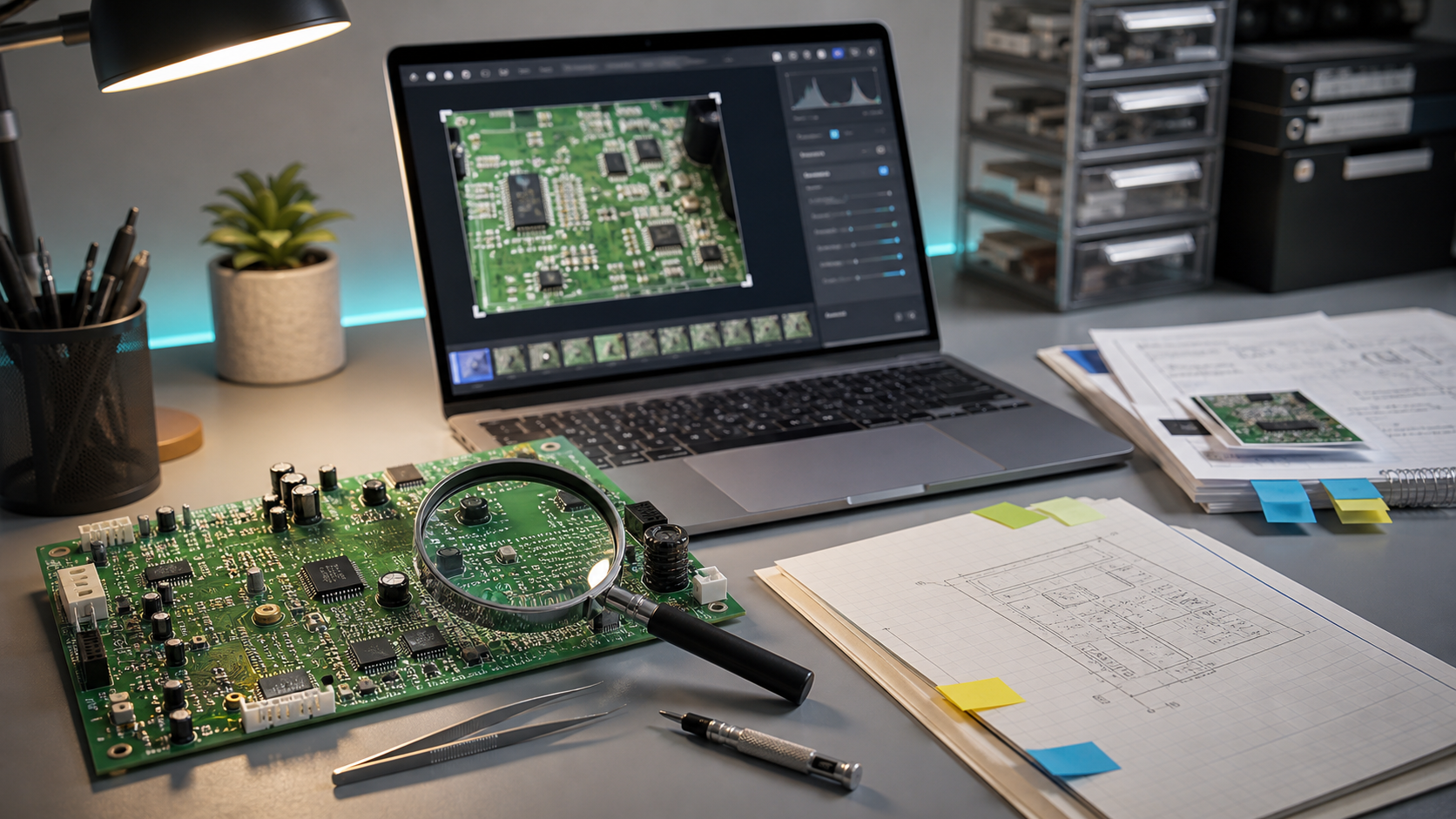
PCB Silkscreen Photo OCR Cleanup: A Practical Guide for Electronics Repair Notes
Circuit board photos are some of the hardest images to turn into reliable text. The labels are tiny, the surface is reflective, components cast shadows, and a single board can mix white silkscreen, copper pads, black chips, handwritten stickers, and manufacturer logos in one crowded frame. Yet those little markings matter. A repair note that says “replace capacitor near U12” is much less useful if U12 is blurry, cropped off, or misread as U1Z.
This guide is for repair shops, refurbishers, electronics hobbyists, lab technicians, and small hardware teams who need cleaner documentation from board photos. The goal is not to make a beautiful product image. The goal is to capture and prepare board photos so OCR has a fair chance, so humans can verify the output quickly, and so the final notes are searchable later.
You can use this process for failed device teardown notes, donor board catalogs, warranty analysis, rework logs, incoming inspection records, and shared repair packets. ConvertAndEdit tools such as Image OCR, AI Photo Editor, Resize Image, Compress Image, and Image to PDF are useful at different stages, but the real advantage comes from preparing the source image carefully before expecting software to read it.
What Makes PCB Silkscreen OCR Difficult
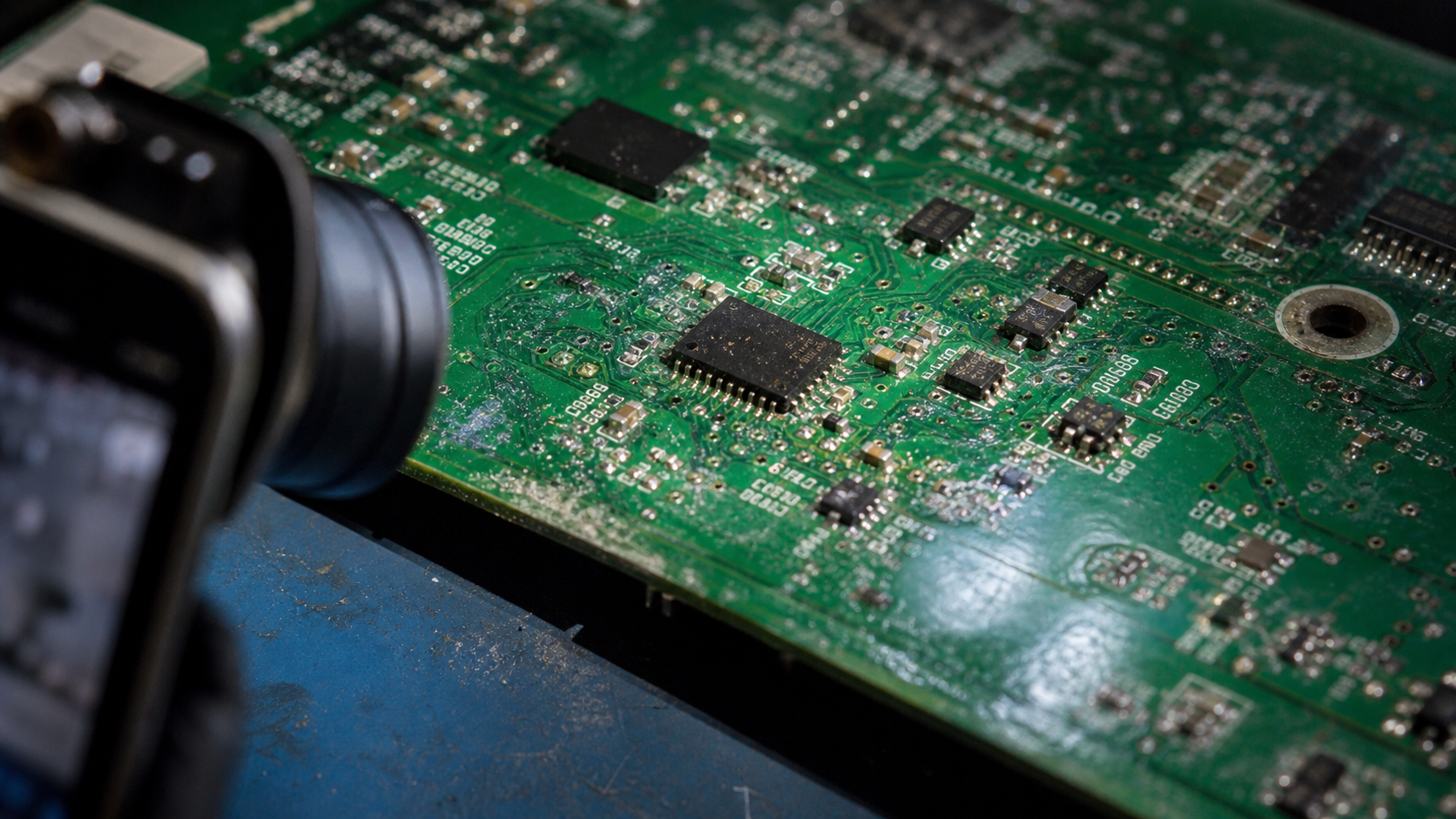
OCR engines are usually trained for documents, signs, receipts, screenshots, and scanned pages. A circuit board is none of those. It has text, but the text behaves like part of a physical object rather than a flat printed page.
The most common problems are small character height, low contrast, mixed orientation, glare, dense visual noise, and interrupted labels. A designator such as R103 may be printed close to a resistor body, a via, a solder mask opening, or a white logo mark. The software has to decide which shapes are letters and which shapes are board geometry.
Silkscreen labels also use compact fonts that can confuse characters. The letter O may look like zero. I, 1, and l may collapse into the same vertical stroke. A partially scratched 8 may become B. If the board photo is taken from an angle, every row of text may have a different distortion level.
There is another issue: PCB photos often contain multiple kinds of useful information. A component marking on an IC package may be important. A silkscreen reference designator may be important. A sticker, barcode, revision code, connector label, fuse rating, or handwritten mark may also be important. Treating every visible mark as equal creates noisy OCR output. The better approach is to decide what you are trying to extract before editing the image.
Start With a Capture Plan
Good OCR cleanup starts before the image reaches an editor. If the original photo is poor, editing can help, but it cannot reconstruct missing strokes or recover text hidden behind glare.
Use a simple capture plan:
- Photograph the board flat, not handheld at a steep angle.
- Use indirect light from two sides instead of one harsh desk lamp.
- Clean dust only if it is safe for the board and your repair context.
- Keep the full board in one image, then take close-ups of dense zones.
- Include orientation clues, such as connector edges or screw holes.
- Avoid digital zoom; move the camera closer if focus allows it.
- Capture the board before and after component removal if labels may be hidden.
For phones, tap to focus on the board surface, not on a tall connector or capacitor. If the phone keeps choosing the wrong focal plane, step back slightly and crop later. A sharp 12 MP photo with extra border is more useful than a close image where half the silkscreen is soft.
For microscopes or inspection cameras, avoid using maximum magnification for every shot. Extreme magnification can create a tiny field of view with no context. A repair log usually needs both context and detail. Capture a full-board reference, then section images such as power input, charging circuit, memory area, connector side, and RF shield region.
Decide What Text You Actually Need
Before cleanup, choose the target text category. This decision changes how you crop, enhance, and verify the image.
| Target text | Best source image | Cleanup priority | Common verification step |
|---|---|---|---|
| Reference designators | Board surface close-up | Contrast and sharpness | Compare with neighboring component layout |
| IC package markings | Chip top close-up | Reflection control | Check manufacturer datasheet patterns |
| Revision codes | Full-board or corner photo | Crop and orientation | Compare to known board revisions |
| Connector labels | Edge close-up | Straightening | Confirm against pin count and placement |
| Sticker or barcode text | Sticker close-up | De-skew and crop | Compare with inventory record |
| Fuse or rating labels | Safety-critical close-up | Preserve original image | Human review before use |
If you only need reference designators, crop out unrelated logos and stickers. If you need package markings, isolate chips and reduce glare. If you need a searchable repair packet, keep one full-board image and add cleaned close-ups for the critical areas.
This prevents a common mistake: running OCR on a large full-board image and accepting a giant list of random fragments. A better result usually comes from several smaller, intentional images.
A Practical Cleanup Pass Before OCR
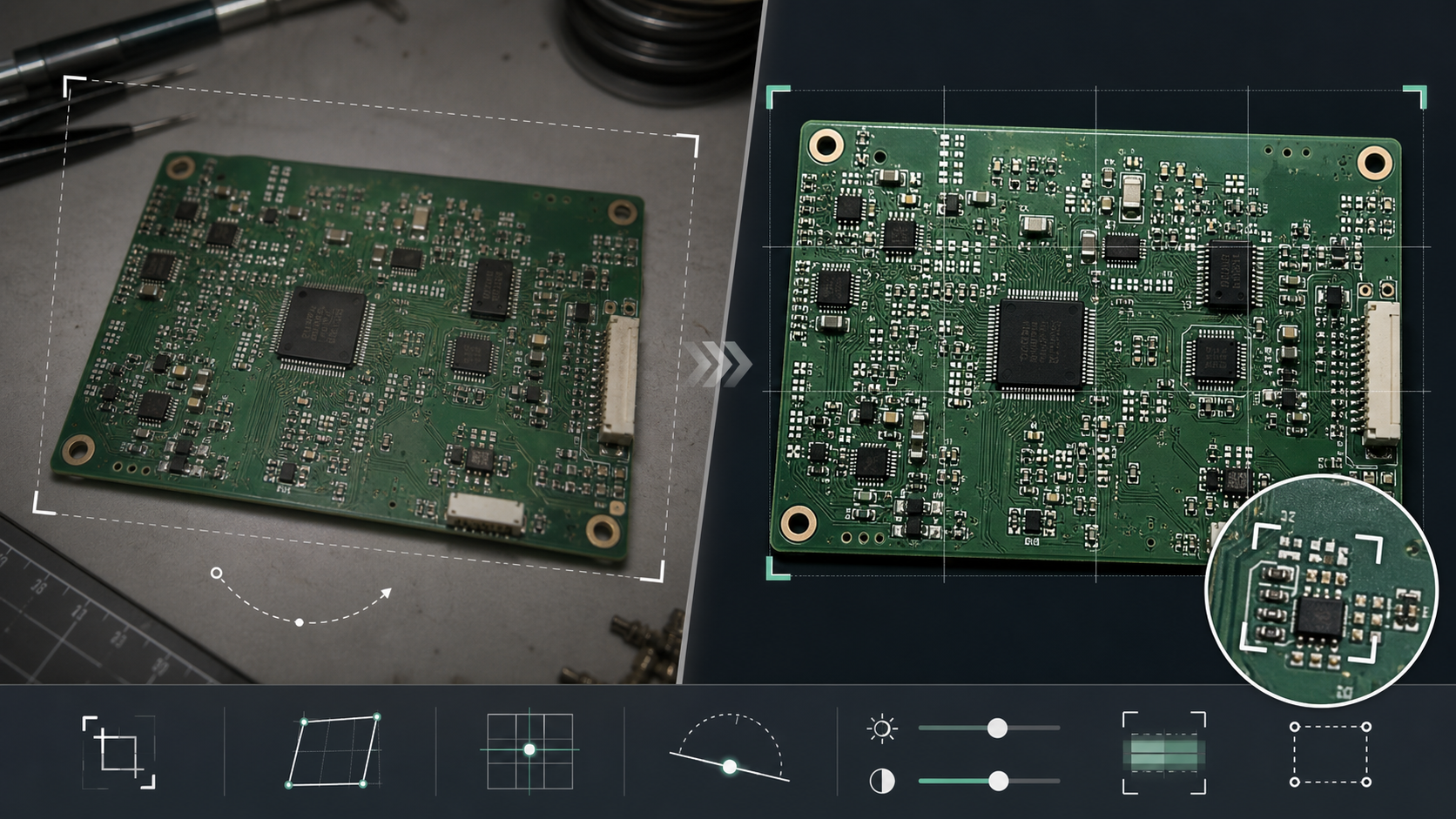
The cleanup pass should make the image easier to read without making it misleading. For repair records, over-editing is a real risk. You want clearer evidence, not an invented version of the board.
Start with cropping. Remove table edges, tools, fingers, mat texture, and empty background. Keep enough surrounding board area to understand where the text sits. A crop that includes one connector, one screw hole, or a distinctive component cluster is easier to verify later than an isolated label floating in space.
Next, straighten the image. PCB edges, connector rows, and component grids provide natural alignment guides. If the board is rotated 7 degrees, OCR may still work, but mixed orientations become harder to inspect. Straightening also helps when you later combine images into a PDF.
Then adjust contrast carefully. White silkscreen on green solder mask often benefits from a modest contrast increase. Black package markings on chips may need a different treatment: reduce highlights first, then increase midtone contrast. Avoid pushing contrast so far that thin strokes thicken into blobs.
If glare is the main problem, try using the AI Photo Editor to reduce reflections or clean distracting surface artifacts. Keep the edit conservative. If the marking is safety-critical, inventory-critical, or part of a fault investigation, preserve the original photo alongside the edited version.
Finally, resize only when needed. If the image is extremely large, use Resize Image to create a manageable working copy, but do not shrink tiny labels until after OCR. For small silkscreen, more pixels are usually helpful as long as the photo is sharp.
Crop Strategy for Dense Board Areas
A full-board photo is useful as a map, but it is rarely the best OCR source. Dense zones need their own crops.
Use these crop types:
| Crop type | Use it for | Keep in frame | Avoid |
|---|---|---|---|
| Full board reference | Orientation and overview | Board outline and major connectors | Expecting perfect OCR |
| Quadrant crop | General designator extraction | One large board section | Cropping through labels |
| Component cluster crop | Repair note details | Target label plus nearby parts | Removing all context |
| Chip marking crop | IC package text | Full chip body and pin direction mark | Strong reflection |
| Edge connector crop | Port and pin labels | Connector outline | Perspective distortion |
For most repair notes, a good set is one full-board reference plus three to eight close-ups. That sounds like more work, but it reduces verification time. Instead of scanning a messy OCR dump, you can check each region against a clear image.
When cropping, leave a margin around the target area. OCR sometimes needs neighboring space to detect character boundaries. A label cropped too tightly may lose the first or last character. For example, “C203” can become “203” if the left side is clipped.
If the board has labels in multiple orientations, create separate crops per orientation. Rotating each crop so the target text reads left to right can improve recognition and makes human review faster.
File Naming That Helps Later
OCR cleanup is not only about image pixels. File names matter because they become the skeleton of your repair record.
Use names that describe board, side, region, and purpose:
| Weak name | Better name |
|---|---|
| IMG_4831.jpg | tablet-mainboard-top-full.jpg |
| board2.png | router-pcb-bottom-power-input-closeup.png |
| chip.jpg | camera-board-u5-marking-cleaned.png |
| ocr-final.png | amp-board-output-stage-designators-ocr-source.png |
Avoid names that depend on memory, such as “good one” or “try again.” If you are documenting multiple units, include a short unit ID or ticket number. If privacy or customer identity matters, use internal IDs rather than names.
Keep originals and cleaned images separate. A practical folder could contain:
originals/cleaned-for-ocr/ocr-text/pdf-packet/
This makes later questions easier to answer. If someone asks whether an edited image changed the visible label, you can compare it to the original.
Running OCR Without Creating a Mess
Once your images are cropped and cleaned, use Image OCR on the best candidates. Start with the most important close-up rather than the whole set. This gives you a quick read on whether your cleanup is strong enough.
After OCR, do not treat the output as finished text. Treat it as a draft extraction. PCB OCR is a helper, not an authority.
Use a three-column review table in your notes:
| OCR result | Human-checked value | Comment |
|---|---|---|
| U1Z | U12 | OCR confused 2 with Z |
| R1O3 | R103 | O should be zero |
| C88 | C8B? | Unclear, needs second photo |
This is especially important for repair instructions. Replacing R103 instead of R108 can waste time or damage a board. If a label is ambiguous, mark it as ambiguous instead of forcing certainty.
You can also run OCR on multiple crops of the same area: one normal, one rotated, one with higher contrast, and one with reduced glare. If three versions agree, confidence improves. If every version differs, the image needs human inspection or a new capture.
Handling Mixed UI Screenshots and Board Photos
Electronics repair notes often mix board photos with screenshots from diagnostic software, firmware tools, thermal camera apps, or oscilloscope captures. These images behave differently.
Screenshots usually have sharp text, flat colors, and predictable alignment. Board photos have texture, glare, and perspective distortion. If you combine both into one record, process them separately.
For screenshots, preserve thin UI lines and small labels. Avoid heavy compression before OCR. If the screenshot is too large for sharing, use Compress Image after text extraction or after creating the final packet, not before reading it.
For board photos, prioritize sharpness, cropping, and glare reduction. If you need to annotate a board photo, keep annotation marks away from the text you want OCR to read. Arrows and circles can be useful for humans but confusing for OCR.
A good repair packet might include:
| Asset | Purpose | Suggested handling |
|---|---|---|
| Full-board photo | Orientation | Clean lightly, no heavy crop |
| Region close-ups | OCR and verification | Crop, straighten, enhance contrast |
| Diagnostic screenshot | Error state | Keep original resolution |
| Thermal image | Heat pattern | Do not over-compress |
| Final PDF | Handoff | Combine only after review |
If you need a single shareable document, convert the selected images with Image to PDF after OCR and review. Put the full-board reference first, then the close-ups, then screenshots, then notes.
Compression Rules for Tiny Labels
Compression is helpful for sharing, but it can destroy the exact details OCR needs. JPEG artifacts around small white letters can turn crisp strokes into noisy blocks. Aggressive compression can also create false shapes that look like characters.
Use this decision table:
| Stage | Compression level | Reason |
|---|---|---|
| Original capture | None or camera default | Preserve evidence |
| OCR source image | Light or none | Keep tiny strokes intact |
| Human review image | Light | Balance clarity and file size |
| Final email attachment | Moderate | Shareable size after text is checked |
| Archive copy | Depends on policy | Keep originals if possible |
If a board photo must be compressed before sharing, inspect the smallest labels afterward at 100 percent zoom. Do not judge only from a zoomed-out preview. A photo can look fine on screen while the silkscreen has become unreadable.
Use Compress Image for final copies, but keep an uncompressed or lightly compressed OCR source whenever the text matters. If you are building a PDF packet, compress the final packet only after checking that labels remain readable.
When AI Cleanup Helps and When It Does Not
AI-based editing can be useful when the issue is glare, uneven background, clutter around the board, or distracting shadows. It can also help prepare a cleaner illustration for a report where the original photo is too messy to understand quickly.
But AI cleanup is not a substitute for verification. For PCB documentation, never rely on an edited image alone for exact component values, safety ratings, serial numbers, or evidence in a dispute. The edit may make an area look cleaner without preserving every tiny stroke exactly.
Use AI cleanup for:
- Reducing background clutter around the board.
- Softening glare that does not cover critical text.
- Making a report image easier to visually scan.
- Creating a cleaner duplicate for presentation.
Avoid AI cleanup as the only source for:
- Confirming resistor, capacitor, fuse, or IC values.
- Reading serial numbers or revision codes.
- Evidence where the original condition matters.
- Ambiguous labels where one character changes the meaning.
A good rule is simple: use edited images to help people see, but keep originals to prove what was captured.
Building the Final Repair Packet
After OCR and review, collect the final assets into a packet that another person can understand without your explanation.
A strong packet order is:
- Cover note with device, board, date, and ticket ID.
- Full-board top image.
- Full-board bottom image if available.
- Close-up crops with reviewed labels.
- Diagnostic screenshots or logs.
- OCR text table with corrections.
- Remaining uncertainties or labels needing recapture.
If you do not have layout software, use Image to PDF to combine selected images into a simple document. If some images need format cleanup first, Convert Image can help standardize them before merging into the final handoff.
Keep the packet readable on a normal laptop screen. Do not pack too many board crops onto one page. The person reviewing the repair should not need to zoom constantly just to read reference designators.
For recurring jobs, create a small checklist:
- Full-board reference captured.
- Important regions cropped.
- Glare checked.
- OCR run on close-ups.
- Ambiguous labels marked.
- Originals preserved.
- Final PDF checked at 100 percent zoom.
- File names include board, side, and region.
This checklist is short enough to use in a small shop but strong enough to prevent most documentation errors.
Common Failure Cases and Fixes
| Problem | Likely cause | Fix |
|---|---|---|
| OCR returns random fragments | Full-board image is too busy | Use smaller region crops |
| Zeros and letters are mixed | Compact silkscreen font | Human-check with nearby context |
| White labels disappear | Overexposure or glare | Recapture with indirect light |
| Text looks thick and muddy | Too much contrast or compression | Use a lighter edit from the original |
| Labels near connectors are distorted | Camera angle is too steep | Recapture flat or crop and straighten |
| OCR misses chip markings | Reflection on package surface | Change light angle and capture again |
| Final PDF is unreadable | Images were scaled down too far | Rebuild with larger crops |
The best fix is often recapture, not more editing. If a label is hidden by glare or blur, a second photo from a slightly different angle is faster than trying five enhancement settings.
A Small Example: Repairing a Charging Board Note
Imagine a shop documenting a tablet charging issue. The board has a USB-C port, a charging IC, several tiny passives, and a burned area near a fuse.
A weak note might say:
“Charging area damaged. Replace fuse and check chip.”
A stronger packet would include:
- Full-board top photo.
- Close-up of USB-C port area.
- Close-up of fuse and nearby labels.
- Close-up of charging IC package marking.
- OCR text table showing F1, U4, C37, R42, and the chip code.
- Comment that R42 is partially obscured and needs confirmation after cleaning.
This turns a vague memory into a usable repair record. If the same model returns later, the shop can search for the board revision, component designator, or chip marking and find the earlier case.
Final Preflight Before You Archive
Before saving or sending the packet, run a final preflight:
| Check | Question |
|---|---|
| Orientation | Can someone tell which side and region this is? |
| Readability | Are the smallest needed labels readable at 100 percent zoom? |
| Evidence | Are original photos preserved? |
| OCR quality | Are uncertain results marked instead of guessed? |
| File size | Is the final packet shareable without destroying detail? |
| Search value | Are key labels included as real text, not only images? |
This last step is where PCB photo OCR becomes genuinely useful. The point is not perfect automation. The point is a repair record that is faster to search, easier to verify, and less likely to mislead the next person who opens it.
For circuit boards, clarity beats polish. A clean crop, controlled light, conservative editing, and a reviewed OCR table will outperform a dramatic-looking image almost every time. Keep the source honest, prepare the regions intentionally, and let OCR assist the documentation instead of deciding it.