Veterinary Intake Form Photos to Searchable PDFs: A Practical Cleanup Guide
Turn photographed veterinary intake forms, vaccination cards, and consent sheets into readable searchable PDFs without losing signatures, stamps, or handwritten notes.
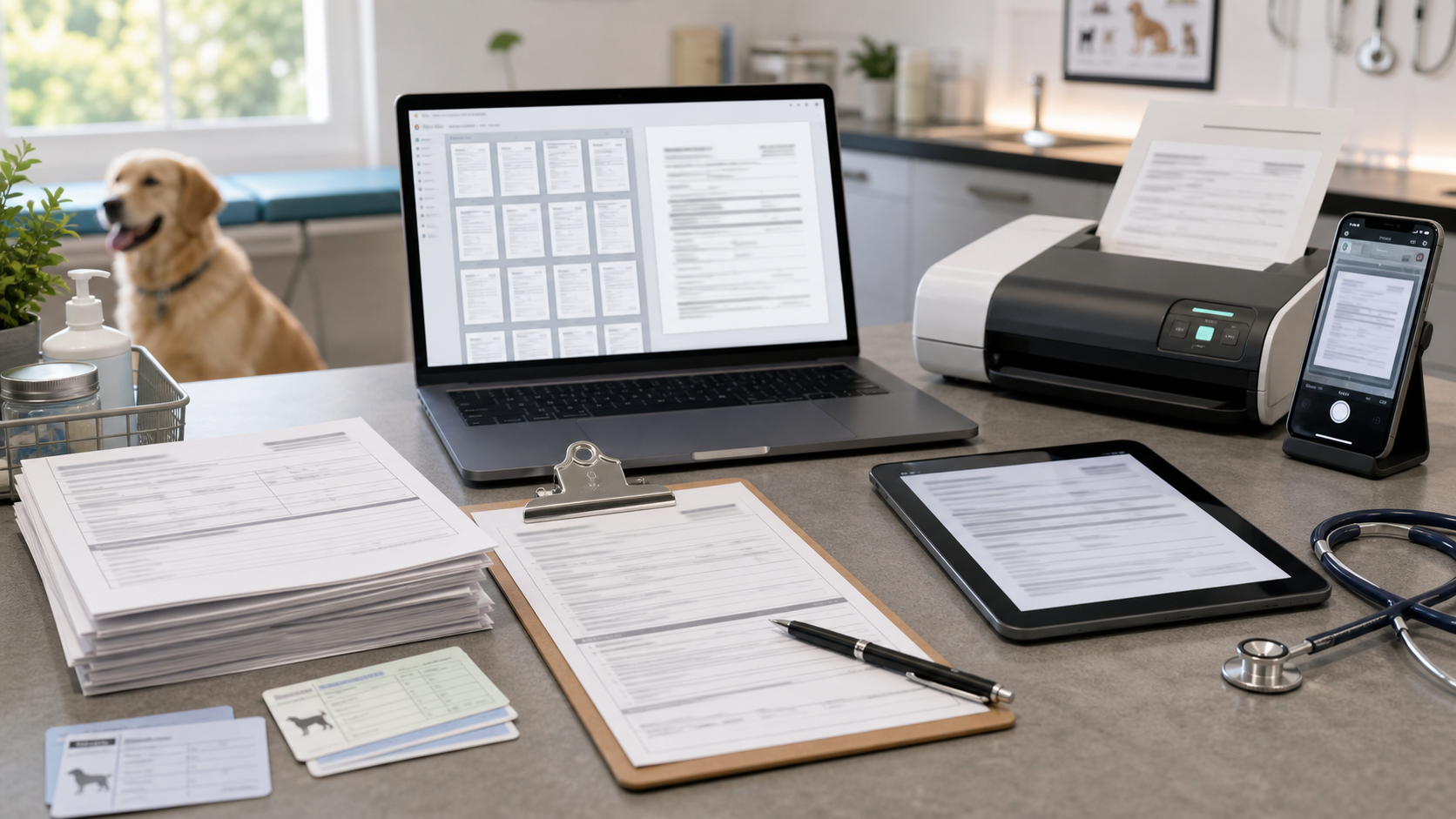
Veterinary Intake Form Photos to Searchable PDFs: A Practical Cleanup Guide
Veterinary clinics collect a surprising amount of paper at exactly the moments when nobody has spare time. New client intake forms, vaccination records, consent sheets, surgical estimates, boarding instructions, adoption papers, and handwritten medication notes often arrive as quick phone photos. The images may be good enough for a human to read today, but they become harder to trust once they are forwarded, compressed by a messaging app, renamed twice, and buried in a shared folder.
A searchable PDF packet solves a specific operational problem: it keeps the visual evidence of the original paper while making names, dates, microchip numbers, medication names, and clinic notes easier to find later. The goal is not to make every document look like a scanner produced it. The goal is to preserve what matters, remove avoidable friction, and create a file that staff can review without zooming around a crooked phone photo.
This guide is written for small clinics, mobile veterinarians, foster networks, rescues, boarding facilities, and front-desk teams that receive document photos from clients. It focuses on practical cleanup decisions: when to retake a photo, when OCR is worth it, how to handle stamps and signatures, and how to assemble a PDF packet that remains readable after it is emailed or uploaded.
Why Veterinary Paper Photos Are Harder Than Normal Scans
A photographed form is not just a scan with less polish. It often contains uneven lighting, curved paper, clipped corners, glare from laminated vaccination cards, blue pen on pale lines, and a mix of printed labels with handwritten answers. Veterinary paperwork adds a few extra complications.
Pet records contain many small details that are easy to misread. A date like 06/08/26 can change meaning depending on country and clinic convention. A medication name may differ by a single letter. A rabies tag number, microchip number, or client phone number can be long enough that one OCR error creates a real administrative problem.
There is also a chain-of-custody concern. If a staff member cleans an image so aggressively that a signature, initials, stamp, or handwritten margin note disappears, the packet becomes prettier but less useful. For veterinary records, preservation beats cosmetic perfection.
Use this principle throughout the guide: improve readability, but do not erase evidence.
What Belongs in the Packet
Before editing, decide what the packet is supposed to contain. A new patient file may need only intake and vaccine proof. A surgery day packet may need consent, estimate approval, pre-anesthetic notes, medication instructions, and discharge documents. A foster transfer packet may include multiple animals and several dates.
A clean packet usually follows this order:
| Packet type | Best first page | Common supporting pages | Notes |
|---|---|---|---|
| New client intake | Main intake form | Vaccine card, prior clinic record, ID photo if allowed | Keep client and patient names visible on page one |
| Surgery consent | Signed consent | Estimate approval, pre-op notes, lab result printout | Preserve signatures and initials even if they are faint |
| Boarding intake | Boarding agreement | Feeding notes, medication list, vaccine proof | Highlight date ranges through file naming, not image markup |
| Rescue transfer | Animal summary | Vaccine card, microchip proof, foster notes | Split by animal if one packet becomes too large |
| Insurance claim support | Invoice or treatment summary | Diagnostics, prescriptions, discharge notes | Keep page order chronological when possible |
Do not mix unrelated animals in one PDF unless the operational reason is clear. If a foster brings records for three cats, three smaller PDFs are often easier to file than one long packet with repeated names and dates.
The Capture Checklist Before Anyone Edits

The best cleanup happens before editing begins. If your team controls the photo capture, set a simple standard that anyone can follow in under a minute.
Use a flat surface with contrast against the paper. White forms on a white counter are hard to crop. A gray desk, clipboard, or dark folder makes edges easier to see. Place the full page inside the frame with all four corners visible. Do not crop to the printed area in the camera app; leave a small border so later cropping is accurate.
Avoid overhead clinic lights reflecting on glossy vaccine cards. Move the card near a window or rotate it slightly until the glare leaves the important fields. If the card is laminated, take two photos from slightly different angles. One may preserve the stamp while the other preserves the date.
For multi-page packets, photograph pages in order. If someone forgets a page, add it at the end and rename later rather than trying to remember where it belonged from thumbnails alone.
Use this capture checklist:
- Place the page flat, not held in the air.
- Include all four corners.
- Keep the phone parallel to the page.
- Use bright indirect light.
- Turn off beauty filters, portrait mode, and heavy automatic enhancements.
- Take a second photo if the page has glare, wrinkles, or pale handwriting.
- Photograph front and back when cards or forms contain stamps on both sides.
For client-submitted photos, reply with a short retake request only when the missing information matters. A slightly crooked image can be fixed. A clipped signature, hidden date, or unreadable vaccine label usually cannot.
Triage: Retake, Repair, or Accept
Not every photo deserves the same effort. A front desk can lose time polishing documents that were already readable. Use triage first.
| Problem | Retake? | Cleanup worth trying? | Why |
|---|---|---|---|
| One corner clipped but all fields visible | No | Yes | Crop and straighten are enough |
| Signature cut off | Yes | No | Missing evidence cannot be restored reliably |
| Heavy glare over vaccine date | Usually | Sometimes | Try alternate photo if available |
| Slight shadow along edge | No | Yes | Compression and contrast can still work |
| Motion blur on microchip number | Yes | Rarely | OCR and human reading both suffer |
| Curved page from folded form | Maybe | Yes | Perspective correction may help if text is sharp |
| Dark photo with readable ink | No | Yes | Brightness and contrast can improve review speed |
If the photo contains legally or medically important marks, do not use generative editing to recreate missing content. It is acceptable to improve exposure, crop edges, resize, convert formats, or run OCR. It is not acceptable to invent a missing digit, rebuild a signature, or guess a medication name.
Prepare the Image Before OCR
OCR reads shapes. Anything that makes the letter shapes cleaner can improve search quality. Anything that destroys the original marks can make the result less trustworthy.
Start with rotation and perspective. A page rotated by two degrees is annoying but searchable. A page photographed at a steep angle can make columns and checkboxes hard to interpret. Crop to the document edge while leaving a narrow margin. If the original background is distracting, remove the extra table surface but keep the full page.
Resize only when the photo is extremely large or extremely small. Very large phone images can create oversized PDFs without improving readability. Very small images may not have enough detail for OCR. If your source file is huge, use Resize Image to bring it to a practical document size before PDF assembly. For full-page paperwork, a long edge around 2000 to 3000 pixels is often enough for review while staying manageable.
Convert odd formats before they enter your record system. HEIC files from phones can be inconvenient for staff using mixed devices. Use Convert Image when you need consistent JPEG or PNG files before OCR or PDF creation.
Compression should be gentle. The thin lines on forms, checkboxes, and small printed vaccine labels can fall apart under harsh compression. If you need to reduce file size, use Compress Image after checking that dates, dosage notes, and signatures remain legible at normal zoom.
A simple image preparation order works well:
- Rotate and crop.
- Correct perspective if needed.
- Adjust brightness and contrast lightly.
- Convert to a common format if needed.
- Resize very large files.
- Compress only after readability is confirmed.
Handle Handwriting, Stamps, and Signatures Carefully
Veterinary forms often combine printed labels with handwriting. OCR may find the printed labels but miss the handwritten entries. That is still useful. If the searchable layer captures client name, pet name, vaccine type, and clinic name, staff can locate the document faster even if they still inspect handwriting visually.
Do not chase perfect OCR on handwriting. Instead, preserve a clean visual page and add searchable support where the text is clear. Tools such as Image OCR can help extract printed text from photographed forms and cards, but a human should review critical fields.
Stamps are another weak point. A purple rabies stamp, blue clinic stamp, or embossed mark may not OCR well. Increase contrast only enough to make it visible. If the stamp is faint, keep the original image rather than flattening it into harsh black and white. Black-and-white conversion can improve printed text, but it may erase pale ink or make a stamp look like noise.
Signatures and initials should be treated as visual evidence. Do not sharpen them until they look unlike the original. Do not remove surrounding marks just because they appear messy. A clean packet can still contain real-world paper texture.
A Practical Cleanup Pass for Common Form Types
Different veterinary documents need different handling. The same edits that help a typed consent form may damage a glossy vaccine sticker.
New Client Intake Forms
These are usually full-page forms with checkboxes, printed labels, and handwriting. Prioritize straightening and full-page visibility. The most important fields are client name, pet name, phone number, email, address, species, breed, age, allergies, current medications, and signature.
For intake forms, keep the page as one image. Do not crop out the signature block or header just to make the text larger. If the form is two pages, assemble both pages in order even if the second page contains only policies and initials.
Vaccination Cards
Vaccination cards are often small, glossy, and full of stamps. They may include stickers with tiny lot numbers and expiration dates. Photographing them beside a full-page form can waste detail. Capture vaccine cards closer, with all edges visible, then crop to the card.
If the card has front and back content, include both sides. A single PDF page can contain one card side per page. Avoid making a collage unless the receiving system expects it, because collages reduce OCR quality and make small dates harder to inspect.
Consent and Estimate Approvals
Consent sheets are evidence-heavy documents. Preserve signatures, initials, dates, and any handwritten procedure notes. If a staff member wrote a clarification in the margin, do not crop it away. Use brightness correction carefully so pale pen stays visible.
If the signed estimate approval is separate from the medical consent, keep both pages. The packet should show what was agreed to, when, and by whom.
Medication Notes and Discharge Instructions
These documents are often photographed after printing or writing quickly. The risk is not just readability; it is misinterpretation. OCR can help staff find the document later, but medication instructions should still be checked visually.
If a page contains dosage instructions, avoid aggressive compression. Thin handwritten numbers can become ambiguous. A 1 can look like a 7, or a decimal point can disappear.
Build the Final Searchable PDF Packet
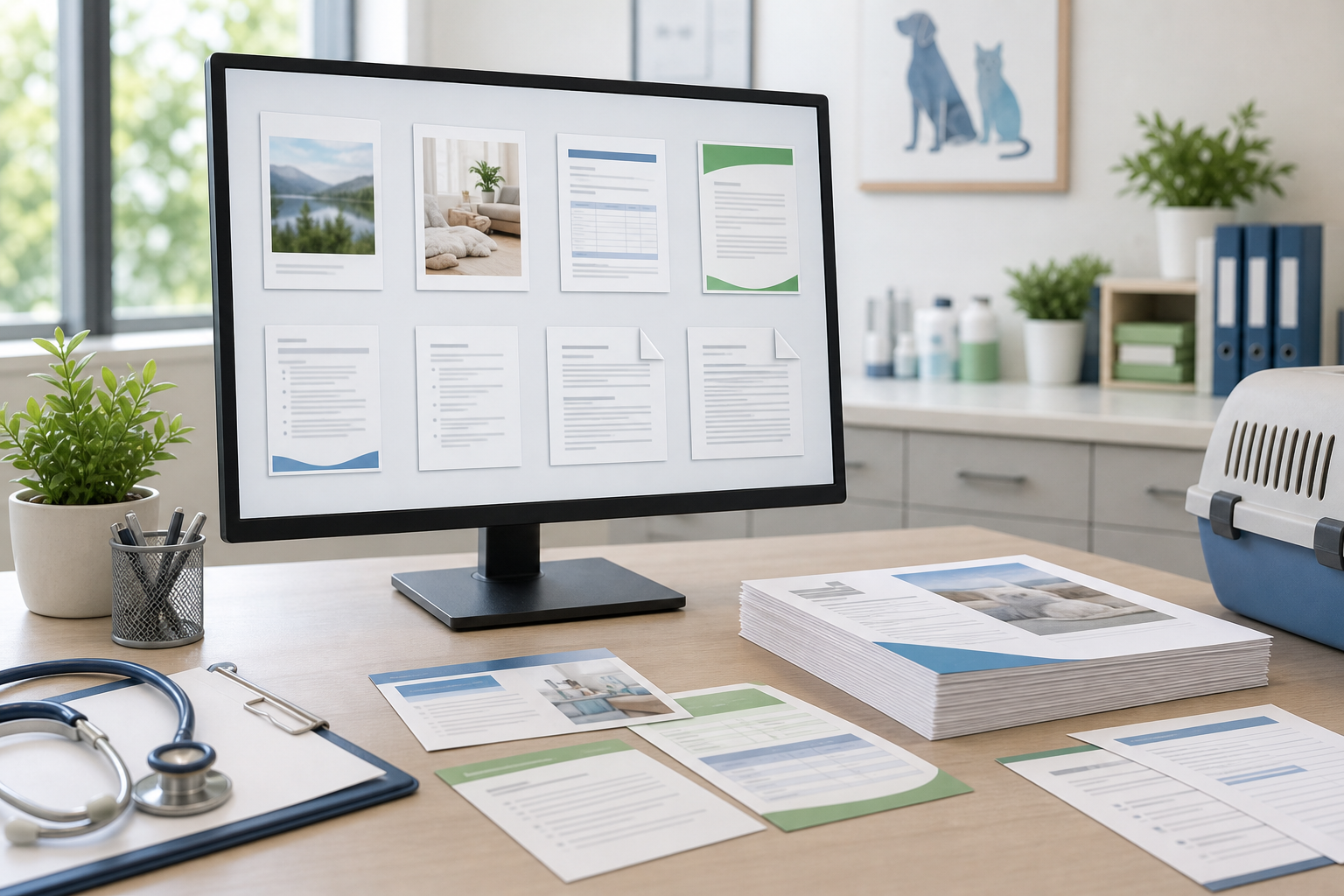
Once images are readable, assemble the packet. Use Image to PDF when you have cleaned page images and need one document that can be filed, emailed, or uploaded. If separate PDF files already exist, such as a lab report plus photographed consent pages, use PDF Merge to combine them in a sensible order.
A good packet has three traits: predictable order, readable page size, and a file name that helps staff identify it without opening it.
Use a file name pattern that your team can repeat. Keep it practical and avoid sensitive information your environment should not expose in shared folders. For example:
- bella-smith-intake-2026-06-18.pdf
- max-rabies-card-2026-06-18.pdf
- luna-surgery-consent-2026-06-18.pdf
- rescue-transfer-cat-arthur-2026-06-18.pdf
If client privacy rules in your organization discourage names in filenames, use patient ID or appointment ID instead.
Page order should follow how a reviewer thinks:
- Summary or intake page.
- Signed consent or primary form.
- Vaccine or prior record proof.
- Medication notes.
- Supporting pages, receipts, or secondary forms.
For a packet with many pages, consider splitting by purpose. A single 28-page PDF of every document a client ever sent may be searchable, but it may not be convenient. Smaller purpose-specific packets are easier to upload and review.
OCR Review: What to Check Manually
OCR is helpful, not authoritative. After extraction, search for the fields your team will actually need. You do not have to proof every word in a long consent paragraph if the visual page is preserved, but you should check high-impact fields.
Manual review checklist:
- Pet name appears in search.
- Client last name appears in search.
- Vaccine names are searchable when printed clearly.
- Dates appear correctly enough to locate the record.
- Microchip number is visually readable, even if OCR misses it.
- Medication names are visually readable.
- Signatures and initials remain visible.
- Page order matches the intended packet.
- File size is small enough to upload or email.
Search for likely variations. If a pet is named Khaleesi, OCR may struggle. Search the client last name too. If a vaccine label has tiny print, the searchable layer may capture only part of it. That is acceptable as long as the visual evidence remains readable.
Compression Without Destroying Thin Text
Veterinary packets often need to pass through email, practice management systems, insurance portals, or rescue databases. File size matters, but thin text matters more.
Compress in stages. First build the PDF at a readable size. If it is too large, compress the source images gently, then rebuild. Compare before and after at the zoom level staff actually use. If a date or signature becomes harder to read, back off.
Watch for these compression failures:
- Speckled paper texture around pale handwriting.
- Broken checkbox outlines.
- Blurry vaccine sticker lot numbers.
- Blocky shadows near folded paper.
- Signature strokes that merge into the background.
- Small decimal points disappearing in dosage notes.
A slightly larger PDF is better than a smaller one that invites phone calls, retakes, or medical record corrections.
Quality Control Before Filing
Before the packet enters the record system, do a fast final check. This should take less than a minute for routine documents.
Open the PDF, not just the image files. Confirm that pages are upright, ordered, and not duplicated. Search the PDF for the patient name or client last name if searchable text has been added. Zoom to the smallest critical text, usually vaccine dates, microchip numbers, or medication instructions. If those are readable, the rest of the packet is usually fine.
Check that the PDF does not include unrelated images from the same upload. Phone galleries can accidentally add screenshots, duplicate photos, or another pet's document. Remove those before filing.
If the document is going to an external party, confirm that only necessary pages are included. A boarding facility may need vaccine proof, but not the full medical history. An insurer may need invoices and treatment notes, but not unrelated client correspondence. Document minimization is a practical privacy habit.
Common Mistakes That Create Extra Work
The biggest mistake is waiting until after filing to discover that the image was unreadable. Triage early. If a signature or vaccine date is clipped, ask for a retake before the client leaves or before the message thread goes cold.
Another mistake is converting every page to harsh black and white. It can make typed forms look crisp, but it may damage stamps, pale pen, colored vaccine labels, and highlighted notes. Use black-and-white conversion only when it improves the specific page.
A third mistake is making one giant PDF for everything. Searchability helps, but reviewers still need context. Separate the intake packet from the insurance packet if they serve different people.
Finally, avoid relying on OCR as the medical truth. OCR is a finding aid. The visual page is the record. When a field is clinically or legally important, inspect the image.
A Small-Clinic Standard You Can Reuse
A lightweight standard helps staff move faster without turning document handling into a special project. Here is a practical version:
- Retake photos with clipped signatures, unreadable dates, or motion blur.
- Crop and straighten every accepted page.
- Preserve stamps, signatures, initials, and margin notes.
- Convert unusual image formats before assembly.
- Use OCR for search, then manually check names, dates, and critical numbers.
- Build purpose-specific PDFs instead of oversized catch-all files.
- Name files consistently by patient, purpose, and date or by internal ID.
- Compress only after confirming thin text remains readable.
This standard is small enough for front-desk staff, mobile practitioners, and rescue volunteers to follow. It also scales. The same decisions work whether you process five forms a week or hundreds during a vaccine clinic.
Final Takeaway
Veterinary document photos do not need to become perfect scans. They need to become reliable records: readable, searchable, correctly ordered, and faithful to the original marks on the page. A careful pass through cropping, format cleanup, OCR, PDF assembly, and final review can turn scattered phone photos into packets that staff can actually use.
The best result is quiet and practical. A reviewer opens the PDF, finds the pet, confirms the date, reads the signature, and moves on without asking where the original photo went.