Lightweight UI Repro GIFs for Issue Trackers: A Practical Workflow for Product Teams
Build small, readable UI repro GIFs for bug reports and issue trackers without burying engineers in huge videos, blurry text, or missing context.

Lightweight UI Repro GIFs for Issue Trackers: A Practical Workflow for Product Teams
A good bug report does not need a cinematic screen recording. It needs a small, readable, repeatable piece of evidence that helps another person understand what happened without guessing. For many product teams, the most useful artifact is still the humble UI repro GIF: a short loop showing the exact interaction, the broken state, and enough context to recognize the page.
The problem is that most repro GIFs are either too large, too blurry, too fast, or too vague. A full-screen recording becomes a 38 MB attachment. A compressed GIF hides the important label. A cropped loop shows the cursor moving but not the panel where the bug appears. A video includes fifteen seconds of setup before anything relevant happens. Engineers open the issue, watch it twice, and still need to ask for clarification.
This guide gives product managers, QA testers, support specialists, technical writers, and designers a practical workflow for creating lightweight UI repro GIFs that fit naturally inside issue trackers, release notes, support escalations, and internal handoff documents. The goal is not to make polished marketing demos. The goal is to make visual evidence that is fast to scan and precise enough to act on.
We will cover what to capture, how to crop, when to use GIF versus video, how to keep text legible, how to reduce file size, and how to pair the loop with written steps. ConvertAndEdit tools such as /gif-maker, /resize-image, /compress-image, /convert-image, and /video-to-subtitles can fit into this workflow depending on the source asset and where the final report will live.
Why UI Repro GIFs Still Matter
Issue trackers are built around quick scanning. A reviewer opens a ticket, reads the title, checks the environment, looks at the reproduction steps, and tries to decide whether the problem is clear enough to triage. A short loop can shorten that process dramatically because it shows timing, sequence, and state change in a way a static screenshot cannot.
A UI repro GIF is especially useful when the bug depends on motion or sequence. Examples include a dropdown closing too early, a tooltip appearing behind a modal, a button jumping after validation, a loading spinner never resolving, a drag handle snapping to the wrong area, or a toast message covering the next action. These issues are hard to describe in one screenshot because the failure is not only about the final state. It is about what happens between states.
GIFs also work well in places where video playback is awkward. Some issue trackers display GIFs inline. Some documentation systems show them without requiring a player. Some email clients and chat previews handle them more predictably than embedded video. That convenience matters when the asset is meant to reduce friction, not create another thing to download.
Still, GIF is not always the right format. It can become large quickly, it has limited color efficiency, and it is not ideal for long recordings. Treat it as a compact visual note, not a full session recording.
Choose the Right Evidence Format
Before editing anything, decide what kind of visual evidence the issue needs. Many teams default to video because screen recording tools make it easy, but video is not always the clearest artifact.
| Situation | Best artifact | Why it works |
|---|---|---|
| One broken final state | Annotated screenshot | Fastest to scan and smallest file |
| Short interaction under 8 seconds | GIF loop | Shows sequence without playback controls |
| Complex flow with narration | Video | Better for longer context and spoken explanation |
| Text-heavy bug with logs or settings | Screenshot plus copied text | Preserves readable details |
| Accessibility, captions, or spoken content | Captioned video | Supports review without audio |
Use a GIF when the bug is visible in a short loop and the viewer does not need sound. Use a video when the explanation depends on narration, longer timing, or multiple screens. If a recorded clip includes speech, the /video-to-subtitles tool can help create text support before sharing it with teammates who review muted or asynchronously.
For most UI bugs, the sweet spot is a 3 to 8 second loop. That is long enough to show setup, action, and failure, but short enough that the reviewer can absorb it without scrubbing.
The Repro Loop Recipe
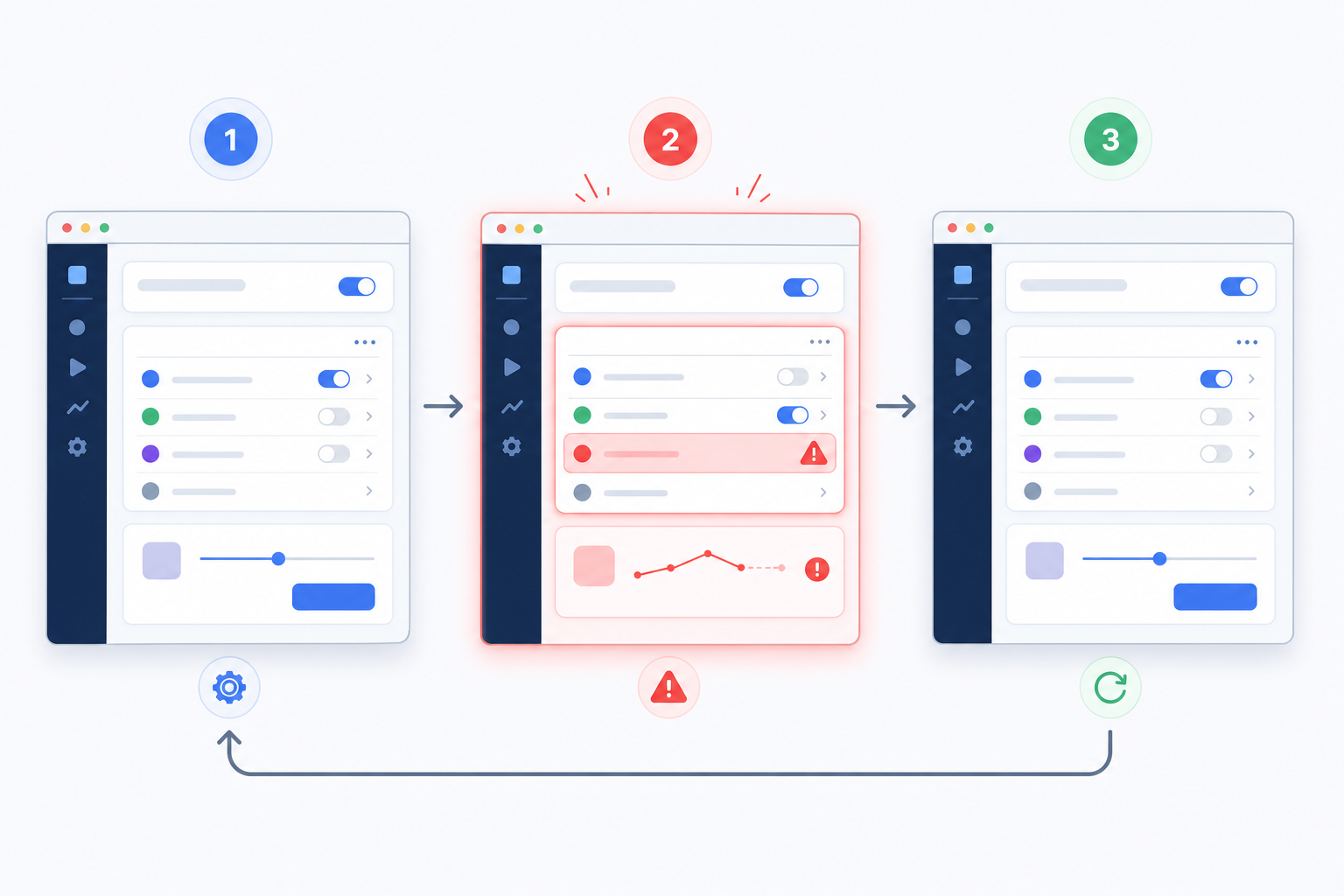
A useful UI repro GIF has three parts: setup, trigger, and result. If any part is missing, the viewer has to infer what happened.
1. Setup Frame
The first moment should establish where the viewer is. Show the page, modal, panel, or component involved. If the bug depends on a selected state, expanded menu, viewport width, role, or filter, make sure that state is visible before the action begins.
Bad setup frames often begin with the cursor already moving or the interface already halfway through a transition. The viewer cannot tell whether the bug starts on a dashboard, settings page, checkout form, or admin view. Give them a half-second of context before the trigger.
2. Trigger Action
The trigger is the action that causes the bug. It might be a click, tap, drag, paste, scroll, hover, resize, or keyboard shortcut. The cursor or focus state should be visible enough to follow.
Avoid unnecessary movement before the trigger. If the issue is caused by clicking a date picker, the loop should not include opening the browser, navigating the sidebar, and searching for the record. Put setup steps in the written report and reserve the GIF for the exact moment that matters.
3. Result Frame
The result frame is the broken state. Hold it long enough for the viewer to see what is wrong. If the loop immediately resets, the failure becomes easy to miss. A good rule is to leave the final broken state visible for at least one second before the loop restarts.
For example, if a menu opens behind a dialog, the final frame should clearly show the dialog and the hidden or clipped menu. If a layout jumps, the loop should hold after the jump. If a spinner never resolves, the loop may need a slightly longer ending to show that the waiting state is persistent.
Capture Only the Necessary Area
The biggest file-size mistake is recording the whole screen. Full desktop recordings include browser chrome, bookmarks, empty margins, chat notifications, dock icons, and unrelated UI. Every extra pixel costs file size and reduces attention.
Crop around the smallest area that still preserves context. For a component bug, capture the component plus nearby labels. For a layout bug, include enough surrounding content to show the alignment problem. For a modal bug, include the modal and the element it conflicts with. For responsive bugs, include the viewport edge if the edge is relevant.
A practical crop should answer three questions:
- Where is this happening?
- What action is being performed?
- What visible result is wrong?
If the crop cannot answer those questions, it is too tight. If it includes unrelated navigation, empty canvas, or private content, it is too loose.
When you need a static companion image, use /resize-image to create consistent dimensions for screenshots that sit next to the GIF in documentation or triage notes. Consistent sizing makes reports easier to compare, especially when multiple issues come from the same area of the product.
Keep UI Text Legible
A repro GIF fails when the key label, value, or error message becomes unreadable. This is common because GIF compression is harsh on thin UI text, subtle borders, and low-contrast interface elements.
Before exporting, identify the one or two pieces of text the reviewer must read. It might be a button label, a validation message, a selected plan name, a status pill, or a column header. Then edit around preserving those details.
Use these rules:
- Avoid scaling the capture down too aggressively.
- Crop tighter before resizing smaller.
- Prefer fewer pixels with readable text over a larger scene with blurred details.
- Keep the browser zoom at 100 percent unless zooming is part of the bug.
- Avoid translucent overlays that make text shimmer during compression.
- Use a slower loop when the viewer needs to read a label while motion is happening.
If the important information is a block of text, a static screenshot may be better than a GIF. You can pair a screenshot with the loop: the screenshot preserves the exact text, while the GIF shows the interaction that caused it.
For images extracted from reports or screenshots, /compress-image can help reduce weight while preserving enough clarity for issue attachments. The key is to inspect the result, not just chase the smallest possible file.
A Size Budget That Keeps Reports Usable
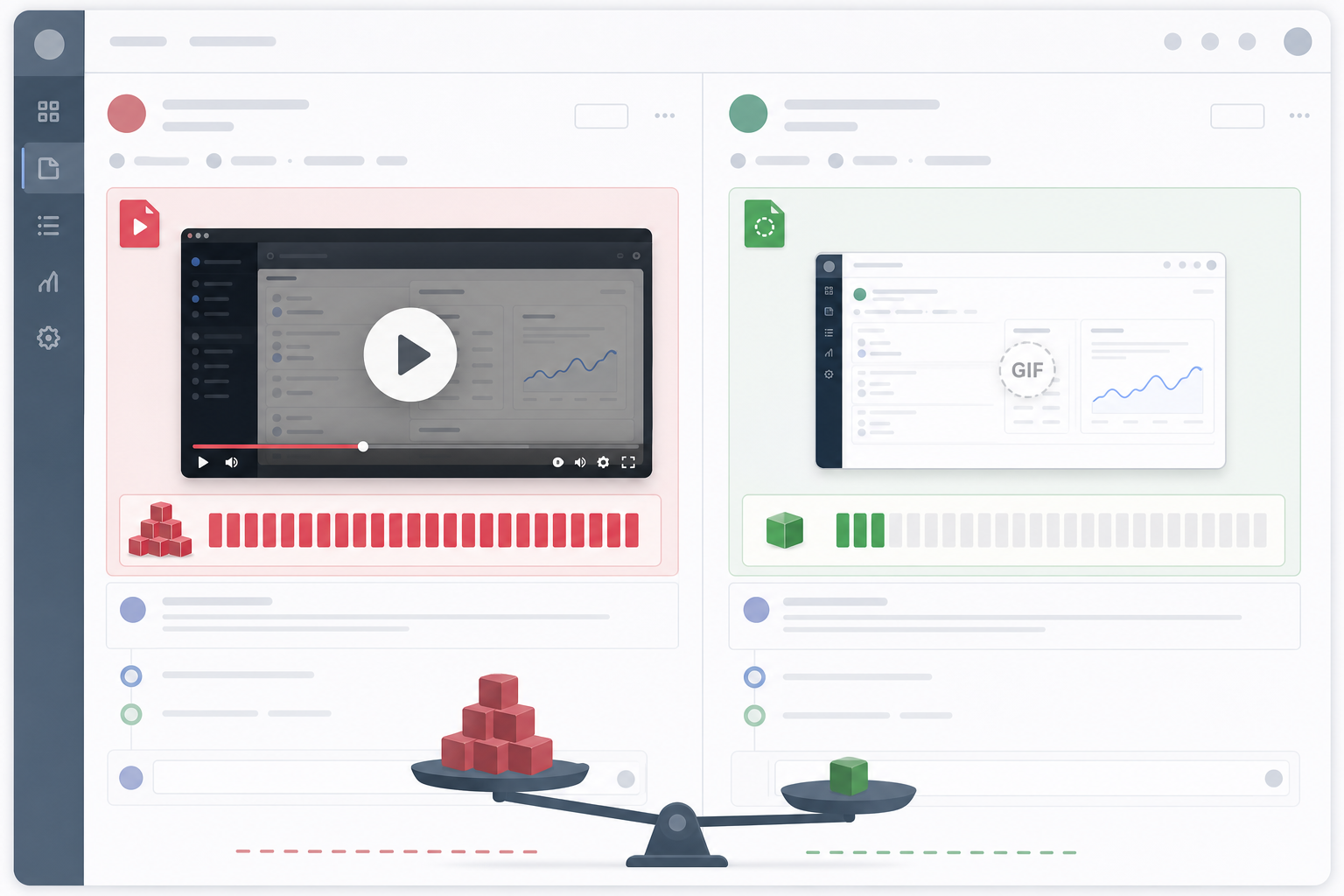
There is no universal file-size limit because issue trackers, chat tools, and internal policies differ. Still, teams benefit from a shared budget. Without one, every report becomes a negotiation between convenience and clarity.
A practical internal target looks like this:
| Asset type | Comfortable target | Use when |
|---|---|---|
| Tiny component GIF | Under 1 MB | Button, tooltip, small menu, field validation |
| Standard UI repro GIF | 1 to 4 MB | Modal, panel, short page interaction |
| Large layout GIF | 4 to 8 MB | Responsive or scroll-based issue |
| Video attachment | 5 to 25 MB | Longer flow, narration, multiple screens |
The best way to stay inside the budget is to reduce duration, crop dimensions, and frame count before applying heavy compression. A short, well-cropped GIF usually looks better than a long, full-screen GIF that has been crushed after export.
Here is a simple order of operations:
- Trim the recording to the exact loop.
- Crop to the relevant interface area.
- Reduce dimensions only as much as readability allows.
- Lower frame rate if motion still makes sense.
- Compress the final asset.
- Reopen it inside the destination tool and inspect it at the size teammates will see.
Do not judge the GIF only in a local preview window. Issue trackers often display attachments at constrained widths. A GIF that looks readable at full size may become useless when embedded in a ticket column.
Frame Rate: Smooth Enough, Not Cinematic
Most UI repro GIFs do not need high frame rates. The viewer needs to understand the interaction, not admire the animation. Lowering frame rate is one of the cleanest ways to reduce file size.
For clicks, menu openings, validation states, and simple transitions, 8 to 12 frames per second is often enough. For drag-and-drop issues, cursor tracking, resize bugs, or animation timing problems, 12 to 15 frames per second may be safer. Higher frame rates are rarely necessary for issue evidence.
The exception is a bug where timing is the bug. If a loading state flashes too quickly, a tooltip flickers, or a transition stutters, preserve enough frames to prove the behavior. In those cases, a short video may be more faithful than a GIF.
Make the Loop Self-Resetting
A loop is easier to understand when it returns to a recognizable start state. If the GIF ends on a broken modal and then jumps back to a completely different starting point, the viewer may need several cycles to parse it.
Try to create a loop with a natural reset:
- Start with the component idle.
- Show the trigger.
- Hold the broken result.
- Return to idle or restart from the same idle view.
Sometimes the reset requires recording the action twice and trimming carefully. For example, a hover bug might need the cursor to leave the element before the next loop begins. A dropdown bug might need the menu closed again. A scroll bug might need the viewport returned to the same position.
If a clean reset makes the GIF longer or more confusing, do not force it. A hard restart is acceptable when the written steps explain the setup clearly.
Protect Private and Distracting Details
Bug reports often contain real names, emails, account IDs, customer records, internal URLs, analytics, or unreleased features. Cropping is the first privacy control because it removes irrelevant areas before they ever become part of the asset.
When cropping is not enough, use a static screenshot with redaction or create a sanitized reproduction in a test account. Be careful with blur effects in animated assets. A blur that works in one frame may reveal partial information during motion or compression. Solid blocks, replacement test data, or a staging environment are usually safer.
Also remove visual distractions. Browser notifications, chat badges, bookmarks, extensions, and personal tabs make reports noisier. They can also lead reviewers to focus on irrelevant details. The best repro GIF feels boring in the right way: only the product area and the bug are visible.
Pair the GIF With Written Steps
A GIF is evidence, not the whole report. It should sit beside clear written reproduction steps so the issue can be retested later.
A strong ticket includes:
- Environment: browser, device, viewport, account type, feature flag, or app version.
- Preconditions: data state, permissions, selected filters, or enabled settings.
- Steps: concise actions that recreate the issue.
- Expected result: what should have happened.
- Actual result: what happened instead.
- Visual evidence: the lightweight GIF or video.
The GIF should not be asked to carry all of that information. For example, it may show that a save button becomes disabled, but the written steps should say which role, form, and required fields were involved.
A useful pattern is to write the steps first, then create the GIF to support the step where the failure appears. This prevents over-recording and keeps the loop focused.
Naming Files So They Survive Handoff
File names matter more than teams expect. Attachments get downloaded, moved into folders, pasted into comments, and referenced in later tickets. A file called recording-final-final.gif will not help anyone two weeks later.
Use predictable names with the ticket area, behavior, and date when helpful:
checkout-address-validation-loop.gif
settings-role-dropdown-overlap.gif
mobile-nav-scroll-jump-2026-05.gif
Keep names short but specific. Avoid customer names, private IDs, or sensitive data in file names. If your team tracks issue numbers, include the issue number after the ticket exists rather than inventing a local naming scheme that will drift.
If you need to convert a source image or animation format before upload, /convert-image can help normalize assets into a format accepted by your tracker or documentation system.
When a GIF Should Become a Video
Sometimes the lightweight GIF workflow is the wrong tool. Switching to video is not failure; it is choosing the evidence format that preserves meaning.
Use video when:
- The flow is longer than 10 to 12 seconds.
- The bug depends on audio, narration, or spoken context.
- The issue spans multiple pages or windows.
- Fine motion timing matters.
- The GIF would exceed your file-size budget even after trimming.
- The destination supports video previews cleanly.
For muted product demos, accessibility reviews, and asynchronous handoffs, subtitles can be important. A short captioned clip often communicates better than a silent GIF when a teammate needs to understand why each action matters.
For purely visual micro-repros, however, GIF remains efficient. The trick is to treat it as a looped evidence snippet, not a compressed copy of an entire screen recording.
Example Workflow: Dropdown Hidden Behind a Modal
Imagine a QA tester finds that a role selector dropdown opens behind a permissions modal. A written report can describe the issue, but the visual stacking problem is much clearer in motion.
A strong workflow would look like this:
- Open the test account and navigate to the permissions modal.
- Set the browser window to the same size where the bug occurs.
- Record only the modal area and the selector.
- Start with the selector closed for half a second.
- Click the selector once.
- Hold the broken state for one second.
- Stop recording.
- Trim everything before and after the interaction.
- Export as a GIF at a moderate frame rate.
- Check that the dropdown edge and modal layering are visible in the issue tracker preview.
The written ticket should still include the role, browser, viewport, and expected layering behavior. The GIF simply proves the overlap and makes the bug instantly recognizable.
Example Workflow: Mobile Menu Scroll Jump
Responsive bugs are harder because the viewport edge is often part of the evidence. If a mobile menu jumps when the user scrolls, cropping too tightly can hide the relationship between the menu, page edge, and scroll position.
In this case, capture the full mobile viewport but not the full desktop. Use a narrow browser window or device emulator, then record only that viewport. The loop should show the page at rest, the scroll gesture, the jump, and the final broken position.
If the text becomes too small after export, do not shrink the GIF further. Instead, reduce duration or frame rate. For responsive issues, preserving spatial context is usually more important than reaching an extremely tiny file size.
Quality Checklist Before Attaching
Before adding the GIF to a ticket, do a final review. This takes less than a minute and prevents follow-up questions.
Use this checklist:
- The loop is under 8 seconds unless the issue requires more time.
- The first frame shows enough context to identify the UI area.
- The trigger action is visible.
- The broken result is held long enough to inspect.
- Important labels or values are readable.
- The crop excludes unrelated private or distracting content.
- The file size fits your team’s attachment expectations.
- The GIF still looks clear inside the actual issue tracker preview.
- Written reproduction steps explain what the GIF does not show.
If one of these fails, fix that specific problem instead of redoing everything. Most weak GIFs need a tighter trim, a better crop, or a slightly slower ending.
Building a Team Habit
The real benefit appears when a whole team uses the same visual evidence habit. Engineers receive clearer tickets. QA spends less time answering follow-up questions. Product managers can compare issues quickly. Support teams can escalate customer-reported bugs without sending oversized recordings full of unrelated account details.
You do not need a complex media pipeline. A practical team convention might be as simple as:
- Use screenshots for static states.
- Use GIFs for visual interactions under 8 seconds.
- Use videos for longer flows or narration.
- Keep standard repro GIFs under 4 MB when possible.
- Always pair visual evidence with written steps.
- Review assets inside the destination tool before submitting.
ConvertAndEdit can support the small editing steps around that convention: making GIFs from short clips with /gif-maker, resizing companion screenshots with /resize-image, compressing image assets with /compress-image, converting formats with /convert-image, and preparing subtitle-supported clips with /video-to-subtitles when a GIF is not enough.
A lightweight UI repro GIF is not about decoration. It is a compact debugging aid. When it is short, readable, focused, and paired with clear steps, it helps the next person move from “What am I looking at?” to “I can reproduce this” much faster.