Microfilm Newspaper Scan Cleanup for Searchable Research PDFs
A practical guide for turning uneven microfilm newspaper captures into cleaner, searchable PDFs for genealogy, local history, and archive research notes.
Microfilm Newspaper Scan Cleanup for Searchable Research PDFs
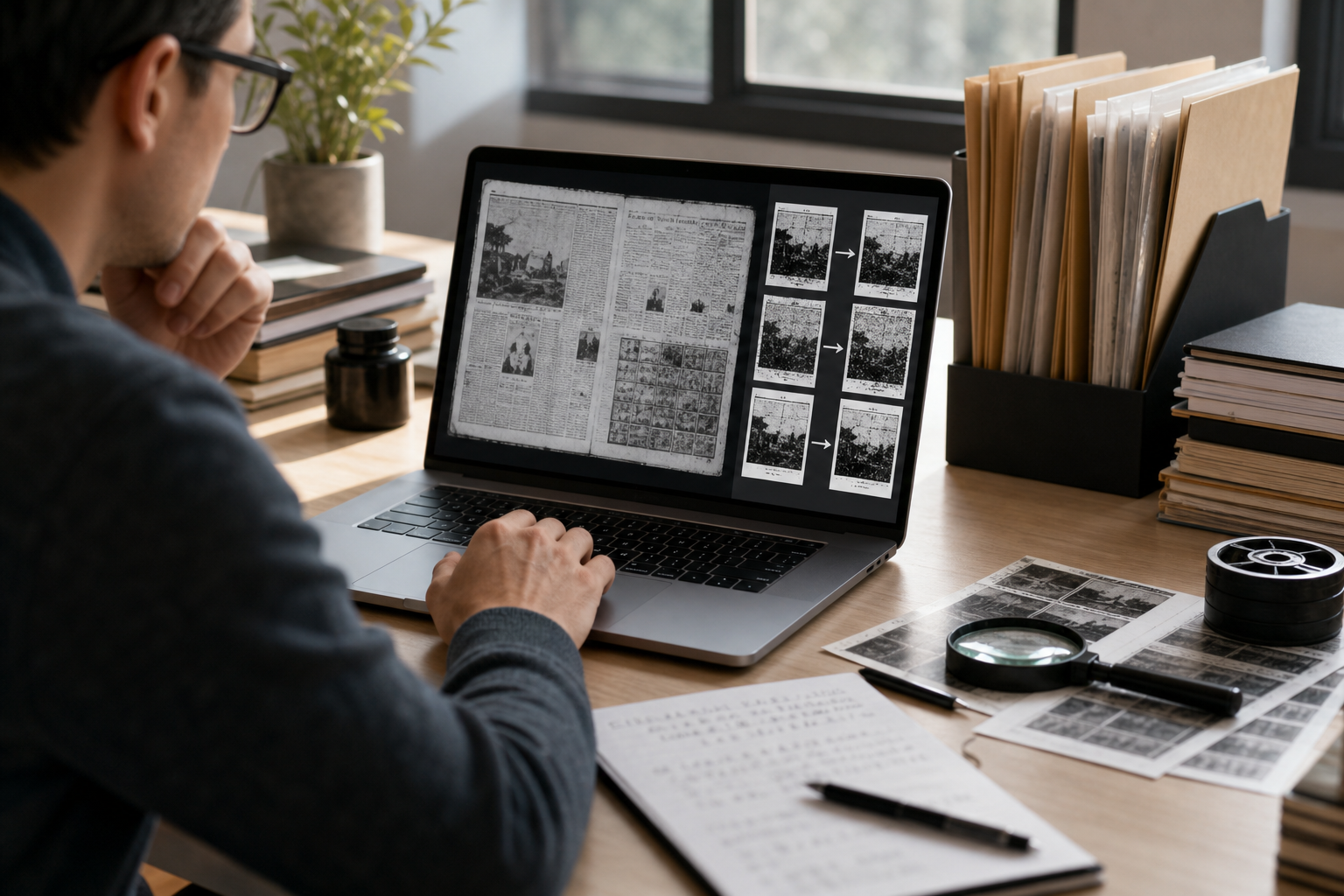
Microfilm newspaper captures are rarely tidy. A single research session can leave you with dozens of phone photos, kiosk exports, angled frames, blown-out headlines, dark gutters, duplicate pages, and filenames that only make sense while you are still sitting at the reader. The problem is not just visual quality. The real problem is retrieval.
If you are doing genealogy, local history, property research, obituary collection, court notice tracking, or small museum documentation, you need to find the right clipping again later. A readable image is useful today. A clean, searchable PDF packet is useful six months from now when a surname, address, business name, or date suddenly matters.
This guide covers a practical system for turning rough microfilm newspaper scans into research PDFs that are easier to read, share, archive, and search. It is written for researchers who do not have access to professional digitization equipment and are working with what they can capture from a library reader, archive kiosk, USB export, or phone camera.
The goal is not museum-grade restoration. The goal is a dependable research file: cropped, ordered, compressed enough to share, and OCR-friendly enough that names and dates have a better chance of being found.
Why Microfilm Newspaper Captures Are So Difficult
Microfilm preserves content, but it does not always preserve comfort. Newspaper pages were photographed onto film, copied, stored, viewed through lenses, projected onto screens, and sometimes exported through old software. Every step can introduce distortions that make modern OCR less confident.
Common problems include:
- Curved or warped page edges from the film path
- Gray haze across the frame
- White-on-black negative output from some readers
- Uneven exposure between page center and page edges
- Tiny column text that breaks when compressed too aggressively
- Cropped article endings or missing continuation notes
- Duplicate frames created while adjusting the reader
- Handwritten notes, arrows, or highlights added during research
- Multiple clippings captured from one full newspaper page
Those issues matter because OCR tools do not read documents the way humans do. A human can infer that a smudged word near an obituary is probably a surname. OCR sees broken shapes, inconsistent contrast, and column boundaries. The cleaner the capture, the better the chance that search will work later.
For microfilm, cleanup should therefore focus on four things: legibility, boundaries, order, and file structure.
When a Searchable PDF Is Better Than Loose Images
Loose images are fine for quick reference, but they become awkward when a research folder grows. A searchable PDF packet is usually better when the images belong to one person, topic, property, case, event, date range, or citation trail.
Use a PDF packet when:
- You collected several clippings for the same surname or family branch
- A newspaper article continues across columns or pages
- You need to send evidence to another researcher
- You want one file per research question
- You need to store scans beside notes, citations, and source summaries
- You expect to search for names, streets, businesses, or dates later
Keep individual images when:
- You are still triaging a large capture dump
- Many frames are unrelated
- You need to compare exposure versions before choosing the best one
- You plan to retake questionable frames soon
A good middle ground is to clean and name the images first, then create a PDF after the keepers are selected. ConvertAndEdit tools can help at several points: use Resize Image to standardize oversized captures, Compress Image to reduce file size carefully, Image OCR to extract text for checking, and Image to PDF to package selected frames.
The Microfilm Cleanup Checklist
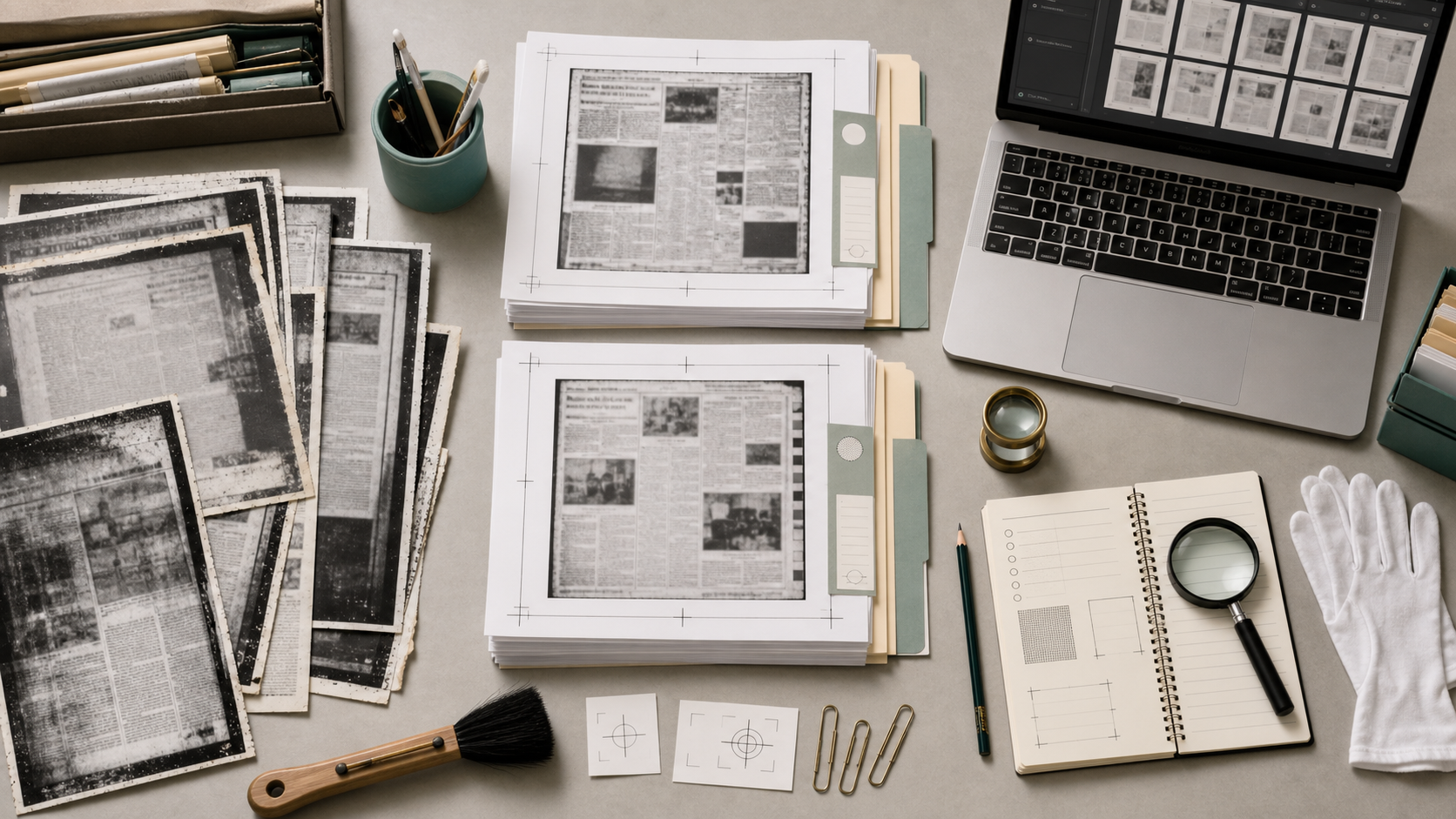
Before editing anything, make a small checklist. Microfilm cleanup goes wrong when researchers improve one image at a time without thinking about the final packet. The result is usually inconsistent crop sizes, mixed orientations, and missing context.
Use this checklist before creating the PDF:
- Identify the research unit
Decide what one PDF should represent. Good units include a family surname, one property address, one business, one event, one obituary set, or one archive visit batch. Avoid making a single giant PDF for every scan from a long research day unless the captures truly belong together.
- Remove obvious rejects
Delete or separate frames that are completely blurred, cut off, duplicated, unrelated, or unreadable. If you are hesitant, move them to a “review” folder instead of deleting them immediately.
- Choose the best exposure version
Microfilm readers often produce several versions of the same frame while you adjust brightness. Keep the version with the most readable small type, not necessarily the version with the brightest paper background.
- Crop away machine borders
Black borders, reader interface edges, and table surfaces confuse both viewers and OCR. Crop tightly enough to remove noise, but leave enough newspaper context to show column position and article boundaries.
- Preserve citation context
If the newspaper title, date, page number, or column header appears near the clipping, keep it. If it appears elsewhere on the page, include a separate context frame before or after the clipping.
- Put related frames in reading order
For continued articles, order the frames as a reader would follow them. If an article starts at the bottom of one column and continues elsewhere, filenames should make that sequence obvious.
- Run a small OCR check
Do not OCR every frame blindly and assume success. Test one or two difficult images first. Search for a known surname, street, or date. If OCR fails on the obvious words, improve contrast, crop, or resolution before building the final PDF.
- Compress last
Compression should happen after cropping, resizing, and selecting final files. Compressing too early can damage fine newspaper type and make later OCR worse.
Capture Quality: Fix What You Can Before Editing
The best cleanup happens before the file exists. If you still have access to the microfilm reader, a few capture habits will save a lot of editing time later.
Stabilize the frame before exporting. Wait for the film to stop drifting, especially on older mechanical readers. If you are photographing the reader screen, brace your phone or camera against a stable surface and avoid digital zoom.
Capture more context than you think you need. A tight clipping is tempting, but newspaper evidence often depends on the issue date, page location, section, and surrounding items. Take one wide context capture and one close clipping capture when the article matters.
Check the smallest text, not the headline. Headlines can look sharp while body columns are barely readable. Zoom in on a few lines of body text before you leave the machine.
Avoid mixed rotation. If some frames are portrait, some landscape, and some upside down, fix orientation before naming and PDF creation. Searchable PDFs are much easier to review when every page opens predictably.
For phone captures, avoid reflections from overhead lights. A slight angle may reduce glare, but too much angle creates perspective distortion. If the reader offers a direct export, use that first and keep phone photos only as backup.
Cleaning the Images Without Overprocessing Them
Microfilm scans invite overcorrection. It is easy to push contrast until the page looks dramatic, but old newspaper type is fragile. Thin letters can disappear, punctuation can merge, and OCR can become worse even if the image looks bolder at first glance.
A restrained cleanup pass usually works better:
- Crop borders and reader UI first
- Rotate to a straight reading angle
- Convert color phone photos to grayscale if color adds no information
- Increase contrast gradually
- Avoid heavy sharpening on tiny text
- Keep resolution high enough for small type
- Compress only after checking legibility
If a capture is very large, resize it only to the point where text remains readable at normal zoom. For research PDFs, smaller files are convenient, but not at the cost of names and dates. Use Resize Image when images are unnecessarily huge, then test one resized copy before applying the same target size to the rest of the set.
If your files are in mixed formats, normalize them before creating the PDF. JPG is common for photos and exports, PNG may preserve sharper text in some cases, and WebP can be efficient for storage. If you need to standardize the set, use Convert Image so your packet is built from predictable source files.
Decision Table: Keep, Retake, Crop, or Split
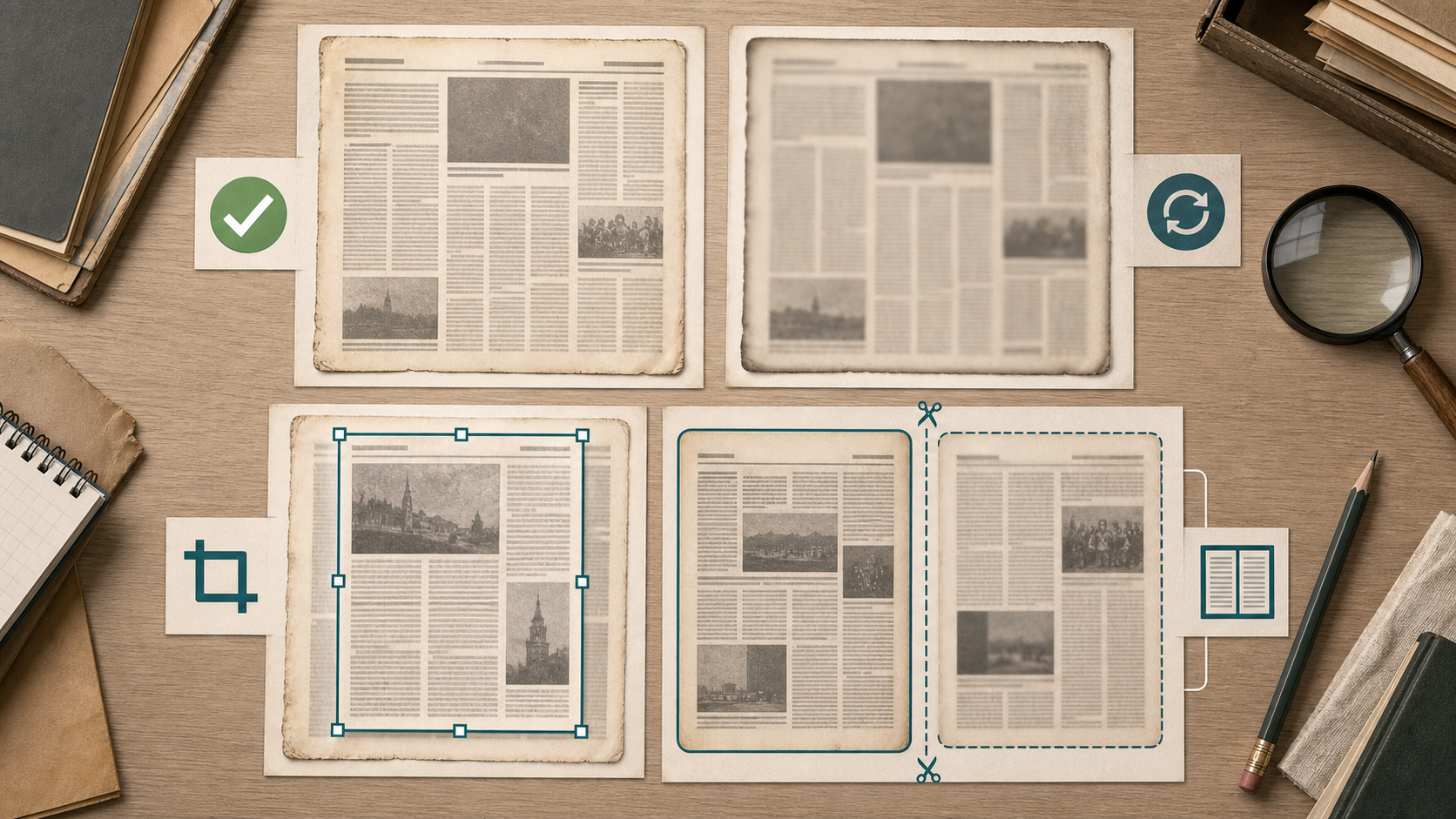
Not every microfilm capture deserves the same treatment. Some should be kept as they are, some should be cropped, and some are better split into multiple pages before PDF creation.
| Capture problem | Best action | Why it helps |
|---|---|---|
| Full page is readable but has black machine borders | Crop | Removes visual noise and improves OCR focus |
| Article spans two distant columns | Split into separate images | Keeps reading order clearer in the PDF |
| Headline is readable but body text is blurred | Retake if possible | OCR and citation value depend on body text |
| Same clipping captured at two exposures | Keep the version with better small text | Brightness is less important than letter shape |
| Date line is on a separate area of the page | Keep a context frame | Supports citation and later verification |
| Page is slightly tilted but readable | Rotate and crop | Reduces eye strain and improves text detection |
| Capture includes unrelated handwritten notes | Crop or keep a clean duplicate | Notes can confuse OCR and distract readers |
| Negative output has white text on black | Convert or retake as positive if possible | Positive text is usually easier to OCR and read |
| Article continues on another page | Number the images in sequence | Prevents separated clippings from losing meaning |
The key question is simple: will this file help a future reader understand and verify the source? If not, crop it, split it, retake it, or leave it out.
Naming Files So the PDF Stays Useful
Filename order often becomes PDF page order. If your files are named randomly by a camera or kiosk, the final PDF may open in the wrong sequence. Rename before combining.
A practical naming pattern is:
YYYY-MM-DD_newspaper_topic_sequence
Examples:
1908-04-17_daily-register_miller-obituary_01-context.jpg1908-04-17_daily-register_miller-obituary_02-clipping.jpg1908-04-17_daily-register_miller-obituary_03-continuation.jpg
If the exact date is unknown, use the best known partial date and mark uncertainty in your research notes, not by creating chaotic filenames. For example, 1932-05-unknown is easier to sort than maybe-may-1932-final-copy-new.
For family history research, include the surname and record type. For property research, include the street address or parcel reference. For local history, include the event name, business, or institution.
Avoid relying only on names like IMG_4821.jpg. Those names are fine for temporary capture, but they do not explain anything once the images leave the original device.
Creating a PDF Packet That Reads Like Evidence
Once your keepers are cropped, ordered, and named, create the PDF. The packet should read like a small evidence file, not a pile of screenshots.
A useful order is:
- Context page showing newspaper title, date, or page area
- Main clipping close-up
- Continuation clipping, if needed
- Related notices or follow-up articles
- Optional source note image, if you captured one
Use Image to PDF to combine selected images into one research packet. Before finalizing, open the PDF and check three things: page order, readability at default zoom, and whether any page is accidentally sideways.
If you have many images, create several smaller PDFs instead of one massive file. A family surname packet, a property packet, and a general archive notes packet are easier to search and share than one oversized document named library-scans.pdf.
For multi-person research, consider one PDF per person or household. For a business history project, use one PDF per business or decade. The best structure is the one that makes retrieval obvious later.
OCR: What to Expect From Old Newspaper Type
OCR on microfilm newspaper scans is helpful, but it is not magic. Old typefaces, ink spread, damaged film, and narrow columns can produce strange text. Names are especially vulnerable because OCR has less context for uncommon surnames.
Treat OCR as a search aid, not a perfect transcript.
After running OCR, test it by searching for:
- A surname visible in the clipping
- A street name or town name
- A month or year
- A distinctive business name
- A headline word
If none of those searches work, improve the image before trusting the PDF as searchable. Try a cleaner crop, better contrast, or a larger source image. You can also use Image OCR on individual images before building the PDF, especially when you need to copy a short notice into notes.
When OCR produces partial text, keep it anyway if it helps retrieval. A search that finds Mlller instead of Miller is imperfect, but it may still lead you back to the right page. For critical quotations, manually verify against the image.
Compression Without Destroying Tiny Newspaper Text
Compression is necessary when you need to email a packet, upload it to a shared drive, or keep a research archive manageable. But microfilm text punishes aggressive compression. Thin strokes, dots, commas, and broken letters can vanish.
Use a conservative compression pass:
- Compress after cropping and ordering
- Test the smallest body text after compression
- Avoid repeated compression of the same file
- Keep an uncompressed or lightly compressed master copy
- Compare OCR results before and after heavy compression if search matters
For image files, Compress Image can reduce storage size before PDF creation. If the PDF itself becomes too heavy, consider whether the source images are larger than needed. A 6000-pixel-wide capture of a small clipping may not add useful readability, but a very small export may ruin OCR.
A good test is to zoom to the size at which you would actually read the clipping. If punctuation and lowercase letters still hold together, the compression is probably acceptable. If letters look like blocks or dust, back off.
Handling Annotations, Highlights, and Research Marks
Researchers often mark screenshots with arrows, boxes, highlights, or handwritten notes. Those marks can be useful, but they should not be the only copy you keep.
Use two versions when the clipping is important:
- A clean source image for OCR and citation
- An annotated copy for explanation or sharing
Annotations can interfere with OCR, especially when they cross text columns. If you need to show a specific line, place the marked version after the clean version in the PDF. That way, the packet remains searchable while still guiding the reader.
If you use AI-based cleanup or object removal, be cautious with historical evidence. Do not remove marks that are part of the original newspaper page. Do not reconstruct words that are not visible. AI editing is better suited for removing capture artifacts, glare, or background distractions around the document, not changing source content. For minor visual cleanup around a capture, AI Photo Editor can be useful, but preserve an untouched reference copy for research integrity.
A Practical Example: Obituary Packet From a Library Reader
Imagine you are researching a family member and find an obituary in a 1924 local newspaper. The microfilm reader lets you export images to a USB drive, but the article is split across two columns and the date appears only at the top of the full page.
A strong packet might include four pages:
- Full page context showing issue date and page layout
- Close crop of the obituary start
- Close crop of the continuation column
- Related funeral notice from the next issue
The filenames might be:
1924-11-03_county-herald_jane-watkins-obituary_01-context.jpg1924-11-03_county-herald_jane-watkins-obituary_02-start.jpg1924-11-03_county-herald_jane-watkins-obituary_03-continuation.jpg1924-11-05_county-herald_jane-watkins-funeral-notice_04-related.jpg
Before creating the PDF, you would crop the reader borders, rotate any tilted images, and check that the surname Watkins is readable in the body text. Then you would combine the images with Image to PDF, run a search check, and store the packet in the family research folder.
This kind of small packet is more useful than a single full-page image because it keeps context and close reading together. It is also more reliable than a loose clipping because the date and continuation remain attached.
Common Mistakes That Make Research PDFs Hard to Use
The most common mistake is cropping too tightly. A perfect close-up of an article may lose the issue date, page number, section, or continuation clue. Keep enough context to prove where the clipping came from.
The second mistake is compressing too early. If you compress the raw capture, then crop it, then export it again, you may damage the text several times. Edit from the best available source and compress near the end.
The third mistake is mixing unrelated captures. A PDF with three obituaries, two property notices, a recipe column, and a city council article may reflect one archive session, but it does not reflect one research question. Split packets by topic.
The fourth mistake is trusting OCR without checking it. Always search for a visible word. If OCR cannot find a clear surname, do not assume the packet is truly searchable.
The fifth mistake is deleting originals too soon. Keep a raw capture folder until the cleaned PDF has been reviewed. If you later notice a missing line or bad crop, the original may save the research.
Final Preflight Before You Archive or Share
Before you consider the packet finished, run a final preflight:
- Does the PDF start with enough source context?
- Are pages in reading order?
- Are all pages upright?
- Can a reader understand why each page is included?
- Is the smallest newspaper text still readable?
- Does search find at least one known visible term?
- Is the filename descriptive outside your current folder?
- Is the file size reasonable for sharing or storage?
- Did you keep a raw copy of important captures?
For shared research, add a short note outside the PDF or in your research database with the newspaper title, date, page, archive location, and any uncertainty. The PDF should carry visual evidence, but your notes should carry interpretation.
Closing Thoughts
Microfilm newspaper cleanup is not about making old pages look new. It is about making fragile captures easier to read, verify, search, and return to later. A careful crop, a sensible filename, a checked OCR pass, and a well-ordered PDF can turn a messy archive session into a durable research asset.
The best packets preserve both the clipping and its context. They are small enough to share, clear enough to review, and structured enough that a future search for one surname or street can bring the evidence back when it matters.