Mixed-Language Packaging Label OCR Cleanup Guide for Import Teams
A practical guide for cleaning packaging label photos before OCR, especially when import teams handle mixed languages, tiny symbols, curved labels, stickers, and compliance archives.

Mixed-Language Packaging Label OCR Cleanup Guide for Import Teams
Import teams often receive packaging label photos that were never meant to become clean data. A supplier sends a quick phone image of a carton side. A warehouse operator photographs a curved bottle label under ceiling lights. A customs broker asks for the ingredient panel, safety symbols, batch code, country of origin, and importer address, but half the image is glare and the other half is printed in a language the receiving team cannot easily verify.
OCR can help, but only if the image gives the OCR engine a fair chance. Mixed-language packaging labels are especially unforgiving because they combine small print, dense tables, regulatory marks, logos, icons, barcodes, stickers, stamps, and sometimes multiple scripts in the same small area. The goal is not to make the label look pretty. The goal is to preserve the characters, separate the important regions, reduce visual noise, and create a reviewable record that another person can trust later.
This guide gives import coordinators, compliance assistants, marketplace operations teams, and small ecommerce teams a practical system for preparing packaging label images before OCR. It focuses on everyday tools and repeatable checks: capture, crop, straighten, resize, compress carefully, run OCR, and package the result for review.
Why Packaging Label OCR Fails More Often Than Document OCR
A document scan usually has predictable structure: black text, white background, straight margins, and one reading direction. Packaging labels are more chaotic. A single label photo can include a glossy brand logo, a nutritional table, a barcode, recycling icons, hazard pictograms, multilingual legal copy, a batch stamp, and a sticker covering an older revision.
Common failure points include:
- Curved surfaces that bend text lines near bottle or tube edges.
- Glossy packaging that creates glare over small characters.
- Low contrast printing, especially gray ink on transparent film.
- Multiple languages in tight columns where OCR may merge lines.
- Decorative brand type that gets mistaken for product data.
- Barcodes, icons, and certification marks interrupting text blocks.
- Supplier photos saved through messaging apps that compress the image heavily.
- Hand-applied stickers or inkjet batch codes that are softer than the printed label.
The fix is rarely one dramatic edit. It is a series of small choices that make the important text easier to read without inventing detail. A good cleanup pass should make the source image more legible while keeping it honest.
Choose the Right Output Before You Touch the Image
Before editing, decide what the cleaned label image is for. The best preparation depends on the final use.
| Use case | Best output | Main priority |
|---|---|---|
| Quick translation check | Cropped image plus OCR text | Legible characters and language separation |
| Compliance archive | Image-to-PDF packet | Traceable original and cleaned version |
| Marketplace listing update | Cropped label image and extracted fields | Ingredient, warning, and origin accuracy |
| Customs or broker request | PDF with label panels grouped by product | Clear evidence and easy review |
| Internal catalog enrichment | OCR text file plus resized source images | Repeatable extraction across many SKUs |
If the image needs to become searchable text, start with Image OCR. If you need to combine several label photos into a submission packet, use Image to PDF after cleanup. If the file is huge or needs to be emailed, finish with Compress Image, but only after you have preserved a clean master copy.
The Capture Standard: Make the Label Boring
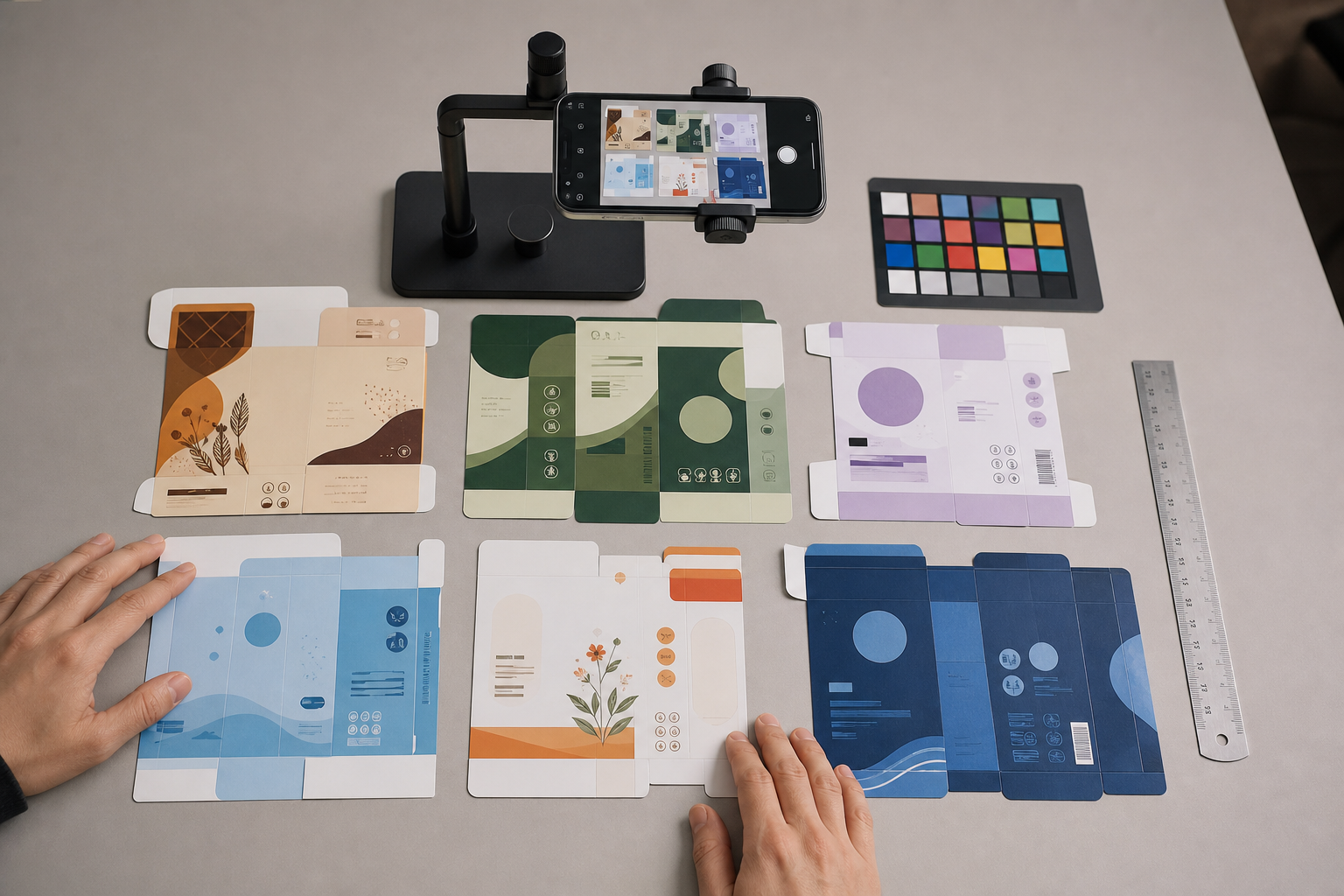
The best OCR cleanup happens before the photo is taken. A boring capture is flat, evenly lit, and predictable. It may not look stylish, but it gives OCR engines clean edges and stable contrast.
Ask suppliers, warehouses, or field staff for these basics whenever possible:
- Photograph the label straight on, not from an angle.
- Fill most of the frame with the label, but leave a small border around it.
- Avoid flash on glossy packaging.
- Use indirect daylight or a large soft light instead of a single harsh bulb.
- Place curved containers on their side only if it makes the main panel flatter.
- Take separate photos for each label area instead of one distant full-product shot.
- Include the original full package photo for context when compliance matters.
For mixed-language labels, separate panels are better than one giant image. A product may have English, German, French, Arabic, Chinese, or Spanish text placed in separate blocks. OCR accuracy improves when each block is cropped cleanly and processed as its own region.
A useful capture request is simple: one full package photo, one straight-on photo of each text panel, and one close-up of the batch or lot code. That gives the reviewer context, detail, and traceability.
Build a Source Folder That Can Survive Review
Before making edits, keep the originals. Do not overwrite supplier images, even if they are messy. A compliance reviewer may need to compare the cleaned image to the original later.
A tidy folder structure might look like this:
product-code/
  originals/
  cleaned-labels/
  ocr-text/
  review-pdf/
Use predictable file names that connect images to products and panels:
SKU-1842_front_original.jpg
SKU-1842_ingredients_original.jpg
SKU-1842_batchcode_original.jpg
SKU-1842_ingredients_clean.png
SKU-1842_ingredients_ocr.txt
SKU-1842_review_packet.pdf
Avoid names like WhatsApp Image 12 or label final final. Import work often gets revisited months later. Clear naming makes it easier to prove which photo produced which extracted text.
Crop for the Text, Not the Package
A full package photo is useful for context, but OCR wants the label region. Crop tightly enough to remove background clutter, hands, table edges, and unrelated packaging panels. Leave a slim margin so text near the edges is not cut off.
Good cropping choices:
- Crop each language block separately if columns are dense.
- Crop the nutrition table as its own image.
- Crop the batch code separately because stamped text often needs different contrast.
- Keep symbols with their nearby warnings when they explain the text.
- Remove decorative product photography if it distracts from the label.
Bad cropping choices:
- Cutting off descenders, accents, or punctuation at the edge.
- Including two panels at different angles in one crop.
- Keeping a large glossy logo when you only need the importer address.
- Cropping so tightly that reviewers cannot tell where the text came from.
If a supplier sends a very large image, crop first and then use Resize Image to make a manageable copy. Resizing the whole photo before cropping can throw away detail you need for small print.
Straighten Before OCR, Especially for Tables
Skew is one of the easiest problems to overlook. A label that is tilted by only a few degrees may still look readable to a person, but OCR can merge lines or reorder columns. This is especially risky for nutrition facts, ingredient lists, allergen statements, and distributor addresses.
Straighten using the longest reliable visual reference:
- The edge of a nutrition table.
- The baseline of a paragraph.
- The vertical edge of a barcode.
- The border of a sticker.
- The fold line of a carton panel if it is parallel to the printed text.
Do not straighten based on decorative shapes or angled brand elements. Packaging designers often use slanted graphics that are not aligned with the regulatory copy.
After straightening, check the text at the corners. Rotation can trim edges if the canvas is too tight. Keep enough margin for accents, punctuation, and small symbols.
Handle Curved Bottles and Tubes With Panel Splits
Curved surfaces create two problems: the text bends, and the far edges fall out of focus. If you try to OCR the entire curved label at once, the center may work while the sides fail.
The practical fix is to split the label into readable panels:
- Capture the center panel straight on.
- Rotate the product slightly and capture the left panel.
- Rotate again and capture the right panel.
- Crop each panel separately.
- Name the files in reading order.
This approach is slower than taking one photo, but it prevents OCR from guessing at warped text. For round bottles, jars, cosmetics tubes, supplements, and chemical containers, panel splitting is usually worth the extra minute.
If you receive only one curved image, crop the most readable center region first. Then create secondary crops for the left and right edges. Avoid over-sharpening the curved edges; it can make distorted letters look falsely crisp.
Clean Contrast Without Destroying Tiny Characters
Packaging labels often use small gray text, colored backgrounds, and glossy film. The instinct is to push contrast hard until the label looks crisp. That can help, but too much contrast can close letter counters, erase accents, and turn thin punctuation into noise.
Use a conservative cleanup pass:
- Increase brightness only enough to separate paper or label stock from shadows.
- Increase contrast gradually while checking the smallest text.
- Reduce glare if possible, but do not paint over missing characters.
- Avoid heavy blur because it softens small type.
- Avoid aggressive sharpening that creates halos around letters.
- Keep a cleaned PNG or high-quality image before making smaller delivery copies.
For labels with colored backgrounds, grayscale is not always better. A pale yellow label with black text may OCR well in color, while a red label with black text may need selective brightness and contrast. Test both if the first OCR result is poor.
The AI Photo Editor can be useful for removing distracting background elements around a label crop, but use it carefully on compliance material. Do not ask an editor to recreate missing text, extend damaged characters, or alter regulated statements. Cleanup should clarify what is present, not generate what might have been there.
Decision Table: Fix the Image or Reshoot It?
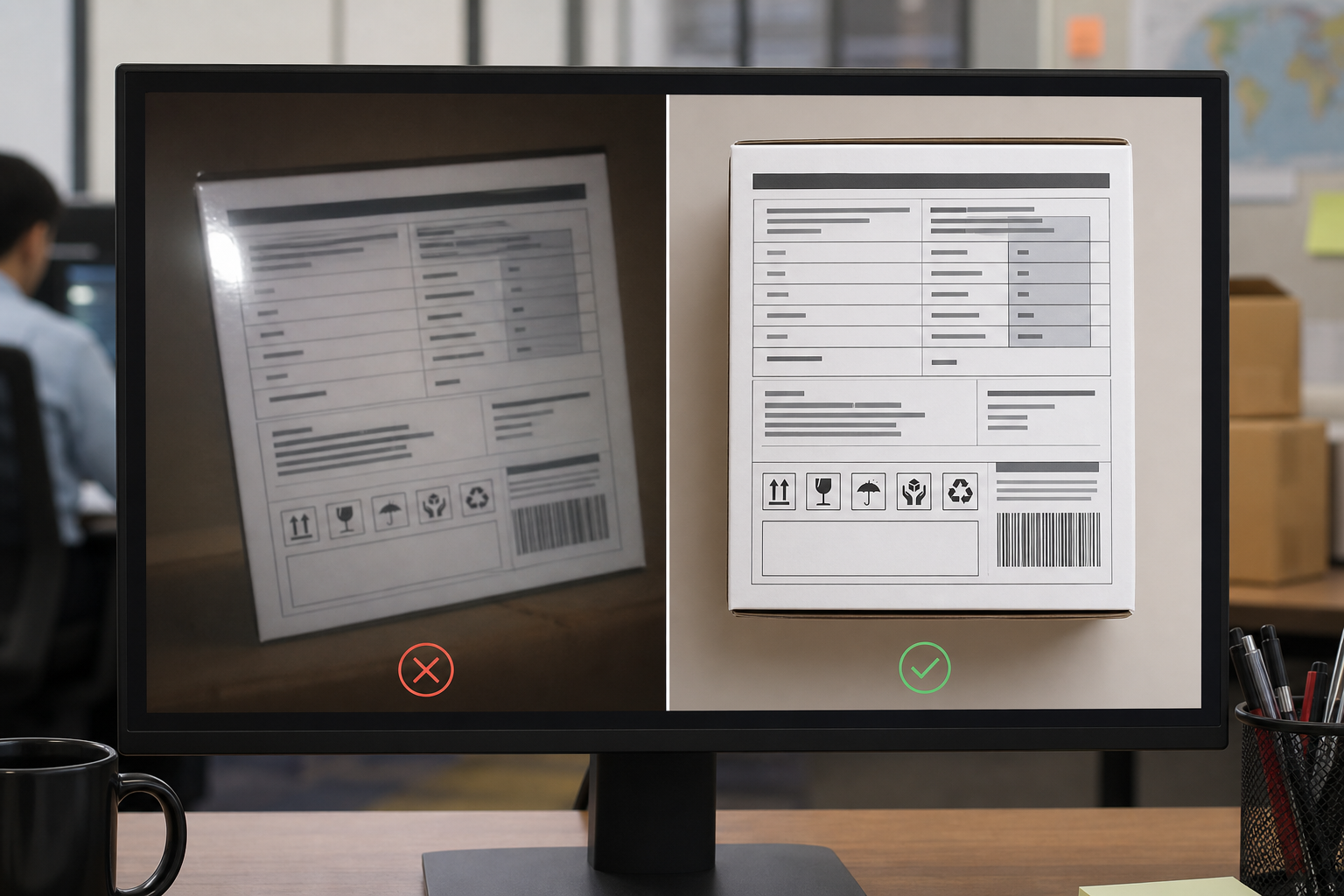
Some images are not worth rescuing. A clear reshoot request can save more time than trying to repair a broken capture.
| Problem | Try cleanup? | Better action |
|---|---|---|
| Slight tilt | Yes | Straighten and crop |
| Mild shadow | Yes | Adjust brightness and contrast |
| Background clutter | Yes | Crop around the label |
| Heavy glare over text | Usually no | Request a new photo without flash |
| Motion blur on small print | Usually no | Request a sharper close-up |
| Text hidden by a finger | No | Request a new capture |
| Curved label edges unreadable | Maybe | Ask for separate rotated panel photos |
| Messaging app compression artifacts | Maybe | Request original file upload if possible |
| Sticker covers older text | Depends | Capture both sticker and surrounding context |
A good rule: if a human reviewer cannot confidently read the characters at 150% zoom, OCR should not be trusted as the only source. You can still archive the image, but mark the extracted text for manual verification.
Prepare Mixed-Language Text Blocks Separately
Mixed-language labels need special care because OCR may apply the wrong language assumptions. Even when an OCR tool supports multiple languages, dense multilingual packaging can confuse reading order.
Separate the image into logical blocks:
- Ingredients by language.
- Warnings by language.
- Nutrition table.
- Manufacturer and importer details.
- Storage instructions.
- Batch, lot, and expiry codes.
- Certification and recycling marks.
When a label uses two scripts side by side, such as Latin and Arabic or Latin and Chinese, crop each script block separately if possible. This helps the OCR result stay organized and makes human review faster.
For right-to-left languages, preserve the visual crop and compare the OCR output carefully. Do not assume line order is correct just because the characters were detected. Mixed punctuation, numbers, and units can be reordered incorrectly.
Keep Logos and Icons From Polluting the OCR Result
Packaging labels include symbols that matter, but not all symbols should be processed as text. A brand logo can produce nonsense characters. A recycling mark can interrupt a line. A barcode can create scattered numbers if it is too close to a paragraph.
Before OCR, decide whether a visual element is evidence or noise.
Keep symbols when:
- They are part of a warning statement.
- They indicate storage, recycling, certification, or handling.
- They sit next to regulated text that must be reviewed.
- The reviewer needs to verify the exact mark.
Exclude or separate symbols when:
- They are decorative brand graphics.
- They overlap with OCR text regions.
- They create false characters in the output.
- They belong in a visual appendix rather than extracted text.
For important marks, create a separate visual crop and name it clearly. OCR is not the right tool for every packaging element. Sometimes the correct record is simply a clean image crop inside a PDF packet.
Batch Codes, Date Codes, and Inkjet Stamps Need Their Own Pass
Batch and date codes are often printed after packaging, using inkjet, laser marking, embossing, or stickers. They rarely match the main label typography. Treat them as a separate capture and cleanup task.
For stamped codes:
- Use a close-up crop.
- Preserve the surrounding package area for context.
- Increase contrast carefully.
- Try both color and grayscale versions.
- Avoid smoothing filters that erase broken dot-matrix characters.
- Record uncertain characters with a review note rather than guessing.
A batch code like B8O1 can be confused with B801, BBO1, or 8801. OCR mistakes here can be costly because these codes connect to recalls, expiry checks, and supplier investigations. Always review them manually.
Resize Only After the Useful Crop Exists
Large phone photos can be 3000 to 6000 pixels wide, but the useful label region may occupy only a small part of the frame. If you resize the full image too early, the label text may become too small.
Use this order:
- Save the original.
- Crop the label panel.
- Straighten the crop.
- Adjust contrast if needed.
- Resize the cleaned crop only if the file is still too large.
- Run OCR.
- Compress delivery copies after review.
For tiny label text, keep enough pixels for the OCR engine to distinguish characters. As a practical target, the smallest important letters should still look readable at normal zoom on a laptop screen. If you need a smaller web or email copy, create it from the cleaned master rather than replacing the master.
Compress Carefully for Email and Portals
Import teams often need to send label evidence through email, broker portals, marketplace dashboards, or shared drives with file limits. Compression is useful, but it can ruin OCR if used too early or too aggressively.
Use Compress Image near the end, after OCR and review. Keep a master copy in PNG or a high-quality format, then create a smaller delivery copy.
Compression checks:
- Zoom into the smallest ingredient text.
- Check accented characters and punctuation.
- Check thin table lines.
- Check batch code edges.
- Check low-contrast gray text.
- Compare the compressed image to the cleaned master.
If the compressed image is only for a PDF review packet, moderate compression is usually fine. If the compressed image will be OCRed again by another system, keep quality higher.
Create a Review Packet That Shows the Evidence
A useful review packet should not contain only extracted text. It should show where the text came from. For compliance, marketplace, or broker review, combine the original context and cleaned crops into a PDF.
A simple packet order:
- Full product photo.
- Original label panel photo.
- Cleaned label panel crop.
- OCR text or extracted field list.
- Batch code close-up.
- Notes for uncertain characters.
Use Image to PDF to combine label images into a single file. If several documents need to be joined, PDF Merge can help assemble supplier forms, label packets, and internal notes into one review file.
Keep the packet boring and easy to audit. A reviewer should be able to answer three questions quickly: what product is this, where did the text come from, and which characters need manual confirmation?
A Practical Cleanup Checklist for One SKU
Use this checklist when one product has several label photos:
- Save all original supplier or warehouse images unchanged.
- Rename files with SKU, panel, and source status.
- Pick the clearest full package photo for context.
- Crop each text-heavy label panel separately.
- Straighten panels using paragraph or table edges.
- Split curved labels into multiple readable panel crops.
- Adjust brightness and contrast conservatively.
- Keep color versions when color improves character separation.
- Create separate crops for batch codes and stamped dates.
- Run OCR on each logical text block.
- Review mixed-language output against the image.
- Mark uncertain characters instead of guessing.
- Create a PDF packet with originals, cleaned crops, and notes.
- Compress only the delivery copy, not the master evidence files.
This checklist is intentionally plain. The value is consistency. When every SKU is handled the same way, review becomes faster and mistakes are easier to spot.
Example: Cleaning a Crowded Supplement Label
Imagine a small supplement bottle with a wraparound label. The supplier sends one phone image showing the front brand panel and part of the ingredients list. The English text is readable in the center, but the German and French sections curve away at the edges. The batch code is stamped in blue ink near the bottom.
A practical handling plan would be:
- Keep the supplier photo as the original context image.
- Request three new photos: center ingredients, left language panel, right language panel.
- Ask for a separate close-up of the batch code.
- Crop each language panel into its own image.
- Straighten each crop using the paragraph baselines.
- Run OCR separately for each language section with Image OCR.
- Review units, allergens, and storage instructions manually.
- Save the batch code image and transcribed code with a confidence note.
- Build a review PDF with the full bottle image, cleaned crops, OCR text, and uncertain items.
This avoids the common mistake of forcing one curved image to serve every purpose. The front panel proves product identity. The separate text crops support OCR. The batch code close-up supports traceability.
Common Mistakes That Create Bad OCR Records
The biggest OCR problems usually come from small shortcuts.
Do not edit the only copy. If the cleaned image later gets challenged, you need the original.
Do not crop away context completely. A crop of ingredients without any product reference may be hard to connect to the right SKU later.
Do not use beauty retouching on regulated text. Removing glare is reasonable; rebuilding letters is not.
Do not trust OCR output because it looks formatted. Tables and multilingual columns can look neat while containing wrong line order.
Do not compress before OCR. Compression artifacts around tiny text are hard to undo.
Do not combine too many panels into one image. OCR performs better when each crop has one main reading direction and one clear purpose.
Do not ignore punctuation. Decimal points, commas, percentage signs, accents, and hyphens can change meaning in ingredient lists, weights, and warnings.
When Human Review Is Non-Negotiable
OCR is a speed aid, not a compliance authority. Human review is essential when the label affects safety, legal submission, customs classification, marketplace eligibility, allergen disclosure, expiry checks, or recall traceability.
Flag these items for manual review:
- Allergens and ingredient names.
- Warnings and hazard statements.
- Country of origin.
- Importer or responsible party address.
- Net weight and units.
- Expiry, best-before, batch, and lot codes.
- Any text partly covered by glare, folds, stickers, or shadows.
- Any character the OCR engine may confuse, such as
0,O,1,I,5, andS.
A strong review note is better than a silent guess. Use comments like batch code unclear after third character or French storage line needs native speaker review. Those notes make the packet more trustworthy.
Final Pass Before Sending
Before sending the packet to a broker, marketplace team, translation reviewer, or compliance folder, do a final pass:
- Does the PDF include the original image and cleaned crop?
- Are file names tied to the correct SKU?
- Is each language block separated clearly?
- Are uncertain OCR characters marked?
- Is the delivery file small enough for the destination portal?
- Is the master copy preserved at higher quality?
- Can someone outside the task understand what each image shows?
Packaging label OCR is not about perfect automation. It is about reducing messy visual evidence into clean, reviewable material without losing the truth of the original label. With careful capture, conservative cleanup, separate crops, and clear packets, import teams can move faster while still giving reviewers the evidence they need.