Archive Photo Colorization Guardrails for Local History Collections
A practical guide for libraries, museums, and local history groups preparing colorized archive photos without damaging trust, metadata, or preservation copies.
Archive Photo Colorization Guardrails for Local History Collections
Colorizing archive photos can make a local history collection feel immediate. A street scene from 1912 becomes easier to read. A faded portrait gains emotional presence. A newspaper clipping shared on social media gets more attention than the same image in flat grayscale.
That attention is useful, but it creates a preservation problem. Colorization is not neutral. It adds interpretation to evidence. For libraries, museums, historical societies, genealogical groups, school archives, neighborhood associations, and small-town heritage projects, the question is not simply how to colorize an old photo. The better question is how to make a colorized access copy without confusing it with the historical record.
This guide gives small teams a practical system for preparing, editing, labeling, and publishing colorized archive photos. It assumes you may not have a full digital preservation department. You may be working with volunteer scans, donated family albums, fragile prints, mixed file names, or a shared folder that has grown messy over several years. The goal is to help you create appealing images while protecting trust in the collection.
When Colorization Helps and When It Creates Risk
Colorization is most useful when the image is being used for access, education, interpretation, or outreach. It can help modern viewers notice details that are easy to miss in monochrome: storefront signs, uniforms, garden layouts, building materials, room arrangements, or the age mix in a public gathering.
It is riskier when the image is being used as evidence. If a photo may support a conservation decision, architectural restoration, legal claim, artifact identification, or scholarly citation, the colorized version should never stand alone. It may be shown as an interpretive companion, but the unaltered scan must remain the reference copy.
A practical dividing line is this: colorized photos are access copies, not preservation masters. They help people look. They do not replace the source.
| Use case | Colorization fit | Required caution |
|---|---|---|
| Social media post about a local anniversary | Strong fit | Clearly label as colorized |
| Exhibition panel showing daily life | Good fit | Keep original nearby or linked |
| Genealogy handout for family members | Good fit | Avoid guessing uniform, medal, or occupational colors |
| Building restoration research | Weak fit | Use original scan for decisions |
| Artifact color identification | Poor fit | Do not rely on generated color |
| Classroom material comparing past and present | Strong fit | Explain that color is interpretive |
The danger is not that colorization exists. The danger is silent colorization. If viewers cannot tell whether a color image is original, restored, or AI-assisted, the collection loses credibility.
Start With a Preservation Mindset
Before editing anything, decide what each file is allowed to be. Small archives often get into trouble because every file sits in the same folder with names like scan-final, scan-final-new, photo-color, and best-version. Six months later, nobody knows which file came from the scanner and which one was edited for a Facebook post.
A preservation-minded setup separates source material from presentation material. It does not need to be complicated. It needs to be consistent.
Use these plain-language roles:
| File role | Purpose | Edit allowed? |
|---|---|---|
| Master scan | Best available digital capture of the object | No cosmetic edits |
| Clean restoration copy | Dust, crop, rotation, tonal correction | Yes, but document changes |
| Colorized access copy | Public-friendly interpretive version | Yes, clearly labeled |
| Web copy | Compressed version for online use | Yes, derived from access copy |
| Print copy | Sized version for panels, handouts, or exhibits | Yes, derived from access copy |
This structure protects the collection from accidental replacement. It also makes future cleanup easier. If a better tool appears next year, you can return to the master scan instead of trying to undo a colorized JPEG.
Build a Three-Copy Rule Before Any Edit
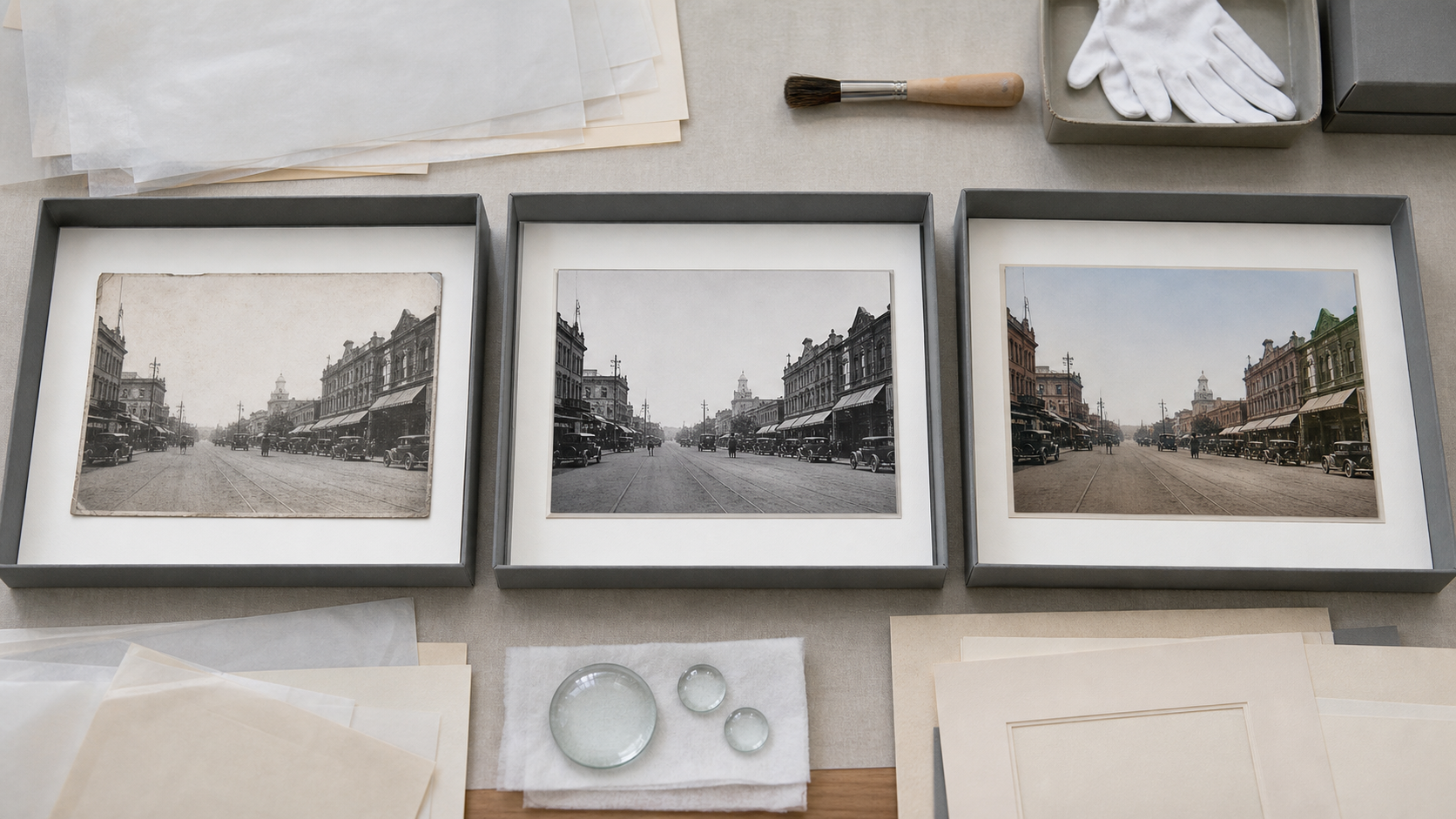
For most local history projects, three copies are enough:
- A master scan that is never edited.
- A cleaned black-and-white restoration copy.
- A colorized access copy.
The master scan should preserve the object as captured. That includes borders, handwritten notes, stains, tears, and uneven edges when those details matter. If the scan is crooked, leave the master alone and straighten a duplicate.
The restoration copy is where you make the image easier to view while staying within the original tonal world. You might crop the scanner bed, rotate the image, remove dust, adjust contrast, or repair a small scratch. This copy is often the best version for researchers.
The colorized access copy is where interpretation enters. It may be used for exhibit previews, local history newsletters, school resources, or social posts. This is the version that benefits most from a clear label.
A simple folder pattern can look like this:
collection-name/
  masters/
  restored-bw/
  colorized-access/
  web-copies/
  notes/
If you are preparing images one at a time, you can keep the same structure with file names:
1912-main-street_master.tif
1912-main-street_restored-bw.jpg
1912-main-street_colorized-access.jpg
1912-main-street_web.jpg
1912-main-street_notes.txt
The exact naming scheme matters less than the habit: a colorized file should identify itself before anyone opens it.
Scan and Clean Before You Colorize
Colorization tools work best when the source image is stable. If the scan is low resolution, strongly compressed, tilted, dusty, or full of scanner glare, the generated color will often exaggerate those problems. A gray scratch may become a bright line. A stained background may turn into a strange wall color. Tiny faces may pick up inconsistent skin tones.
Before colorization, prepare a clean black-and-white copy:
- Scan at a resolution appropriate to the object. For small prints, 600 dpi is often more useful than 300 dpi. For large photos or fragile scrapbook pages, use the best capture method available without damaging the item.
- Crop away scanner bed edges, but do not remove historical border details if they carry information.
- Straighten only enough to make the image readable.
- Adjust contrast gently. Avoid crushing shadows or blowing out pale clothing, paper edges, clouds, or signage.
- Remove obvious dust and scan debris, but be careful with scratches, tape, stamps, writing, and physical marks that may be part of the object history.
- Save the cleaned version separately from the master.
If you need a quick browser-based place to prepare a scan for sharing, tools like resize image, compress image, and convert image can help create web-ready derivatives after the preservation copy is already safe.
Do not use compression as an early step. Heavy JPEG compression can create blocky edges around faces, letters, trees, and rooflines. Those artifacts can confuse later edits. Keep the working copy high quality, then compress only the final public version.
Use Color as Interpretation, Not Evidence
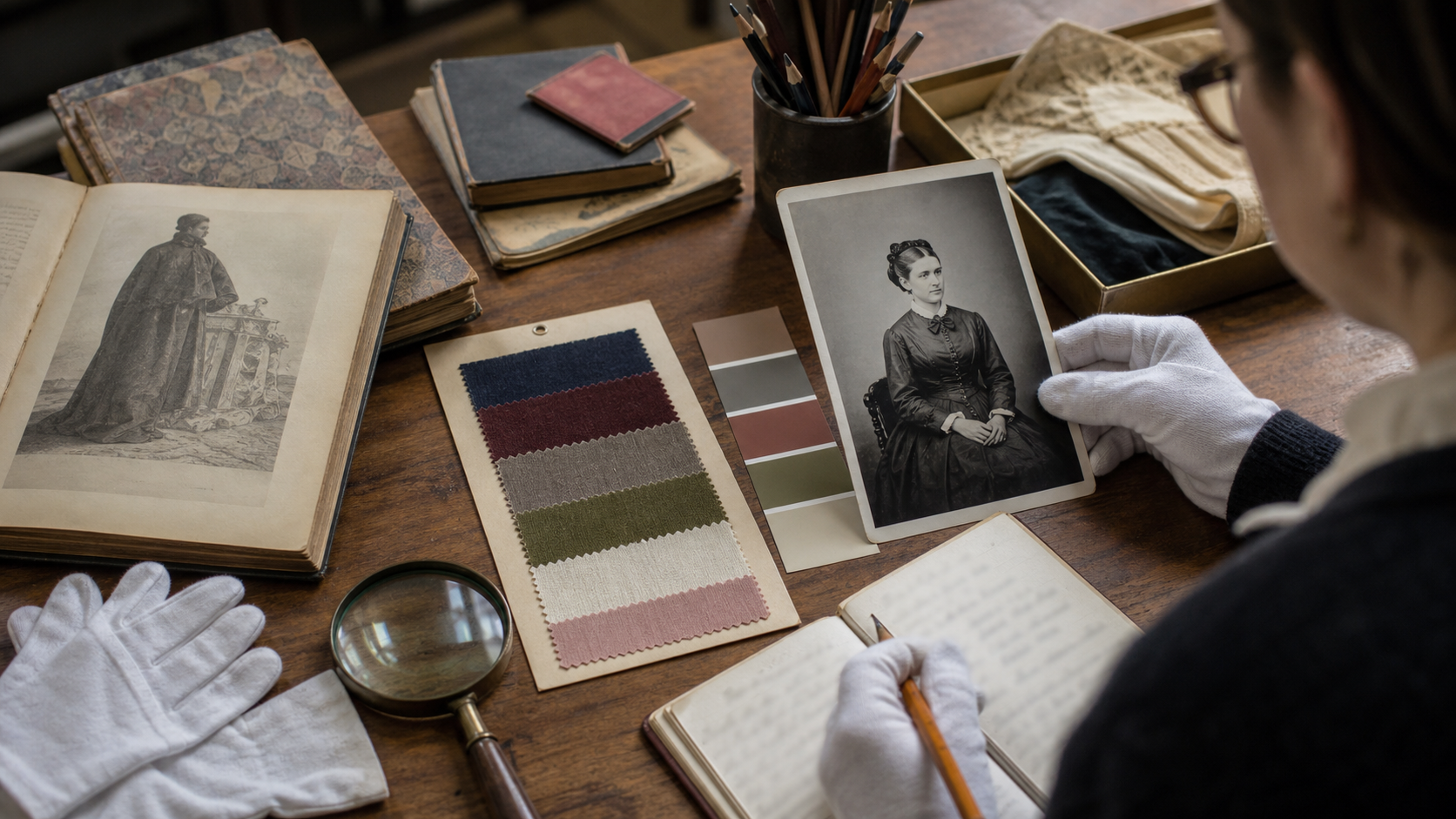
A colorized archive photo should be treated like a curator's reconstruction. It can be thoughtful, researched, and useful, but it is still an interpretation.
This matters most when the image contains objects whose colors might carry meaning:
| Detail | Why color guesses are risky |
|---|---|
| Military uniforms | Rank, branch, period, and country can affect color |
| Flags and banners | Incorrect colors can change political or civic meaning |
| Religious clothing | Color may have ceremonial significance |
| Product packaging | Brand colors may be documented elsewhere |
| Race cars, buses, trains, or ships | Paint schemes may be historically specific |
| School or team uniforms | Colors may be central to identity |
| Police, fire, or medical equipment | Color can imply department, period, or jurisdiction |
When colors matter, research before editing. Look for catalog records, donor notes, local newspaper descriptions, building paint records, postcards, yearbooks, uniform guides, maps, oral histories, or surviving artifacts. If you cannot verify the color, avoid making the color overly specific.
For example, if a black-and-white photo shows a 1930s storefront awning, a muted fabric tone is safer than a saturated red-and-yellow stripe unless you have evidence. If a dress could be navy, black, brown, or dark green, avoid using the colorized version to claim one of those colors.
A useful caption pattern is:
Colorized access copy based on a black-and-white photograph. Colors are interpretive unless documented in the collection notes.That sentence is not a legal shield. It is a trust signal. It tells viewers how to read the image.
Make a Color Research Note
For each important image, create a short note that records what you know and what you guessed. This does not need to be a scholarly essay. It should be enough for another volunteer, curator, teacher, or future staff member to understand your choices.
Use a compact note like this:
Item: 1912 Main Street parade, north side of square
Source: master scan from Smith family album, donated 2008
Colorization date: 2026-06-28
Editor: initials or team name
Known colors: town hall brick likely red-brown based on surviving building; fire wagon described as red in local newspaper clipping, 1912-07-04
Uncertain colors: dresses, hats, bunting, storefront awnings
Edits made before color: crop, slight rotation, dust cleanup, contrast adjustment
Public label required: colorized access copy, colors interpretive
This note is especially useful when an image becomes popular. Local history posts often get shared outside their original context. If someone asks why a building was colored a certain way, you can answer with a record instead of memory.
For text-heavy archive material, you may also want to extract visible writing before editing. A tool like image OCR can help capture signs, labels, captions, or handwritten notes from a clear image. OCR will not be perfect on old photos, but it can give you a searchable starting point for metadata and captions.
Choose Conservative Color Settings
The most common mistake in archive colorization is too much saturation. Old photos often look strange when every surface gets a glossy modern color. Local history images usually benefit from restraint.
Aim for colors that feel plausible, not theatrical. Brick can be warm without glowing orange. Grass can be green without looking like a sports broadcast. Skin tones should avoid plastic smoothness. A cloudy sky does not need to become a vivid blue sky unless the scene clearly supports it.
Use this checklist after the first color pass:
| Check | What to look for | Fix |
|---|---|---|
| Faces | Uneven patches, waxy skin, mismatched hands | Reduce intensity or mask locally |
| Clothing | Random color changes across one garment | Simplify to one muted tone |
| Background | Walls, roads, and sky too colorful | Desaturate large surfaces |
| Signs | Color bleeding into letters | Keep text closer to grayscale |
| Trees and grass | Neon greens | Lower saturation and contrast |
| Metal and glass | Unrealistic blue or yellow casts | Neutralize highlights |
| Shadows | Purple, green, or muddy color noise | Reduce color in dark areas |
If you use an AI editing tool, treat the first result as a draft. With AI photo editor, the strongest prompt is usually specific and restrained. Ask for historically plausible, muted color, preservation of faces and text, and no added objects. Avoid prompts that ask for modernization, dramatic lighting, cinematic grading, or beauty enhancement.
A better prompt direction:
Colorize this restored black-and-white archive photo with muted, historically plausible colors. Preserve all original objects, faces, signs, clothing shapes, scratches, and composition. Do not add new details. Keep text legible and avoid oversaturated colors.A weaker prompt direction:
Make this old photo look modern and vibrant.The weaker version invites the tool to improve the photo as a contemporary image, which is exactly what an archive project should avoid.
Protect Faces From Over-Editing
Faces carry emotional weight, and they are where viewers notice errors fastest. They are also where AI-assisted edits can become ethically sensitive.
For family history, school photos, community events, immigration records, memorial posts, and images of children, avoid turning a person into an idealized portrait. Do not sharpen eyes beyond the source, invent makeup, remove age marks, change facial structure, or smooth skin so heavily that the person looks like a modern retouch.
A colorized portrait can be respectful without being perfect. Slightly muted color is often better than a highly polished result. If the original face is blurred, let the colorized version remain somewhat blurred. Do not create false detail and then publish it as if it came from the original.
Use extra caution with underrepresented communities or sensitive historical contexts. Colorization can increase empathy, but it can also impose modern assumptions on people who did not consent to the edit. When in doubt, pair the colorized version with the original and explain why the colorized copy was made.
Keep Text, Logos, and Signs Legible
Street scenes, shop windows, postcards, badges, vehicle markings, product labels, and newspaper photos often contain small text. Colorization can reduce readability if color bleeds into letters or turns high-contrast signs into mottled surfaces.
Before publishing, zoom in on every important text area. Check:
- Store names.
- Street signs.
- Dates written on borders.
- Photographer stamps.
- License plates.
- Uniform patches.
- Banners and protest signs.
- Newspaper captions inside the image.
If text becomes harder to read, use the restored black-and-white copy for OCR and citation. The colorized version can still be useful for public engagement, but it should not be the only image available.
For records that need to be shared as a packet, combine a colorized access image with the black-and-white source, notes, and caption page. A tool like image to PDF is useful when you need a simple PDF handout for a teacher, donor, volunteer reviewer, or local exhibit committee.
Publish With Labels That Travel
Labels should travel with the image because screenshots, reposts, and downloads often separate a photo from its original web page. If your only disclosure sits in a social media caption, it can disappear when someone saves and reuploads the file.
Use several layers of disclosure:
| Location | Example |
|---|---|
| File name | 1912-main-street_colorized-access.jpg |
| Web caption | Colorized access copy; original black-and-white scan held by the collection. |
| Metadata note | Colorized from restored scan; colors interpretive. |
| Exhibit label | Digitally colorized for interpretation. |
| PDF handout | Include both original and colorized versions |
Avoid vague labels like enhanced photo or improved version. They do not tell the viewer what changed. Use direct language: colorized, digitally colorized, or colorized access copy.
If you add a visible watermark or label inside an image, keep it modest and outside important historical content. However, visible text inside images can make reuse harder and may distract from the object. In many cases, file names, captions, metadata, and paired originals are a better balance.
Prepare Web Copies Without Damaging Detail
Archive images often contain thin lines, film grain, paper texture, handwritten notes, and small faces. Aggressive compression can erase these details. It can also make a careful colorization look cheap.
For web copies, use the smallest file that still respects the image. A long edge of 1600 to 2400 pixels is often enough for article pages, collection previews, and social posts. For deep zoom research use, keep a larger access file available separately.
Use this practical export checklist:
- Keep the master and restoration files untouched.
- Export a colorized access copy at high quality.
- Resize a duplicate for the web page or newsletter.
- Compress the web duplicate, not the archival copy.
- Open the compressed file and inspect faces, signs, borders, and shadows.
- If detail breaks down, increase quality or dimensions.
The compress image tool is best used near the end, after you have already made preservation decisions. Compression is a delivery step, not a restoration step.
Create a Review Pass Before Release
A second person should review important colorized images before public release. This is not about slowing down every post. It is about catching avoidable mistakes that can spread quickly once an image is online.
Use a short review checklist:
| Review question | Why it matters |
|---|---|
| Is the original scan preserved separately? | Prevents accidental replacement |
| Is the colorized file clearly named? | Reduces future confusion |
| Are uncertain colors documented? | Keeps interpretation transparent |
| Are faces natural and respectful? | Avoids over-editing people |
| Are signs and labels still readable? | Protects research value |
| Are captions honest? | Maintains public trust |
| Is the web file sharp enough? | Prevents avoidable quality loss |
| Is the image suitable for the community context? | Avoids insensitive presentation |
For small organizations, the reviewer can be another volunteer, a board member, a local historian, a donor contact, or a staff member who did not do the edit. The key is fresh eyes.
A Practical Example: Main Street Parade Photo
Imagine a historical society has a black-and-white photo of a Main Street parade from 1912. The image shows a fire wagon, storefronts, spectators, flags, and children sitting near the curb. The group wants to share it for the town's anniversary.
A careful preparation might look like this:
- The original scan is saved as a master TIFF in the
mastersfolder. - A duplicate is cropped, straightened, and lightly cleaned as a black-and-white restoration copy.
- Visible storefront names are captured in the notes file.
- A local newspaper clipping confirms that the fire wagon was red.
- The brick town hall still exists, giving a reliable reference for building color.
- Clothing colors are unknown, so they are kept muted and varied without strong claims.
- The colorized access copy is reviewed for faces, signs, flags, and color bleeding.
- The public post includes the colorized image, the original black-and-white version, and a caption explaining the edit.
The final caption could read:
Main Street parade, 1912. This is a digitally colorized access copy based on a black-and-white photograph in the Smith family album. The fire wagon and town hall colors are based on collection notes and local references; other colors are interpretive.That caption gives viewers enough context without turning the post into a technical report.
Common Mistakes to Avoid
The most damaging mistakes are usually organizational, not artistic.
Do not overwrite the original scan. Even a beautiful edit is still a derivative.
Do not publish colorized images without disclosure. Viewers should never have to guess whether a historical photo was originally in color.
Do not use colorization to fill factual gaps. If the color is unknown, say so or keep it understated.
Do not remove historical marks just because they look messy. A crease, stamp, album corner, or handwritten note may be part of the object's story.
Do not upscale tiny faces into artificial portraits. A clearer image is not always a more truthful one.
Do not compress the only usable copy. Make web files from duplicates.
Do not let social media become the only record of the edit. Keep a local note with the file.
Final Preflight Checklist
Before a colorized archive photo goes public, confirm these items:
- The master scan is preserved and untouched.
- The restored black-and-white copy exists separately.
- The colorized access copy is named clearly.
- Any known color references are recorded.
- Uncertain colors are described as interpretive.
- Faces have not been reshaped, beautified, or over-sharpened.
- Text, signs, and labels remain readable.
- The public caption discloses colorization.
- The web copy was resized and compressed from a duplicate.
- A second person reviewed the image for accuracy and sensitivity.
Colorization can be a strong public access tool for local history collections. It can help people connect with places, relatives, and events that otherwise feel distant. But the edit needs boundaries. Preserve the source, document the interpretation, label the result, and keep the public version honest.
Handled that way, a colorized archive photo does not compete with the original. It becomes a guided invitation back to it.