Firmware Update Screenshot Packs for IoT Support Tickets
A practical guide for turning router, sensor, camera, and gateway firmware update screenshots into clean support packets that are readable, compressed, and easy to review.
Firmware Update Screenshot Packs for IoT Support Tickets
Firmware update problems are rarely solved by one screenshot. A device may show the old firmware version in one panel, the update attempt in another, a timeout dialog somewhere else, and a separate mobile app screen that proves the device is online but not accepting the package. For support engineers, field technicians, managed service providers, and small hardware teams, the problem is not just capturing evidence. The problem is packaging it so another person can understand the device state without asking for the same details again.
This guide focuses on a narrow but common case: preparing screenshot packs for IoT firmware update tickets. Think routers, gateways, smart locks, security cameras, environmental sensors, access points, point-of-sale peripherals, building controllers, and other devices managed through web dashboards or mobile apps. The goal is to turn scattered screenshots into a compact, readable packet that preserves the important details, removes distractions, and travels cleanly through help desks, email threads, vendor portals, and PDF attachments.
The examples below are tool-agnostic, but ConvertAndEdit tools can help at several points. You can use Image OCR to pull firmware numbers and error codes out of screenshots, Resize Image to normalize inconsistent captures, Compress Image to reduce attachment size, Convert Image to standardize formats, and Image to PDF to assemble a review packet.
Why Firmware Ticket Screenshots Fail
Firmware tickets often stall because screenshots are treated as casual evidence instead of technical evidence. A blurry mobile capture of a web console might contain the answer, but if the version number is tiny, cropped off, hidden behind a notification, or compressed into mush by a messaging app, the support team still has to ask for clarification.
The failure pattern is usually predictable. The ticket includes a device photo, three screenshots from different screens, and one error message. The file names are generic, the captures are different sizes, and the newest screenshot is not obviously newer than the first one. Some images show sensitive network details that should have been redacted. Other images are so aggressively compressed that serial numbers, build identifiers, and timestamps are unreadable.
A good firmware screenshot pack fixes those issues before the ticket is sent. It gives the reviewer a simple sequence: what device this is, what version it started on, what update was attempted, what failed or succeeded, and what the device reports afterward. That sequence matters because firmware investigations are often about state transitions, not just isolated errors.
The Screenshot Pack Support Teams Actually Need

A useful packet should answer six questions without a follow-up email.
| Question | Screenshot or asset to include | Why it matters |
|---|---|---|
| Which device is affected? | Device overview page or clear device label photo | Confirms model, serial, region, and hardware revision |
| What version is installed now? | Firmware or system information screen | Establishes the starting state |
| What update was selected? | Update page showing target version or package | Prevents confusion between stable, beta, and regional builds |
| What happened during the attempt? | Progress, error, timeout, or success screen | Shows the failure mode and timing |
| What does the device report afterward? | Post-update version or status screen | Confirms whether the update applied, rolled back, or stalled |
| What environment may affect the update? | Network, storage, power, or connection status screen | Helps support rule out common blockers |
You do not need every screen for every ticket. A failed router update may need WAN status, firmware page, and update error. A smart camera update may need app version, device firmware, battery level, Wi-Fi strength, and the failure message. A gateway update may need a controller dashboard, local device page, and a log excerpt.
The point is to capture the decision path. The reviewer should be able to say: this is the device, this is the installed version, this was the intended target, this is the failure, and this is the state after the attempt.
Recommended Capture Order
Use a consistent order so the packet reads like a short case file.
- Device identity screen or device label photo.
- Current firmware version screen.
- Update settings or selected package screen.
- Update attempt screen, including any progress indicator.
- Error, timeout, warning, or success confirmation.
- Post-attempt firmware version or device status.
- Optional environment evidence such as network status, battery, storage, or controller health.
This order also helps when screenshots are later converted into a PDF. If the packet starts with an error message but does not show the device model until page six, the support engineer has to reconstruct the basics before troubleshooting.
Capture Rules for Web Dashboards
Web dashboards are common for routers, access points, camera recorders, smart hubs, and industrial gateways. They are also easy to capture badly because browser chrome, zoom levels, and responsive layouts can hide the most important details.
Start by setting the browser zoom to 100 percent. If the firmware version appears too small, do not zoom the whole browser until the layout changes. Instead, capture the full relevant panel and crop later. Many device dashboards collapse sidebars or hide table columns at narrower widths, so a browser window that is too small can produce incomplete evidence.
Capture the full panel that contains the firmware value, model, build number, and timestamp. Avoid cropping tightly around only the version number. Firmware values often need context: a build can belong to a channel, region, hardware revision, or controller group. If the screenshot only says 2.1.8 without the device model or update channel, it may not be enough.
Before capturing, close browser notification banners, password manager popups, download shelves, and unrelated tabs. These can cover important UI or expose private information. If you need to redact sensitive fields such as IP addresses, account emails, Wi-Fi names, or license keys, do it after capture with a clean block or blur. Do not crop away the label that explains what the redacted field is.
For web dashboards, PNG is usually the best source format because it preserves thin UI lines and small text. If you later need a smaller file, compress a copy with Compress Image, but keep the source capture until the ticket is resolved.
Capture Rules for Mobile App Screens
Mobile app screenshots are common for consumer IoT devices, Bluetooth sensors, smart locks, cameras, and home automation equipment. They have a different set of problems: narrow screens, notification bars, dark mode, gesture overlays, and app screens that hide advanced details behind nested panels.
Use the phone's native screenshot command instead of photographing the screen with another device. A camera photo of a phone screen adds glare, moire, perspective distortion, and often destroys small firmware text. Native screenshots are cleaner and much easier to OCR.
Check whether the app has separate screens for device information, app information, update history, and error details. Some apps show only a friendly update failed message on the main page, while the useful error code appears behind a details button or in an activity log. Capture both if available.
If the device app supports light and dark modes, choose the mode that makes small text easiest to read. Dark mode can look polished, but tiny gray text on black can become muddy after compression. Light mode is often safer for support packets because version numbers, timestamps, and disabled controls remain legible after resizing.
Remove notification previews before capturing. A support packet should not leak personal messages, calendar items, location prompts, or email snippets. If the phone status bar reveals a personal carrier name or exact location indicator, crop only the top system area if it is not relevant to the ticket.
Naming Files So the Ticket Survives Handoff
Generic file names such as Screenshot 2026-06-25 at 10.42.18 are workable for one person, but they become painful when the ticket is forwarded. A simple naming pattern helps every reviewer understand the packet before opening it.
Use this structure:
deviceid_step_subject_date.ext
Examples:
cam-12_01_device-info_2026-06-25.png
cam-12_02_current-firmware_2026-06-25.png
cam-12_03_update-error_2026-06-25.png
cam-12_04_post-attempt-status_2026-06-25.png
Keep names boring and consistent. Do not depend on folder order, upload order, or email attachment order. Many ticket systems reorder uploads, strip timestamps, or display only part of the file name. Numbering the sequence makes the intended reading order clear.
If a screenshot contains sensitive content, add a suffix after redaction:
gateway-7_02_network-status_redacted_2026-06-25.png
That tells the reviewer the image was intentionally altered for privacy, not accidentally incomplete.
A Practical Cleanup Pass Before You Send the Ticket
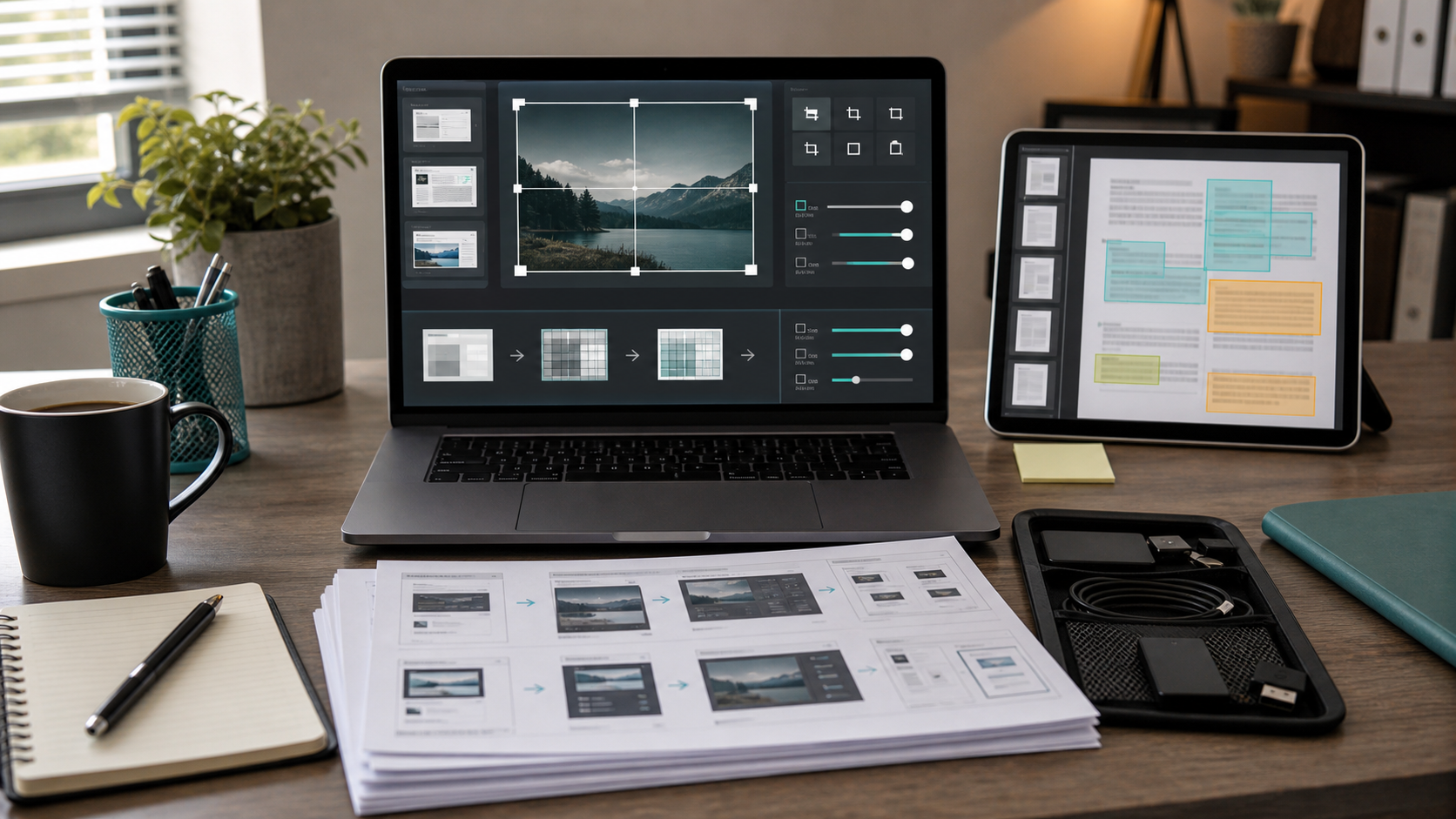
The cleanup pass should make screenshots clearer without changing the technical meaning. The goal is not to beautify the device UI. The goal is to preserve evidence in a form that another person can inspect quickly.
Start with cropping. Remove browser tabs, desktop wallpaper, unrelated windows, and empty margins. Keep the full panel title, labels, version values, buttons, and any error text. A crop is too tight if someone cannot tell which screen they are viewing.
Next, normalize image sizes. A packet with one 4032 pixel phone photo, one 1366 pixel web capture, and one tiny messaging-app thumbnail feels chaotic. Use Resize Image when images are excessively large or inconsistent. For support packets, width consistency matters more than exact pixel perfection. Web dashboard captures can often be standardized around a clear desktop width, while mobile screenshots can stay vertical as long as text remains readable.
Then standardize formats. Use Convert Image when a ticket system rejects HEIC, TIFF, or uncommon image formats. PNG is strong for UI screenshots. JPEG is acceptable for device label photos or environmental photos. WebP can be efficient, but not every older vendor portal previews it cleanly, so PNG or JPEG may be safer for formal support attachments.
After that, compress carefully. Use Compress Image on copies, then inspect the result. Firmware values, error codes, MAC addresses, dates, and small table labels should remain readable at normal zoom. If compression makes a 1 look like an I, or a 0 like an O, compression went too far.
Finally, consider OCR. Use Image OCR to extract firmware versions, model numbers, and error codes from the screenshots. Paste the extracted values into the ticket body so the support engineer can search, copy, and compare them without retyping from the image. OCR is especially useful for serial numbers, build identifiers, and long update package names.
What to Redact and What to Keep
Firmware support tickets often contain network details and account identifiers. Redaction should protect privacy without removing the evidence needed to troubleshoot.
| Field | Usually redact? | Keep visible when |
|---|---|---|
| Public IP address | Yes | The vendor specifically needs routing evidence |
| Private IP address | Sometimes | Local addressing conflict is part of the issue |
| MAC address | Sometimes | Device identity or allowlisting is part of the issue |
| Serial number | Sometimes | Warranty, device matching, or inventory lookup is required |
| Email address | Yes | It is the account identifier requested by support |
| Wi-Fi SSID | Usually | Wireless environment is relevant and approved to share |
| License key or token | Always | Almost never needed in a screenshot |
| Device nickname | Sometimes | It identifies the affected device in a fleet |
Avoid decorative redaction that looks uncertain. Use solid blocks for secrets. Blur can be acceptable, but low-strength blur is sometimes reversible or easy to infer. If you use blur, make it strong enough that the value cannot be reconstructed.
Do not remove the label next to the redacted value. A block over a field labeled Serial Number tells the reviewer that the serial exists but was intentionally hidden. A crop that removes the whole row may look like missing evidence.
Building a Compact PDF Packet
Many vendors and internal support teams prefer one PDF instead of a loose pile of images. A PDF is easier to attach, print, annotate, and archive. It also preserves the intended order.
Use Image to PDF when the ticket needs a single review file. Place one screenshot per page if the text is small. For simple mobile app screens, two per page can work, but only if version numbers remain readable. Avoid squeezing four detailed dashboard screenshots onto one page. That might look tidy, but it forces the reviewer to zoom constantly.
A good PDF packet usually starts with the identity evidence, then firmware state, then update attempt, then result. If you have device label photos, place them early but do not let a large photo dominate the packet. Crop label photos tightly enough to show the relevant sticker or printed identifier.
If the PDF is intended for external partners, check that redactions are baked into the images before conversion. Do not rely on PDF annotation layers for secrets. A black rectangle added as an editable overlay may be removable in some PDF tools. Flatten the redacted image first, then convert it.
Handling Mixed Sources: Screenshots, Photos, Logs, and QR Codes
Firmware tickets often combine different evidence types. A gateway might have a browser dashboard, a physical device label, a QR code, and a controller log. Treat each source type differently.
Screenshots should stay sharp. Do not apply photo-style filters or heavy sharpening to UI captures. If the image contains thin text, preserve contrast and avoid repeated resaving.
Device photos should be cropped for evidence. The entire device is not always necessary. A label photo should show the label, surrounding edge, and enough context to prove it belongs to the device. If the label is glossy, take another photo at a slight angle to avoid glare.
Logs should usually be copied as text when possible. If the log is only visible in a screenshot, capture the full error line and timestamp. Use OCR to extract the error text, then include both the screenshot and copied text in the ticket.
QR codes should be treated carefully. If a QR code is part of device identity or provisioning, keep it readable only if the recipient is authorized to see it. If it contains a setup token, redact it. Do not include provisioning QR codes casually in broad email threads.
Compression Settings for Small Technical Text
The hardest part of compressing firmware screenshots is preserving small text. A support packet must often show 10 to 14 pixel interface labels, dense tables, and long alphanumeric strings. Aggressive compression can make the packet smaller but less useful.
Use PNG for dense UI screenshots when file size is manageable. PNG preserves crisp edges and avoids the fuzzy artifacts that can damage small interface text. Use JPEG for photos of physical devices, labels, or installation environments where continuous tones matter more than pixel-perfect text.
When compressing, inspect these details at 100 percent zoom:
- Firmware version numbers.
- Build identifiers.
- Error codes.
- Device model and hardware revision.
- Timestamps.
- Dropdown selections.
- Disabled or warning states.
- Table row labels.
If any of those become ambiguous, use less compression or switch formats. Saving a few hundred kilobytes is not worth a ticket delay.
A practical target is simple: keep the complete packet small enough for the receiving system, but not smaller for its own sake. Many portals have attachment limits, so reduce oversized photos first. A 6 MB photo of a device on a desk usually has more room for reduction than a 300 KB firmware screen full of small text.
Using OCR Without Trusting It Blindly
OCR is excellent for speeding up firmware tickets, but it should not be treated as perfect. Screenshots with mixed UI text, tiny version numbers, icons, and low contrast can produce subtle mistakes.
Use Image OCR to extract text from key screenshots, then verify the values against the image. Pay special attention to characters that are commonly confused: O and 0, I and 1, S and 5, B and 8, hyphen and underscore. Firmware builds often use compact strings where one wrong character changes the meaning.
A good ticket body can include a short extracted summary:
Device model: AXG-200
Current firmware: 3.8.14-build-1172
Target firmware: 3.9.02-build-1201
Update result: timeout after package verification
Post-attempt firmware: 3.8.14-build-1172
That summary helps support search the ticket, compare versions, and route the issue. The screenshots remain the visual evidence, while the OCR text makes the ticket easier to process.
When AI Photo Editing Helps and When It Does Not
AI editing can help with support images when the task is visual cleanup, not technical alteration. For example, AI Photo Editor can be useful for removing a distracting background from a device label photo, improving a poorly lit installation image, or cleaning up clutter around a hardware unit before sharing a broader context photo.
Do not use generative edits to alter interface screenshots, error messages, version fields, timestamps, LEDs, labels, ports, cables, or physical damage evidence. Those details are the evidence. Changing them can make the support packet misleading, even if the edit looks cleaner.
A safe rule is to use AI editing only on areas that are not part of the technical claim. Removing a messy tabletop around a device may be acceptable. Reconstructing a blurry serial number is not. Replacing a shadow over a label may be acceptable only if the original unedited image is also retained and the edited image is clearly used for readability, not proof.
For formal vendor tickets, keep originals until the case is closed. If you submit an edited support image, mention that it was cleaned for readability when appropriate.
A Ticket-Ready Checklist
Before sending the firmware support packet, run through this checklist.
- The packet shows device identity, current firmware, attempted target, failure or success state, and post-attempt status.
- Screenshots are named in numbered order.
- Crops keep labels and context, not just isolated values.
- Sensitive fields are redacted with solid, non-editable blocks.
- Firmware versions and error codes are readable at normal zoom.
- Mobile screenshots do not expose unrelated notifications.
- Web screenshots do not show unrelated tabs, passwords, or personal account data.
- Oversized photos are resized or compressed.
- UI screenshots are not compressed so heavily that text becomes ambiguous.
- OCR-extracted values are checked against the source screenshots.
- The final PDF or image set stays under the receiving system's attachment limit.
- Originals are retained until the ticket is resolved.
This checklist is intentionally practical. It does not require a documentation department or a design tool. It just turns a messy set of captures into evidence that a support engineer can trust.
Example Packet for a Failed Camera Update
Imagine a small retail team managing twelve network cameras. Camera 07 refuses to update through the vendor app. A weak ticket might say: update fails, see screenshots. A stronger packet would include the following files:
cam07_01_device-info_2026-06-25.png
Shows model, serial, hardware revision, and current firmware.
cam07_02_app-update-screen_2026-06-25.png
Shows the target firmware offered by the app.
cam07_03_update-error_2026-06-25.png
Shows the exact failure message and timestamp.
cam07_04_network-status_2026-06-25.png
Shows Wi-Fi strength or connection state, with private details redacted.
cam07_05_post-attempt-version_2026-06-25.png
Shows that the device remains on the old firmware after the attempt.
The ticket body can then summarize the OCR-checked values. The support team does not have to infer the sequence from random screenshots. They can immediately compare the device model, firmware branch, and update behavior.
Example Packet for a Gateway Fleet Issue
For fleet-managed gateways, the support packet may need to prove that the issue affects multiple devices but not all devices. In that case, avoid sending twenty full screenshots. Instead, create a small comparison packet.
Include one clear identity and firmware screenshot for an affected gateway, one for an unaffected gateway, and one controller screen that shows the update group or policy. If the issue involves several locations, add a simple table in the ticket body listing device IDs, current versions, target versions, and result states.
Screenshots should support the table, not replace it. The table makes the pattern visible. The images prove the source data.
This is where resizing and compression matter. A fleet issue can quickly become a bulky attachment set. Normalize captures, remove irrelevant margins, and compress copies carefully. If the packet becomes a PDF, keep each page focused on one comparison point.
Common Mistakes That Delay Firmware Cases
The most common mistake is sending only the error dialog. An error dialog without device identity and firmware state is often incomplete. Support may need to know whether the device is on a bridge build, a regional release, a hardware-specific branch, or an unsupported version.
Another mistake is mixing old and new screenshots without dates. If a screenshot was captured before a reset and another after a retry, the order matters. Use numbered file names and include dates.
A third mistake is over-redaction. Privacy matters, but removing every device identifier can make the case impossible to investigate. Redact secrets, not the entire context. If a vendor needs a serial number for warranty lookup, provide it through the approved channel instead of hiding it from every artifact.
Finally, avoid forwarding screenshots through apps that recompress images silently. Some chat tools and email clients reduce image quality before upload. If small text matters, upload original files or a carefully prepared PDF rather than a forwarded preview.
Final Packet Structure
A dependable firmware screenshot pack is not complicated. It has a clear order, readable images, careful redaction, and enough extracted text to make searching and routing easy. The packet should show what happened without forcing the support engineer to become a detective.
Use screenshots for visual proof, OCR for copyable values, resizing for consistency, compression for attachment limits, and PDF conversion when the case needs one clean review file. Keep originals, avoid altering technical evidence, and make every image earn its place.
For small teams, this habit pays off quickly. Fewer clarification emails means faster triage, cleaner vendor communication, and a better record when the same firmware issue appears again months later.