Marketplace Badge PNG Transparency Edge Cleanup: A Practical Preflight Guide
A detailed guide for cleaning jagged halos, soft edges, and inconsistent transparent PNG badges before uploading them to app marketplaces, partner pages, and help centers.
Marketplace Badge PNG Transparency Edge Cleanup: A Practical Preflight Guide
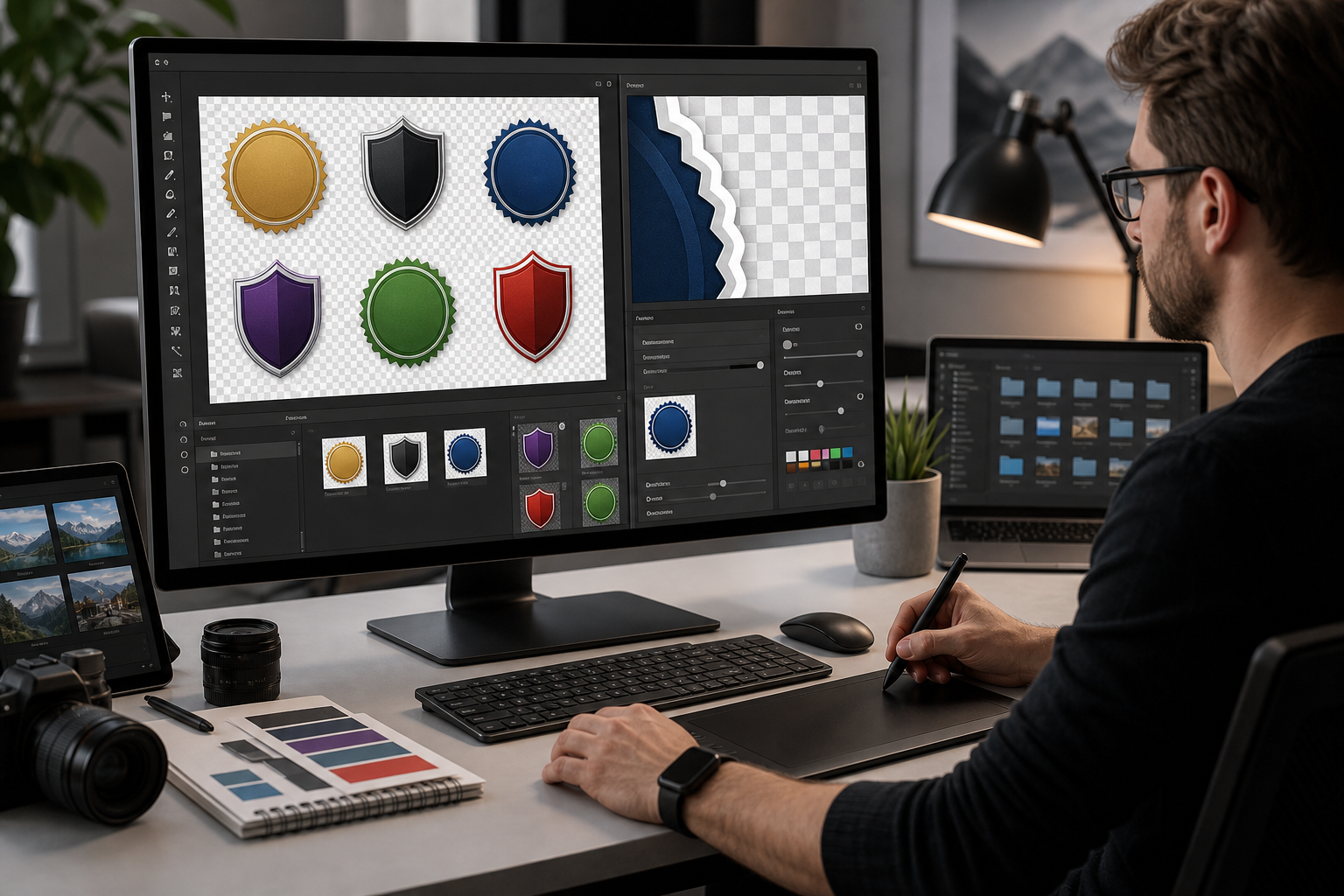
Transparent marketplace badges look simple until they are placed on the wrong background. A badge that seemed clean in a design file can develop a gray fringe on a dark partner page, a white crust on a tinted help center card, or a fuzzy outline after compression. These are small defects, but they make integrations, awards, partner logos, certification marks, and app directory badges look unfinished.
This guide is for small product, marketing, documentation, and partnerships teams that need to publish transparent PNG assets without a full design QA cycle every time. The focus is narrow: badge-style images with transparent backgrounds, usually used on marketplace listings, partner directories, help center articles, integration pages, and sales enablement PDFs.
The goal is not to make every asset beautiful. It is to make every transparent badge predictable: clean edges, usable dimensions, sensible file size, and no surprise halo when the page background changes.
Why Transparent Badge Edges Fail in Real Pages
Most transparent PNG problems begin before upload. The badge may have been exported from a design tool over a white canvas, copied out of a slide deck, saved from a website, or resized by someone who did not notice the semi-transparent pixels around the edge. When the badge stays on a white page, the defect hides. When it moves to a dark app directory, colored CMS block, modal, or PDF cover page, the edge becomes visible.
Transparent images are not just the visible pixels. They also contain edge pixels with partial transparency. Those pixels often carry color from the original background. A white logo exported from a white artboard can keep a faint white glow. A dark badge copied from a dark presentation can carry a smoky outline. A rounded badge resized too aggressively can develop stair-step corners. A shadow can be cut off by the canvas boundary.
Marketplace and partner-page assets are especially vulnerable because they travel. The same badge may appear on a white listing page, a gray integration grid, a black demo slide, a compressed PDF, and a support article. If the transparent edge is not tested across backgrounds, the page that exposes the problem may be the most public one.
A good preflight routine checks the badge as a portable asset, not as a decoration for one page.
The Five Edge Problems That Break Transparent Badges

Most transparent badge defects fall into five categories. Naming them makes review faster because the fix depends on the failure type.
1. Light or Dark Halos
A halo is a visible fringe around the badge. It often appears white, gray, black, or slightly tinted. Halos usually come from anti-aliased pixels that were blended against the wrong background before export.
Common signs include:
- A pale rim around a dark badge on a dark page
- A gray outline around a colored logo on a white page
- A smoky glow around icons copied from a slide deck
- Edges that look clean at 100 percent zoom but dirty when placed on a contrasting block
Halos are not always bad. A deliberate glow or shadow can be part of the brand asset. The issue is accidental background contamination that appears only in certain placements.
2. Jagged or Stair-Stepped Curves
Jagged edges happen when a badge has been resized from a small source, exported without enough anti-aliasing, or saved after repeated transformations. Rounded corners, circular marks, diagonal strokes, and small icons are the first places to inspect.
The defect is more obvious on high-density screens and in grids where several badges sit next to cleaner assets. Jagged curves make the whole marketplace row feel lower quality, even if the source brand is reputable.
3. Over-Soft Edges
Over-soft edges are the opposite problem. The badge has been blurred, scaled, or compressed until its outline loses confidence. This often happens when a large image is manually resized in a document editor, then exported again as a PNG.
Soft edges can be acceptable for shadows, photos, and textured illustrations. They are usually wrong for badges, interface marks, certification labels, and partner logos, where the silhouette should feel crisp.
4. Clipped Shadows and Cropped Corners
A transparent badge may include a drop shadow or rounded card shape. If the canvas is too tight, the shadow gets cut off at the edge. On a checkerboard background this can be hard to notice, but on a page it looks like the badge was sliced.
Watch for:
- Shadows ending in a straight vertical or horizontal line
- Rounded corners touching the image boundary
- Glow effects that stop abruptly
- Icons with no breathing room inside the transparent canvas
A little transparent padding is usually safer than a perfectly tight crop.
5. Hidden Dirt Pixels
Transparent assets often contain stray pixels outside the main badge. They may be almost invisible, but they can create unexpected click areas, alignment issues, and awkward spacing when the CMS calculates image dimensions.
Dirt pixels are common when someone removes a background by selection, erases by hand, or exports from a screenshot. They are also common in assets that have passed through several editors.
Build a Small Test Canvas First
Before editing the image, create a simple test canvas in your head or design tool: place the badge over white, near-white gray, charcoal, brand-color blue, and a mid-tone neutral. You do not need an elaborate mockup. You need contrast.
A practical test set is:
| Background | What it reveals |
|---|---|
| White | Dark halos, uneven shadows, poor outer padding |
| Light gray | Subtle white fringes and dirty pixels |
| Charcoal | White halos, pale anti-aliasing, clipped glow |
| Saturated color | Semi-transparent contamination and weak edges |
| Checkerboard | Canvas size, transparent padding, stray pixels |
This check matters because transparent PNGs are context-sensitive. A badge that passes on a checkerboard can fail on a real page. A badge that passes on white can fail on dark mode. A badge that passes alone can look messy beside cleaner badges in a grid.
If you need to resize the asset before testing, use a controlled tool such as Resize Image instead of dragging a corner in a document editor. Manual resizing inside slides or word processors often creates inconsistent interpolation and makes edge review harder.
Start With the Best Source You Can Find
Do not begin cleanup from the smallest PNG in the folder unless you have no alternative. The source file determines how much repair is realistic.
Best to worst source order:
| Source | Use it when | Risk level |
|---|---|---|
| SVG or vector logo | You can export a fresh PNG | Low |
| Large transparent PNG | Edges are clean and dimensions are generous | Low to medium |
| Original design export | You can change canvas and background settings | Low |
| Website-downloaded PNG | No brand kit is available | Medium |
| Screenshot crop | Badge exists only in a live page or PDF | High |
| Compressed JPG | Only for emergency reconstruction | Very high |
If the badge came from a screenshot, treat it as a reconstruction job. Use Image OCR only if the badge contains small text that must be checked against a listing name, certification label, or partner title. OCR will not fix the edge, but it can catch accidental text damage after cleanup.
For format conversion, use Convert Image when you need to move between PNG, WebP, JPG, or another format for testing. Keep a transparent PNG master if the asset needs alpha transparency. JPG cannot preserve transparency.
Clean the Edge Without Changing the Brand
Edge cleanup should be conservative. Marketplace badges are often brand-governed assets, so you should not redraw marks, recolor logos, stretch shapes, or invent missing details unless you have approval. The safest edits are canvas correction, transparent padding, export hygiene, and light edge repair.
Check the Alpha Channel, Not Just the Visible Shape
The alpha channel controls transparency. A badge can look fine while its alpha channel contains weak, dirty, or inconsistent edge pixels. In an editor, view the image over contrasting backgrounds and zoom to 200 or 400 percent. Inspect corners, icon curves, text edges, and any shadow.
Look for semi-transparent pixels that are clearly from the wrong background. A white fringe around a dark blue badge is usually not brand detail. It is often leftover blending from a white source.
Remove Stray Pixels Around the Badge
If the badge has isolated pixels far from the main shape, remove them. Stray pixels can force the image to behave as if it is wider or taller than it appears. That creates alignment issues in grids, especially when the CMS centers images based on the full canvas.
A quick test: place the badge inside a visible bounding box. If the visual badge looks off-center because of invisible junk, the canvas needs cleanup.
Preserve Intentional Shadows
Do not automatically delete all soft pixels. A shadow may be part of the badge style. The question is whether the shadow is intentional, centered, smooth, and complete.
Keep the shadow if:
- It appears consistent on light and dark backgrounds
- It has enough transparent padding to fade naturally
- It matches other badges in the same set
- It does not create a dirty rectangle around the asset
Remove or rebuild the shadow if it is clipped, uneven, too dark, or clearly inherited from a screenshot.
Use AI Repair Carefully
AI editing can help when a badge has a messy background removal edge, but it should not reinterpret the logo. Use AI Photo Editor for limited cleanup tasks such as removing background residue, smoothing an obvious halo, or rebuilding transparent space around a non-critical shadow.
Keep prompts narrow. Ask for edge cleanup, not redesign. After the edit, compare the result against the source and check that marks, proportions, colors, and text have not changed.
A safe internal review rule is simple: if the edited badge could create a brand approval issue, go back to the source file or request a proper asset.
Resize for Placement, Not Just File Size
Transparent badges often need multiple sizes. A marketplace listing may need a square thumbnail, a partner page may need a horizontal lockup, and a help center may need a smaller inline image. One export rarely fits all placements well.
Instead of making one enormous transparent PNG and letting every platform scale it down, create a few intentional sizes.
Useful export set:
| Use case | Suggested long edge | Notes |
|---|---|---|
| CMS inline badge | 320 to 480 px | Good for help articles and compact cards |
| Partner grid | 600 to 900 px | Allows crisp display on dense screens |
| Press or sales PDF | 1200 to 1800 px | Keep if the badge may be printed |
| Tiny UI thumbnail | 128 to 256 px | Check text readability carefully |
These ranges are not strict rules. The right size depends on the design. The point is to avoid accidental scaling. If the page displays a badge at 180 pixels wide, a 4000-pixel PNG may be wasteful. If the page displays it at 700 pixels wide on a high-density screen, a 300-pixel source will look rough.
When resizing, inspect edge quality after the resize, not before. Some halos become stronger after downsampling because semi-transparent pixels are averaged together. Use Resize Image for controlled dimensions, then test the result on the same background set.
Compress Without Crushing Transparency
Compression is useful, but transparent badge compression needs restraint. The smallest file is not always the best file. If compression damages alpha edges, thin text, or subtle shadows, the badge may look cheaper than the bytes saved justify.
Use Compress Image after edge cleanup and resizing. Compress the final placement exports, not the messy source. That keeps the master clean and lets you make new versions later.
Review these areas after compression:
- Outer curves and rounded corners
- Small text inside the badge
- Icon strokes and diagonal lines
- Shadow fade quality
- Semi-transparent pixels over dark backgrounds
PNG compression should preserve visual quality when handled correctly, but format changes can alter the result. WebP can be excellent for web delivery, including transparency, but some teams still prefer PNG for brand assets because it is widely understood and easy to inspect. If you convert to WebP, keep the PNG master and test transparency in the actual publishing environment.
A Practical Preflight Checklist Before Upload

Use this checklist before sending badge assets to a marketplace, CMS, partner portal, or documentation repository.
Source and Naming
- Confirm the asset came from the best available source.
- Keep a master file separate from delivery exports.
- Use clear names such as partner-badge-dark-600.png or certification-mark-transparent-480.png.
- Avoid names like final2-new-real.png, which make later cleanup harder.
- Record whether the asset is official, modified, or reconstructed from a screenshot.
Canvas and Transparency
- Check the badge on white, light gray, charcoal, saturated color, and checkerboard backgrounds.
- Remove stray pixels outside the main badge area.
- Add transparent padding if shadows or rounded corners are too close to the edge.
- Confirm the badge is visually centered inside its canvas.
- Make sure no accidental background rectangle remains.
Edge Quality
- Inspect at 100 percent and 200 percent zoom.
- Look for white, gray, black, or tinted halos.
- Check rounded corners and diagonal strokes for jaggedness.
- Confirm any shadow fades naturally.
- Compare against the source so cleanup does not alter brand shapes.
Dimensions and Delivery
- Export the dimensions needed for the actual placement.
- Avoid relying on CMS scaling for every size.
- Keep a larger version for future use if the asset may appear in PDFs or sales material.
- Use Convert Image only when the destination format supports the required transparency.
- Package visual reports or approval sheets as PDFs with Image to PDF when stakeholders need to review several badges together.
Final Page Check
- Preview the badge in the real page template if possible.
- Check dark mode if the site supports it.
- Compare the badge against neighboring logos or cards.
- Verify that the image does not appear blurry on a high-density display.
- Recheck file size after the final export.
Decision Table: Repair, Re-Export, or Replace
Not every badge deserves manual cleanup. Sometimes the fastest professional answer is to request a better file.
| Situation | Best action | Why |
|---|---|---|
| Clean vector source exists | Re-export from source | Avoids patching avoidable defects |
| Large PNG has minor stray pixels | Repair and export | Low risk and fast |
| Badge has a small white halo | Repair edge, then test | Often fixable without brand changes |
| Text is blurry inside the badge | Request better source | Text reconstruction risks inaccuracy |
| Logo shape is distorted | Replace from official source | Cleanup cannot restore trust |
| Shadow is clipped by canvas | Expand canvas or re-export | Cropping is a structural issue |
| Asset came from a JPG | Replace if possible | Transparency must be recreated |
| Brand colors look wrong | Stop and verify | Color changes can create approval problems |
This table is especially helpful when non-design teammates are preparing assets. It gives them permission to stop editing when the source is not good enough.
Common Marketplace Badge Scenarios
Partner Directory Tiles
Partner pages often place many badges in a grid. The main risk is inconsistency. One badge may have extra padding, another may touch the canvas edge, and a third may contain hidden pixels that make it align strangely.
For a directory grid, normalize canvas behavior rather than forcing every logo to the exact same visual size. Different brand marks need different breathing room. The cleaner target is visual balance: similar perceived height, centered placement, and no edge artifacts.
Integration Listing Screenshots
Some marketplaces ask for badges or icons alongside screenshots. If the badge appears on top of a product screenshot, transparency defects become more visible because UI backgrounds contain many pale grays and subtle lines.
Compress screenshots and badges separately. Tutorial screenshots often need careful treatment to preserve thin UI text, while badges need clean alpha edges. Combining them into one flattened image too early reduces control.
Certification and Award Marks
Certification marks often include small text, rings, seals, or stars. These assets are risky to repair manually because tiny changes can make them look unofficial. If the edge is poor but the mark contains detailed text, request a clean official export first.
If you must prepare a delivery version, resize conservatively and test readability at the final displayed size. Use OCR only as a check, not as proof that the visual is correct.
Help Center Badges
Help centers often display small badges inside articles, tables, and callout blocks. The badge may sit on a white page today and a tinted documentation theme later. Keep transparent padding tidy and avoid over-large files that slow article pages.
For help center assets, a 320 to 480 pixel long edge is often enough, but check the actual template. If the badge opens in a lightbox or downloadable PDF, keep a larger linked version.
Make Review Easy for Stakeholders
Many badge problems are subjective until people see them side by side. A simple review sheet helps. Place each badge over the same background set, include the intended display size, and add the file name below or beside the preview in your internal document. Keep the page clean and consistent.
If you need a portable review packet, create a visual sheet and export it with Image to PDF. For several pages of assets, combine them later with PDF Merge. This is useful when partner managers, designers, and documentation owners need to approve a batch without opening individual image files.
Do not over-explain every defect in the review sheet. Show the evidence. A halo visible on a charcoal block is easier to approve for repair than a long comment about alpha contamination.
File Naming That Prevents Rework
Transparent asset folders become confusing quickly. Use names that describe the brand, variant, size, and background assumption.
A practical pattern:
brandname-badge-variant-size-format.png
Examples:
- acme-marketplace-badge-light-600.png
- acme-marketplace-badge-dark-600.png
- acme-certified-partner-mark-transparent-480.png
- acme-integration-icon-square-256.png
Avoid putting approval status in the only file name unless your team has a clear convention. Files named approved.png become misleading after a later edit. If you need status, use a folder or suffix with a date.
Keep the master separate:
- source/
- cleaned-master/
- delivery/
- review-pdf/
This structure is simple enough for non-design teams and prevents compressed delivery files from becoming the new source by accident.
Quality Bar for a Finished Badge
A transparent marketplace badge is ready when it passes these tests:
- It looks clean on white, gray, dark, and colored backgrounds.
- Its edges are crisp without visible stair-stepping.
- Any shadow or glow is intentional and not clipped.
- The canvas has enough padding but no hidden dirt pixels.
- The displayed size is appropriate for the target page.
- Compression does not damage text, curves, or transparency.
- The file name explains what the asset is.
- The source or master remains available for later exports.
This quality bar is modest, but it catches the defects that usually reach production.
Final Thoughts
Transparent PNG badges are small assets with a large trust signal. They sit beside partner names, certification claims, integration listings, and help content. When their edges are dirty, visitors may not consciously identify the problem, but the page feels less careful.
The best fix is a practical preflight habit: start from the best source, test against multiple backgrounds, clean only what is safe to clean, resize intentionally, compress after review, and keep a master file. Tools such as Resize Image, Compress Image, Convert Image, AI Photo Editor, and Image to PDF can support the routine without turning every badge update into a design project.
Clean transparent edges are not a luxury detail. For marketplace and partner assets, they are part of making the page look credible, maintained, and ready for public comparison.