Trade Show Booth Photo Cleanup Workflow for Small Marketing Teams
A practical workflow for turning messy trade show booth photos into clean, web-ready campaign assets without losing authenticity or important visual context.

Trade Show Booth Photo Cleanup Workflow for Small Marketing Teams
Trade show photos are rarely as clean as the moment felt in person. The booth looked sharp, the product demo drew a crowd, the sales team had useful conversations, and the branded wall finally made sense under real lighting. Then the photos arrive: half are tilted, one corner shows a trash bin, badges are readable, a competitor logo is visible in the background, and the best crowd shot is slightly too dark.
For a small marketing team, this is where event content often stalls. The photos are useful, but not immediately publishable. Nobody wants to open a full design suite for every image, yet uploading them as-is can make a polished booth look careless. The goal is not to turn event photos into artificial studio images. The better goal is to preserve proof that the event happened while removing distractions that make the asset harder to reuse.
This workflow is for marketing teams that come back from trade shows, conferences, partner expos, roadshows, and demo days with a mixed folder of phone photos, camera shots, booth pictures, audience moments, and quick product closeups. It focuses on practical cleanup: sorting, cropping, light correction, privacy checks, resizing, compression, and packaging. It uses browser-based tools where they make sense, including ConvertAndEdit tools such as /resize-image, /compress-image, /convert-image, /ai-photo-editor, and /image-to-pdf.
The result is a reusable event asset set: web-ready images for blog posts and recap pages, sales-friendly visuals for decks, social crops, internal proof photos, and an archive folder that remains useful months later.
Why Trade Show Photos Need a Different Workflow
Trade show photography sits between documentary evidence and brand photography. It is not as controlled as a product shoot, but it carries more brand weight than a casual team snapshot. A single booth photo may be used in a recap article, a sales deck, a partner email, a hiring post, a sponsor report, or next year's event planning document.
That mixed purpose creates four common problems.
First, event photos include accidental information. Visitor badges, laptop screens, booth lead sheets, name tags, QR codes, invoices, whiteboards, and private demo dashboards can appear in the background. A photo that looks harmless at phone size may reveal sensitive details when downloaded or zoomed.
Second, booth lighting is difficult. Exhibition halls often mix overhead LEDs, colored sponsor lighting, daylight from glass walls, screen glow, and shadows from crowds. Photos may lean yellow, blue, green, or magenta. Overcorrecting can make them look fake, while doing nothing can make the booth look dull.
Third, compositions are crowded. The best photo of the booth may include a half-visible passerby, a bag on the floor, a neighboring stand, or a folded banner at the edge. These are not always reasons to discard a photo, but they affect how the image should be cropped.
Fourth, teams need several output formats. A blog header may need a wide crop. A LinkedIn carousel may need square or vertical crops. A sales deck may need a clean 16:9 image. A sponsor report may need a PDF. A media archive may need high-resolution originals with filenames that make sense.
A good workflow handles these needs without treating every photo as a design project.
Start With the End Uses Before Editing
Before opening any editor, decide what the event photos must become. This prevents over-editing weak images and under-preparing strong ones.
Most trade show photo sets can be divided into five output groups:
| Output | Best use | Typical treatment |
|---|---|---|
| Recap images | Blog posts, newsletters, event pages | Natural crop, light cleanup, web compression |
| Social crops | LinkedIn, X, Instagram, community posts | Strong subject, simplified background, platform crop |
| Sales deck visuals | Follow-up decks, partner slides, internal enablement | Clean horizontal crop, neutral color, low distraction |
| Proof photos | Sponsor reports, management updates, internal records | Minimal editing, preserve context, package clearly |
| Archive originals | Future reuse, design work, year-over-year records | Keep full size, rename, store separately |
The important distinction is between polished public assets and evidence-style internal assets. A public recap image should be visually clean. A sponsor proof photo may need to show the full booth, signage, traffic, and placement, even if it is not beautiful. If both versions are needed, create both instead of forcing one file to do everything.
A practical folder structure might look like this:
2026-event-name-photos/
  00-originals/
  01-shortlist/
  02-web-ready/
  03-social-crops/
  04-sales-deck/
  05-proof-pdf/
  06-rejected-sensitive/
Do not delete questionable originals immediately. Move them into a rejected or sensitive folder so the team has a record of why they were not published. This is especially useful when someone later asks why a seemingly good crowd shot was skipped.
Build a Three-Pass Sorting System
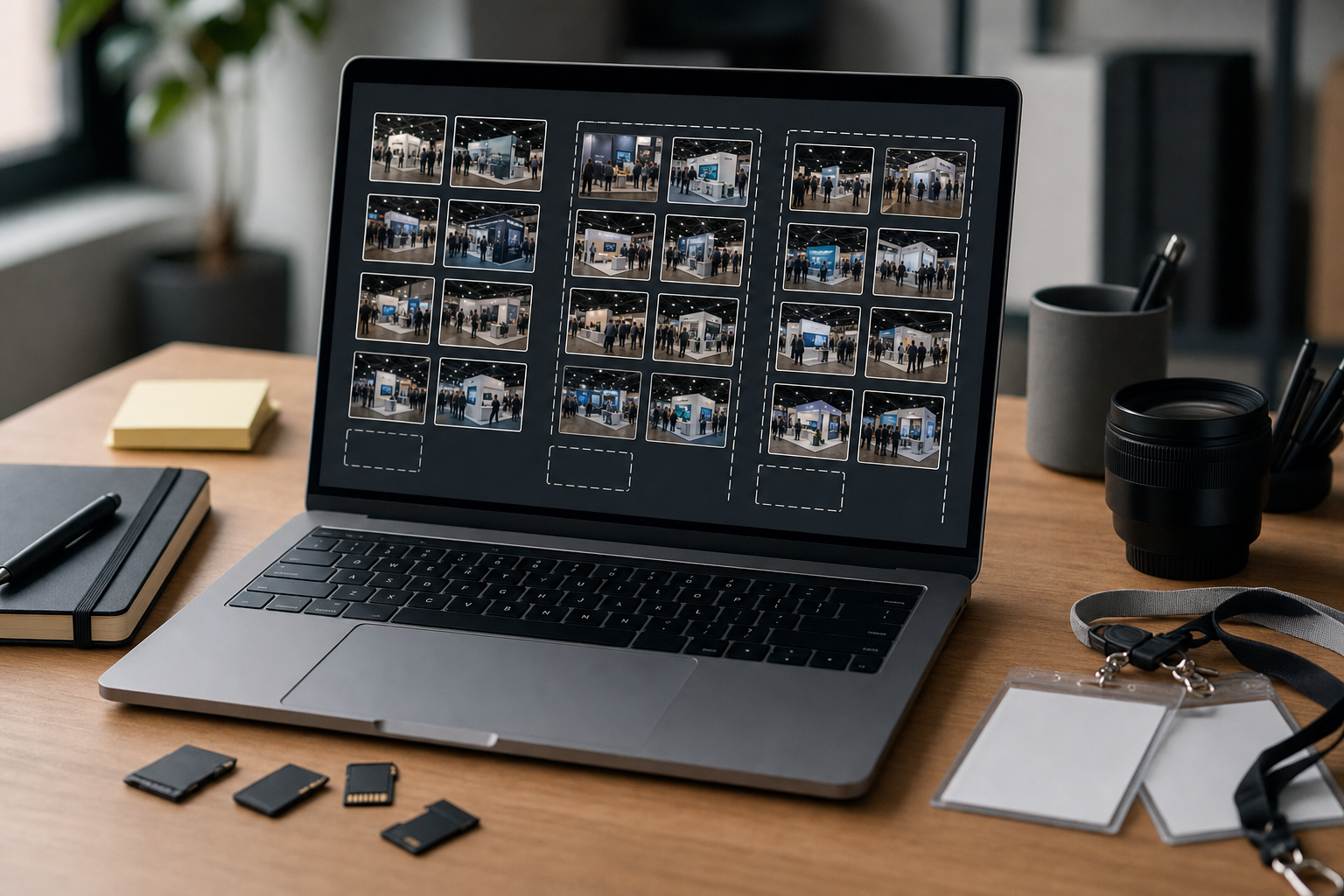
The first pass should be fast. Do not edit. Do not debate. Remove obvious failures: closed eyes, motion blur, accidental floor shots, duplicate frames, photos where the booth is blocked, and images with private information in the center of the frame.
The second pass is about usefulness. Mark images by role rather than by beauty. A slightly imperfect photo may still be excellent for proving booth traffic. A clean product demo closeup may be better for sales than for social. A wide hall shot may be useful for a blog recap even if it is not dramatic.
The third pass is about risk. Zoom in before publishing candidates move forward. Look for readable names, badges, email addresses, phone numbers, QR codes, laptop screens, presentation notes, private dashboards, unreleased product labels, partner contracts, and competitor booths that could create confusion.
Use a simple rating system:
| Label | Meaning | Action |
|---|---|---|
| A | Strong public image | Edit for web and social |
| B | Useful but context-specific | Prepare for sales or internal use |
| C | Evidence only | Keep for proof or archive |
| Hold | Needs review | Check privacy, permissions, or context |
| Reject | Not useful or risky | Keep only if policy requires retention |
Small teams often lose time because every image is discussed as if it has one universal score. A role-based sort is faster. The question is not, "Is this a good photo?" The question is, "What job can this photo safely do?"
Clean the Composition Without Erasing the Event
A strong trade show photo should still feel real. The booth should look attended. The lighting should feel like an event. The product area should make sense. Cleanup should remove distractions, not evidence.
Start with straightening. Booth photos often lean because they are taken quickly while standing in a busy aisle. Straighten using vertical booth edges, banner stands, wall panels, table legs, or screen bezels as reference points. Do not rely only on the horizon, because exhibition halls often have angled flooring patterns and overhead trusses that can mislead the eye.
Next, crop the edges. The outer 10 percent of an event photo often contains the worst distractions: half-visible people, garbage bins, neighboring logos, cables, open boxes, and awkward empty floor space. A tighter crop can make the same photo feel intentional.
Use cropping based on output:
| Crop shape | Use it for | Watch out for |
|---|---|---|
| 16:9 | Sales decks, website sections, video thumbnails | Do not crop out booth signage or product screens |
| 4:3 | Blog images, internal reports | Can feel more documentary and stable |
| 1:1 | Social carousels, profile posts | Crowds and booth height may feel cramped |
| 4:5 | LinkedIn and Instagram feed posts | Keep faces and signage away from edges |
| 9:16 | Stories, short video covers | Works only if the subject is already vertical |
When a photo has strong content but one distracting object at the edge, the simplest fix may be a crop. When the distraction is small and the photo is otherwise valuable, an AI cleanup pass can help. Use /ai-photo-editor for light removal of edge clutter, small floor distractions, or background noise. Keep edits conservative. If removing an object changes the meaning of the scene, do not remove it.
Good candidates for cleanup include loose cable ends, empty cups, stray tote bags, paper scraps, and a random shoulder at the edge. Poor candidates include crowd size, booth signage, sponsor logos, product displays, or anything that affects the factual interpretation of the event.
Handle Privacy and Brand Safety Before Resizing
Privacy review should happen while images are still large. Once images are resized and compressed, small details may become harder to inspect, but they can still be readable in the original public file if you accidentally upload the wrong version.
Zoom into every public candidate at 100 percent. Look at the background as carefully as the subject. Event photos often include details nobody noticed during capture.
Use this checklist before an image enters the public folder:
| Risk area | What to check | Typical fix |
|---|---|---|
| Badges | Names, companies, QR codes, attendee IDs | Crop, blur, or reject |
| Screens | Dashboards, emails, unreleased features, analytics | Crop, blur, replace with safer image |
| Paper | Lead sheets, contracts, pricing notes, schedules | Crop or reject |
| Background booths | Competitor branding, confusing partner context | Crop if possible |
| People | Awkward expressions, identifiable private visitors | Use consented photos or wider context shots |
| Reflections | Glass, monitors, glossy banners | Inspect closely before approval |
For public marketing use, avoid images where the main value depends on a clearly identifiable visitor unless you know your team's consent process covers that use. Wide crowd context is usually safer than a close face-forward portrait of an attendee who is not part of your team.
Brand safety also matters. A booth photo with a competitor logo behind your speaker can create strange visual associations. A photo where your own signage is warped, cut off, blocked, or misspelled in a background reflection may not be worth rescuing. The best cleanup is often selecting a different frame.
Correct Color and Exposure Conservatively
Trade show images usually need a small amount of light correction. The aim is to make the photo readable, not to make it look like a studio render.
Start with exposure. If the booth is too dark, raise brightness carefully and protect highlights on screens, white walls, and glossy product surfaces. Over-brightening can wash out brand colors and make faces look flat.
Then adjust contrast. A little contrast helps banners, screens, and product edges stand out. Too much contrast makes shadows harsh and can make mixed lighting look worse.
White balance is often the hardest part. Booth lighting can vary across the same image. If you correct the wall color, faces may look odd. If you correct skin tones, the booth background may shift. Choose the subject that matters most for the image's use. For a product demo photo, prioritize the product and screen. For a team photo, prioritize skin tones. For a booth overview, prioritize brand surfaces and neutral whites.
Avoid these common edits:
| Edit mistake | Why it hurts event photos |
|---|---|
| Heavy saturation | Makes brand colors and skin tones look unnatural |
| Strong sharpening | Creates halos around signage and UI screens |
| Deep shadow recovery | Reveals noise and clutter in dark corners |
| Aggressive background blur | Makes documentary photos feel artificial |
| One-click filters | Creates inconsistency across a full event set |
If several images will appear in the same recap article or carousel, keep the edit style consistent. They do not need to match perfectly, but they should feel like they came from the same event. A heavily warm image beside a cold blue image can make the page feel unplanned.
Create Web, Sales, and Archive Versions
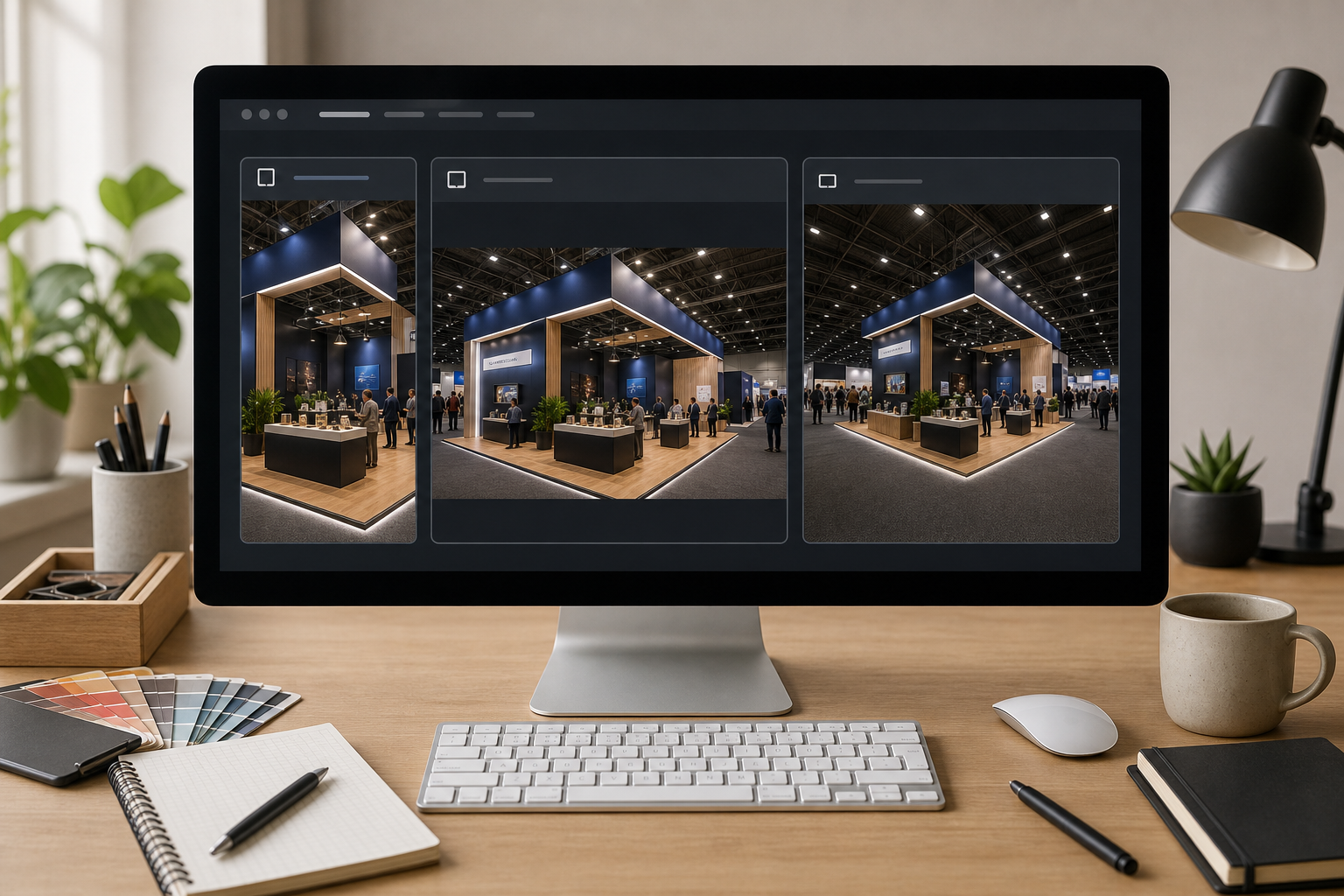
Once the shortlist is cleaned and approved, create output versions. This is where many teams accidentally damage useful images. They overwrite originals, compress too early, or create only one size that fits nothing well.
Keep originals untouched. Make copies for each destination.
For web use, resize images to the largest size the page actually needs. A recap article usually does not need 6000-pixel-wide camera files. Oversized images slow pages down and make content teams less likely to reuse the folder later. Use /resize-image to create predictable web dimensions.
A practical starting point:
| Asset type | Suggested long edge | Notes |
|---|---|---|
| Blog hero | 1600-2200 px | Keep enough detail for large screens |
| Inline blog image | 1200-1600 px | Balance clarity and page speed |
| Social square | 1200 px | Useful for many platforms |
| Sales deck image | 1920 px wide | Fits 16:9 slides cleanly |
| Internal proof | 1600-2400 px | Preserve detail for review |
After resizing, compress web images. Use /compress-image to reduce file size while checking thin details such as booth signage, UI screens, product labels, and faces. Event images can tolerate moderate compression better than interface screenshots, but signage and small text can degrade quickly.
For format, choose based on transparency and compatibility. Most booth photos should be JPEG or WebP. PNG is usually unnecessary unless the image contains transparent areas, sharp graphic overlays, or needs lossless preservation for design work. If you need to normalize files from mixed camera and phone sources, /convert-image can help turn HEIC, PNG, or oversized image files into a consistent delivery format.
For archive versions, keep high-resolution files and original metadata according to your team's policy. Do not treat compressed web exports as the archive. A future designer may need the full file for a print banner, event recap deck, or sponsor report.
Package Proof Photos Into a PDF When Context Matters
Sometimes the deliverable is not a set of polished images. It is proof that the booth existed, the signage was placed, the sponsor area was visible, or the activation happened. In those cases, a simple PDF can be more useful than a folder of loose images.
Examples include:
| Situation | Why a PDF helps |
|---|---|
| Sponsor fulfillment report | Shows placement, booth traffic, and branded materials in one file |
| Internal event recap | Keeps highlights and evidence together for leadership |
| Partner follow-up | Provides visual context without sending a messy image folder |
| Agency handoff | Gives selected references while preserving the archive separately |
| Next-year planning | Captures booth layout, signage, and practical lessons |
Use /image-to-pdf when you need to package approved event photos into a clean review file. Keep the PDF focused. Ten well-chosen images are more useful than forty near-duplicates. If captions are needed, add them in your document workflow before exporting, but do not rely on filenames alone to explain context.
A good proof PDF sequence usually follows the event story:
- Venue or booth overview.
- Full booth front view.
- Product demo area.
- Team or speaker moment.
- Crowd or visitor engagement.
- Sponsor or partner placement.
- Detail shots of materials, screens, or giveaways.
- Final selected hero image.
The PDF should not replace the cleaned image folder. It is a communication format, not the source library.
Naming Files So They Stay Useful Later
Event folders become painful when filenames remain as IMG_4837.jpg, DSC_1029.JPG, and PXL_20260503_142233.jpg. Three months later, nobody knows which image was the approved booth hero, which one went into the recap post, or which one was rejected for privacy reasons.
Use filenames that include the event, subject, version, and output. Keep them short enough that they remain readable in file managers.
A practical pattern:
eventname-2026-booth-overview-web-1600.jpg
eventname-2026-demo-closeup-sales-1920.jpg
eventname-2026-team-photo-social-square.jpg
eventname-2026-sponsor-wall-proof.jpg
eventname-2026-hall-context-archive.jpg
Avoid putting personal names in public image filenames unless there is a clear publishing reason. Filenames can be indexed, forwarded, downloaded, and reused outside the original page.
If your team uses a CMS, match the file naming convention to the asset's role. A blog hero image should not be named final-final-v3.jpg. A sales deck image should not be named only after the photographer's camera file. Descriptive names help future content work move faster.
Use AI Cleanup With Guardrails
AI photo editing can be useful for event images, but trade show photos need restraint. The image is often a record of a real activation. If AI cleanup removes or changes meaningful details, the asset becomes less trustworthy.
Use AI editing for small, non-essential distractions:
| Good use | Why it is acceptable |
|---|---|
| Remove a cup on the booth table | Does not change event meaning |
| Clean a small floor scuff | Improves polish without altering context |
| Remove an edge passerby | Keeps focus if the person is not part of the scene |
| Smooth a wrinkled backdrop corner | Helps presentation if branding remains accurate |
| Extend a neutral background slightly for crop | Useful for layout when the extension is plain |
Be cautious with these edits:
| Risky use | Why it can be misleading |
|---|---|
| Adding more crowd | Misrepresents attendance |
| Changing booth signage | Alters brand or sponsor evidence |
| Replacing product screens | Can show inaccurate UI or claims |
| Removing a competitor booth from a wide hall shot | May change context if placement matters |
| Beautifying people heavily | Can feel artificial and raise consent concerns |
When using /ai-photo-editor, write prompts that describe the exact cleanup and the constraint. For example: "Remove the empty paper cup from the table while keeping the booth, people, signage, and lighting unchanged." Specific prompts produce safer edits than broad prompts such as "make this look professional."
Always compare the edited image against the original before approval. If the edit creates strange hands, warped banners, mismatched shadows, or altered logos, reject it. A slightly messy authentic photo is better than a polished image with visible artifacts.
A Practical End-to-End Workflow
Here is a complete workflow a small team can follow after returning from an event.
Step 1: Collect Everything Into One Source Folder
Gather phone photos, camera photos, team uploads, agency files, and partner images. Keep the raw folder untouched. If multiple people upload images, preserve contributor names in subfolders until the files are reviewed.
Step 2: Remove Obvious Failures
Delete or move unusable images from the working copy: accidental shots, extreme blur, duplicates, blocked views, and images with central private information. Do not spend editing time on images that fail at the selection stage.
Step 3: Sort by Use Case
Create a shortlist for web, social, sales, proof, and archive. Some images can appear in multiple groups, but give each file a primary role. That role determines the crop and edit style.
Step 4: Run Privacy and Brand Review
Zoom into every public candidate. Check badges, screens, papers, reflections, background booths, and signage. Move risky images into a hold folder. Ask for review only on the small set that genuinely needs judgment.
Step 5: Crop and Straighten
Straighten booth lines. Crop out edge clutter. Create output-specific crops for blog, social, and slides. Keep a copy of the cleaned master before resizing.
Step 6: Apply Light Cleanup
Use conservative exposure, contrast, and color correction. Use AI cleanup only for small distractions that do not change meaning. Compare before and after.
Step 7: Resize and Compress
Create web and sales sizes using /resize-image. Compress publishable images with /compress-image and review key details after compression. Convert mixed formats with /convert-image if the folder needs consistency.
Step 8: Package Proof Materials
If the team needs a sponsor or leadership recap, use /image-to-pdf to package selected proof photos into a focused PDF. Keep the PDF separate from the reusable image exports.
Step 9: Rename and Archive
Rename final files by event, subject, role, and size. Store originals, cleaned masters, web exports, sales exports, proof PDFs, and rejected sensitive files separately.
Quality Control Checklist Before Publishing
Before images go live, run a final pass. This is quick, but it catches the mistakes that make event content look rushed.
| Check | Pass condition |
|---|---|
| One clear subject | The viewer knows what the photo is about within two seconds |
| Straight verticals | Booth walls, banners, and screens do not lean awkwardly |
| No accidental private data | Badges, screens, papers, and reflections are checked |
| Brand elements are accurate | Logos, colors, and signage are not warped or misleading |
| Compression is acceptable | Small details are not smeared or blocky |
| Crop fits destination | Important faces, signage, and products are not too close to edges |
| File name is descriptive | The asset can be understood outside the folder |
| Original is preserved | Web exports have not replaced source files |
For public recap posts, look at the full page after upload, not just the image file. A crop that looks good alone may conflict with page layout, headline placement, or adjacent images. For sales decks, preview the slide in presentation mode. Booth photos that look bright in an editor can appear too dark on a projector or video call.
Common Mistakes to Avoid
The first mistake is editing too many images. A small team does not need fifty polished booth photos. It needs a useful set of approved assets. Spend more time selecting and less time rescuing weak images.
The second mistake is compressing originals. Once an image has been resized and compressed for web use, it should not become the master file. Keep original and cleaned master versions separate.
The third mistake is ignoring background details. Trade show images are full of accidental information. Always zoom before publishing.
The fourth mistake is overusing AI cleanup. Removing a cup is fine. Rebuilding a booth scene, adding attendees, or changing screens can make the image untrustworthy.
The fifth mistake is using one crop everywhere. A strong blog hero may fail as a square social image. A social closeup may be too tight for a sales deck. Output-specific crops are worth the extra few minutes.
The sixth mistake is leaving files unnamed. The value of event photos increases when they are easy to find, understand, and reuse.
Final Asset Set Template
A finished event photo package for a small marketing team might include:
| Folder | Contents |
|---|---|
| Originals | Untouched source images from cameras and phones |
| Cleaned masters | Approved images after crop, color, and cleanup, before final resizing |
| Web ready | Compressed images for event recaps and website pages |
| Social | Square, vertical, and platform-specific crops |
| Sales | 16:9 images suitable for decks and follow-up materials |
| Proof PDF | Selected evidence images packaged for reports |
| Sensitive rejected | Images excluded because of privacy, screen, or brand concerns |
This structure may look formal, but it saves time. The next time someone asks for "that good booth photo from the spring expo," the team can find the right file quickly and know whether it is approved for public use.
Conclusion
Trade show photos do not need heavy production to become useful marketing assets. They need a workflow that respects their mixed purpose: part brand content, part event record, part sales support, and part internal evidence.
Start by sorting images by job. Review privacy and brand details while files are still large. Crop and straighten before making creative edits. Use AI cleanup only for small distractions. Resize, compress, and convert based on where each image will be used. Package proof images into PDFs when context matters. Preserve originals so future work is not limited by today's web exports.
For small teams, this approach turns a messy post-event camera dump into a reliable content library. The photos stay authentic, the public assets look cleaner, and the archive remains useful long after the booth has been packed away.