Engraved Plaque Photo OCR Cleanup for Trophy Shops and Award Records
A practical guide for turning reflective plaque, trophy, and award photos into cleaner OCR notes, searchable records, proof sheets, and customer-ready archives.

Engraved Plaque Photo OCR Cleanup for Trophy Shops and Award Records
Engraved plaques are small, shiny, and full of important details. That is a rough combination for OCR. A trophy shop may need to recover a spelling from a repeat order. A school administrator may need an archive of award names from a display case. A local sports league may want to digitize decades of championship plaques before replacing a wall. In each case, the source material is often a phone photo of metal, glass, acrylic, or polished wood with letters that are visible to a person but difficult for software to read.
This guide is for practical cleanup before and after OCR. It is not about building a museum-grade digitization lab. It is about making plaque and award photos less hostile to text extraction, naming the files clearly, checking the results, and packaging the records in a way that another person can review without opening twenty random images.
ConvertAndEdit tools can help with the supporting steps: straighten and resize images, convert odd formats, reduce file size, run OCR on images, and combine visual evidence into PDFs. The important part is knowing which edit helps recognition and which edit only makes the photo look nicer.
Why Plaque Photos Confuse OCR
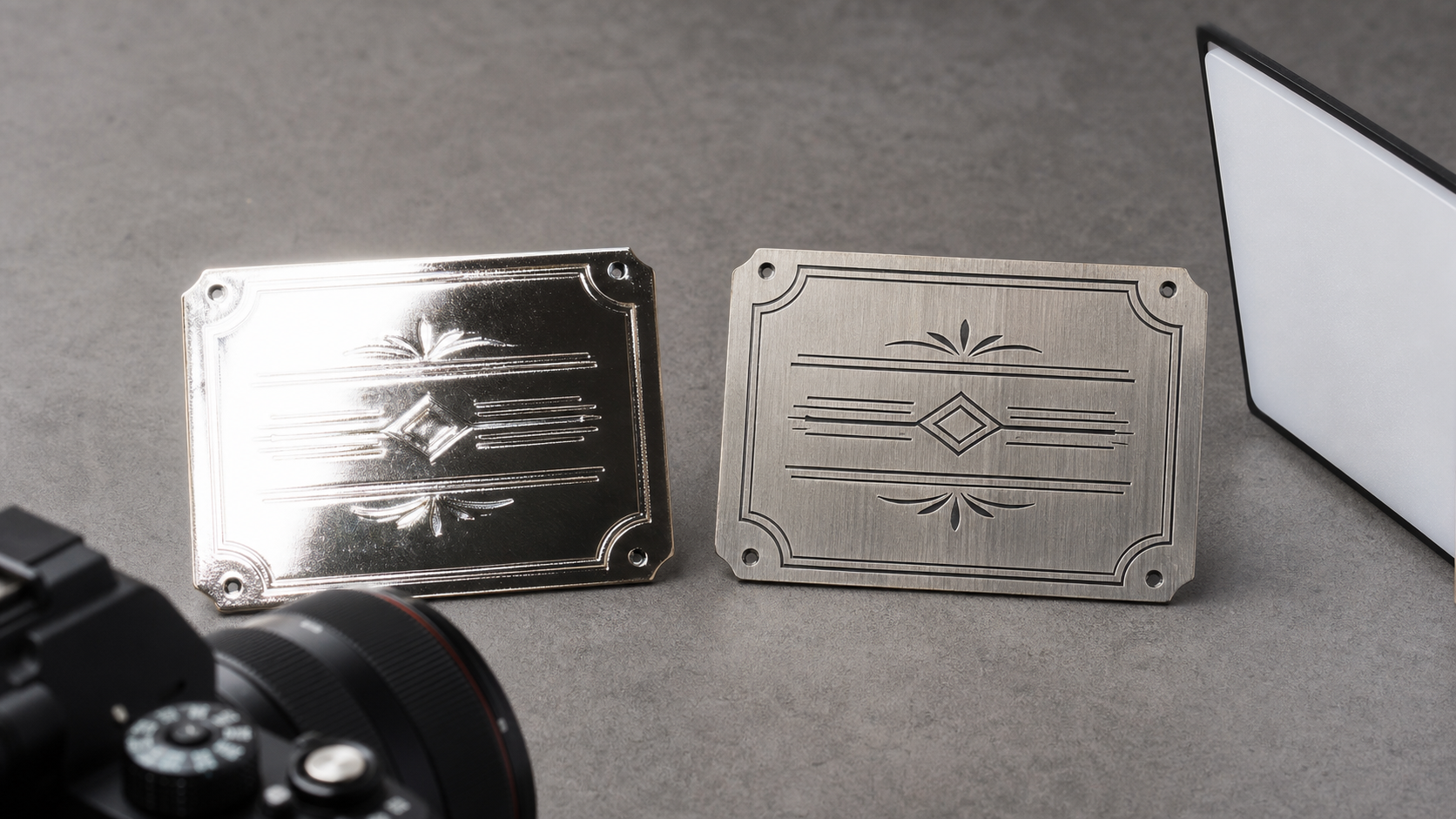
OCR works best when text is flat, high contrast, evenly lit, and separated from decoration. Engraved plaques often fail every part of that test.
The biggest issue is reflection. Brass, aluminum, mirrored acrylic, glass fronts, and glossy varnish bounce the room back into the letters. A phone, ceiling light, window, or photographer's shirt can appear across the engraving. To human eyes, the brain ignores much of that noise. OCR sees a busy image full of false edges.
Engraving also creates text through shadow rather than ink. The letter may be cut into metal, filled with black paint, etched shallowly, or raised above the surface. Depending on the angle, the same name may look dark, bright, or partly invisible. This is why an image that seems clear at first glance can produce missing characters, split words, or strange punctuation after OCR.
Common failure patterns include:
- Names with similar letters, such as rn read as m, or I read as l.
- Dates where 8, 3, 6, and 0 blur together.
- All-caps names broken into separate letters.
- Decorative borders recognized as characters.
- Logos or icons inserted into the text result.
- Reflections producing fake words.
- Curved trophy plates causing line order errors.
The fix is not one magic filter. Good results come from a chain of small decisions: better capture, tighter crop, correct orientation, sensible contrast, manual review, and clean export.
When This Guide Is Worth Using
You do not need this level of care for every award photo. A quick snapshot is enough when the image is only for a casual message. This guide is useful when the text needs to be reused or verified later.
Typical use cases include:
- Reordering a replacement plaque with the exact original spelling.
- Creating searchable records for a trophy shop's past jobs.
- Digitizing a school, club, or workplace award wall.
- Checking donor names on recognition plaques.
- Preparing customer proofs before engraving a batch order.
- Recording retired trophies before storage or disposal.
- Turning event award photos into searchable PDFs for committee review.
If the plaque contains a person's name, a title, an organization, a year, and a category, assume the OCR will need human verification. The goal is not to trust OCR blindly. The goal is to reduce manual typing and make checking easier.
A Practical Capture Checklist
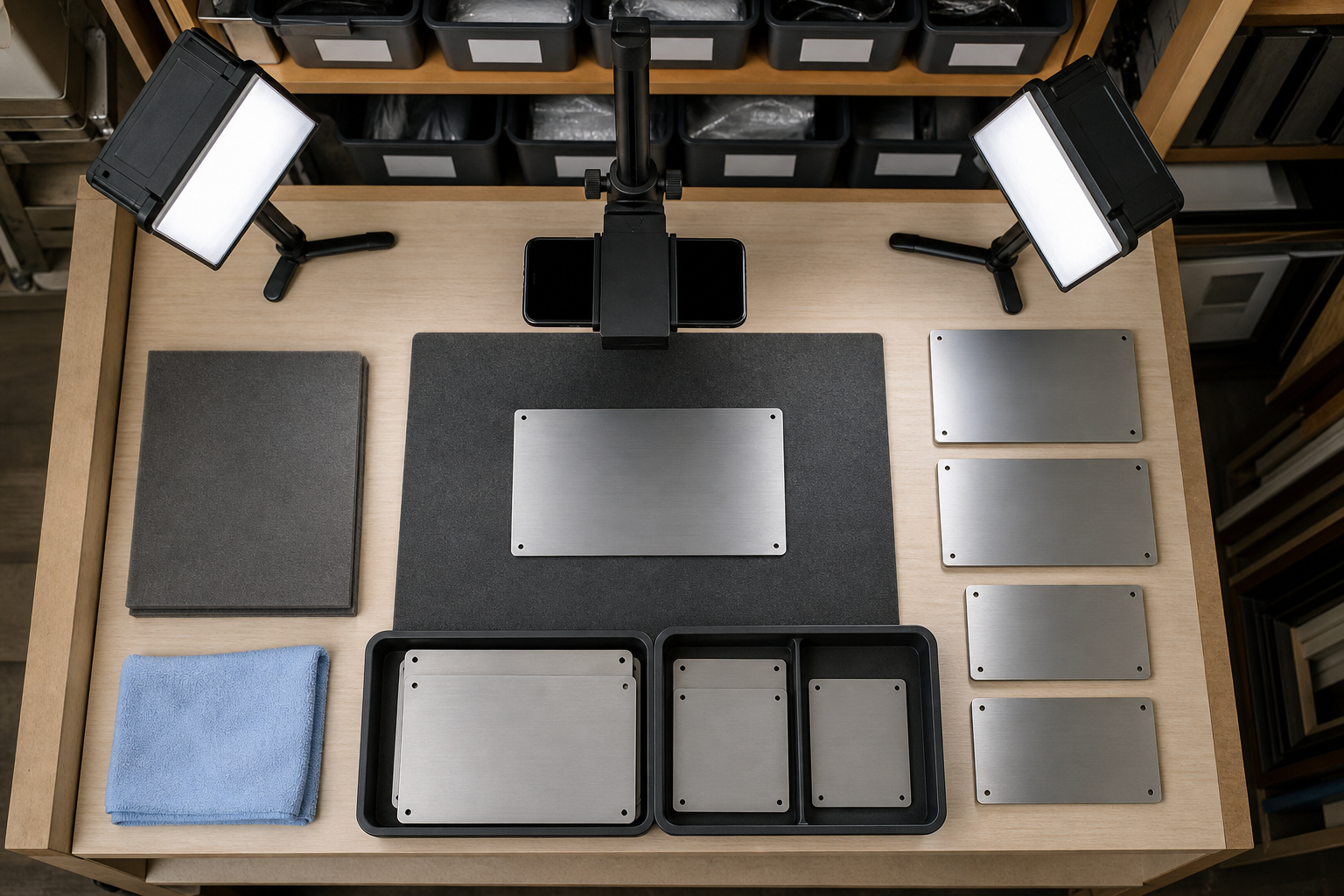
The cleanup starts before editing. If the original photo is poor, software can improve readability but cannot always recover missing strokes. Trophy shops and administrators can use a simple capture station without buying specialized scanning equipment.
Use this checklist when photographing plaques for OCR:
| Capture choice | Recommended setting | Why it matters |
|---|---|---|
| Lighting | Soft side light, not direct overhead light | Reduces glare across engraved letters |
| Camera angle | Mostly straight-on with a slight tilt if needed | Keeps lines readable while avoiding reflection |
| Background | Plain matte surface | Prevents extra edges near the plaque |
| Distance | Fill most of the frame without cutting edges | Preserves letter detail |
| Focus | Tap on the engraved text area | Avoids sharp borders with soft lettering |
| Stability | Use a stand, shelf, or both hands braced | Reduces motion blur |
| Cleaning | Wipe fingerprints and dust first | Removes marks that OCR may treat as strokes |
| Multiple shots | Take one straight, one angled, one closer crop | Gives you options when glare changes |
Avoid flash unless there is no alternative. Flash often creates a bright spot and deep falloff, especially on curved trophy plates. A desk lamp bounced off white paper or a small diffuser usually works better.
For plaques behind glass, move the camera slightly to the side until your reflection is no longer centered over the text. A small angle is fine, but avoid extreme perspective because OCR struggles when letters taper dramatically from one side to the other.
If you are capturing many plaques, keep the station consistent. Same table, same light, same camera distance, same orientation. Consistency helps later when resizing, compressing, and reviewing batches.
Prepare the Image Before OCR
The first edit should make the text easier to read, not make the picture more dramatic. Keep a copy of the original photo, then create a cleaned version for OCR.
Start with rotation and crop. Rotate the plaque so text lines are horizontal. Crop out the table, fingers, display case frame, or trophy base unless those details are needed as evidence. OCR engines often waste attention on irrelevant shapes around the actual text. A tight crop improves both recognition and review.
Next, resize only when needed. If a phone photo is very large, it may be awkward to upload, share, or store. If it is too small, OCR loses character detail. For most plaque photos, keep the text area large enough that capital letters remain crisp when viewed at 100 percent. ConvertAndEdit's resize image tool is useful when you need a consistent maximum width for a batch without changing each file by hand.
Use contrast carefully. Increasing contrast can make engraved letters stand out, but too much contrast can crush shallow strokes or turn reflections into hard white shapes. If the plaque is brass or silver, try a moderate contrast increase and inspect names and dates afterward.
Convert unusual files before OCR. Some phones, cameras, and messaging apps produce formats that are inconvenient for archives or review. If you receive HEIC, WebP, or a mixed set of image types, convert them into a consistent format with convert image. JPEG is practical for photo evidence. PNG can be better for screenshots or graphics, but most plaque photos do not need PNG unless you are preserving a very clean, flat image.
Compress only after you know the text is readable. File size matters, especially when a shop stores hundreds of order references, but compression can damage fine strokes. Use compress image after checking that the small letters, dates, and punctuation are still legible.
OCR the Plaque Photo Without Losing Context
Once the image is prepared, run OCR on the clean version. ConvertAndEdit's image OCR tool can help extract text from an image so you are not manually typing every line. The extracted text should be treated as a draft transcript, not a final record.
A good plaque record usually has three layers:
| Layer | What it contains | Why keep it |
|---|---|---|
| Original image | The untouched photo | Evidence if edits cause doubt |
| Clean OCR image | Cropped, rotated, readability-focused version | Best source for text extraction |
| Verified text | Human-checked name, date, and wording | Searchable record used for reorders or archives |
Do not delete the image after OCR. Plaque text often includes unusual capitalization, abbreviations, honorifics, team names, sponsor names, and memorial wording. The visual source is what lets someone resolve uncertainty later.
If an OCR result contains garbage near the beginning or end, look at the crop. Decorative borders, screw heads, logos, and plate corners can create extra marks. A second crop that includes only the engraved panel may produce cleaner output.
If line order is wrong, especially on curved plates, make separate crops for each line or section. OCR may read the center line first, then jump to the edge. Smaller sections can make review faster than one difficult full-plate image.
Build a Verification Pass That Catches Real Errors
The most costly plaque OCR errors are not random symbols. They are plausible mistakes: a name that is nearly right, a year that looks reasonable, or a title with one missing word. These errors pass casual review because the result looks tidy.
Use a structured verification pass for any record that will be reused.
Check these fields one at a time:
- Recipient name.
- Award title.
- Organization or sponsor.
- Event name.
- Date or season.
- Rank, category, or division.
- Memorial or dedication wording.
- Spelling of uncommon words.
- Punctuation and line breaks if they matter for re-engraving.
For names, compare character by character. OCR is especially weak with engraved all-caps names because the shapes are similar. Check O versus Q, I versus L, B versus 8, S versus 5, and rn versus m. If the plaque includes accented characters, verify them manually instead of assuming the OCR kept them.
For dates, look for context. A league championship plaque from 2008 may be misread as 2006. A retirement award may include both service years and presentation date. Record each date separately instead of merging them into one note.
For organizations, check official spelling. OCR may turn an ampersand into an 8 or drop periods from initials. If the archive is for internal records, consistency matters more than preserving every visual line break. If the text will be re-engraved, preserve exact wording and capitalization.
File Naming for Trophy Shop Records
Good filenames reduce future searching. Bad filenames create a second archive problem even after OCR succeeds.
A useful filename includes date, customer or organization, item type, and a short identifier. Keep it boring and consistent.
Examples:
- 2026-03-14_riverside-club_service-award_santos_original.jpg
- 2026-03-14_riverside-club_service-award_santos_ocr-crop.jpg
- 2026-03-14_riverside-club_service-award_santos_verified.txt
- 2025-11-02_northside-league_championship-plaque_u12-team-a.jpg
Avoid filenames such as IMG_4932, trophyfinal2, new plaque, or John's thing. They make sense for one day and fail six months later.
If privacy matters, do not put full personal names in filenames shared outside the shop or organization. Use an order number, initials, or internal ID in the shared copy while keeping the verified record in the correct private location.
Create Review PDFs for Batches
When several plaque photos need approval, a single review packet is easier than a folder full of images. A PDF can include cleaned images, extracted text, and notes for uncertain fields. This is useful for customer approvals, committee review, or internal quality checks before engraving.
A simple batch packet can include:
- One page per plaque.
- The cleaned image crop.
- The OCR text below or beside it.
- A short uncertainty note, such as check middle initial or confirm year.
- A status label in your own file system or tracking sheet, such as needs review, approved, or ready for engraving.
If you are turning several image files into one document, ConvertAndEdit's image to PDF tool can help assemble the visual record. Keep the PDF readable rather than tiny. Reviewers need to zoom into letters, especially on old or scratched plates.
For larger packets, split by customer, event, or display case section. A forty-page PDF of unrelated plaques is hard to verify. Five smaller packets with clear names are easier to assign and approve.
Decision Table: What to Do With Difficult Plaques
Some plaques remain difficult even after a careful photo. Use the visible problem to choose the next action.
| Problem | Likely cause | Best next step |
|---|---|---|
| Bright white band across text | Direct reflection from light or window | Retake with side lighting or change angle |
| Letters are soft everywhere | Motion blur or missed focus | Retake with camera braced and tap focus on text |
| Text curves upward or downward | Curved trophy plate | Crop line by line or photograph from farther back |
| OCR invents symbols around edges | Border, screws, or decoration included | Crop tighter around text only |
| Dates are misread | Low contrast in engraved numerals | Create a closer crop of the date area |
| Names look correct but uncertain | Similar all-caps characters | Manual character-by-character check |
| File is too large to share | High-resolution phone image | Resize and compress after verification |
| Image format is inconsistent | Mixed phone and camera sources | Convert to a common archive format |
The best next step is often a retake, not a more aggressive edit. If a reflection covers a letter, filters may only sharpen the reflection. A second photo with softer light is faster and more reliable.
Handling Old, Scratched, or Tarnished Plaques
Older plaques add a different challenge. Tarnish, scratches, faded fill, and uneven patina can make the engraving inconsistent. In archives, the goal is to preserve evidence while extracting usable text.
Do not over-clean a historically important plaque just to improve OCR. Physical cleaning can change the object. If you are not responsible for conservation decisions, photograph it as found and use lighting, not abrasion, to improve readability.
Try multiple light angles. Shallow engraving may appear clearly when light skims across the surface. Take a straight reference photo first, then take a side-lit photo for text. The straight image shows the object; the side-lit image supports OCR.
For scratched plaques, crop smaller sections. A scratch across one line may confuse OCR for the whole image. Separate crops for recipient name, date, and dedication can isolate the useful text.
For tarnished brass, black-and-white conversion may help review, but keep the color original. Color can show whether a mark is engraving, tarnish, paint, or reflection. The verified record should point back to the original whenever there is doubt.
Customer Proofing Without Creating New Mistakes
Trophy shops often need to send a proof before engraving or replacing a plaque. OCR can speed up transcription from an old plaque, but the proof should make uncertainty visible.
A good proofing note might say: Please verify spelling, dates, and capitalization before production. Avoid claiming that extracted text is guaranteed correct. The customer or organization may know the intended spelling better than the photo does.
When sending a proof, include the cleaned crop and typed text together. If the customer sees only typed text, they may miss an OCR error that would have been obvious against the photo. If they see only the image, they may not notice what you plan to engrave.
Keep proof files small enough to email but large enough to inspect. Compress after creating the review version, then open the compressed file and check the most delicate text. Thin engraved strokes can disappear under heavy compression.
A Simple End-to-End Example
Imagine a small shop receives a phone photo of a brass service award from 1998. The customer wants a replacement plate but is unsure about the middle initial.
The practical sequence would be:
- Save the original photo unchanged.
- Create a cropped copy around the plaque face.
- Rotate the crop until the main text is level.
- Adjust contrast lightly, avoiding blown-out reflections.
- Run OCR on the cleaned crop.
- Compare the extracted text against the image line by line.
- Create a closer crop of the recipient name if the middle initial is unclear.
- Prepare a review PDF with image, draft text, and a note asking the customer to confirm the initial.
- Store the original, crop, and verified text under a consistent job filename.
This sequence is not complicated, but it prevents the common mistake of copying OCR output directly into a production file. The review step is where expensive errors are caught.
Quality Checklist Before You Archive
Before the record is considered complete, run a final quality check.
Use this checklist:
- The original image is preserved.
- The cleaned OCR crop is stored separately.
- The text is manually verified.
- Names and dates were checked character by character.
- The filename includes useful context.
- The file format is consistent with the rest of the archive.
- The image remains readable after any resizing or compression.
- Review PDFs are split into sensible batches.
- Uncertain fields are marked rather than silently guessed.
- Shared files do not expose more personal information than necessary.
For repeat orders, add one more check: confirm whether the customer wants exact reproduction or corrected text. Old plaques sometimes contain misspellings. A replacement may need to match the original, or it may need to fix the error. The archive should record which choice was approved.
Common Mistakes to Avoid
The first mistake is photographing the plaque under the brightest possible light. Bright does not mean readable. Even, controlled light matters more than intensity.
The second mistake is cropping too loosely. OCR does not need the entire trophy, the shelf, or the award case. It needs the text region. Keep context in the original photo and use a focused crop for OCR.
The third mistake is compressing too early. Heavy compression before OCR can damage fine letter shapes. Resize and compress after the text has been extracted and verified.
The fourth mistake is trusting clean-looking OCR. A polished transcript can still contain one wrong character in a name. That one character may be the only part that truly matters.
The fifth mistake is mixing proof files with source files. Originals, OCR crops, review PDFs, and verified text all serve different purposes. Separate names prevent accidental use of the wrong version.
Final Thoughts
Engraved plaque OCR is a narrow task, but it shows why practical image preparation matters. The text is important, the surfaces are difficult, and the cost of a small error can be real. A careful capture setup, a clean crop, a verified OCR pass, and a sensible archive structure turn messy photos into records that a shop, school, club, or facilities team can actually use.
The best system is simple: preserve the original, prepare a readable copy, extract the text, verify the details, and package the result for review. With tools for resizing, converting, compressing, OCR, and image-to-PDF assembly, ConvertAndEdit can support each step without forcing a heavy production setup.