Kiosk Screen Photo Evidence Packets: A Field Guide for Retail and Facility Teams
A practical guide for photographing, cleaning, naming, OCR-checking, and packaging kiosk screen evidence so support teams can diagnose display issues faster.

Kiosk Screen Photo Evidence Packets: A Field Guide for Retail and Facility Teams
Self-service kiosks, ticket machines, lobby check-in screens, vending interfaces, queue terminals, and digital wayfinding displays all share the same support problem: when something looks wrong, the evidence is usually a quick phone photo taken under bad lighting.
That photo may be the only record of the issue before the screen refreshes, the device reboots, a staff member clears the error, or the customer walks away. If the image is crooked, blurry, over-compressed, or missing surrounding context, support teams lose time asking for a second capture. In multi-location operations, that delay can mean the difference between fixing a repeatable software defect and treating every incident as a one-off.
This guide is for retail operations teams, facilities coordinators, franchise managers, field technicians, and support leads who need a simple, repeatable way to turn kiosk screen photos into useful evidence packets. The goal is not to make the photos beautiful. The goal is to make them readable, comparable, compact, and easy to route.
A good packet answers five questions without a long email thread:
- What was visible on the kiosk screen?
- What was happening around the device?
- Which location, device, and time does the image belong to?
- Is the relevant on-screen text readable enough for diagnosis?
- Can the packet be attached to a ticket, vendor email, or incident report without being too large?
The same basic method works for payment kiosk errors, menu board glitches, wayfinding screen problems, check-in terminal failures, retail price scanner screens, locker pickup interfaces, and unattended visitor registration displays.
Why Kiosk Screen Photos Fail as Evidence
Most kiosk photos are taken quickly, often by someone whose main job is not technical documentation. That is understandable. The issue usually appears during a busy shift, a customer is waiting, and the employee has only a few seconds to capture proof.
The common failures are predictable:
- The screen is photographed at an angle, making text distorted.
- Reflections cover important buttons or error messages.
- The photo includes too much background and too little screen detail.
- The phone camera sharpens glass reflections instead of UI text.
- The file is sent through a messaging app that compresses it heavily.
- Several photos are attached with names like IMG_4821 and IMG_4822.
- The device label, store number, or surrounding hardware is missing.
- A close-up exists, but there is no wider context shot.
These are small issues individually, but together they create support drag. A vendor may ask for the exact error message. Engineering may need to compare the affected UI state against a release screenshot. A facilities team may need to determine whether glare, damaged glass, or a physical obstruction is involved. A single unfocused image rarely satisfies everyone.
The better approach is to collect a small set of images, clean them conservatively, extract or verify readable text when needed, and package them in a format that can move cleanly between teams.
The Packet Standard
For most kiosk incidents, aim for a packet with four to seven assets. That is enough evidence for support without overwhelming the ticket.
A strong packet includes:
- One wide context photo showing the kiosk in its environment.
- One straight-on screen photo showing the full screen.
- One cropped close-up of the error, warning, frozen state, or broken UI area.
- One photo of the device label, asset tag, or location marker if available.
- Optional: a second angle that proves glare, glass damage, or hardware obstruction.
- Optional: OCR text extracted from the screen or label.
- Optional: a combined PDF for vendor review or incident archives.
The packet should be small enough to attach, clear enough to inspect, and named well enough that nobody has to open every file to understand what it contains.
Use this simple naming pattern:
location-device-date-sequence-description.ext
Examples:
store-014-kiosk-03-2026-05-20-01-context.jpgstore-014-kiosk-03-2026-05-20-02-full-screen.jpgstore-014-kiosk-03-2026-05-20-03-error-crop.pngstore-014-kiosk-03-2026-05-20-04-asset-tag.jpgstore-014-kiosk-03-2026-05-20-packet.pdf
The names look plain, but they prevent confusion when a ticket includes multiple devices or when a vendor downloads attachments locally.
The Capture Checklist: Get the Evidence Before It Changes
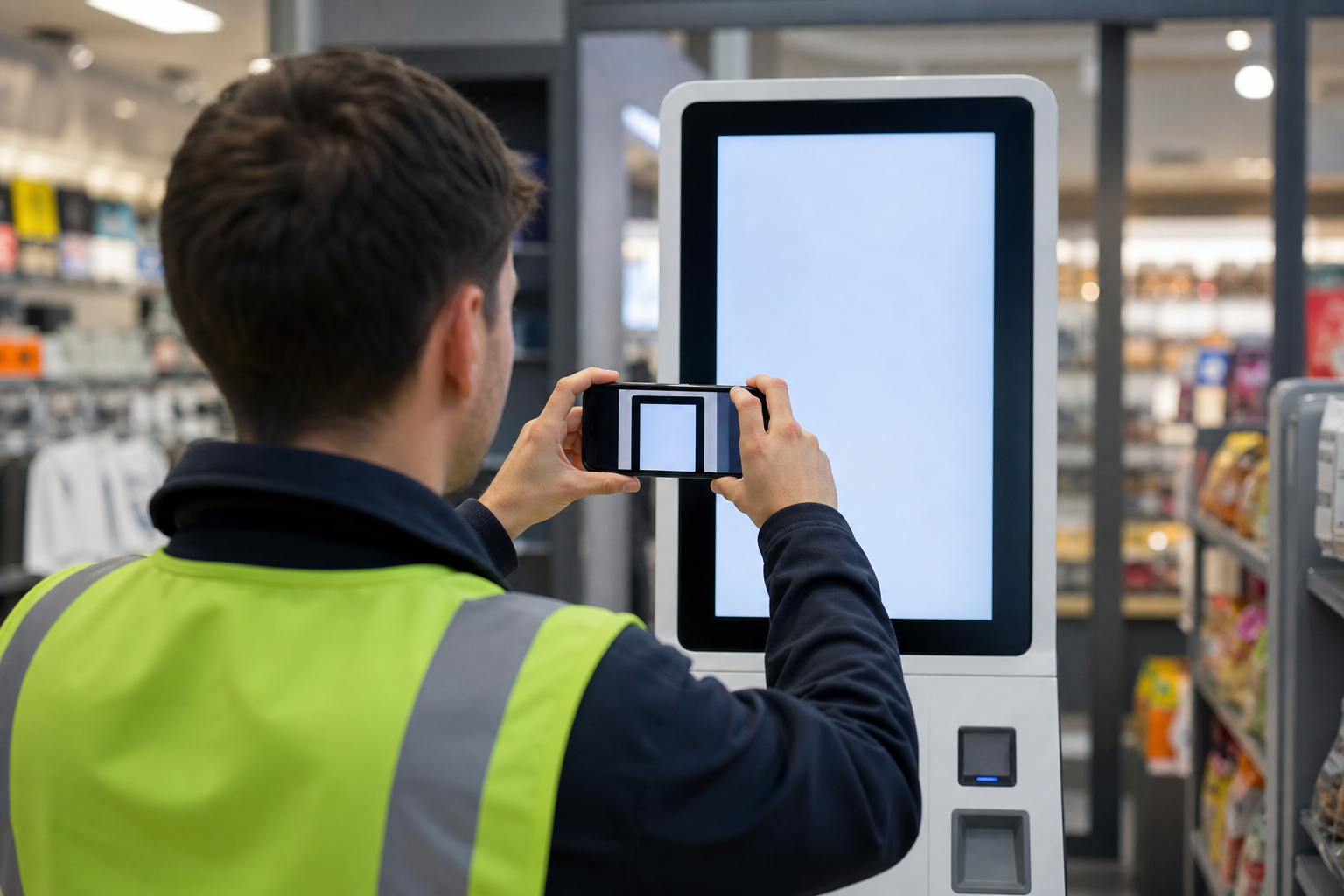
The most important quality decisions happen before editing. Once a screen changes, no tool can recover the exact state you missed.
Use this capture checklist when training staff or writing an internal support SOP.
Take a Wide Context Photo First
Start with the whole kiosk, not the screen close-up. The wide image shows whether the issue might be environmental: glare from windows, a hanging sign, damaged housing, a blocked scanner, a nearby light source, or a queue barrier pressing against the unit.
Stand far enough back to include:
- The full kiosk body.
- The screen position.
- Nearby light sources or windows.
- Any attached peripherals, such as card readers, scanners, printers, or receipt slots.
- A visible location clue if appropriate.
This image does not need to show every screen word clearly. Its job is context.
Capture the Screen Straight On
Next, take the diagnostic image: the full screen, as straight and level as possible.
Good screen photos have four traits:
- The phone is parallel to the screen glass.
- The whole screen is inside the frame.
- The camera focuses on the UI text, not reflections.
- The image is bright enough, but not blown out.
If the kiosk is tall or angled, crouch or raise the phone instead of tilting it. Tilting creates perspective distortion, and distorted text is harder to read later.
If reflections are severe, move slightly left or right, but keep the angle modest. A mildly angled readable image is better than a perfectly centered image with a reflection across the error message.
Add One Tight Close-Up
A close-up is useful when the full-screen image contains tiny text, small buttons, or a specific error code. Move closer rather than relying only on digital zoom. Digital zoom can make text look larger while reducing real detail.
The close-up should include enough surrounding UI to show where the problem appears. Do not crop so tightly that the support team sees an error message but not the screen it belongs to.
Photograph the Device Identifier
Many kiosk issues are routed by asset ID, serial number, lane number, store fixture number, or device nickname. If there is a label on the side, back, base, settings screen, or maintenance panel, capture it.
This photo often prevents the most basic follow-up question: which unit is this?
Do Not Rely on Chat Apps as the Only Transfer
Messaging apps can be useful for urgent visibility, but they often resize or recompress images. If the image will be used for diagnosis, ticketing, or vendor review, keep the original file or upload it through the approved channel.
When that is not possible, ask staff to send the image as a file attachment rather than an inline photo whenever their phone or messaging app supports it.
Decide What to Edit and What to Preserve
Evidence images should be cleaned, not beautified. The goal is to improve readability while preserving what the screen actually showed.
Use this decision table before editing:
| Issue | Recommended action | Avoid |
|---|---|---|
| Large empty background | Crop around the kiosk or screen | Cropping out device context entirely |
| Oversized image file | Resize and compress a copy | Repeatedly saving the same JPEG at low quality |
| Slightly crooked photo | Rotate or perspective-correct gently | Heavy warping that changes UI proportions |
| Screen text too small | Create a close-up crop | Upscaling until edges look artificial |
| Reflections | Add a second angle if available | Painting over reflections in evidence copies |
| Sensitive customer data | Redact clearly and consistently | Blurring random areas without noting it |
| Wrong format for upload | Convert a copy | Deleting the original capture |
If the image is part of a formal incident record, keep an untouched original and create edited derivatives. Even for routine support, that habit is useful. It lets teams compare the cleaned version against the raw capture if there is any doubt.
Crop Without Losing Diagnostic Context
Cropping is the fastest way to make kiosk evidence easier to read. It removes floor, ceiling, counter clutter, and irrelevant background so the support team can focus on the screen.
For kiosk packets, make three crop types:
- Context crop: the kiosk and nearby environment.
- Full-screen crop: the entire display, including all edges.
- Detail crop: the affected UI region, such as an error box or broken button area.
The full-screen crop is the most important. Keep all four screen edges visible if possible. Edges help reviewers understand whether the screen is rotated, scaled incorrectly, cut off, or showing a responsive layout problem.
For a detail crop, include nearby labels, buttons, or navigation elements. A floating error message without context may be readable, but it may not be diagnosable.
If the original capture is huge, resize the cropped version after cropping. This keeps the important pixels and removes the waste first. ConvertAndEdit's resize image tool is useful when you need a consistent width for support uploads, documentation, or side-by-side comparisons.
A practical sizing rule:
- Keep full-screen crops around 1600 to 2400 pixels wide when text is small.
- Keep context images around 1400 to 2000 pixels wide.
- Keep detail crops large enough that text is readable at 100 percent zoom.
Do not resize tiny text down just to hit an arbitrary attachment target. Compress after you have the right crop and dimensions.
Compression Rules for Screen Evidence
Compression can make or break a kiosk packet. Photos of screens are difficult because they mix photographic noise, glass reflections, sharp UI text, flat color blocks, and thin lines. Aggressive compression creates halos around letters and makes error codes ambiguous.
Use compression only after you have cropped and resized. That sequence usually produces better results than compressing the original full phone image.
For most kiosk packets:
- Use JPEG for context photos and general screen photos.
- Use PNG for sharp UI crops, small text, or screenshots exported directly from the device.
- Use WebP only if your ticketing, vendor, or archive system supports it reliably.
- Avoid repeatedly exporting the same JPEG through multiple tools.
A good target is not the smallest possible file. A good target is the smallest file that still allows the relevant text and UI state to be read without guessing.
Open the compressed image and inspect:
- Error codes.
- Button labels.
- Dates and times.
- Device IDs.
- Small navigation labels.
- QR codes or barcodes if present.
If the letters shimmer, smear, or grow blocky, use less compression or switch the detail crop to PNG. ConvertAndEdit's compress image tool can help reduce attachment size while letting you keep a readable copy for support.
Format Choices: JPEG, PNG, WebP, and PDF
Kiosk packets often move through ticketing tools, email, chat, shared drives, and vendor portals. Format compatibility matters.
JPEG for Field Photos
JPEG is usually the safest format for phone photos. It is widely accepted, compact, and easy to preview. Use it for wide context photos and full kiosk photos where photographic detail matters more than perfectly crisp UI edges.
The weakness of JPEG is small text. If the error message is tiny or the crop contains sharp interface lines, inspect carefully after compression.
PNG for UI Detail Crops
PNG is often better for cropped screen areas with text, icons, or flat colors. It preserves edges more cleanly, though files can be larger.
Use PNG when:
- The crop is mostly interface text.
- The screenshot was exported digitally rather than photographed.
- Compression artifacts could change the meaning of an error code.
- You need a clean crop for a vendor or engineering report.
WebP for Internal Libraries
WebP can be efficient for image libraries and documentation, but it is not always accepted by older portals or email systems. Use it when your destination supports it, not as a default for every external packet.
If you need to standardize mixed uploads, ConvertAndEdit's convert image tool can turn phone captures, PNG crops, and other image formats into the format your support channel expects.
PDF for Review Copies
A PDF is useful when you want one attachment that preserves order and context. It is especially helpful for vendor escalation, monthly incident review, facilities reports, and situations where photos need short captions in a predictable sequence.
PDF should not replace the original image files when detailed inspection is needed. Instead, treat the PDF as the readable packet and keep the source images available separately.
OCR: Use It as a Check, Not a Substitute
OCR can help when kiosk screens show error codes, transaction states, device labels, or short diagnostic messages. It is especially useful when someone needs to paste text into a ticket instead of retyping from a photo.
However, OCR should be treated as a verification aid. Screen glare, moire patterns, font rendering, and compression artifacts can produce mistakes.
Use OCR for:
- Error codes.
- Short warnings.
- Device labels.
- Store or terminal IDs.
- On-screen timestamps.
- Maintenance mode messages.
After extracting text, compare it against the image. If the OCR says E1108 but the screen might say E110B, write the uncertainty into the ticket rather than pretending it is confirmed.
A simple format works well:
Visible message: Payment service unavailable. Possible code: E1108 or E110B. See detail crop.
ConvertAndEdit's image OCR tool is useful for pulling text out of screen crops and asset tag photos. For best results, OCR the cropped close-up rather than the full context image.
Redaction Rules for Public Areas and Customer Data
Kiosk photos may accidentally include people, payment information, names, appointment details, account numbers, QR codes, or order identifiers. Before sharing outside the immediate support team, review each image for sensitive data.
Redaction should be obvious and limited. The reviewer should be able to see what was removed without losing the diagnostic area.
Redact:
- Customer names.
- Phone numbers and email addresses.
- Payment card fragments.
- Personal appointment details.
- Faces of bystanders when not relevant.
- Scannable codes that should not be shared externally.
- Internal network names or admin credentials.
Do not redact:
- Error codes needed for diagnosis.
- Device labels needed for routing.
- UI layout problems.
- Time and date information unless policy requires it.
- Surrounding hardware context that explains the issue.
If you need to remove a person or clean a distracting non-diagnostic background from a copy used in a presentation, keep that separate from the evidence copy. For careful image cleanup tasks, ConvertAndEdit's AI photo editor can help create presentation-safe derivatives, but incident evidence should remain conservative and traceable.
Build the Final Packet
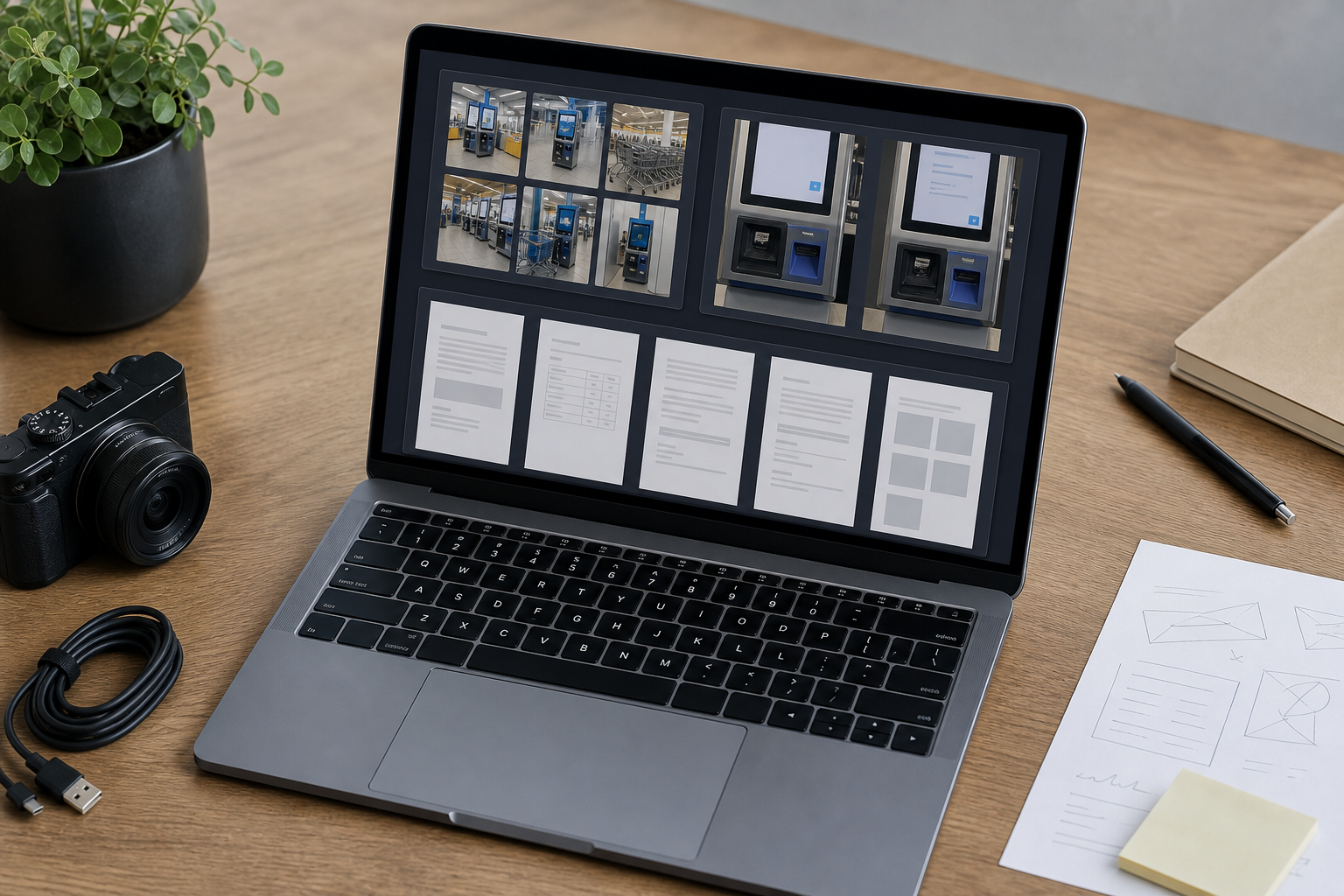
Once the images are captured and cleaned, assemble the packet in a clear order. The order matters because reviewers should understand the situation before zooming into details.
A practical sequence:
- Context photo.
- Full-screen photo.
- Detail crop of the issue.
- Device label or asset tag.
- Secondary angle, if relevant.
- OCR text note, if available.
- Combined PDF, if the recipient needs one file.
For image-only delivery, attach the files with the naming pattern from earlier. For a combined review copy, use a PDF with one image per page or a simple two-image page where context and detail belong together.
ConvertAndEdit's image to PDF tool is useful when the final deliverable needs to be a single attachment for a ticket, vendor case, or internal archive.
Keep the PDF simple. Do not build a decorative report unless the situation calls for it. The best evidence packet is boring in the right way: ordered, readable, and easy to inspect.
A Practical Example: Frozen Payment Screen
Imagine a retail store reports that kiosk 03 freezes during payment. The first message in the support ticket says: customer could not finish checkout, screen stuck.
That is not enough to diagnose. The support lead asks for a packet.
The store sends:
store-014-kiosk-03-2026-05-20-01-context.jpgstore-014-kiosk-03-2026-05-20-02-full-screen.jpgstore-014-kiosk-03-2026-05-20-03-payment-error-crop.pngstore-014-kiosk-03-2026-05-20-04-asset-tag.jpgstore-014-kiosk-03-2026-05-20-packet.pdf
The context photo shows that the kiosk is next to a bright window, but the screen is still readable. The full-screen crop shows the payment step and a disabled continue button. The detail crop shows a small message near the card reader prompt. OCR extracts most of the text, but the store notes that one character in the code is uncertain.
Now support can route the ticket properly. If the issue is software, engineering has the UI state. If it is payment hardware, the vendor has the asset tag and card reader context. If glare or user interaction is involved, facilities can see the physical environment.
The packet does not solve the issue by itself, but it removes ambiguity early.
Quality Control Before Sending
Before the packet leaves the store or field team, do a one-minute review. This is where many avoidable follow-up requests are caught.
Use this checklist:
- Can the main screen message be read without zooming excessively?
- Is there at least one image showing the full kiosk or surrounding context?
- Is the device identifier included or written in the ticket?
- Are filenames specific enough to identify location and device?
- Are sensitive details redacted when sharing externally?
- Are compressed files still readable?
- Is the PDF ordered from context to detail?
- Are the original images preserved somewhere if the case escalates?
If the answer is no to any of these, fix the packet before sending. It is faster to correct the evidence once than to restart the conversation later.
Common Mistakes and Better Replacements
Mistake: Sending Only a Close-Up
A close-up may show the error, but it hides environment and device context. Add a wide shot and a full-screen shot.
Mistake: Cropping Out Screen Edges
Screen edges reveal scaling, rotation, cutoff, and layout problems. Keep them in the full-screen crop.
Mistake: Compressing Before Cropping
Compressing the entire phone image first can damage the area you care about. Crop and resize first, then compress the result.
Mistake: Trusting OCR Without Review
OCR can misread small screen text. Paste extracted text into the ticket only after comparing it with the image.
Mistake: Mixing Several Incidents in One Attachment Set
If two kiosks failed, create two packets. Shared attachments with vague names create confusion during escalation.
Mistake: Editing Away the Problem
Do not remove reflections, shadows, marks, or display artifacts if they may be part of the issue. Clean for readability, not for polish.
Team Template for Kiosk Evidence Requests
Support teams can reduce back-and-forth by using a standard request. Here is a concise template to adapt:
Please send a kiosk evidence packet with: one wide photo of the kiosk, one straight-on full-screen photo, one close-up of the error or broken area, and one photo of the asset tag or device label. Keep original images if possible. Name files with store, kiosk number, date, and description. If any customer data is visible, redact it before external sharing.
For recurring issues, add a required ticket field for:
- Location ID.
- Device ID.
- Local date and time.
- Staff observation.
- Customer action immediately before the issue.
- Whether the issue repeated after restart.
- Whether the packet includes original captures.
This structure keeps the image packet connected to the operational facts around it.
When a PDF Is Better Than Loose Images
Loose images are best for technical inspection. A combined PDF is better for review, routing, and archive reading.
Choose a PDF when:
- A vendor portal accepts one attachment more reliably than many.
- A manager needs to review the incident on mobile.
- The case will be archived for monthly reporting.
- The packet includes images from several staff members.
- The order of images is important.
Keep loose images when:
- Engineering needs to zoom into pixel details.
- OCR accuracy is being checked.
- The screen text is very small.
- The issue may require image metadata.
- The vendor specifically requests original files.
In many cases, the best answer is both: a PDF for narrative review and a small folder of source images for inspection.
Final Review Standard
A kiosk evidence packet does not need studio photography, expensive software, or a complex approval chain. It needs disciplined capture, conservative cleanup, clear file names, and a final readability check.
The strongest packets are built around a simple idea: show the place, show the full screen, show the detail, show the device identity, and preserve enough quality for someone else to make a decision.
For busy retail and facility teams, that standard is realistic. It turns rushed phone photos into evidence that support, vendors, engineering, and operations can actually use. The result is fewer clarification messages, cleaner escalation, and a better record of what happened before the kiosk state changed.