QR Code Table Tent Proof Sheets for Restaurants
A practical guide for restaurant teams preparing QR code table tent proof sheets, checking scan quality, print margins, image cleanup, and PDF handoff before ordering.
QR Code Table Tent Proof Sheets for Restaurants
QR code table tents look simple until they are printed wrong. A code that scanned perfectly on a designer's monitor can fail under dim dining room light, reflect too much on laminated stock, sit too close to a fold line, or become too small after a last-minute resize. For restaurants, cafes, bars, hotel breakfast rooms, food halls, and pop-up operators, that mistake is not just cosmetic. It can block guests from seeing the menu, ordering, joining a loyalty program, leaving a review, or paying without waiting for staff.
This guide is for teams that need a practical way to review QR code table tent artwork before sending it to a local printer, franchise office, copy shop, or online print vendor. The goal is not to turn every manager into a prepress specialist. The goal is to create a proof packet that is easy to scan, easy to compare, and hard to misunderstand.
A strong proof sheet answers four questions before money is spent: does every QR code scan, is each code large enough, are the table tent panels oriented correctly, and will the printed piece survive real restaurant conditions. You can prepare that packet with basic image cleanup, resizing, compression, and PDF assembly. ConvertAndEdit tools such as Resize Image, Compress Image, Convert Image, AI Photo Editor, Image OCR, and Image to PDF can help with the practical parts.
Why Table Tent QR Proofs Need Their Own Review
A table tent is not a poster, a menu page, or a web banner. It is a small object viewed from odd angles in a busy room. Guests may scan it while seated, while standing near a host stand, or while holding a phone in one hand and a drink in the other. The printed code is often placed near brand graphics, decorative borders, food photography, icons, and small legal copy.
That mix creates failure points that normal design review can miss. A designer may check color and spacing, while an operations manager checks menu links, while a printer checks trim marks. Nobody may test whether the finished code remains scannable after the file is resized to fit a three-panel tent.
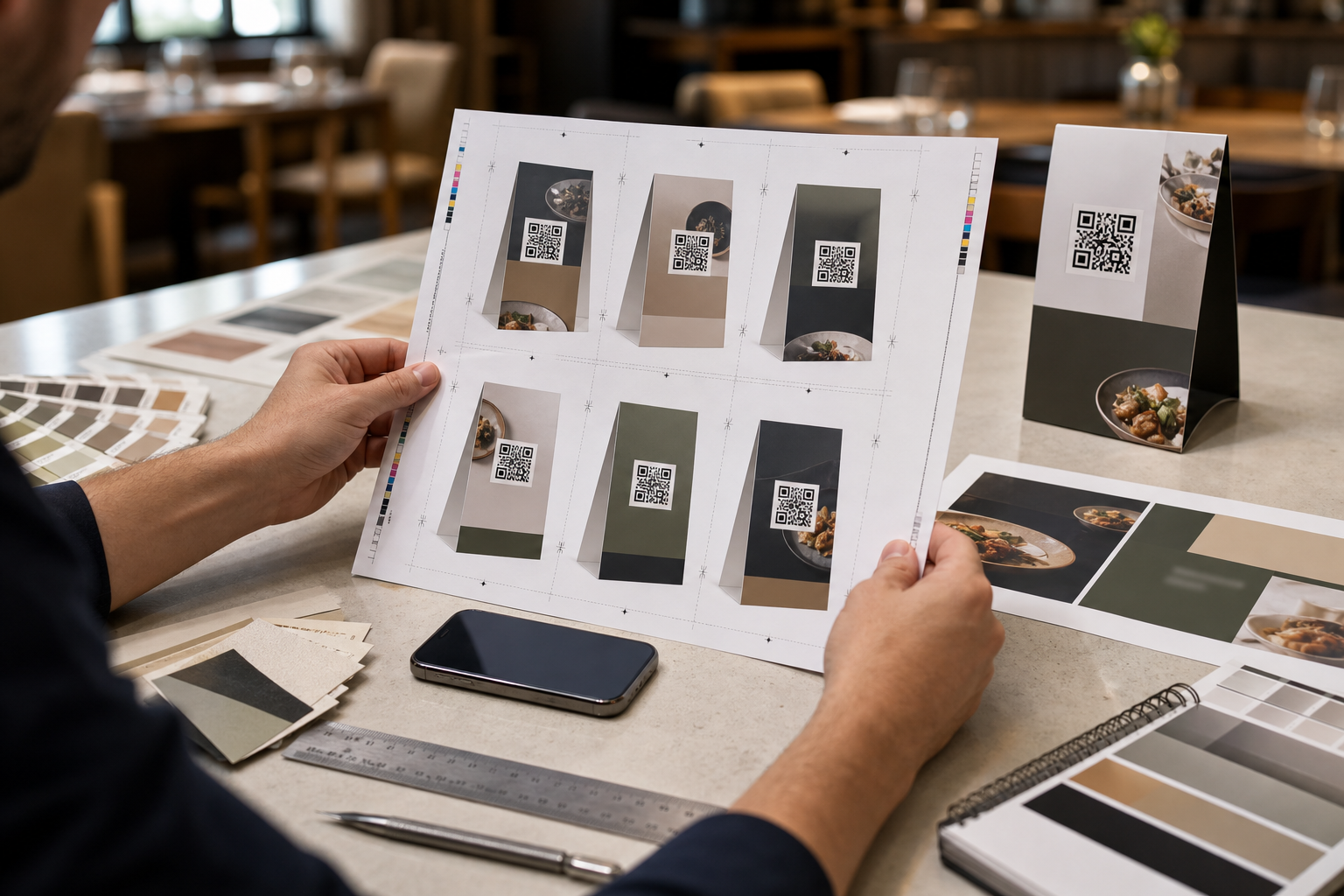
A proof sheet puts the important checks in one place. Instead of forwarding a folder full of PNGs, JPEGs, PDFs, and screenshots, you create a compact review PDF with each version labeled by context in the surrounding notes or file names. The PDF can be sent to a printer, approved by a manager, archived with the campaign, or reused when the menu changes.
The key is to treat the QR code as a functional part, not decoration. It must keep enough quiet zone, contrast, size, and clarity after every crop, resize, export, and PDF merge.
Common Restaurant Scenarios That Benefit From Proof Sheets
QR table tents are used in more places than digital menus. A proof packet is useful whenever the same physical piece will appear across tables, counters, guest rooms, or event spaces.
| Use case | What can go wrong | What to verify |
|---|---|---|
| Dine-in menu QR cards | Code is too small after fitting brand artwork | Scan from seated distance and low light |
| Seasonal specials | Old URL remains in one version | Scan every variant, not just the first one |
| Hotel breakfast tables | Glossy lamination creates glare | Test under overhead light and window light |
| Bar happy hour tents | Dark design lowers contrast | Check black-on-color and reversed styles carefully |
| Review request cards | Too much copy crowds the code | Preserve quiet zone around the QR block |
| Loyalty sign-up tents | Different locations need different links | Match file names, codes, and destinations |
| Event catering stations | Fast reprints create inconsistent sizes | Build a single approved PDF packet |
The more locations or variants you have, the more valuable the proof sheet becomes. A single neighborhood cafe may need only one page. A franchise group with breakfast, lunch, bar, patio, and catering versions may need a structured packet with several pages.
The Preflight Checklist Before You Build the PDF
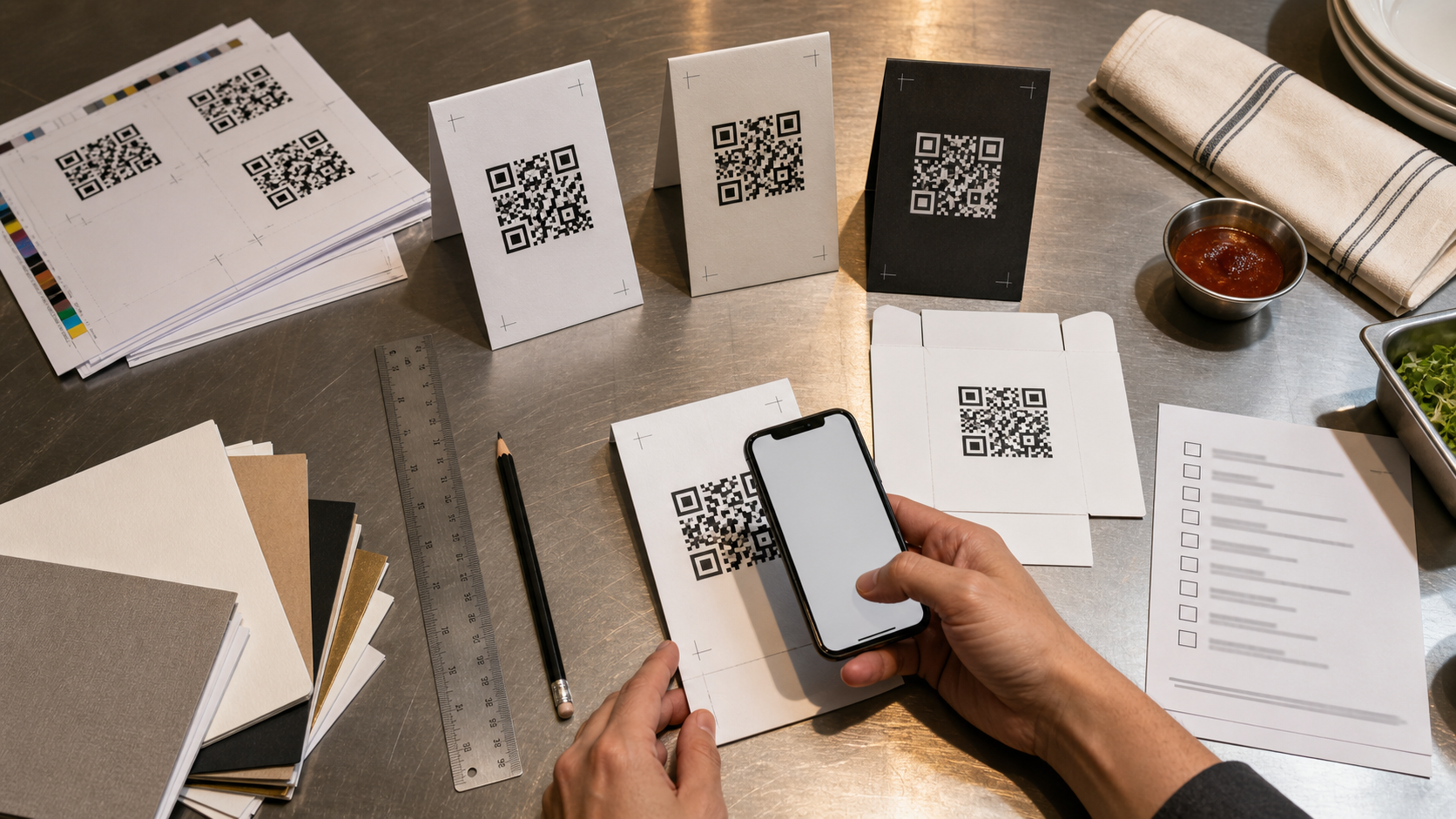
Do this before creating the final proof sheet. It is much easier to fix the source images first than to repair a messy PDF later.
1. Confirm the Destination Links
Scan every QR code from the actual artwork file, not from an old planning document. Open the destination on a phone and check that it loads without requiring a staff-only login. If the link is location-specific, confirm the store, room, table, or campaign mapping.
For restaurants with multiple menus, check the real guest path. Breakfast should not open the dinner menu. A patio drinks card should not open the indoor table ordering page. If a QR code points to a short link, confirm that the short link redirects correctly after any tracking parameters are applied.
Keep the link list separate from the design file. A simple spreadsheet or plain text review note can reduce confusion when a manager asks which code belongs to which table tent.
2. Check the Quiet Zone Around the Code
The quiet zone is the blank area around a QR code. Without it, scanners have a harder time detecting the edges of the code. Designers often reduce the quiet zone to make the layout feel tighter, especially on small table tents.
As a practical rule, leave clear space around the QR code on all sides. Do not let logos, borders, icons, decorative frames, or background patterns touch it. If your table tent has a textured background, place the code on a plain block or panel.
If the artwork already exists as a flat image and the code area is crowded, use AI Photo Editor cautiously for visual cleanup around nearby distractions, but do not alter the QR code modules themselves. The code should remain crisp, square, and untouched.
3. Test the Real Printed Size
A QR code that looks large on a screen may become too small on a folded tent. Export or resize a sample at the intended physical dimensions. If you need to scale source artwork, use Resize Image to create consistent review copies rather than relying on random email preview scaling.
For table tents, test scanning at the distance guests will actually use. A counter pickup sign may be scanned from closer range than a table tent placed near the salt and pepper. A hotel room service card might be scanned under warm bedside lighting. Test the uncomfortable conditions, not only the perfect one.
4. Preserve Contrast
Black modules on a white background remain the safest QR design. Brand-colored codes can work, but they need enough contrast. Avoid low-contrast combinations such as dark red on black, pale gray on white, or transparent code modules over food photography.
If the code is reversed, such as white on a dark background, test it with multiple phones. Some scanners handle reversed codes well, while others perform better with standard dark-on-light codes. If scanning is inconsistent, keep the brand color in the surrounding design and make the code itself conventional.
5. Normalize File Formats
A print review folder may contain PNG exports from a designer, JPEG previews from a manager, HEIC photos from a phone, and a PDF from a printer. Before building the review packet, standardize your proof images. Use Convert Image when you need to turn inconsistent formats into a common format for review.
For QR code artwork, PNG is usually preferable for sharp edges. JPEG can introduce compression artifacts around the modules. If you only have JPEGs, keep compression gentle and inspect the code at full size.
Capture Physical Mockups Without Making Them Useless
Sometimes the most valuable proof is not the flat artwork. It is a photo of a printed sample folded into the final table tent shape. That photo can show glare, fold alignment, paper thickness, and whether the code lands on a curved surface.
However, physical mockup photos can become misleading if they are messy. A tilted, blurry, shadowed photo might make a good design look broken, or hide a real issue.
When photographing a table tent mockup, place it on a clean, neutral surface. Use indirect light. Take one straight-on photo of each panel and one angled photo showing the folded shape. Keep the phone parallel to the panel when checking code clarity. If the code is on a glossy sample, include one photo under the worst glare you expect in the restaurant.
Do not over-edit the QR code in a mockup photo. You can crop away the background, brighten the scene, or remove unrelated clutter, but avoid smoothing, repainting, or stylizing the code. A proof image should reveal problems, not make the sample look better than it prints.
If a mockup photo includes small printed labels, location names, or menu category notes and you need to verify them, Image OCR can help extract readable text from the photo. OCR is especially useful when a manager sends a phone picture of multiple table tents and you need to check whether the right location or campaign appears on each one.
Build a Review PDF That Prevents Expensive Reprints
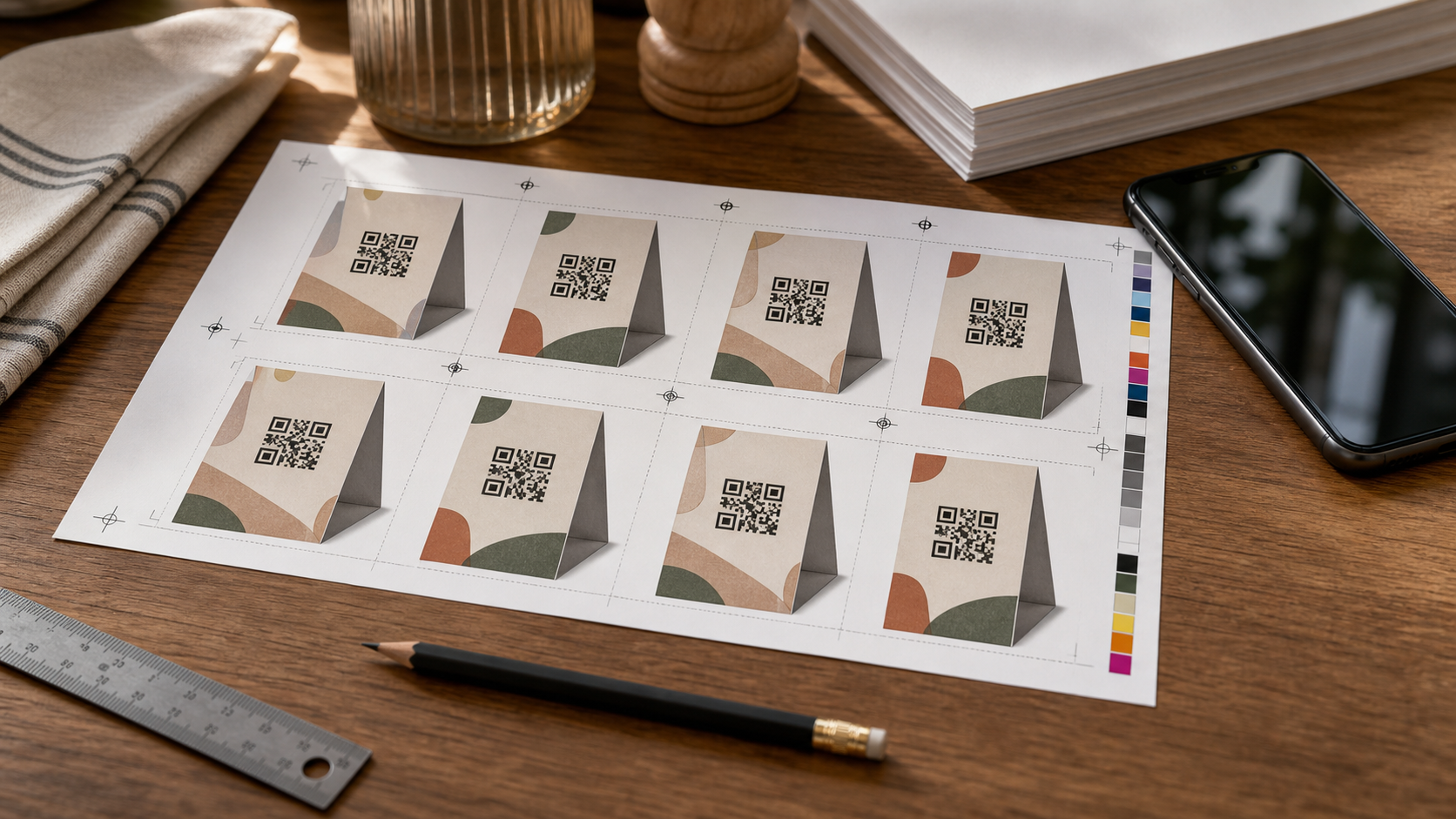
Once the source images are clean, consistent, and scanned successfully, assemble them into a PDF packet. The PDF should not be a random gallery. It should guide the reviewer through decisions.
Start with the final flat artwork, then include physical mockup photos, then include any location or campaign variants. If there are multiple sizes, group them by size. If there are multiple restaurants, group them by location. The reviewer should not need to jump between file names and email notes to understand what they are approving.
Use Image to PDF to combine proof images into a single packet. A practical packet might include:
- Page 1: final front panel artwork for each table tent variant
- Page 2: back or side panel artwork if the tent has multiple panels
- Page 3: printed mockup photos under normal light
- Page 4: glare or low-light scan test photos
- Page 5: location-specific versions or campaign alternatives
For small review sets, a one-page proof sheet can work well. Put several image proofs on the same page so a manager can compare them at a glance. For larger sets, one variant per page may be clearer.
Use N-Up Layouts Carefully
N-up proof sheets are useful because they place multiple versions on one page. They are ideal when you need to compare QR code placement across several table tent designs. But N-up layouts can also shrink artwork too far.
If the goal is visual comparison, smaller thumbnails are fine. If the goal is scan testing from the PDF printout, include at least one page where each QR code appears at intended physical size. A thumbnail that scans on a monitor does not prove that the final printed code will scan on a folded tent.
A useful review packet can include both: a comparison page for managers and a full-size page for scan testing.
Keep Compression Review-Friendly
PDFs get forwarded, uploaded, and archived. It is tempting to compress them aggressively. For QR code proofing, over-compression can create false problems or hide real ones.
Use Compress Image when source photos are huge, but check the code area afterward. Compression should reduce file size without blurring the square modules or creating fuzzy edges. For mockup photos, moderate compression is usually fine. For flat QR artwork, prioritize sharpness.
A good test is to zoom into the PDF at 100 percent and 200 percent. The QR modules should still have clean edges. If they look smeared, return to the source image and export a cleaner version.
A Practical Approval Table for Managers and Printers
Include a simple approval table in your internal notes or as a cover page if your team uses one. It does not need to be fancy. It needs to make responsibility clear.
| Check | Owner | Pass condition |
|---|---|---|
| Link destination | Operations or marketing | Every code opens the correct guest page |
| Code size | Designer or print contact | Code appears at intended physical dimensions |
| Quiet zone | Designer | No artwork touches the QR boundary area |
| Contrast | Designer and manager | Code scans under expected room lighting |
| Fold placement | Print contact | Code does not cross fold, curve, or trim area |
| Location variants | Area manager | Each location receives the correct version |
| Final packet | Project owner | PDF contains only approved current versions |
This table is especially useful for small chains because it prevents a common mistake: one person approves the design, another approves the link, and nobody approves the relationship between the two.
Print-Specific Details That Deserve Attention
Table tents often fail at the physical production stage, not the design stage. These details are worth checking before sending the final order.
Fold Lines and Curved Surfaces
A QR code should not cross a fold line. It should also avoid areas that curve backward after assembly. Even a slight bend can distort the code enough to make scanning harder, especially on glossy stock.
If the tent has three panels, make sure the code sits on the flattest visible panel. If the code must appear near the lower edge, check that table reflections and shadows do not interfere.
Trim and Bleed
Decorative backgrounds can extend to the bleed area, but QR codes should stay safely inside the trim line. A tiny trimming shift should not cut into the quiet zone.
Ask the printer for their template if you do not already have it. Place the proof image into the template or request a proof from the vendor. When you receive the vendor proof, scan the code again. Do not assume the vendor's scaling preserved the exact size.
Lamination and Coating
Glossy lamination can make colors pop, but it can also create glare. Matte coating is often easier for scanning. If your restaurant uses bright overhead lights, glossy table tents near windows, or candles at night, scan a physical sample under those conditions.
If the code works only when the phone is held at one perfect angle, the design is too fragile. Increase code size, improve contrast, move it away from glare, or choose a less reflective finish.
Paper Color
Off-white, kraft, textured, or colored paper can reduce contrast. A black QR code on cream stock may be fine, but a dark green code on recycled brown stock may not be. If the paper color is part of the brand, test before the full run.
File Naming That Reduces Wrong-Version Orders
A proof PDF is only as reliable as the files behind it. Poor naming causes reprints. Avoid vague names such as final.png, tabletent-new.pdf, or qr-v3-real-final.jpg.
Use names that identify the location, purpose, size, and date. For example:
- downtown-lunch-menu-table-tent-4x6-2026-07.png
- airport-bar-happy-hour-qr-tent-proof-2026-07.pdf
- hotel-breakfast-room-service-table-tent-scan-test.jpg
Do not put private tracking links or sensitive internal codes in public-facing file names. Keep file names operationally useful but not cluttered.
When the review packet is approved, archive the PDF along with the source images used to build it. If a manager later reports that a table tent scans incorrectly, you can compare the printed piece against the approved packet instead of guessing which version was ordered.
What to Do When a QR Code Fails During Review
A failed scan does not always mean the QR code itself is broken. Use a short diagnostic sequence.
First, scan the original digital QR code at full size. If it fails, regenerate the code or check the link. Second, scan the exported artwork. If the original works but the export fails, the design export may have resized, compressed, or recolored it poorly. Third, scan a printed proof before folding. If the flat print works but the folded tent fails, placement, glare, or curvature is likely the issue.
If only some phones fail, treat that as a warning. Restaurant guests use older phones, cracked cameras, dim screens, and default camera apps. A table tent QR code should be forgiving.
Common fixes include increasing the code size, switching to black-on-white, restoring the quiet zone, using a shorter encoded URL, avoiding transparent backgrounds, and moving the code away from folds or shiny areas.
A Lean Proof Packet Structure for Small Restaurants
For a single-location restaurant, keep the packet simple. You do not need a production manual.
Use a five-part review:
- Final flat artwork at intended size
- Close crop of the QR code area
- Photo of a folded paper mockup
- Photo of the mockup in actual dining room light
- Scan confirmation notes kept outside the image if needed
The final PDF should be small enough to email but clear enough to print. If your packet includes large phone photos, compress those photos carefully before assembly. Keep the QR artwork itself crisp.
This approach helps independent teams avoid the most common table tent problems without slowing down a seasonal menu launch.
A Larger Review System for Multi-Location Teams
For groups with multiple restaurants, cafeterias, or hotel properties, proofing needs more structure. The risk is not only poor scan quality. It is version mismatch.
Create one packet per campaign and one section per location. Use consistent page order for every location so reviewers can compare quickly. If there are language variants, dietary menus, loyalty programs, or table ordering zones, separate them clearly.
A multi-location packet should make it obvious when one location has a unique URL. If all locations share the same menu link, say so in the surrounding approval notes. If every location has its own link, test every code.
The best review system is boring in a useful way: same order, same file naming, same scan test, same approval table, every time.
Final Checks Before Sending to Print
Before the print order is placed, run through this final list.
- Every QR code scans from the PDF and from a printed sample.
- The destination page is correct on a phone, not just on desktop.
- The code has a clear quiet zone.
- The code is not too close to trim, fold, or curved assembly areas.
- The design still scans under realistic restaurant lighting.
- The proof PDF includes only current versions.
- File names match the campaign, location, and size.
- The printer has the correct dimensions, stock, coating, and fold requirements.
A table tent is small, but a bad batch is visible on every table. Building a clean proof sheet gives restaurant teams a practical way to catch scan failures, wrong links, scaling mistakes, and print misunderstandings before they become guest-facing problems.