
Add Text to a GIF for Memes and Captions
Add Text Settings
ReadyHow do you put text on an animated GIF?
Add text layers to an animated GIF for captions, labels or a short explanation. Position the text over the preview and adjust its styling so it remains readable as the background moves. Check each part of the loop before downloading. Keep essential text away from the frame edges and use a short message when the animation plays quickly.
Cost: Free to use. File size and usage limits apply.
- Input
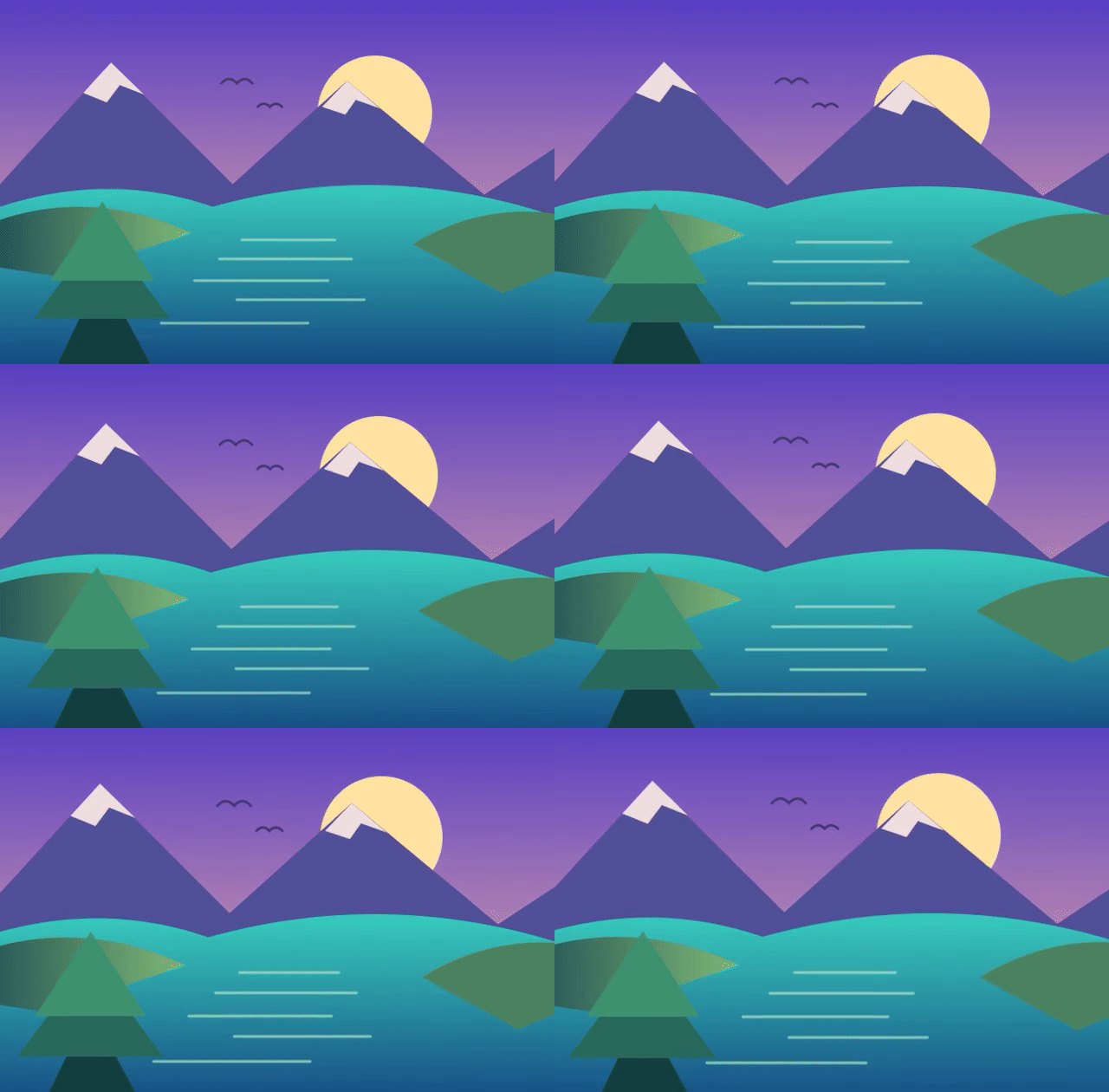
- A 6-second animated GIF at 640 × 420 px
- Setting
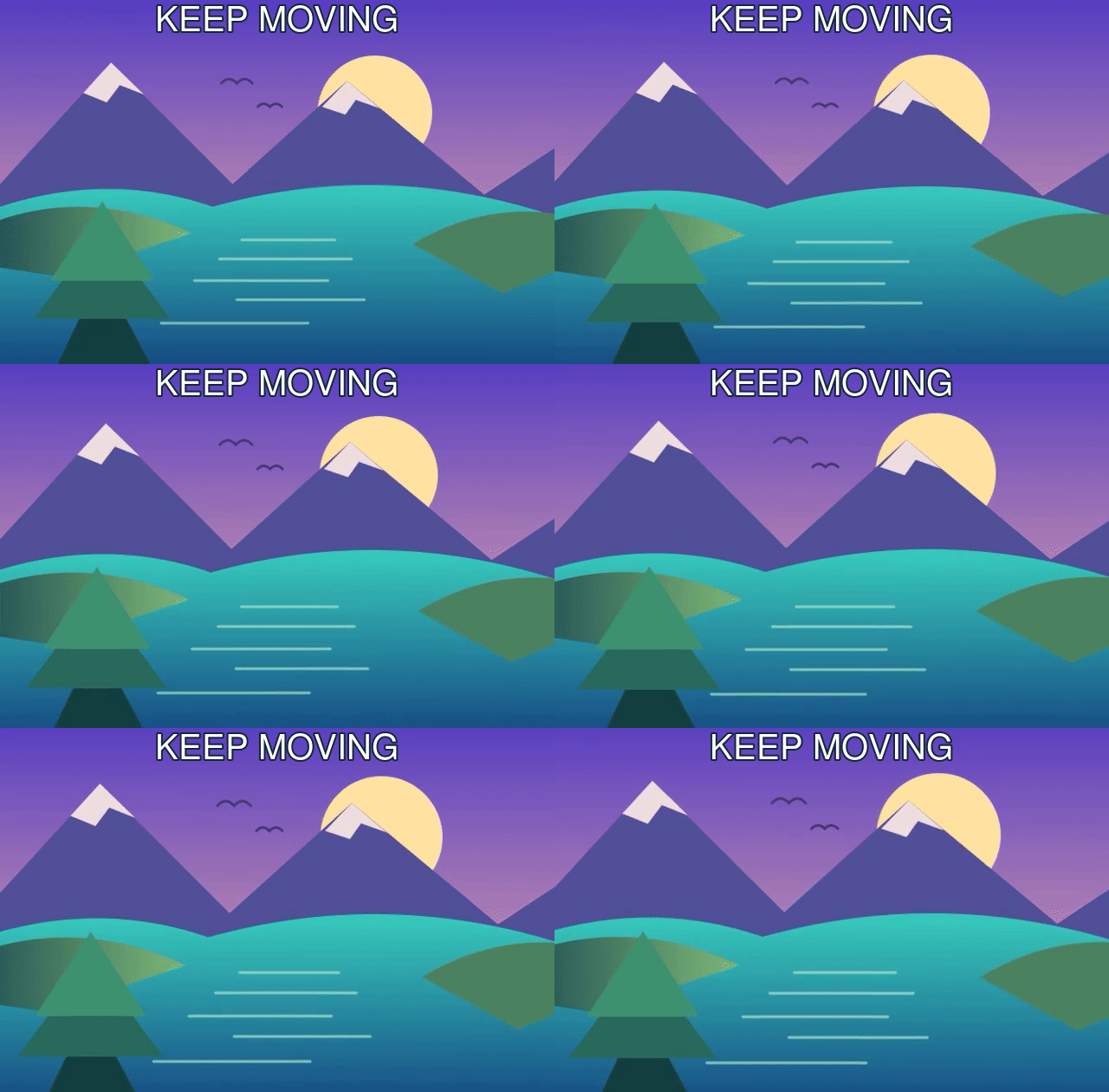
- KEEP MOVING, 40 px white text, 2 px dark outline, top center
- Output
- The original animation with a caption across the full loop
Play the previews to compare the moving background. Download the original GIF to try another caption; the result download is an animated GIF.
How to add text to a GIF
Upload one GIF
Click Choose file or drop a GIF on the preview. Animated and single-frame GIFs up to 200 MB work. GIFs you uploaded or created in other tools are listed under Uploads.
Type your caption
The first layer, Text 1, already sits in the middle of the preview. Replace its sample text in the text field below the preview. Each layer holds one line of text.
Place and style it
Drag the text on the preview, or enter X and Y as percentages of the GIF's width and height. Then pick Font, Font size, Color and Stroke in the panel below the preview; Alignment and BG opacity are in the Settings card. All controls change the layer whose chip is selected.
Add more layers if needed
Click + Text for another line, or Duplicate to copy the selected layer with its styling.
Create and download
Click Add Text. When the job is done, the preview plays the finished GIF. Click Download Image with Text to save it. Adjust takes you back to your layers. New GIF opens the file picker and keeps your layers, so you can put the same caption on several GIFs.
Text settings explained
- Text
- One line per layer; text never wraps onto a second line. Characters such as
%,:and quotes are drawn exactly as typed. Accented letters,€, Cyrillic and Greek work in every font; emoji and Chinese or Japanese characters do not. - X and Y
- Position as a percentage of the GIF's width and height (0–100). Y marks the vertical centre of the text. What X marks depends on Alignment. The text never touches the border: it stays at least 6 px from each edge, or 10 px when a box is shown. Dragging it into a corner therefore leaves a clean margin.
- Alignment
- Left, Center (default) or Right. This setting decides which point of the text sits at X: the left edge, the middle or the right edge. With Right and X
100, the text ends at the right margin, and longer text grows to the left. With Center, longer text grows equally in both directions. - Font size
- 8–180 px, default 42 px. The size is measured in the GIF's own pixels, and the preview scales it along with the picture. On a 480 × 270 px GIF, 42 px is about a sixth of the height; on a small GIF, the same value fills much more of the frame.
- Font
- Arial, Helvetica, Impact, Georgia, Times New Roman, Verdana or Courier New. Arial, Helvetica and Verdana are clean sans-serif faces, Georgia and Times New Roman are serifs that suit quotes, Courier New is monospaced, and Impact is a condensed bold face made for meme captions. The other fonts are drawn in regular weight.
- Color
- Text colour, white (
#ffffff) by default. - Stroke and Stroke color
- An outline around each letter, 0–20 px, off (
0) by default; the outline is black unless you change Stroke color. As a rule of thumb, white text with a 2–4 px black stroke stays readable on light and dark frames alike, which matters when the background moves. - Box color and BG opacity
- A solid box behind the text. BG opacity runs from 0 to 1 in steps of 0.05 (0–100%). At the default of 0, no box is drawn and Box color has no effect. Values around 0.5–0.7 give a subtitle-style bar that still lets the animation show through. The box fits the line of text with 5 px of padding.
- + Text, Duplicate, Visible, Delete
- New layers from + Text start with the default styling at Y
64, then78, then90. Duplicate keeps all styling, places the copy 4% to the right and 4% lower and adds "copy" to its text. Layers switched to Off under Visible are hidden in the preview and left out of the result. Delete removes the selected layer; one layer always remains.
Starting values for common captions
These are starting points for a GIF of about 480 × 270 px. For a larger or smaller GIF, scale Font size in proportion to its height.
Meme caption, top and bottom
Impact, Font size 36 px, white, Stroke 3 px black, Y 12. Then click Duplicate, set the copy to Y 88 and X 50, and type the bottom line.
Subtitle-style line
Arial, 24–28 px, white, Box color black, BG opacity 0.6, Y 88. The box keeps the text readable over busy scenes.
Corner credit or handle
16–20 px, Alignment Right, X 100, Y 100. This places the text in the bottom-right corner with a small margin. A light BG opacity such as 0.4 helps on bright frames.
Two-line caption
Use two layers. As a rule of thumb, space them by about 1.2 × the font size, expressed as a percentage of the height: for 42 px on a 270 px tall GIF, that is about 19%, so use Y 40 and Y 60. The 14% step that + Text uses is too tight at that size.
What happens to colours, timing and file size
Every layer is drawn on every frame at the same position. The text cannot fade in, move, or appear on only part of the animation. The width and height of the GIF stay the same.
The whole GIF is re-encoded. A new palette of up to 256 colours is calculated across all frames and applied with dithering. Flat colours can shift very slightly, and the smooth edges of the letters add new shades. The file can grow; the change depends on the animation and the caption. In earlier recorded tests, a GIF of about 75 KB gained about 2%, while some small GIFs with a few flat colours ended up 1.7 to 3.3 times their original size. Compare your output with its source rather than expecting those ratios.
Transparent areas stay transparent. The number of frames, each frame's delay and the loop setting of the original are kept, so the animation plays exactly as before.
Formats and limits
- Input formats
- GIF, animated or single-frame. For PNG, JPG and other still images, use Add Text to Image.
- Output format
- GIF with the same width and height
- Maximum file size
- 200 MB per GIF
- Files per job
- 1
- Processing
- On our servers with FFmpeg, not in your browser. A job can run for up to 15 minutes.
- Watermark
- None
- Storage
- Uploads and results are deleted automatically after 48 hours for guests and after 30 days for free accounts. Paid plans can keep files longer.
Frequently asked questions
Why is part of my caption cut off?
The text does not wrap. A line wider than the GIF starts at the left margin and runs past the right edge. Shorten the text, lower Font size, or split it into two layers, one per line.
Why is my GIF larger after adding text?
Adding text re-encodes every frame with a new palette and dithering, and the anti-aliased letter edges add colours. A small GIF with a few flat colours can grow substantially, but the change depends on the source and the text layers. To bring the size down, run the result through Compress GIF; it is already listed under Uploads there.
Can I edit or remove text that is already in a GIF?
No. Existing text is part of the pixels, and this tool only adds new text on top. You can cover old text with a box: set BG opacity to 1, pick a Box color that matches the background, and type your new text in that layer. The box is only as large as the new text plus 5 px, so it must be at least as wide as the old text. If the old text sits at the edge, cropping it away with Crop GIF often looks cleaner.
Can I add emoji to a GIF caption?
The fonts support Latin letters with accents, the euro sign, Cyrillic and Greek. Emoji and Chinese or Japanese characters are outside their supported character coverage.