Barcode and QR Code Photo Cleanup Workflow for Inventory Audit Packets
A practical workflow for cleaning, resizing, compressing, and packaging barcode and QR code photos so inventory audit evidence stays readable without oversized files.

Barcode and QR Code Photo Cleanup Workflow for Inventory Audit Packets
Inventory audits often produce hundreds of small evidence images: shelf labels, box stickers, serial plates, return labels, QR codes on equipment, and barcodes on packaging. The photos are usually taken quickly, in mixed lighting, by several people, on different phones. Later, someone has to turn that pile into a clean audit packet that proves what was checked, where it was found, and which identifier was attached to it.
The hard part is not making the photos look beautiful. The hard part is keeping the codes readable after cropping, resizing, compressing, converting, and packaging. A barcode that looks acceptable in a gallery thumbnail may fail when a reviewer zooms in. A QR code that scans on the original phone photo may stop scanning after aggressive compression. A serial label that is readable on a warehouse tablet may become muddy once it is placed into a PDF report.
This guide gives you a practical workflow for cleaning barcode and QR code photos without destroying the evidence value. It is written for operations teams, facilities coordinators, warehouse leads, field auditors, IT asset managers, and small teams that need reliable documentation but do not want to build a complicated digital asset pipeline.
The goal is simple: preserve scannability, reduce file weight, and package the results in a format that a reviewer can actually use.
Why Barcode and QR Code Photos Need a Different Workflow
Most image cleanup workflows optimize for appearance. They remove noise, crop empty space, reduce file size, and make images easier to share. Barcode and QR code evidence needs a slightly different priority order.
A product photo can survive a little softness. A barcode cannot always survive the same treatment. A marketing image can be compressed until it still looks good to a human. A QR code must remain machine-readable. A receipt photo can be slightly rotated and still communicate its content. A narrow barcode may become unreliable if perspective correction bends the vertical bars or if compression creates artifacts around the edges.
Barcode and QR code images depend on hard visual boundaries. They need contrast between dark and light modules, enough pixels to describe each stripe or square, and minimal distortion. When a cleanup step makes those boundaries fuzzy, the image may still look fine but become less useful.
That means the workflow should be conservative. Do not chase the smallest possible file size. Do not apply heavy sharpening to every image. Do not resize everything to a tiny width just because the audit packet is going into email. The right approach is to separate capture quality, cleanup, compression, and final packaging so each step has a clear job.
The Three Things That Break Scannability
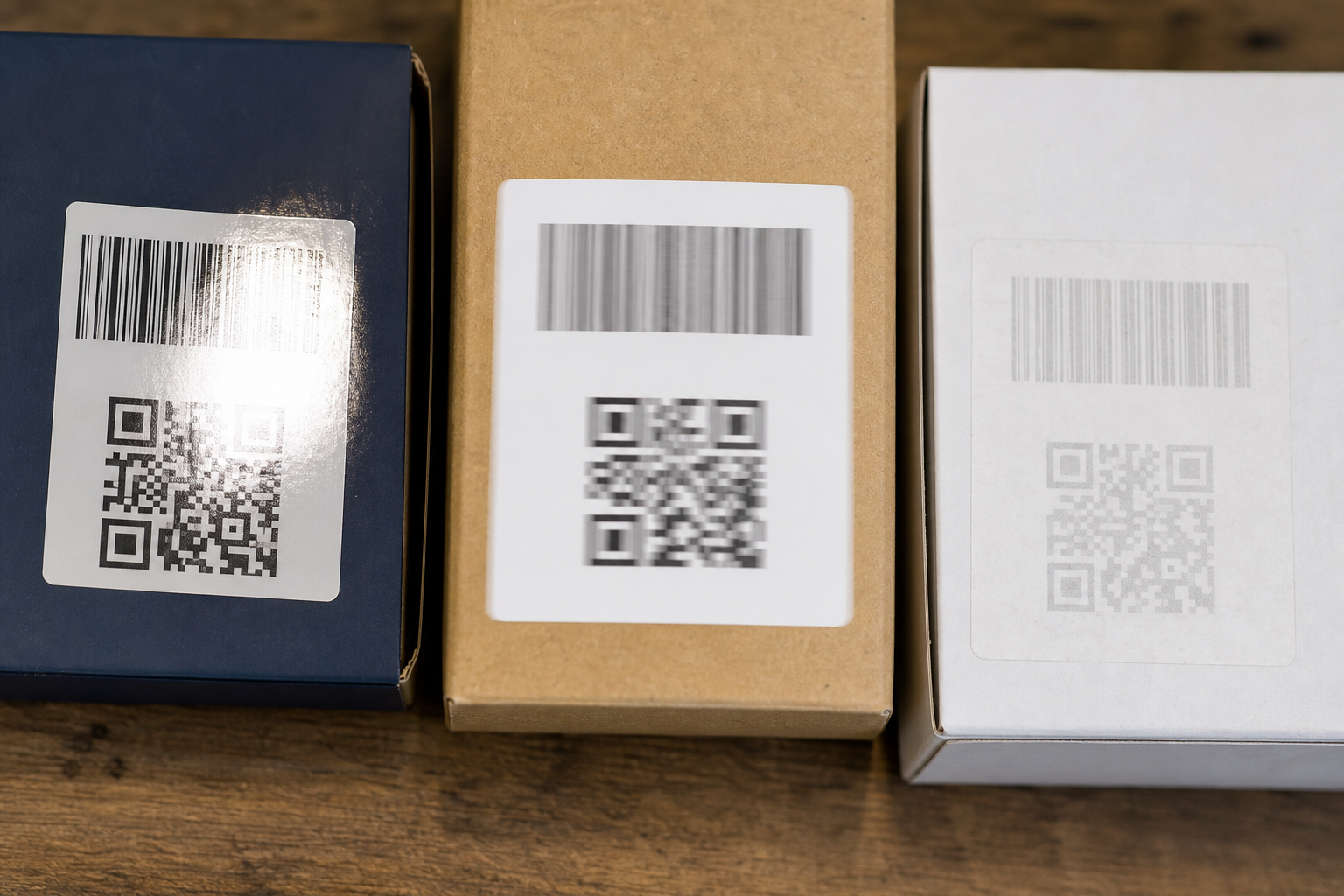
Barcode and QR code photos usually fail for one of three reasons: blur, glare, or pixel loss. Many audit packets contain all three.
Blur is the most common issue. It comes from shaky hands, low light, quick movement, or phones focusing on the box edge instead of the label. Blur is especially damaging for one-dimensional barcodes because the scanner needs clean stripe transitions. If the vertical bars smear into each other, no amount of later resizing will fully restore the lost information.
Glare is different. It often appears on glossy labels, shrink wrap, laminated asset tags, and curved packaging. A small glare spot may be harmless if it lands outside the code. A bright streak through the center of a QR code or barcode can remove enough information to make scanning unreliable. QR codes have error correction, but that does not mean they can survive every reflection.
Pixel loss happens during resizing and compression. A 12-megapixel phone image may start with more detail than you need, but shrinking it too far can collapse narrow bars into gray lines. Heavy JPEG compression can add blocky artifacts around high-contrast edges. Converting images several times can make the problem worse because each lossy export adds another generation of damage.
A useful cleanup workflow prevents these failures instead of trying to repair them at the end.
Decide What the Audit Packet Must Prove
Before editing the images, define what each photo needs to prove. This sounds obvious, but it prevents a lot of bad cropping decisions.
Some audit images only need to prove the code value. In that case, the barcode or QR code and nearby human-readable number are the most important content. Other images need to prove that the code was attached to a particular product, shelf, machine, room, or shipment. For those images, cropping too tightly can remove the context that makes the evidence useful.
Use this simple decision table before processing a batch:
| Evidence need | Keep in the image | Avoid |
|---|---|---|
| Code verification | Full barcode or QR code, human-readable number, label border | Cropping off quiet zones around the code |
| Product identity | Code, product name, SKU area, packaging edge | Tight crop that hides which item the label belongs to |
| Location proof | Code, shelf/bin marker, surrounding fixture | Isolated label crop with no location clue |
| Condition record | Code, damaged packaging, visible defect | Over-cleaning that hides relevant damage |
| Review packet | Code plus enough whitespace for readable zooming | Tiny thumbnails inside a PDF page |
The key phrase is "enough context." You do not need the entire warehouse aisle in every image, but you do need enough visual information for a reviewer to understand why the photo belongs in the audit.
A Field-Friendly Capture Checklist

The best cleanup workflow starts before editing. If your team can improve capture quality by even 10 percent, the downstream work gets much easier.
Use this checklist for barcode and QR code field photos:
- Fill the frame with the label area, but leave a small margin around the code.
- Hold the phone parallel to the label whenever possible.
- Tap to focus on the code or the human-readable number beside it.
- Avoid flash on glossy labels unless it is the only way to get enough light.
- Take a second photo when the code is curved, scratched, wet, or behind plastic.
- Include product or location context in at least one nearby photo.
- Do not rely on gallery thumbnails to confirm sharpness. Zoom in before moving on.
- For tiny labels, move closer instead of using digital zoom.
- If the code is on a reflective surface, shift your angle slightly until glare leaves the code area.
A good capture rule is to take one verification photo and one context photo when the item matters. The verification photo focuses on the code. The context photo shows where the code was found. This is often better than trying to force one image to do everything.
Keep Originals Untouched
Treat the original phone photos as your source evidence. Do not overwrite them with cropped or compressed versions. Create a working copy for cleanup and keep the originals in a separate folder.
A simple folder structure works well:
inventory-audit-2026-05/
  originals/
  working/
  final-images/
  pdf-packet/
The originals folder is your fallback if a compressed image becomes unreadable or a reviewer asks for the unedited capture. The working folder is where you crop, rotate, and test images. The final-images folder contains only the selected outputs for the packet. The pdf-packet folder contains the final document or review bundle.
This structure also makes it easier to rerun a batch. If you later decide the compression was too aggressive, you can return to the originals instead of trying to fix already-damaged files.
Crop for Code, Context, and Quiet Zones
Cropping is usually the first cleanup step. The goal is to remove useless background while preserving everything the scanner or reviewer needs.
For barcodes, keep the full code and its quiet zones. Quiet zones are the blank spaces to the left and right of the bars. They help scanners identify where the barcode begins and ends. Cropping right against the first or last bar can make a technically sharp image harder to scan.
For QR codes, keep the full square and a margin around it. Do not crop into the outer white border. QR codes need clear contrast and visible corner markers. If one corner is cut off, scanning can become unreliable.
For asset labels, keep the human-readable number whenever it appears near the code. Human reviewers need a fallback if the code fails to scan. In many audit workflows, the printed number is just as important as the machine-readable code.
If you need to standardize image dimensions after cropping, use a tool such as /resize-image after the crop, not before. Cropping first lets you preserve useful pixels around the label instead of shrinking a lot of irrelevant background.
Straighten Without Overcorrecting
A slightly tilted barcode photo is usually acceptable. A heavily warped barcode is not. The safest correction is a mild rotation that makes the label easier to read without changing the code geometry.
Be careful with aggressive perspective correction. Some tools stretch corners to make a label look flat. That can help document photos, but it can also distort bar widths or QR modules if applied poorly. If the code already scans and the label is readable, a small rotation and crop may be enough.
Use perspective correction only when the original angle is severe and the image is otherwise unusable. After correction, test the code or zoom in to inspect whether the bars and QR squares still have clean edges.
The practical rule: straighten for readability, not perfection. The audit packet does not need every label to look like a product catalog image. It needs the evidence to remain trustworthy.
Resize With a Minimum Pixel Budget
Resizing is where many barcode evidence packets lose quality. The problem is not resizing itself. The problem is resizing without a minimum pixel budget.
For most audit photos, avoid making the code area tiny inside the final image. A full image width of 1200 to 1800 pixels is often a reasonable working range for label evidence, depending on how tightly the photo is cropped. If the barcode occupies only a small part of the image, you may need a larger final width. If the crop is tight around the label, you can often use a smaller image without losing readability.
Think in terms of the code area, not the full photo. A 1600-pixel-wide image is not useful if the barcode is only 120 pixels wide inside it. A 900-pixel-wide image may be fine if the label fills most of the frame.
Use this quick guide:
| Situation | Suggested approach |
|---|---|
| Tight crop of a large shipping label | Resize moderately; keep label edges crisp |
| Tiny asset tag on equipment | Keep higher resolution; do not shrink aggressively |
| QR code sticker on flat packaging | Resize only after checking module clarity |
| Barcode on curved bottle or cable | Keep extra pixels because distortion already reduces reliability |
| Photo going into a PDF packet | Avoid thumbnail-sized placement; preserve zoomable detail |
If you need consistent dimensions for a set, resize copies with /resize-image, then inspect a few edge cases before processing the entire batch.
Compress Without Crushing Edges
Compression is necessary when an audit packet contains many photos. But barcode and QR code evidence should not be compressed like casual web images.
JPEG compression can work for label photos, especially when the photo includes surrounding packaging or equipment. The risk is that high compression creates artifacts around the sharp black-and-white code edges. Those artifacts may appear as faint blocks, halos, or smudged transitions.
PNG can preserve hard edges well, but full-color phone photos saved as PNG may become unnecessarily large. WebP can be efficient, but make sure the final format is acceptable for your reviewers and any systems that will store the audit packet.
The best compression setting is the smallest file that still preserves readable code edges. That sounds subjective, so make it operational:
- Pick ten representative photos from the batch.
- Include the worst cases: glare, tiny labels, curved surfaces, dim lighting.
- Compress them with your intended setting using /compress-image.
- Zoom in to inspect the code edges and human-readable numbers.
- If your team scans codes from the final packet, test scanning from the compressed output.
- Only then process the full batch.
Do not judge compression from a file manager thumbnail. Thumbnails hide exactly the problems that matter.
Convert Formats Only Once
Format conversion is useful when a batch contains mixed HEIC, JPEG, PNG, and WebP files. It is also a common source of quality loss if repeated several times.
A clean approach is to normalize once. For example, convert incoming phone images into a standard working format, then do your crop, resize, and compression from that version. If you need a specific output format for a portal or PDF tool, export to that format at the end.
Use /convert-image when you need to turn mixed image formats into a consistent set before packaging. This is especially helpful when auditors used different phone models and the final reviewer expects common image files.
Avoid this kind of chain:
HEIC to JPEG to PNG to JPEG to PDFEach step can change file size, metadata, transparency handling, or compression quality. Instead, keep the path short:
Original photo -> working image -> final compressed image -> PDF packetThe fewer transformations you apply, the easier it is to preserve barcode detail.
Use OCR Carefully Around Labels
OCR can help when audit photos include serial numbers, product names, shelf IDs, or printed notes near the code. It is not a replacement for preserving the image itself.
If you use /image-ocr, treat the extracted text as an index or helper layer. It can make filenames, spreadsheets, or review notes easier to build. But OCR may misread small serial numbers, confuse similar characters, or skip text that is curved or partially hidden.
For example, OCR may confuse:
0andO1,I, andl5andS8andB- hyphens, slashes, and spaces in serial strings
That does not mean OCR is useless. It means the original image still needs to be clear enough for human review. A strong workflow uses OCR to speed up sorting and cross-checking, while the final packet keeps the visual evidence intact.
A practical method is to run OCR on selected label photos, then use the extracted identifiers in filenames or a spreadsheet. If an OCR result looks suspicious, flag that image for manual review instead of silently accepting the text.
Build a Review Packet That Still Allows Zooming
Once the images are cleaned, the next step is packaging. Many teams create a PDF because it is easy to send, archive, and review. The mistake is placing too many photos on each page.
A contact sheet with 20 tiny barcode images per page may look organized, but it can destroy review value. If the reviewer has to zoom repeatedly and still cannot read the code, the packet has failed.
For barcode and QR audit packets, use fewer images per page and keep labels large enough to inspect. If the packet is for quick visual review, two to four images per page may work. If each image contains a tiny code or important serial number, one image per page may be better.
You can use /image-to-pdf to turn final evidence images into a PDF packet after cleanup. Keep the final images in a logical order before converting: by location, SKU, asset type, auditor, or exception status. The PDF should follow the way the reviewer thinks about the audit.
For larger reports, split the packet into sections:
- Passed items
- Exceptions
- Missing or unreadable labels
- Damaged packaging
- Recheck required
This structure is more useful than a single giant file sorted by camera timestamp.
Naming Files So Reviewers Can Find Evidence
Filenames are part of the workflow. A folder full of IMG_4831.jpg files is difficult to audit. Even if the images are good, reviewers will waste time matching photos to records.
A consistent naming pattern helps:
location_item_identifier_status.jpgExamples:
Aisle03_Bin14_SKU-8821_pass.jpg
Room204_Laptop_SN-77193_recheck.jpg
DockB_ReturnBox_QR-unknown_exception.jpg
If you do not know the identifier before OCR or manual review, use a temporary sequence number:
Aisle03_Bin14_photo-001_pending.jpgKeep filenames short enough to work across systems. Avoid special characters that may cause problems in older portals or shared drives. Hyphens and underscores are usually safer than slashes, colons, or long punctuation strings.
The naming pattern should match the final PDF order. When a reviewer sees an exception in a spreadsheet, they should be able to find the matching image quickly.
Handling Bad Photos Without Hiding the Problem
Not every photo can be saved. Some barcode images are too blurry, too reflective, too cropped, or too small. The worst response is to over-edit them until they look cleaner but still cannot prove anything.
For audit work, it is better to label a bad image honestly than to disguise it. If a code is unreadable, mark it as recheck required. If glare blocks the QR code, keep the image as evidence of the failed capture and request a new photo. If the label is damaged, show the damage clearly instead of cropping it out.
Use a simple status system:
| Status | Meaning | Action |
|---|---|---|
| Pass | Code and context are readable | Include in final packet |
| Recheck | Image may be readable but uncertain | Request scan test or second review |
| Recapture | Image does not prove the needed detail | Send back to field team |
| Exception | Label is missing, damaged, or inconsistent | Include with notes |
This protects the audit from false confidence. A beautiful packet full of uncertain images is less useful than a slightly messy packet with clear exception handling.
When AI Editing Helps and When It Should Stay Away
AI photo editing can help with background cleanup, mild lighting improvements, and removing irrelevant visual clutter around a label. But barcode and QR code areas should be treated carefully.
Do not use generative editing to alter the code itself, reconstruct missing bars, invent a clearer QR pattern, or replace unreadable identifiers. That changes the evidence. For audit packets, the code is not decorative content. It is the subject.
A safe use of /ai-photo-editor might be cleaning a distracting background around a product label for a presentation copy, while keeping the original evidence image separately. A risky use would be asking an editor to make a damaged barcode readable by filling in missing sections.
Use this rule: if an edit changes what a scanner or human reviewer might interpret as the code value, do not apply it to the evidence copy.
A Complete Barcode Photo Cleanup Workflow
Here is a practical end-to-end workflow your team can reuse.
Step 1: Collect and separate originals
Move all incoming photos into an originals folder. Do not edit these files. If several auditors contributed images, keep a note of who captured each set.
Step 2: Remove obvious duplicates
Delete only true duplicates from the working copy, not from the original archive. Keep the sharpest version when multiple photos show the same label.
Step 3: Sort by evidence type
Group images by product labels, shelf labels, asset tags, return labels, exceptions, or unknowns. This makes cleanup decisions easier because each group has similar requirements.
Step 4: Crop conservatively
Crop out useless background while preserving the code, quiet zones, human-readable numbers, and enough context. Avoid cutting too close to barcode edges or QR borders.
Step 5: Rotate mildly
Straighten labels when it improves readability. Avoid heavy perspective correction unless the image is otherwise unusable.
Step 6: Resize with a code-area check
Resize after cropping. Inspect whether the code itself still has enough pixels, not just whether the full image dimensions look acceptable.
Step 7: Compress representative samples
Test compression on difficult images before batch processing. Use the smallest setting that keeps code edges and printed numbers readable.
Step 8: Convert formats once if needed
Normalize mixed formats with a single conversion step. Avoid repeated lossy exports.
Step 9: OCR selected labels
Use OCR to assist indexing, but manually review uncertain identifiers. Keep images as the evidence source.
Step 10: Package for review
Create a PDF or organized image folder. Use a layout that allows zooming and inspection. Do not force too many label photos onto one page.
Quality Control Before Sending the Packet
Before sending the audit packet, run a final quality check. This does not need to be slow. A focused review of edge cases catches most problems.
Check these items:
- Are all barcodes and QR codes fully visible?
- Are quiet zones or QR borders cropped off anywhere?
- Can human-readable numbers be read after compression?
- Are the worst lighting examples still usable?
- Are exceptions clearly marked instead of hidden in the main set?
- Does the PDF allow practical zooming?
- Are filenames or sections aligned with the audit spreadsheet?
- Were originals preserved separately?
If possible, test scan a small sample from the final outputs, not only from the originals. This matters because the final outputs are what reviewers will receive.
Common Mistakes to Avoid
The most common mistake is compressing first. If you compress before cropping and resizing, you may lock in artifacts and then enlarge them during later edits. Work from the best available copy until the final export.
Another mistake is using one setting for every image. A large shipping label and a tiny curved asset tag do not need the same treatment. Batch processing is useful, but only after you understand the range of images in the batch.
A third mistake is making a PDF contact sheet that looks tidy but cannot be reviewed. Barcode evidence needs practical size. If the PDF is too dense, split it into more pages.
Finally, do not treat OCR output as proof by itself. OCR is a helper. The image remains the evidence.
Practical Example: Warehouse Return Audit
Imagine a small operations team auditing returned electronics. Each returned unit has a product barcode, a serial number sticker, and sometimes a QR code from a repair workflow. The team needs to send a packet to a vendor showing which items arrived, which labels were damaged, and which units need manual review.
A weak workflow would drop all phone photos into one folder, compress them heavily, and create a giant PDF contact sheet. It would be fast, but many labels would become hard to read.
A stronger workflow looks like this:
- Keep all phone photos in an originals folder.
- Copy the best photo of each unit into a working folder.
- Crop each image to include the unit label and a small part of the device.
- Keep damaged labels visible rather than cleaning them away.
- Resize only after checking that serial numbers remain readable.
- Compress a test set and scan several final QR codes.
- Name files by return box, unit type, and visible identifier.
- Build a PDF with two images per page for normal items and one image per page for exceptions.
The result is not just smaller. It is more reviewable. The vendor can inspect the packet without asking for the original photo dump, and the operations team still has untouched originals if a dispute comes up.
Final Thoughts
Barcode and QR code photo cleanup is a preservation workflow, not a beautification workflow. The best result is a packet that is smaller, easier to review, and still faithful to the original evidence.
Start with better capture habits. Keep originals untouched. Crop with quiet zones and context in mind. Resize based on the code area, not only the image dimensions. Compress carefully, convert formats only once, and package images in a way that supports real review.
When the workflow is disciplined, inventory audit packets become easier to send and easier to trust. The reviewer gets readable codes, the team gets manageable files, and the original evidence remains available when details matter.