Mixed UI Screenshot OCR Cleanup for Bug Reports: A Practical Guide
Turn busy app screenshots with alerts, menus, badges, and annotations into cleaner OCR text for bug reports, QA notes, support escalations, and searchable PDFs.
Mixed UI Screenshot OCR Cleanup for Bug Reports: A Practical Guide
Bug reports often depend on screenshots that were never designed to become readable text. A tester captures a modal error, circles a button, adds a browser console snippet, pastes the image into a ticket, and moves on. Later, someone tries to search for the exact error, compare it with logs, or extract the visible copy for a release note. That is where ordinary screenshot handling starts to fail.
Mixed UI screenshots are difficult because they combine several kinds of visual information in one frame: tiny interface labels, large headings, icons, badges, toast messages, product logos, browser chrome, annotations, timestamps, and sometimes overlapping cursor trails or red boxes. OCR can handle clean printed text, but a busy software screenshot asks it to guess which pixels are letters, which pixels are decoration, and which marks were added by the reporter.
This guide is for QA teams, support engineers, product managers, technical writers, and solo developers who need better text extraction from app screenshots. The goal is not to make every capture beautiful. The goal is to produce screenshots that remain useful after OCR, compression, ticket handoff, and PDF archiving.
You can use ConvertAndEdit tools as part of the cleanup. For example, Image OCR can extract text from prepared screenshots, Resize Image can normalize capture dimensions, Compress Image can reduce ticket attachment size, and Image to PDF can turn a set of evidence images into a compact review packet.
Why Mixed UI Screenshots Confuse OCR
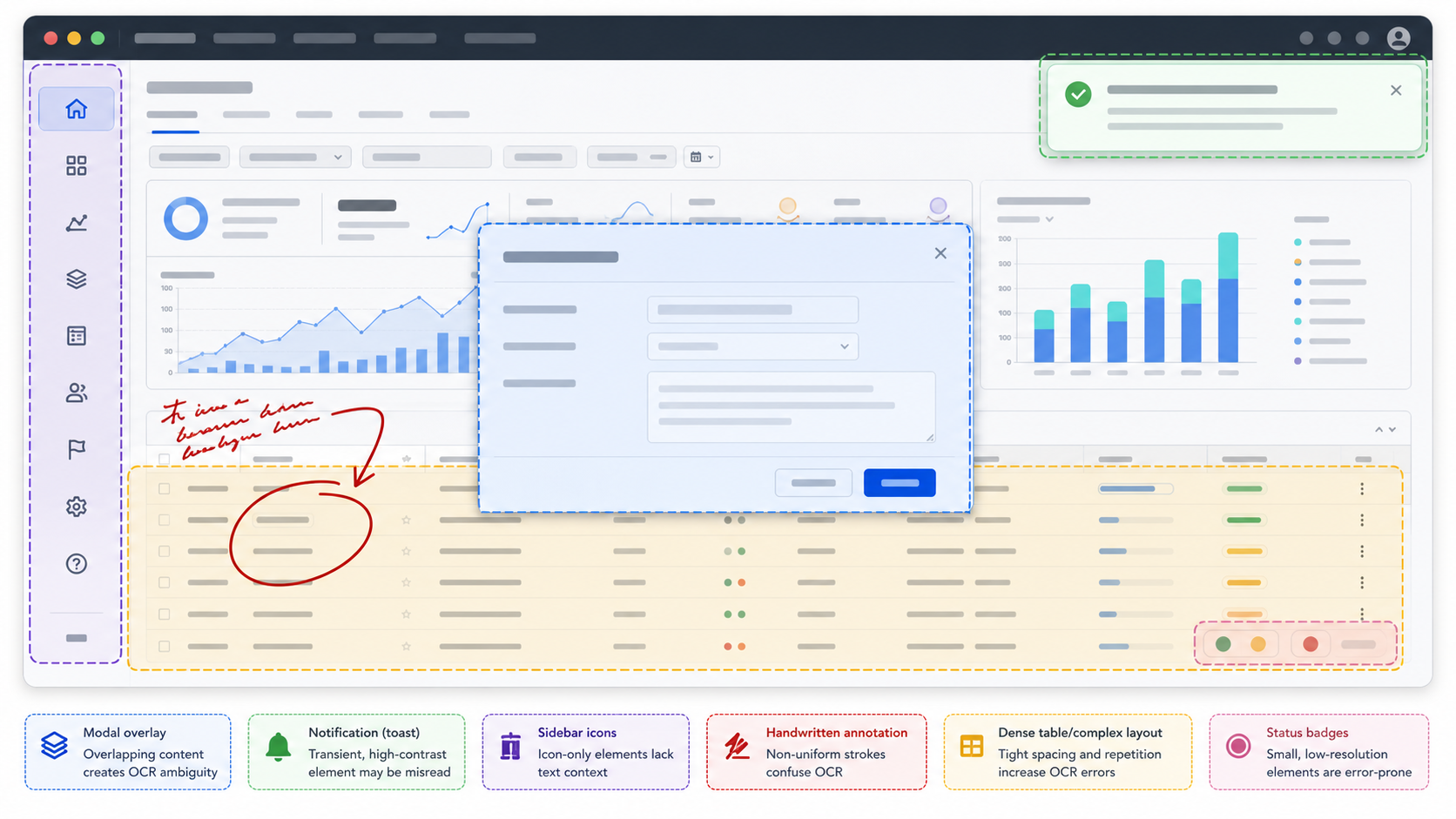
OCR engines are strongest when text sits on a plain background, follows normal reading order, and has enough pixel detail to separate letters cleanly. Software screenshots routinely violate all three conditions.
A single app capture may include a navigation sidebar on the left, a settings table in the center, a modal dialog on top, a browser warning banner at the top, a red annotation arrow added by a tester, and a developer console peeking from the bottom. To a human, that frame has obvious hierarchy. To OCR, it can look like a collage of competing text blocks.
The most common failure modes are predictable:
- Small UI labels merge into the background, especially when antialiasing is softened by compression.
- Icons are interpreted as punctuation, letters, or random symbols.
- Badges and pills break reading order because they sit between words but are visually styled like separate objects.
- Annotations cross through letters and make otherwise readable text ambiguous.
- Dark mode screenshots produce uneven contrast when exported or pasted into documents.
- Browser chrome and operating system UI add unrelated text that pollutes the OCR result.
- Notifications, tooltips, and modals hide part of the interface but are still captured in the same image.
The best fix is usually not advanced OCR settings. It is a cleaner source image. If the screenshot is prepared with OCR in mind, extraction becomes less noisy and the bug report becomes easier to search later.
Decide What Text Actually Matters
Before editing the screenshot, decide what the reader needs from it. A bug report screenshot does not need every visible word extracted. It needs the words that prove the issue, identify the state, or help someone reproduce the bug.
A good triage question is: if the image disappeared and only the extracted text remained, what would still need to be searchable?
For most bug reports, the important text falls into five groups:
| Text type | Usually keep? | Why it matters |
|---|---|---|
| Error messages | Yes | They often map to logs, code paths, and duplicate tickets. |
| Field labels and values | Yes | They explain the visible app state. |
| Button labels | Usually | They show available actions and disabled states. |
| Browser or OS chrome | Usually no | It adds noise unless the bug is browser-specific. |
| Reporter annotations | Sometimes | They help context, but can damage OCR if placed over text. |
This decision changes how you crop, clean, and annotate. If the visible error is the key evidence, crop around it and preserve every letter. If the full page layout matters, keep a wider frame but remove unrelated browser tabs and desktop clutter. If the annotation is useful, place it outside the text region whenever possible.
A screenshot prepared for OCR is not always the same as a screenshot prepared for visual review. Visual review may benefit from arrows, boxes, and labels. OCR benefits from clean text regions. When both are needed, create two versions: one annotated for humans and one clean for text extraction.
Capture Rules That Save Cleanup Time
The easiest OCR cleanup happens before the screenshot is taken. A few capture habits can prevent most downstream problems.
Use the highest practical display scaling that still shows the issue. Tiny UI text is one of the biggest OCR risks. If the issue can be reproduced at 125 percent or 150 percent browser zoom without changing the bug, capture at that size. Do not zoom so far that the layout changes unless the bug is specifically about responsive behavior.
Capture the relevant region instead of the entire desktop. Full-screen grabs often include browser tabs, bookmarks, dock icons, chat notifications, and time stamps. These elements may be useful for investigation, but they usually hurt OCR. A region capture focused on the app window or bug area gives cleaner text.
Prefer PNG for the original capture. JPEG compression can blur thin UI strokes and introduce artifacts around text. If the ticket system later converts or compresses the file, starting with a sharper PNG gives you more margin.
Avoid drawing over text. If you need to mark the problem area, use a box around the region or place an arrow in empty space. A red line through a button label can turn a clear word into garbage output.
Dismiss unrelated popups before capturing. Password manager bubbles, extension notices, cookie prompts, and system notifications are common sources of OCR noise. If the popup is not part of the bug, remove it.
Take one clean screenshot and one annotated screenshot when the issue is complex. The clean version supports OCR and archiving. The annotated version supports fast human review. This takes a few extra seconds and can save a long clarification thread later.
A Practical Cleanup Pass Before OCR
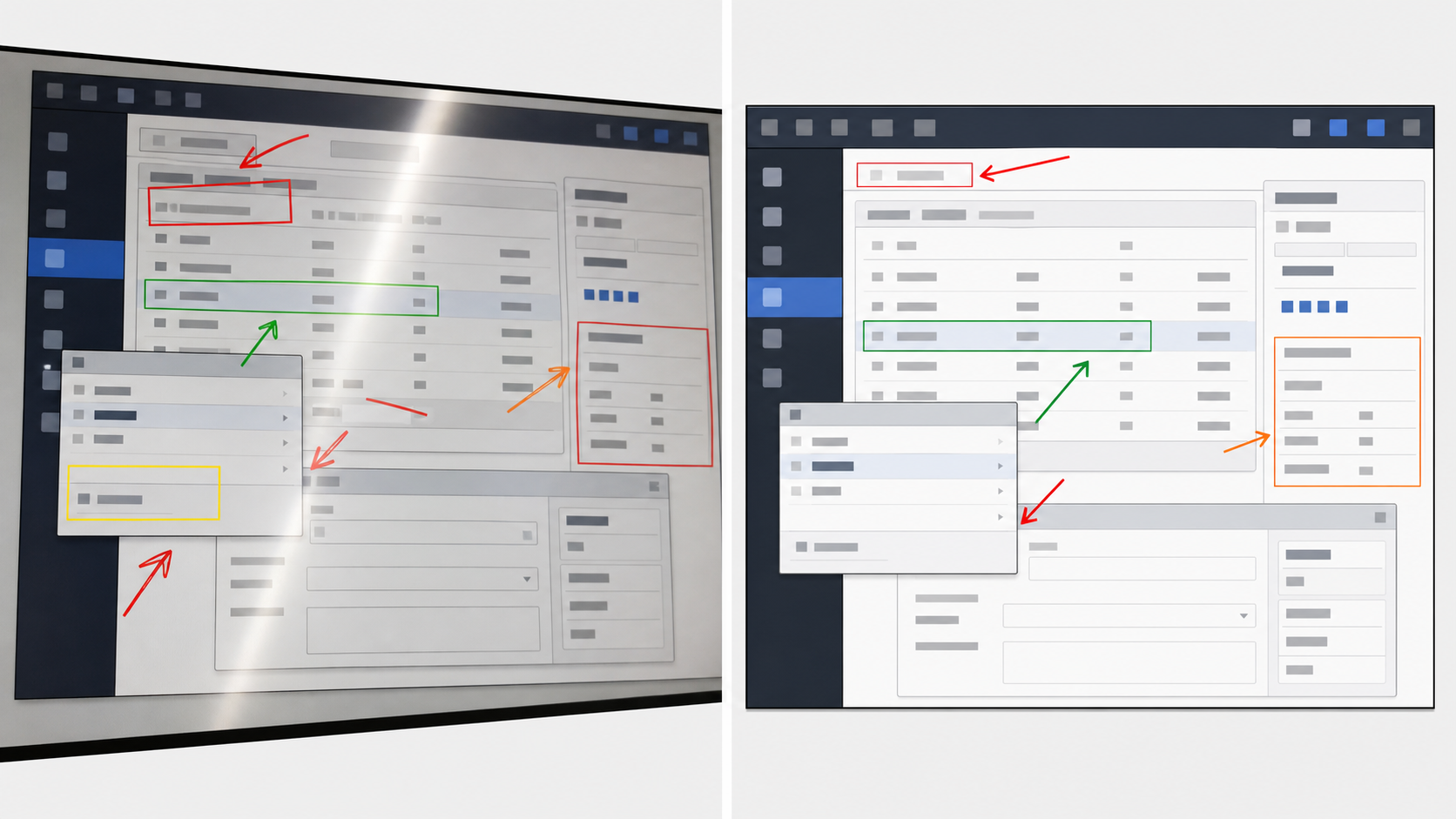
Once you have the screenshot, run a cleanup pass before text extraction. The goal is to improve readability without changing the evidence. That distinction matters. You can crop, rotate, resize, and improve contrast, but you should not rewrite UI text or erase meaningful state.
1. Duplicate The Original
Keep the original capture untouched. Name it clearly, such as checkout-error-original.png. Then make a cleanup copy, such as checkout-error-ocr.png. This protects the evidence trail and lets reviewers compare if a detail is questioned.
For a ticket, attach the original if the bug is sensitive or likely to be escalated. For internal search and summary notes, use the cleaned OCR version.
2. Crop To The Evidence Area
Crop away browser tabs, unrelated sidebars, empty desktop space, and chat overlays. Preserve the region that contains the message, field, or visual state being reported. If the surrounding UI is needed for context, keep just enough to show where the error appears.
A good crop should answer these questions:
- What screen or component is involved?
- What exact text appears?
- What action or state is visible?
- Is there enough surrounding context to avoid misreading the issue?
If the crop removes the page title or route that identifies the screen, keep that header. If it removes irrelevant navigation items, that is usually fine.
3. Straighten And Normalize Size
Most software screenshots are already straight, but mobile photos of screens, kiosk captures, or remote support images can be tilted. Straighten them before OCR. Even a small angle can make dense UI text harder to parse.
Then normalize the image size. If the text is very small, use Resize Image to enlarge the capture before OCR. A moderate upsize can help letter recognition, especially for compact tables, code snippets, and settings panels. Avoid extreme enlargement because it can create soft edges that look cleaner to humans but less distinct to OCR.
4. Improve Contrast Carefully
Contrast helps OCR when text is faint, disabled, or placed on colored UI surfaces. It can hurt when pushed too far. Heavy sharpening or aggressive contrast can turn antialiased text into jagged shapes.
Use small adjustments. Aim for clearer letter edges, not a dramatic visual style. Dark mode screenshots may need slightly lifted shadows so gray text separates from the background. Light mode screenshots may need mild contrast if thin gray borders or disabled text are important.
If you use AI Photo Editor for cleanup, keep the instruction narrow. Ask for glare reduction, noise cleanup, or background clarity. Do not ask it to recreate interface text. For bug evidence, preserving the original UI content matters more than making the image polished.
5. Remove Or Separate Annotations
Annotations are helpful for human readers but risky for OCR. If a red circle overlaps a word, OCR may read the circle as a letter. If a callout label is added near the UI, OCR may merge it with the product text.
When possible, use one of these approaches:
| Need | Better treatment |
|---|---|
| Point to a button | Use an arrow that stops before the label. |
| Mark a region | Draw a box outside the text boundary. |
| Add explanation | Put notes in the ticket body, not inside the image. |
| Compare states | Use two clean screenshots with captions in the report. |
| Highlight a row | Use a subtle translucent band that does not cover letters. |
If annotations already exist and are not needed for OCR, remove them from the OCR copy. Keep the annotated original or attach it separately.
OCR Settings And Reading Order Checks
After cleanup, run the screenshot through Image OCR. The first pass should be treated as a draft, not a final transcript.
Read the OCR output in the same way a developer or support engineer will use it. Search for the exact error phrase. Check important field values. Compare button labels. Look for unrelated text that could confuse future searches.
Mixed UI screenshots often produce reading order issues. A modal title may appear after a sidebar label. A table row may be read column by column instead of row by row. A toast notification may appear in the middle of a paragraph. This is normal. You do not need perfect literary order. You need enough accuracy for search, triage, and reproduction.
Use this quick audit:
- Are all error messages captured exactly enough to search?
- Did OCR confuse
0andO,1andl, orrnandm? - Did disabled text disappear because contrast was too low?
- Did icons become strange punctuation that should be removed from notes?
- Did annotation labels pollute the extracted text?
- Did browser tabs, bookmarks, or unrelated notifications dominate the result?
If the OCR result is messy, do not immediately retype everything. Go back to the image and adjust the source. Crop tighter, enlarge the key region, remove annotations, or improve contrast. A better image usually beats manual correction.
Handling Dense Tables, Logs, And Code Snippets
Some bug screenshots contain content that OCR struggles with even after cleanup. Tables, logs, JSON, stack traces, and code snippets deserve special handling because a single character can matter.
For dense tables, crop to the table and enlarge it. Keep column headers visible. If the table is wide, consider splitting it into two screenshots rather than shrinking the entire table into one unreadable image. A clean left half and right half can be more useful than one miniature full table.
For logs and stack traces, try to copy the text directly from the source whenever possible. Screenshots are useful evidence, but pasted text is better for searching and debugging. If only a screenshot is available, crop to the log panel, remove the surrounding UI, and avoid compression until OCR is complete.
For code snippets, preserve monospace structure by keeping the capture sharp. OCR may still flatten indentation or misread punctuation. Treat extracted code as a search aid, not executable text. If the bug report depends on exact code, include the code separately in the ticket body.
For JSON or configuration panels, watch for punctuation errors. OCR may drop quotes, braces, commas, or colons. Those characters are visually small but semantically important. If the exact config matters, manually verify it after OCR.
Compression Without Destroying Thin UI Text
Bug trackers and support desks often have attachment limits. Compression is useful, but it should happen after OCR cleanup, not before. Compressing too early can permanently damage thin text edges.
Use Compress Image after you have a clean OCR source. If the screenshot is mostly UI text, prefer settings that keep sharp edges. Avoid turning a text-heavy PNG into a heavily compressed JPEG unless file size is the only priority.
A practical order is:
- Keep the original screenshot.
- Create an OCR cleanup copy.
- Crop and resize the cleanup copy.
- Run OCR and verify key phrases.
- Compress a sharing copy for ticket attachments.
- Keep the OCR text in the ticket body or linked notes.
This order gives you a high-quality source for extraction and a smaller file for sharing.
For UI screenshots, the smallest file is not always the best file. A 90 KB image that destroys field labels can cost more time than a 350 KB image that remains searchable. The right size is the smallest version that preserves the text someone must read later.
Building A Searchable Bug Report Packet
For multi-step bugs, one screenshot is rarely enough. You may need a login state, a settings screen, the failed action, the error message, and a confirmation that the issue persists after refresh. When those images are scattered across a ticket thread, they become hard to review.
A simple evidence packet can help. Prepare each screenshot with the same rules: clean crop, readable size, minimal annotation, and verified OCR text. Then use Image to PDF to combine them into a single review file. If there are related PDFs from logs, invoices, QA forms, or vendor notes, PDF Merge can combine supporting documents into one packet.
Keep the packet boring and predictable. Use one screenshot per page if text readability matters. Do not shrink four dense UI screens onto one page unless the goal is only visual comparison. Page order should follow the user path or reproduction steps.
A strong bug report packet usually includes:
- A clean screenshot of the starting state.
- A screenshot of the action or setting that triggers the issue.
- A close crop of the exact error or broken state.
- OCR text for the key message pasted into the ticket body.
- Any relevant environment details written as text, not hidden only in the image.
This makes the report useful for people who skim visually and people who search by text.
Naming Files So Screenshots Stay Useful
File names are easy to ignore until a ticket has twelve attachments named image.png. Clear names reduce confusion and help teams find evidence later.
Use names that describe the screen, issue, and version when possible:
| Weak name | Better name |
|---|---|
screenshot.png | billing-plan-modal-error-original.png |
bug2.jpg | checkout-tax-field-ocr-clean.png |
screen-final.png | mobile-settings-save-disabled-annotated.png |
ocr.png | inventory-filter-empty-state-ocr-source.png |
Avoid putting private user data in file names. If the screenshot includes sensitive content, redact or omit it according to your team policy before sharing. Do not rely on compression or resizing as privacy protection. If sensitive text is visible, it may still be recoverable by a person or OCR.
Redaction And Privacy Checks
Bug screenshots often contain emails, account IDs, tokens, addresses, patient data, order numbers, or internal system names. OCR cleanup can make that sensitive text easier to extract, so privacy review belongs before sharing.
Use a deliberate redaction pass. Cover sensitive areas with solid blocks, not blur. Blur can sometimes leave patterns or partial text recognizable, especially after sharpening. Solid redaction is clearer and safer for most documentation contexts.
Redact on a copy, not the original. Keep the original in the appropriate private system if your team needs it for audit or debugging. Share the redacted version with external partners, vendors, or public issue trackers.
Check these areas before exporting:
- Header bars with account names or emails.
- URL paths and query strings.
- Browser tabs that reveal unrelated projects.
- Sidebar organization names.
- Table rows containing customer data.
- Toast messages that include identifiers.
- Developer consoles with tokens or endpoints.
After redaction, run OCR again on the shared version. If the redacted text still appears in the OCR result, the image was not properly sanitized or the OCR text came from an older copy.
Common Mistakes That Make OCR Worse
The fastest way to improve bug screenshot OCR is to avoid a few common habits.
Do not paste screenshots into chat apps and then download them for OCR. Many chat tools recompress images. Use the original capture whenever possible.
Do not add large annotation labels inside the screenshot if the same note can be written in the ticket. Text inside the image competes with the UI text you actually need.
Do not crop so tightly that the screen loses meaning. A perfect close crop of an error message is useful, but if nobody can tell which page produced it, the report still needs context.
Do not over-sharpen. Sharpening can make letters look crisp to the eye while creating harsh edges and artifacts that confuse OCR.
Do not assume the OCR output is correct because it looks plausible. Always verify exact error phrases, IDs, amounts, and field values.
Do not compress the only copy. Keep a clean source version and create smaller sharing versions as needed.
A Reusable Checklist For QA And Support Teams
Use this checklist when preparing mixed UI screenshots for OCR and bug reports:
- Capture the smallest region that still proves the issue.
- Use PNG for the original whenever practical.
- Keep one untouched original copy.
- Create a separate OCR cleanup copy.
- Crop away browser chrome, desktop clutter, and unrelated panels.
- Enlarge tiny UI text moderately before OCR.
- Improve contrast without rewriting or recreating interface text.
- Keep annotations outside text regions.
- Run OCR and verify key phrases manually.
- Remove irrelevant OCR noise before pasting into the ticket.
- Redact sensitive data with solid blocks on the sharing copy.
- Compress only after the OCR source has been prepared.
- Use clear file names that describe screen, issue, and version.
- Combine multi-step evidence into a readable PDF when needed.
This checklist is intentionally practical. It does not require a design tool, a dedicated documentation system, or a perfect image. It just turns quick screenshots into assets that remain searchable and useful.
When To Use A Screenshot, Text, Or Both
A final decision table can prevent over-reliance on OCR. Screenshots are evidence, but text is still the best format for exact strings.
| Situation | Best evidence |
|---|---|
| Visual layout bug | Screenshot with short written summary. |
| Exact error message | Screenshot plus pasted OCR text. |
| Stack trace or logs | Copied text plus screenshot if visual context matters. |
| Disabled button or missing option | Screenshot with surrounding UI context. |
| Data mismatch in a table | Cropped table screenshot plus manually checked key values. |
| External partner review | Redacted PDF packet with clean screenshots. |
Use OCR as a bridge between visual proof and searchable documentation. It is not a substitute for careful reporting, but it can make screenshots much more valuable after the first triage pass.
Final Takeaway
Mixed UI screenshots are messy because software interfaces are layered, dynamic, and full of small text. OCR does not need a perfect image, but it does need a disciplined source: clear crop, readable size, minimal annotation, enough contrast, and verified output.
For bug reports, the best habit is simple: preserve the original, prepare a clean OCR copy, extract and verify the important text, then compress or package the result for sharing. ConvertAndEdit tools such as Image OCR, Resize Image, Compress Image, AI Photo Editor, and Image to PDF can support each step without turning a quick QA capture into a heavy production task.
A few extra minutes spent on screenshot cleanup can make the difference between a ticket that only makes sense today and a report that remains searchable, reviewable, and useful weeks later.