Changelog UI Micro-Demo GIFs: A Size and Clarity Field Guide for SaaS Teams
A practical field guide for creating lightweight, readable UI demo GIFs for SaaS changelog posts, release notes, help centers, and in-app announcements.
Changelog UI Micro-Demo GIFs: A Size and Clarity Field Guide for SaaS Teams
A changelog GIF has a narrow job: show one product change quickly enough that a customer understands it before they scroll away. It is not a product tour, a webinar clip, or a tiny movie. The best examples feel almost invisible. They sit beside a release note, show the new behavior, and make the written explanation easier to trust.
That narrow job is exactly why changelog GIFs are easy to mishandle. A screen recording that looks harmless on your desktop can become a 14 MB loop that stalls on mobile. A crop that looked clean during review can hide the button the user needs to notice. A dark-mode interface can turn into smeared gray blocks after compression. Cursor movements, tooltips, modals, and thin UI text all create visual noise if the clip is not planned before capture.
This field guide is for SaaS teams publishing product updates in changelogs, release notes, help centers, community posts, and in-app announcement feeds. It focuses on small UI demonstrations: a filter panel opening, a bulk action being selected, a new export setting, a redesigned sidebar, or a permission toggle. The goal is to make each asset readable, lightweight, and repeatable without needing a motion designer for every release.
Where Micro-Demo GIFs Work Best
GIFs are useful when the change is easier to understand by seeing motion than by reading a paragraph. They are especially good for short interface behaviors where the state before and after matters.
Good changelog GIF candidates include:
- A menu item moving to a new location
- A drag-and-drop action with a clear result
- A new toggle, filter, or export option
- A loading state that has been improved
- A table interaction such as pinning, sorting, or selecting rows
- A compact before-and-after UI adjustment
- A multi-step action that takes fewer than six seconds to show
Poor candidates include long onboarding flows, full dashboard tours, dense form completion, anything with sensitive data, or a feature that depends on audio narration. If the customer needs captions, spoken context, or several branches to understand the change, a short video or help article is usually a better fit.
The most useful question is: what single behavior should the reader notice? If the answer has three parts, split the demonstration or choose a static annotated screenshot instead.
The 6-Second Capture Rule
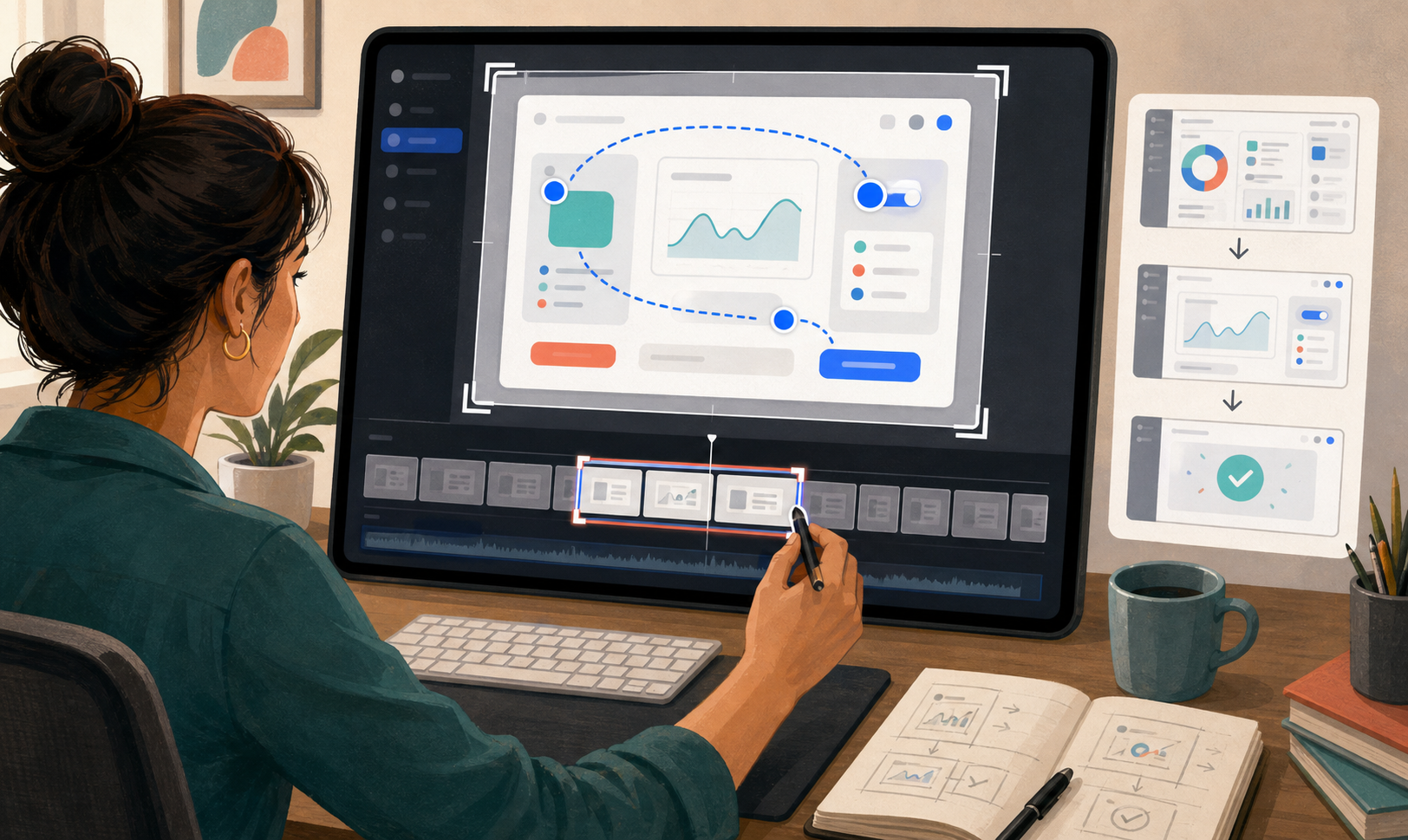
For changelog assets, six seconds is a practical ceiling. It is long enough to show a setup state, one interaction, and the result. It is short enough to loop without feeling like a video pretending to be a GIF.
A strong six-second structure looks like this:
| Time | What happens | Why it matters |
|---|---|---|
| 0.0-1.0s | Show the starting state | Gives the reader orientation |
| 1.0-3.5s | Perform one interaction | Makes the feature change visible |
| 3.5-5.0s | Show the result | Confirms what changed |
| 5.0-6.0s | Hold the final frame | Prevents a frantic loop |
The final hold is often the missing piece. Without it, the GIF snaps back to the start before the viewer can inspect the result. A short pause makes the loop feel deliberate and gives the release note copy time to do its job.
If the action takes longer than six seconds, reduce the scope. Crop tighter, remove login or navigation steps, pre-fill forms, and start from the screen where the interesting change begins. The GIF should demonstrate the product update, not prove that the entire product exists.
Start With a Capture Brief
Before recording, write a tiny capture brief. It should fit in five lines and prevent most rework.
Use this format:
- Feature: Saved view filters in the issue table
- Audience: Existing users who already know the table
- One thing to notice: Filters can now be saved and reused
- Start frame: Table with filter panel closed
- End frame: Saved filter appears selected and table updates
This brief keeps the recording focused. It also helps reviewers avoid asking for unrelated additions. When someone suggests showing the settings page too, the brief gives you a reason to say no: that is not the one thing this GIF is supposed to show.
For teams publishing frequent updates, store these briefs beside the final asset. They create a useful record of why the GIF was cropped, what data was staged, and which state the release note intended to highlight.
Prepare the Interface Before Recording
A changelog GIF should look like a real product, but not like a real customer account. Prepare a clean demo environment before recording.
Use realistic but safe data:
- Replace names, emails, invoices, tokens, addresses, and IDs
- Avoid customer logos unless permission is explicit
- Use short labels that fit inside the interface
- Remove browser extensions and personal bookmarks
- Disable chat widgets, notification badges, and unrelated alerts
- Set zoom to a consistent level, usually 100 percent or 110 percent
The best demo data is boring in the right way. It supports the feature without attracting attention. If a table row contains a funny name, a strange company, or an oddly specific dollar value, readers may notice that instead of the product change.
Also check for UI states that add unnecessary motion. Blinking cursors, live clocks, animated skeleton loaders, and notification toasts can inflate file size and distract from the intended interaction. If possible, freeze or simplify them for the recording.
Crop for the Decision, Not the Screen
Full-screen recordings are usually too large and too vague for changelog GIFs. A reader should not have to search the frame for the change. Crop around the decision area: the menu, panel, table column, modal, or setting that matters.
A useful crop includes three zones:
| Zone | Include it when | Example |
|---|---|---|
| Context | The user needs orientation | Sidebar section, table title, selected tab |
| Action | The interaction happens there | Button, dropdown, drag handle, toggle |
| Result | The change appears there | Updated list, saved state, new badge |
Do not crop so tightly that the interaction loses meaning. A dropdown floating in empty space may be small, but it is hard to understand. A slightly wider crop with the surrounding panel often compresses better than expected because large stable areas do not change much between frames.
If your source screenshot or recording frame is too large, resize the visual before turning it into a GIF. ConvertAndEdit's resize image tool is useful when you need a consistent width for changelog images across posts. For many release note pages, 960 px wide is a sensible maximum; narrow embedded columns may only need 640-760 px.
Cursor Movement Matters More Than You Think
The cursor is the viewer's guide. It can make a tiny UI change instantly understandable, or it can make the loop feel chaotic.
Use cursor movement sparingly:
- Start with the cursor near the action, not across the screen
- Move in a straight, calm path
- Avoid circling, shaking, or repeated hovering
- Do not cover the label or icon being clicked
- Leave the cursor away from the final result during the hold frame
If the cursor is too small to see, increase the operating system cursor size before recording instead of adding a heavy visual effect afterward. If the cursor is visually loud, it may dominate the GIF. The ideal cursor is visible enough to explain the action and quiet enough to disappear after the viewer understands it.
For touch-first mobile product updates, consider skipping the cursor and using the actual tap state or a brief pressed state. A desktop pointer over a mobile frame can look artificial unless the release note is explicitly about a web preview.
Frame Rate: Usually 8 to 12 FPS
Most UI changelog GIFs do not need 30 frames per second. High frame rates increase file size quickly, especially when panels slide, rows reorder, or charts animate.
A practical range:
| GIF type | Suggested FPS | Notes |
|---|---|---|
| Simple click and result | 8 FPS | Good for settings, filters, menus |
| Dragging or resizing | 10-12 FPS | Keeps motion understandable |
| Smooth product animation | 12-15 FPS | Use only when motion quality is the point |
| Long or dense recording | 6-8 FPS | Better to simplify first if possible |
Lower frame rate does not automatically mean worse quality. A crisp 9 FPS GIF with a clear final hold often communicates better than a blurry 24 FPS file that loads slowly.
When frame rate reductions make cursor movement jumpy, trim the cursor path instead of raising FPS. The goal is not cinematic smoothness. The goal is recognition.
A Practical Size Budget Table
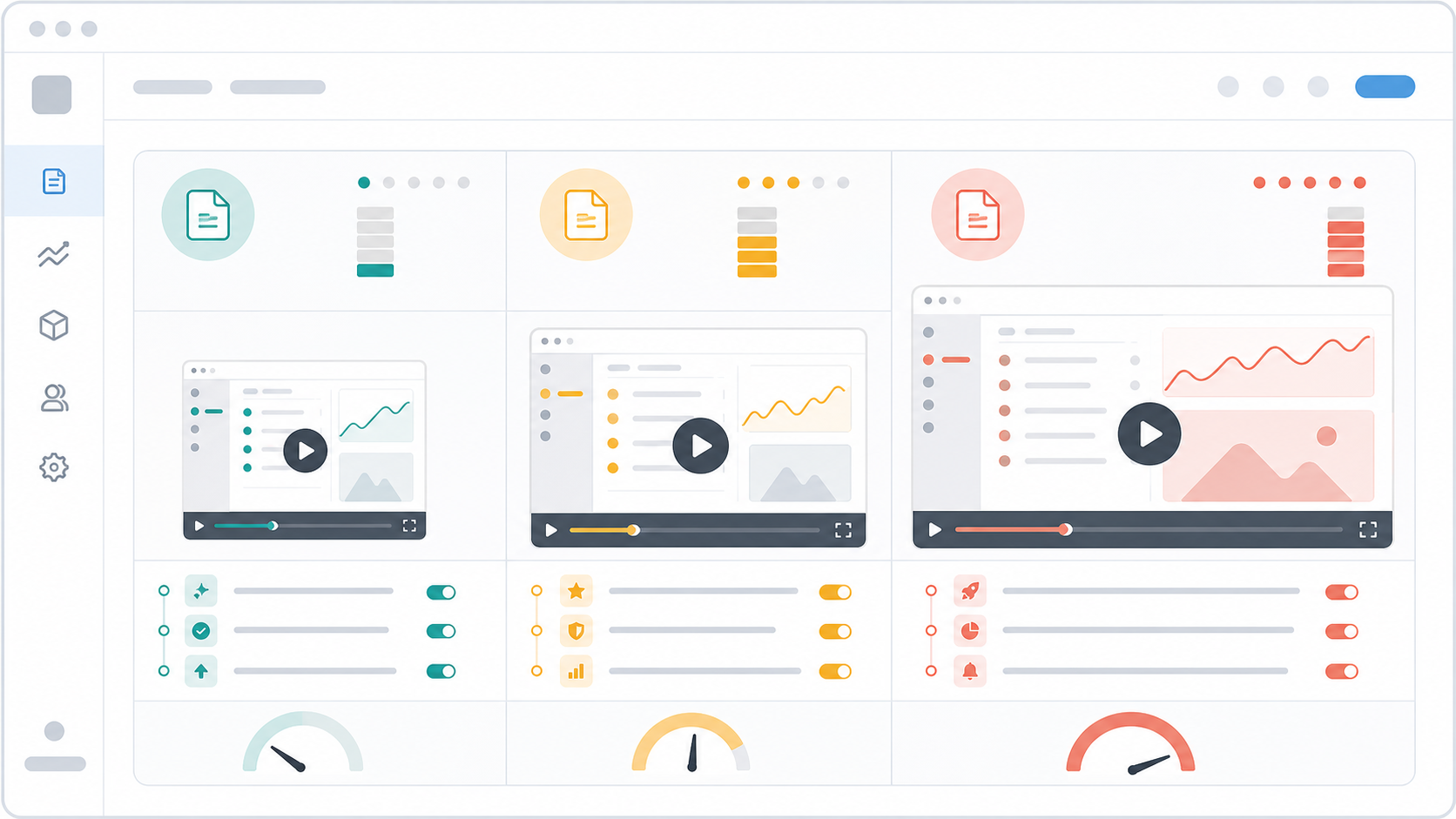
File size budgets depend on where the asset appears. A changelog page viewed by existing users can tolerate more weight than an in-app announcement shown inside a dashboard. Email is the strictest case because clients vary widely and large images can be clipped, blocked, or slow.
Use this table as a starting point:
| Destination | Target size | Upper limit | Recommendation |
|---|---|---|---|
| Email release note | 300-800 KB | 1 MB | Prefer very short loops or static images |
| In-app announcement | 500 KB-1.5 MB | 2 MB | Crop tightly and avoid large animations |
| Help center article | 800 KB-2 MB | 3 MB | Good place for slightly wider context |
| Public changelog page | 1-3 MB | 4 MB | Acceptable for important feature demos |
| Internal release recap | 1-5 MB | 6 MB | Still optimize; internal pages get reused |
These are not moral rules. They are friction rules. The heavier the file, the more confident you should be that the motion is necessary. A 3 MB GIF showing a major new kanban drag interaction may be justified. A 3 MB GIF showing a checkbox turning on is not.
After exporting, compress supporting still images and thumbnails separately. ConvertAndEdit's compress image tool can help reduce preview images, screenshots, and fallback visuals used near the GIF.
Choose GIF, APNG, WebP, or Video Deliberately
GIF is popular because it is easy to embed and loops automatically in many contexts. It is not always the best format. UI recordings often contain flat colors, gradients, thin text, and repeated frames, which can behave differently across formats.
Use this quick comparison:
| Format | Best for | Watch out for |
|---|---|---|
| GIF | Broad compatibility, simple loops, email-friendly assets | Large files, limited color palette, banding |
| Animated WebP | Smaller web assets with good color | Not ideal for every email client or legacy system |
| APNG | Sharp UI motion with transparency needs | Compatibility and tooling vary by publishing stack |
| MP4/WebM | Longer demos, high motion, audio or captions | May need player controls or autoplay handling |
For public web changelogs, an MP4 may be smaller and cleaner than a GIF. For email, GIF often remains the safer default, but the asset must be short and small. For help centers, choose based on the platform's embed support and analytics needs.
If you need to move a captured asset between formats, ConvertAndEdit's convert image tool is useful for preparing still frames, thumbnails, and alternate image formats around the final publish version. For the animated asset itself, test it in the actual CMS, email tool, or documentation platform rather than assuming local playback tells the whole story.
Keep Text Readable After Compression
UI text is the first thing that falls apart when a GIF is exported carelessly. Thin labels, small numbers, gray helper text, and compact table rows can become mushy after palette reduction.
To protect readability:
- Increase browser zoom before recording if the crop allows it
- Use light mode when dark mode creates noisy gradients
- Avoid tiny sidebars unless they are the subject
- Keep the crop width close to its final display size
- Remove unnecessary columns from tables
- Prefer fewer frames over heavier compression when text matters
- Hold the final readable state for at least one second
Do not record a 1920 px wide interface and display it at 520 px. The viewer receives a miniature version of the product, and compression artifacts become more obvious. Record near the intended display size whenever possible.
If the changelog page has responsive columns, check the GIF on mobile. A GIF that is readable on a desktop two-column layout may be too small when squeezed into a phone viewport. In that case, create a narrower mobile-specific crop instead of relying on the browser to solve it.
Build the Loop Around One Visual Change
A good loop has a clear before, action, and after. A weak loop contains too many intermediate states.
Here is a practical trimming pattern:
- Start after the page has loaded.
- Show the resting state for half a second.
- Move directly to the control that changed.
- Click, drag, select, or type only what is necessary.
- Remove dead time while panels animate or data loads.
- Hold the final state long enough to read.
- End before the cursor wanders away.
Typing is usually expensive and visually noisy. If a search query or field value is important, consider starting with the text already entered, then show the result. If the typed action is the feature, such as command palette search, keep the phrase short and use a predictable term.
Modal demos need extra care. A modal opening and closing can consume most of the loop. If the new feature is inside the modal, start with the modal already open unless the opening path is the important change.
Use Annotations Only When They Survive Small Sizes
Annotations can help when the UI change is subtle, but they often make GIFs heavier and harder to localize. Arrows, circles, labels, and highlight boxes should be used only when the unannotated capture fails.
Good annotation uses:
- A brief highlight around a newly added button
- A subtle spotlight on a changed panel area
- A simple before-and-after split for a layout change
- A pointer that replaces an unclear cursor path
Poor annotation uses:
- Long explanatory labels inside the image
- Multiple arrows competing with the product UI
- Bright colors that clash with brand components
- Effects that animate continuously without adding meaning
Keep text outside the GIF whenever possible. The release note can explain the change in normal HTML, which is more accessible, translatable, searchable, and easier to update. The GIF should show the behavior.
Make a Static Fallback
Every important changelog GIF should have a useful static fallback. Some users disable animation. Some email clients block images. Some pages load slowly. A fallback also helps social previews and internal summaries.
Choose the fallback frame carefully. It should usually be the final state, not the first frame. The final state answers the reader's question: what changed?
A good fallback image shows:
- The new setting selected
- The completed drag result
- The updated table state
- The opened menu with the new option visible
- The redesigned panel in its stable state
If the fallback is a separate still image, compress it and name it consistently with the animated version. For example:
| Asset | Purpose |
|---|---|
| saved-filters-demo.gif | Main changelog demonstration |
| saved-filters-demo-poster.webp | Static fallback or preview image |
| saved-filters-demo-source.mp4 | Internal source file for future edits |
This simple asset set prevents teams from re-recording the same feature when the GIF needs a new crop later.
Naming and Folder Hygiene
Changelog assets tend to multiply. A vague filename like demo-final-new.gif becomes a problem after three releases.
Use filenames that include the feature, asset type, and date or release version:
| Filename | Why it works |
|---|---|
saved-views-filter-demo-2026-07.gif | Clear feature and date |
bulk-export-modal-poster-v3.webp | Identifies fallback and version |
billing-permission-toggle-source.mp4 | Keeps source separate from publish file |
Avoid spaces, random screen recording names, and channel-specific labels that may become wrong later. A file first used in a changelog may later appear in a help article, sales enablement deck, or support macro.
If your team publishes many static screenshots alongside GIFs, keep format choices predictable. Use PNG or WebP for sharp UI stills, JPEG only for photo-heavy visuals, and GIF only when animation is truly needed. ConvertAndEdit's gif maker can help when you need to assemble a short animated demonstration from prepared frames.
Accessibility and Motion Sensitivity
Animated UI assets can create accessibility problems if they loop aggressively or contain flashing elements. A changelog GIF should be calm by default.
Check for these issues before publishing:
- Does the GIF flash, strobe, or rapidly alternate large areas?
- Does it loop so quickly that the page feels restless?
- Is the meaning also available in nearby text?
- Is the final state visible long enough to understand?
- Is the image decorative, or does it need meaningful alt text?
Alt text should describe the demonstrated change, not every visible UI detail. For example: "Demo showing a saved filter being applied to the issue table" is more useful than a full inventory of buttons and columns.
If your site supports reduced-motion preferences, consider replacing animated assets with the static poster for users who request reduced motion. Even if your publishing tool does not support that today, keeping a poster image available makes the improvement easier later.
QA Checklist Before Publishing
Review the final asset in the place where readers will see it. Local preview is not enough because CMS resizing, lazy loading, email clipping, and responsive layout can change the result.
Use this checklist:
- The GIF demonstrates one product change only
- The loop is six seconds or shorter unless there is a strong reason
- The first frame gives enough orientation
- The final state is held long enough to read
- No customer data, private IDs, tokens, or personal bookmarks appear
- Cursor movement is calm and does not cover the target
- UI text remains readable at published size
- File size fits the destination budget
- A useful static fallback exists
- Alt text describes the change accurately
- The asset has a clear, durable filename
- The release note copy explains anything the GIF cannot show
For subtitle-based product clips or webinar snippets used near release notes, a GIF may not be the right output. If the asset depends on spoken explanation, create captions first and use a video format. ConvertAndEdit's video to subtitles tool can help prepare text tracks for short product videos when motion alone is not enough.
Example: Turning a 22 MB Screen Recording Into a Changelog GIF
Imagine a SaaS team shipping saved filters for a customer support inbox. The original screen recording is 22 MB and 18 seconds long. It starts on the dashboard, opens the inbox, clicks filters, creates a saved view, names it, applies it, and then moves around the table.
That is too much for a changelog GIF. The release note only needs to show that saved filters can be reused.
A better version:
| Step | Change |
|---|---|
| Trim start | Begin with the inbox already open |
| Reduce scope | Show applying an existing saved filter, not creating one |
| Crop | Include filter panel and first few table rows only |
| Shorten motion | Move cursor directly to saved filter list |
| Hold result | Keep the filtered inbox visible for one second |
| Export | Use 10 FPS and publish at 760 px wide |
The final GIF may be five seconds and under 1.5 MB. More importantly, it now matches the reader's need. They can see the feature, understand the state change, and return to reading the release note.
The discarded steps are not wasted. Creating a saved filter may deserve a separate help center GIF or a longer support article video. The changelog asset stays focused because the changelog has a different job.
Common Mistakes That Make Changelog GIFs Feel Heavy
Several problems show up again and again in product update assets.
One is recording the entire browser. Browser tabs, bookmarks, extension icons, and address bars rarely help the reader. They add pixels, expose private context, and make the product feel less polished.
Another is capturing too much vertical space. Long settings pages and tables shrink badly inside release note columns. If the key change is near the top of a panel, crop there. If the result is lower down, use a separate static image or restructure the demo.
A third mistake is relying on compression to fix a planning problem. Compression cannot rescue a 20-second full-screen recording with tiny text and multiple moving panels. Good optimization starts before capture: shorter action, tighter crop, simpler data, fewer distractions.
Finally, teams often publish the first export that looks acceptable on a large monitor. Always inspect the asset at the actual embedded width. That is the version the reader gets.
A Repeatable Production Checklist
For teams shipping updates weekly, the value is not just one good GIF. The value is a repeatable standard that product, marketing, support, and documentation can all use.
A lightweight production checklist looks like this:
| Stage | Decision | Output |
|---|---|---|
| Plan | What single change should the reader notice? | Five-line capture brief |
| Prepare | What data and UI states must be cleaned? | Safe demo environment |
| Record | What frame shows action and result clearly? | Short source recording |
| Edit | What can be removed without losing meaning? | 4-6 second loop |
| Optimize | What size fits the destination? | Compressed publish asset |
| Publish | Does it work in the real page or email? | Final GIF plus fallback |
This checklist keeps ownership clear. Product can define the change. Design or marketing can tune the crop. Documentation can verify clarity. Support can flag missing context. No one has to invent the standard from scratch every release.
Final Takeaway
A changelog UI GIF succeeds when it is small, specific, and easy to understand without replaying it five times. The craft is mostly restraint: one change, one crop, one calm interaction, one readable final state.
When in doubt, make the asset shorter before making it more compressed. Remove distractions before adding annotations. Choose the format based on the publishing destination, not habit. Keep a static fallback. Name files so future teammates can understand them.
A polished micro-demo does not need to feel expensive. It needs to respect the reader's attention and the page's loading budget. That is what turns a tiny animated asset into a useful part of a release note.