GIF Export Checklist for ConvertAndEdit: Keep Quality High and Size Low
A practical checklist for turning clips into clean, fast-loading GIFs. Frame rate, dimensions, palette, and loop fixes in one workflow.
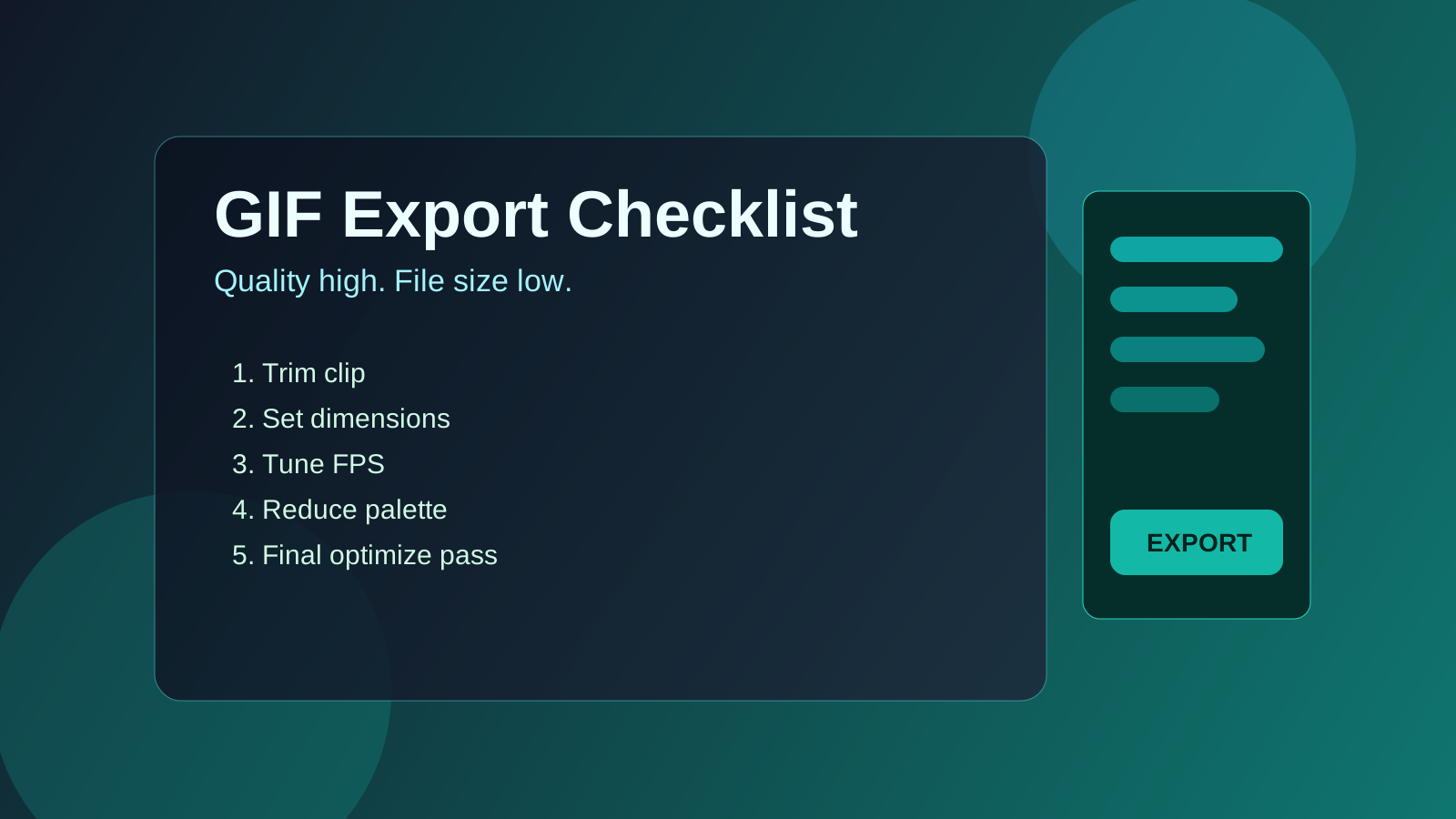
GIF Export Checklist for ConvertAndEdit
If your GIFs look blurry, stutter, or become too large to share, the issue is usually in export settings, not in the source clip. This checklist gives you a repeatable workflow you can run in a few minutes.
1. Trim before you optimize
Start with the shortest version that still communicates the message.
- Keep most social GIFs between 2 and 6 seconds.
- Cut dead frames before the action starts.
- Remove trailing frames after the punchline.
Shorter clips reduce file size faster than any other setting.
2. Set dimensions for the target platform
Exporting huge GIFs is the most common reason for slow loading.
- Reactions/memes: 420-560px width
- Product demos: 640-800px width
- Embeds in articles: 700-900px width
Use Resize first, then continue with optimization.
3. Choose frame rate intentionally
High FPS looks smooth, but often costs too much file size.
- 12-15 FPS: usually enough for UI demos and reactions
- 18-20 FPS: good for moderate movement
- 24 FPS+: only when motion detail matters a lot
A drop from 24 to 15 FPS can cut size dramatically with acceptable visual quality.
4. Reduce colors after sizing and FPS decisions
GIF color depth is limited. Let the palette work for you.
- Start around 128 colors.
- If gradients band too much, move up to 192-256.
- If the scene is flat/simple, test 64 colors.
Always compare visual quality at 100% zoom.
5. Fix loop quality
A rough loop kills perceived quality even when compression is good.
- Trim on natural motion cycles.
- Try reverse/ping-pong for repeating motions.
- Remove abrupt frame jumps around the seam.
6. Run a final size pass
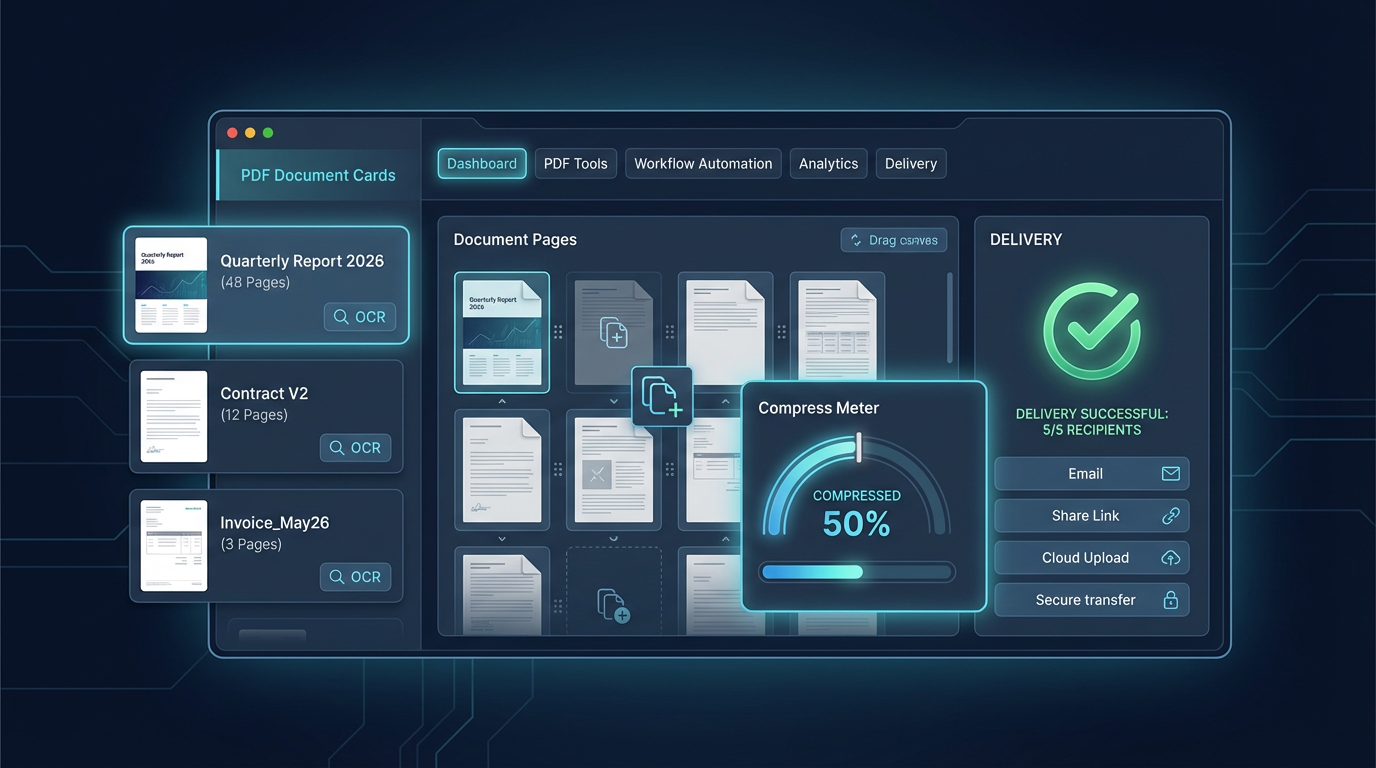
Before publishing, do one final pass in Optimize or Compress.
- Keep under platform limits.
- Aim under 5 MB whenever possible.
- Validate on mobile data, not only desktop Wi-Fi.
Recommended ConvertAndEdit workflow
Cutthe source clip.Resizeto target display width.Video to GIFwith tested FPS.Optimizewith palette tuning.Compressonly if still too heavy.
Final note
A clean GIF workflow is about trade-offs you make in the right order. Trim -> size -> FPS -> colors -> compression is a reliable sequence for fast results with strong visual quality.