PDF Delivery Workflow 2026: The Complete Preflight Checklist for Fast, Secure Client-Ready Files
A practical 2026 PDF workflow for teams: merge, reorder, OCR, compress, secure, validate, and deliver client-ready files without last-minute chaos.
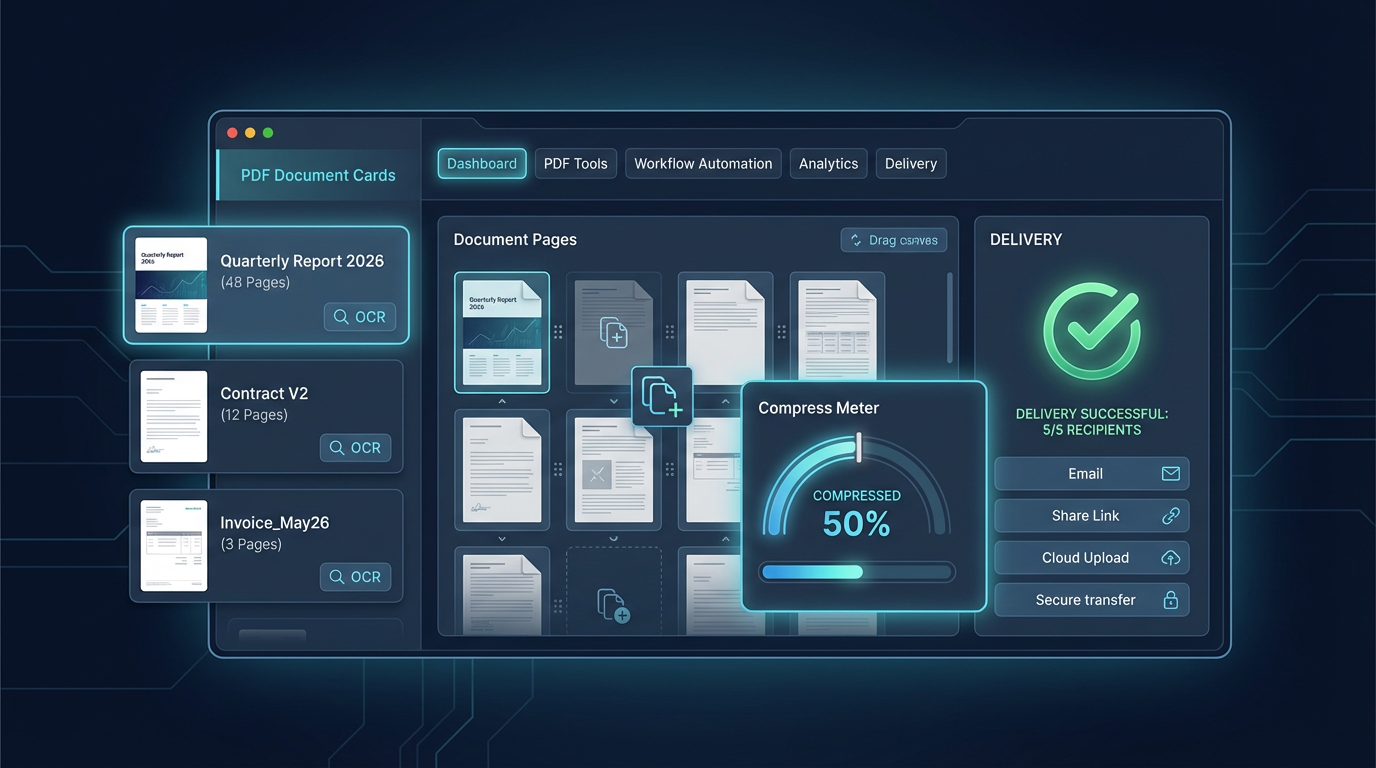
PDF Delivery Workflow 2026: The Complete Preflight Checklist for Fast, Secure Client-Ready Files
If your team ships proposals, reports, onboarding kits, legal packets, investor updates, or multilingual documentation, PDF quality is not a small detail anymore. In 2026, PDF delivery quality directly affects trust, response speed, and operational cost.
Most PDF issues are not caused by one broken export. They come from inconsistent workflows: different editors, different naming, different quality settings, and no final validation gate.
This guide gives you a complete PDF preflight system that small teams can run immediately and larger teams can standardize across departments.
Why PDF preflight matters in 2026
Teams still lose hours every week to avoidable PDF friction:
- Attachments that are too large for email systems
- Missing text layer in scanned or image-only pages
- Broken page order after last-minute edits
- Incorrect permissions that block client-side review
- Missing metadata and unclear document versions
None of these problems are difficult. The real issue is that they are handled too late.
The solution is a repeatable preflight checklist before delivery.
The 2026 reality: PDF quality is both technical and operational
You need to hit three outcomes at the same time:
- Readability: clients can open and use files on any device
- Reliability: structure, pages, links, and content are intact
- Risk control: permissions, sensitive content handling, and traceability are clear
When one fails, delivery quality drops.
| Target | What good looks like | Typical failure mode |
|---|---|---|
| Readability | Sharp text, mobile-safe rendering, acceptable file size | Large, slow files that open poorly on mobile |
| Reliability | Correct page order, bookmarks, searchable text | Missing sections, wrong page sequence, no OCR |
| Risk control | Correct permissions, clean metadata, safe sharing setup | Accidental editing rights, leaked author metadata |
The complete PDF delivery workflow (step by step)
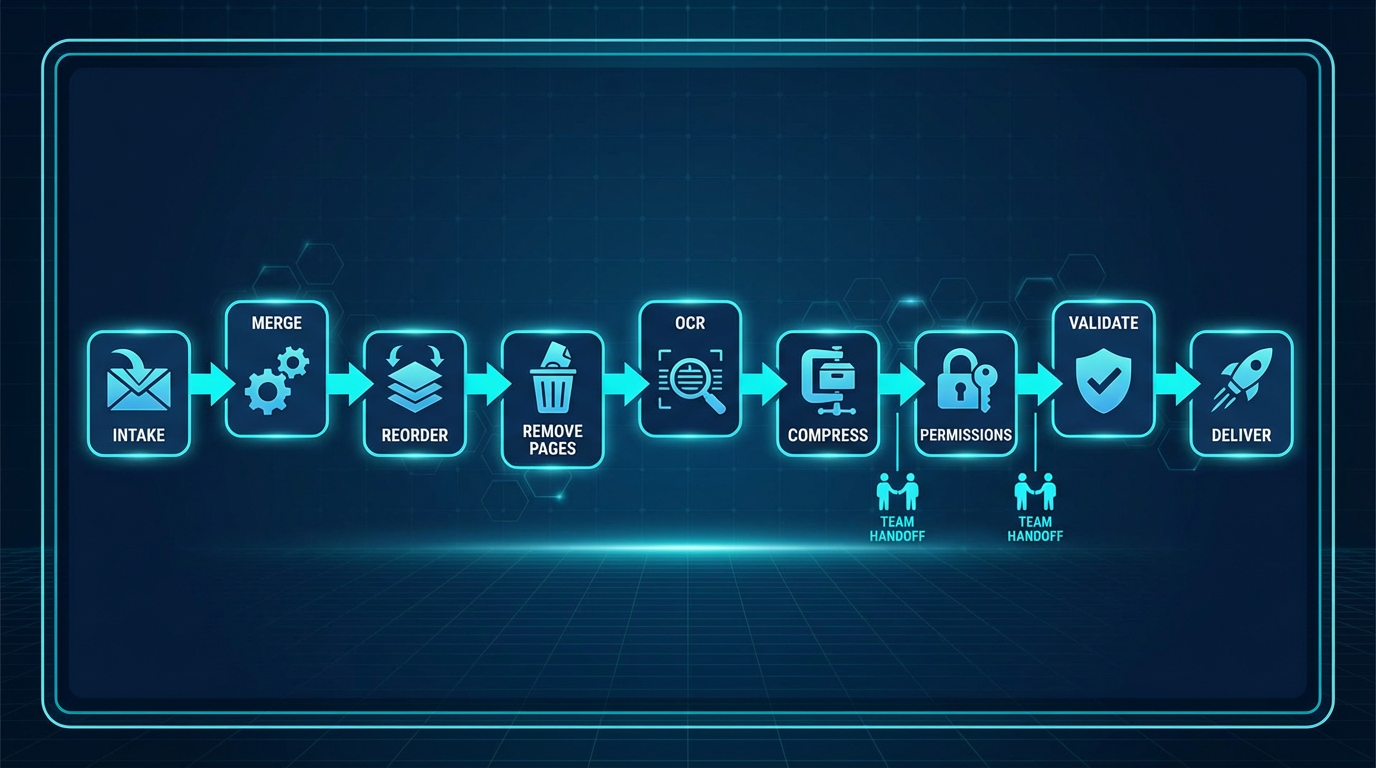
Step 1: Lock intake rules before any editing
Start with one intake line per file:
[document type] + [audience] + [version] + [delivery date]
Example:
client-proposal-enterprise-v03-2026-02-21.pdf
This prevents version confusion during handoff.
Step 2: Merge and reorder first, not last
Do not polish pages before structure is finalized.
Use Merge PDFs and Reorder PDF Pages to establish final sequence first.
Checklist:
- Confirm sections are in expected order
- Move appendices to the end
- Remove duplicate cover pages
- Keep one source of truth file for further edits
Step 3: Remove dead pages and trim noise
Teams frequently keep draft pages inside final exports.
Use Remove PDF Pages to eliminate:
- Internal draft notes
- Obsolete pricing tables
- Placeholder legal pages not relevant to this client
At this point, the file should represent final scope only.
Step 4: Normalize page dimensions and visual consistency
Mixed page dimensions look unprofessional and can break print workflows.
Use Crop PDF or Resize PDF where needed.
Target outcomes:
- Consistent margins
- No accidental cut-off charts
- Predictable print behavior
Step 5: Add searchable text layer with OCR when needed
If a PDF contains scanned pages or screenshots, text search fails without OCR.
Use PDF OCR for documents that must be searchable, indexable, or easily copyable.
Quality gate:
- Search for 5 random terms from different sections
- Copy/paste a paragraph to validate recognition
- Check numbers and special characters carefully
Step 6: Apply metadata and navigation structure
Structure reduces review time for long documents.
Add or verify:
- Clear title and subject fields in document properties
- Logical bookmarks for key sections
- Keywords for internal retrieval
Use PDF Properties, PDF Bookmarks, and PDF Keywords.
Step 7: Compress based on delivery channel
There is no one universal compression value.
Use Compress PDF with context-based targets:
- Email attachment delivery: aggressive compression
- Internal archive: balanced compression
- Print-critical handoff: quality-first settings
Practical target:
- Keep typical business files lightweight enough for quick mobile download
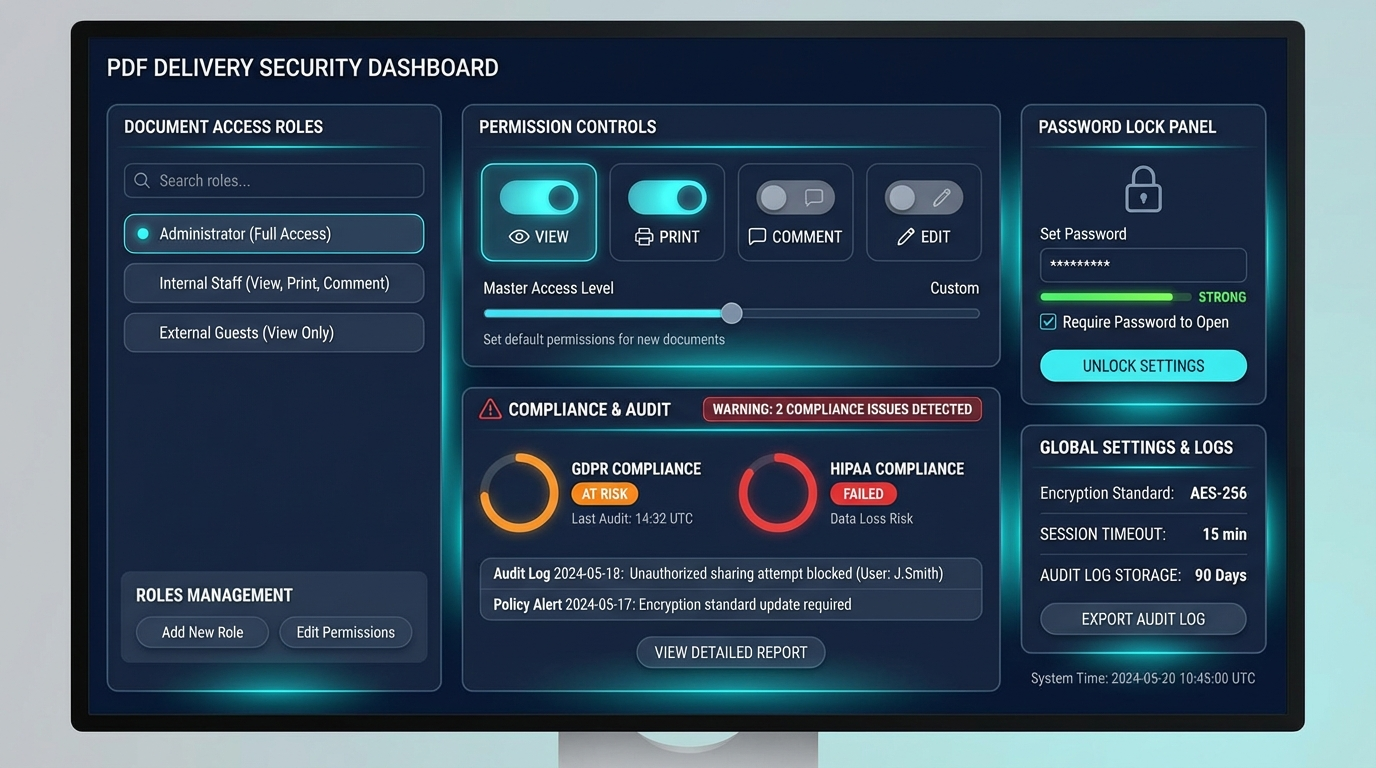
Step 8: Set permissions intentionally
Permissions are often applied by habit, not by requirement.
Use PDF Permissions, Protect PDF, and Unlock PDF as needed.
Define one rule per delivery type:
- Client review copy: printing allowed, editing restricted
- Internal working copy: controlled edit access
- Final signed archive: locked version for records
Step 9: Run a final preflight QA gate
Never skip this step.
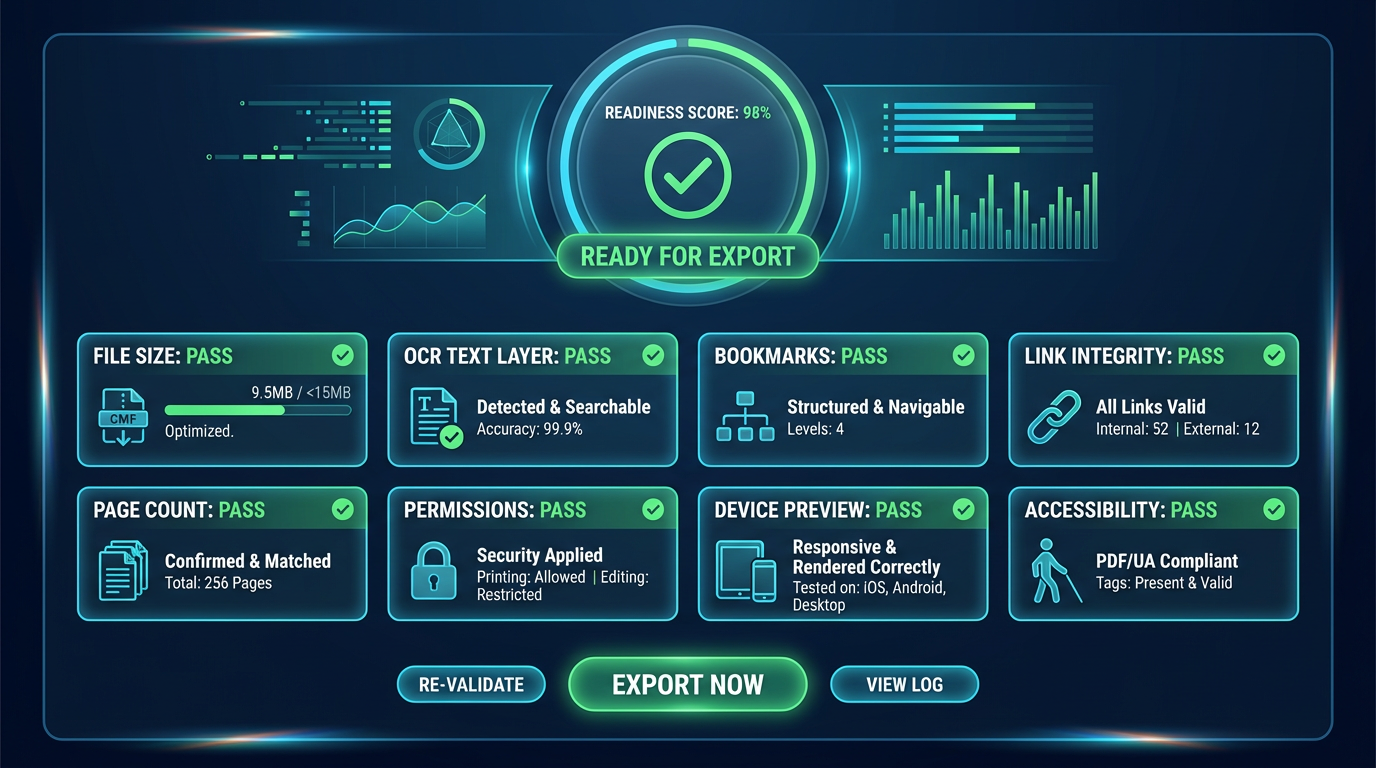
Use PDF Info and Validate PDF for a quick technical check.
Preflight checklist:
- File opens correctly on desktop and mobile
- Page count matches delivery note
- Search works on OCR-relevant sections
- Links and table-of-contents anchors work
- Permissions match intended distribution
- File size is within delivery constraints
Step 10: Deliver and archive with traceability
Final handoff should include both the client-ready file and clean archive rules.
Archive package should contain:
- Final file (
v-final) - Last editable source (
v-source-last) - Delivery log note (recipient, timestamp, channel)
This protects your team during follow-up requests and audit checks.
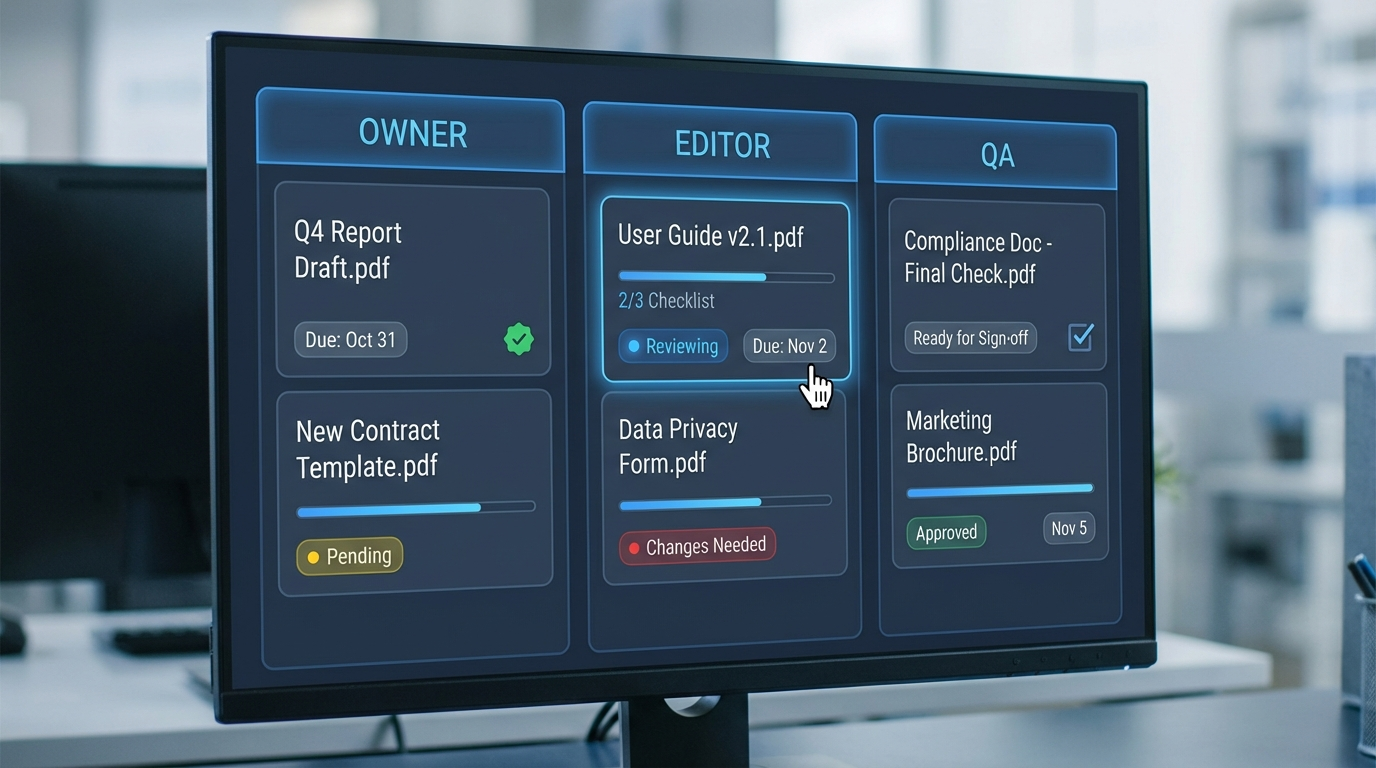
A practical handoff model for content and operations teams
Most PDF delays happen at team boundaries, not inside tools.
A simple operating model:
- Owner: defines final structure and version lock
- Editor: applies layout and content corrections
- QA: validates search, links, permissions, and size
- Approver: signs off final distribution file
This role clarity removes the “I thought someone else checked it” problem.
Delivery benchmarks you can use immediately
These ranges are practical baselines for many teams.
| Delivery Type | Typical Length | Suggested Preflight Focus | Typical Output Goal |
|---|---|---|---|
| Client proposal | 15-40 pages | Structure, permissions, size | Fast open, easy comment workflow |
| Operations handbook | 40-120 pages | OCR, bookmarks, internal links | Searchable, navigable, stable |
| Sales one-pager set | 5-20 pages | Visual consistency, file weight | Quick share across devices |
| Compliance packet | 30-200 pages | Metadata, traceability, lock rules | Audit-ready and reproducible |
If you track these with consistent QA gates, you get fewer support loops and faster approvals.
Common mistakes that still hurt PDF delivery in 2026
Mistake 1: Merging at the end
Late-stage merging creates version drift and duplicated sections.
Mistake 2: Assuming OCR is always optional
If users cannot search, support load increases.
Mistake 3: One-size-fits-all compression
Delivery channel matters. Email, archive, and print copies need different output profiles.
Mistake 4: Treating permissions as a final checkbox
Permission strategy should be chosen before distribution, not after issues appear.
Mistake 5: No documented archive pattern
Without predictable naming and archive rules, every update becomes a reconstruction exercise.
A reusable preflight template you can apply to any PDF
Use this block before every external delivery.
- Structure confirmed (
merge/reorder complete) - Redundant pages removed
- OCR checked where needed
- Metadata and bookmarks verified
- Compression tuned to channel
- Permissions set intentionally
- Validation and open test complete
- Final filename and archive copy saved
This simple sequence is enough to remove most recurring PDF delivery errors.
Operational checklist for weekly PDF publishing
- Keep one owner for each outgoing document
- Limit parallel “final” versions in chat tools
- Use fixed naming with timestamp and version
- Run one QA gate, not five ad hoc checks
- Store approved templates for recurring document types
Final takeaway
Strong PDF delivery in 2026 is less about one perfect export setting and more about consistent systems.
Teams with reliable PDF preflight routines ship faster, make fewer corrections, and earn more trust with every document they send.
Start with one template, one QA gate, and one delivery standard. Once that works, scale it across every recurring PDF workflow.