Invoice Stamp Photo OCR Cleanup for Accounts Payable Teams
A practical guide for turning stamped, photographed, and annotated invoice images into cleaner OCR text, searchable PDFs, and review-ready AP packets.
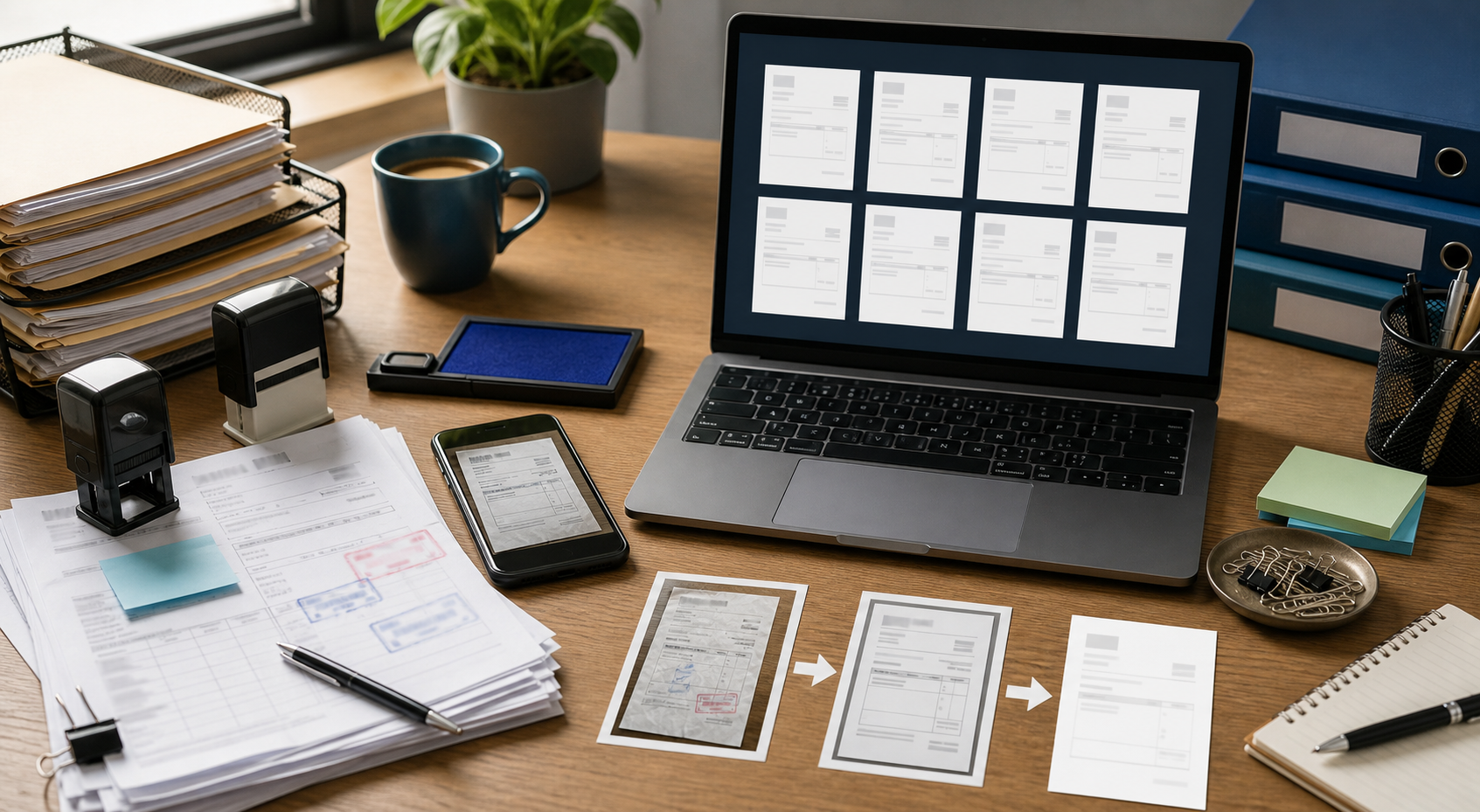
Invoice Stamp Photo OCR Cleanup for Accounts Payable Teams
Stamped invoice photos are a small operational problem that can quietly become a search, audit, and payment-delay problem. A vendor emails a scanned invoice. A site manager photographs a packing slip with an approval stamp. Someone adds a handwritten cost center. Another person forwards the file as a compressed chat image. By the time accounts payable receives it, the document may technically be visible, but OCR can misread the vendor name, invoice number, due date, or approval mark.
This guide is for small accounts payable teams, office managers, bookkeepers, and operations staff who need cleaner text extraction from imperfect invoice images without building a custom document system. The goal is not museum-grade restoration. The goal is practical: make the invoice easier to read, easier to search, and easier to package into a review-ready PDF.
You can use this guide before uploading documents into accounting software, saving month-end evidence packs, or sending exception files to a controller. It focuses on photographed or image-based invoices with stamps, signatures, highlights, notes, and uneven lighting.
Why Stamped Invoice Photos Break OCR
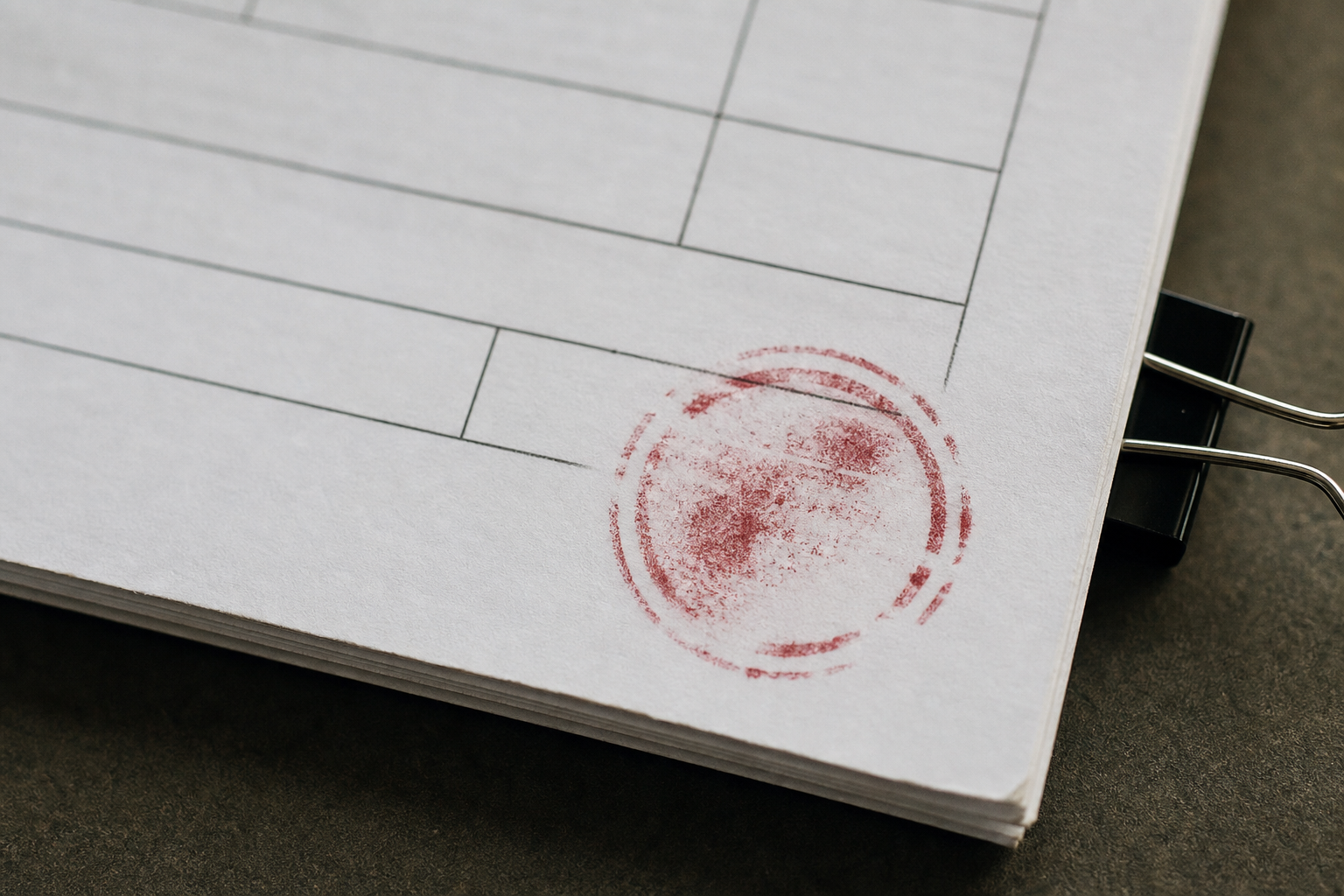
OCR works best when text is flat, high contrast, evenly lit, and separated from decoration. Stamped invoice photos are usually the opposite. They contain layered information: printed invoice text, ink stamps, handwritten marks, shadows, folds, paper texture, and sometimes a phone camera's automatic sharpening.
Approval stamps are especially tricky because they often sit on top of the very data an AP team wants to capture. A stamp may cross an invoice number, total amount, due date, or vendor address. Red, blue, or purple ink can confuse OCR when the software tries to decide what is foreground text and what is background noise.
Phone photos add another layer of difficulty. Even a sharp phone image can have perspective distortion. The top of the page may be wider than the bottom. Lines that should be horizontal may tilt slightly. Glossy invoices can reflect ceiling lights. Paper placed on a dark desk can create a strong border that distracts automatic cropping.
The result is not always obvious at first glance. A human can read the invoice, but the extracted text may contain subtle errors. Those errors matter when someone later searches for an invoice number, matches a purchase order, or prepares an audit packet.
Common OCR failures include:
- Vendor names split into unrelated fragments.
- Invoice numbers confused with approval stamp numbers.
- Dates interpreted incorrectly because slashes or dashes are faint.
- Currency totals mixed with tax IDs, phone numbers, or page numbers.
- Handwritten notes inserted into the middle of printed invoice lines.
- Stamps read as real invoice fields.
- Cropped page edges losing remittance or payment terms.
A cleanup pass reduces these mistakes before you ask OCR to interpret the file.
Choose the Right Output Before You Start
Before editing any image, decide what the cleaned file is supposed to become. The best preparation differs depending on the final use.
| Final use | Best output | Main priority | What to avoid |
|---|---|---|---|
| Searchable invoice archive | Searchable PDF | Complete page capture and readable OCR | Aggressive cropping that removes context |
| AP exception packet | Combined PDF | Clear evidence trail | Mixing unrelated invoices in one file |
| Accounting upload | Image or PDF accepted by the system | Small enough file size and stable format | Exotic formats the system may reject |
| Manual review by manager | PDF or compressed image | Fast loading and readable totals | Over-compression that blurs small text |
| Vendor dispute evidence | PDF with original and cleaned versions | Traceability | Editing out meaningful marks |
For most AP teams, the safest deliverable is a PDF packet: one invoice per file for routine processing, or a combined exception packet when several pages explain one issue. If the document began as photos, you can convert images into a PDF with image-to-PDF conversion. If multiple supporting files need to travel together, combine them with PDF merge.
Keep the original file when the invoice is part of a dispute, approval record, or audit trail. Cleanup should improve legibility, not rewrite the evidence.
Build a Small Intake Standard
The easiest OCR cleanup is the cleanup you do not need. A lightweight intake standard helps coworkers send better invoice photos the first time.
Ask for these basics when someone photographs an invoice:
- Place the paper on a plain, matte surface.
- Use bright indirect light instead of flash.
- Keep the whole page inside the frame.
- Hold the phone parallel to the page.
- Take one photo per page.
- Avoid fingers, keyboards, coffee cups, and cables near the page edge.
- Photograph stamps and notes clearly, even if they are not part of the printed invoice.
- Send the original image file when possible, not a screenshot of the image.
This does not need to become a long policy. A short message pinned in the AP channel is often enough: full page, flat angle, no flash, one page per photo.
If the team receives many invoice images from field staff, create a naming pattern too. For example: vendor-date-location-page. The name does not need to be perfect, but it should prevent five files called IMG_4821 from landing in the same folder.
Separate Three Kinds of Marks
Not every mark on an invoice should be treated the same. Before editing, sort visible marks into three groups.
Business-Critical Marks
These marks should remain visible because they explain the approval or payment context. Examples include approval stamps, received dates, handwritten cost centers, manager initials, receiving notes, and discrepancy comments.
Do not erase these marks just because they interrupt OCR. Instead, improve the entire page so the mark and the printed invoice text are both readable. If a stamp covers important text, preserve the original and consider adding a cleaned copy for OCR extraction.
Incidental Noise
This includes shadows, desk texture, mild glare, background objects, camera borders, and paper curl. These can usually be reduced without changing the meaning of the document.
Cropping, straightening, brightness correction, and compression choices can handle most incidental noise.
Duplicate or Misleading Layers
Sometimes a file contains duplicate information that confuses the record: a screenshot of an invoice image inside an email, a phone gallery interface around the document, or a preview thumbnail captured instead of the original file.
In those cases, crop to the actual document area if it does not remove invoice content. OCR should see the invoice, not the email app or phone interface.
A Practical Cleanup Pass Before OCR
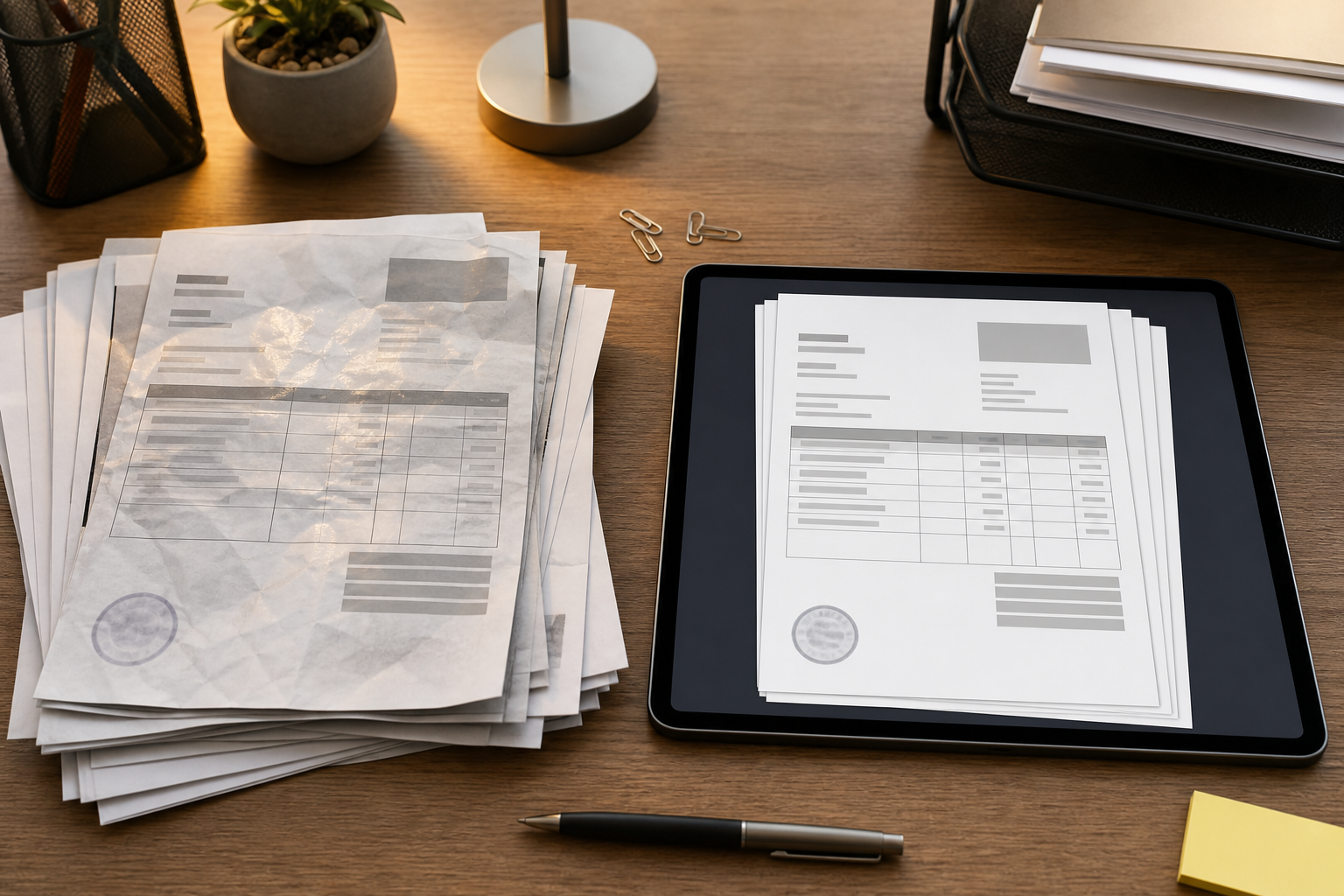
A good cleanup pass is boring and repeatable. The order matters because each step affects the next.
1. Duplicate the Original
Keep the original image or PDF untouched. Create a cleaned copy for OCR and review. For audit-sensitive files, store both versions together with clear names such as original and cleaned. The cleaned version is for readability. The original is the source record.
2. Rotate and Straighten First
OCR engines expect text lines to run horizontally. Even a small tilt can increase errors, especially in tables. Rotate the image so invoice rows, totals, and address blocks sit level.
If the photo was taken at an angle, simple rotation may not fix the page. A perspective correction tool can help, but do not overdo it. Heavy correction can stretch numbers and make small text less reliable.
3. Crop Outside the Page, Not Inside It
Crop away the desk, phone interface, or empty background. Leave a small margin around the document so page edges remain clear. Do not crop tightly against totals, remittance addresses, or footer terms. Those areas often become relevant later.
A useful rule: crop to remove distraction, not context.
4. Improve Contrast Gently
Increase contrast enough that printed text separates from the paper. Avoid crushing light gray table lines or faint dot-matrix text. Many invoices include small payment terms or tax details in lighter type. If contrast is pushed too far, those fields disappear.
When in doubt, compare the cleaned copy against the original at 100 percent zoom.
5. Reduce Color Only When It Helps
Black-and-white conversion can improve OCR on clean printed invoices, but stamped documents are more complicated. A red approval stamp or blue received mark may become dark clutter when converted to pure black and white.
For stamped invoices, try grayscale before pure black-and-white. Grayscale often keeps the stamp visible without making it dominate the printed text. If the stamp color is essential for the AP record, keep a color copy in the packet.
6. Resize for Legibility
Very large phone photos can slow down uploads, but tiny images destroy OCR accuracy. If you need to resize, keep enough pixels for small invoice text. A full-page invoice image should generally remain large enough that 8 to 10 point text is readable at normal zoom.
For oversized images, use image resizing after straightening and cropping. Resize copies, not originals.
7. Compress Last
Compression should be the final image step. If you compress before cropping, straightening, or contrast correction, you may amplify artifacts around text and stamps. Use image compression to reduce file size after the document is clean and readable.
Check thin numbers after compression: invoice totals, purchase order numbers, bank references, and due dates. These fields are often where compression damage hurts most.
OCR the Cleaned Copy, Then Inspect the Text
Once the image is straight, cropped, and readable, run OCR. ConvertAndEdit's image OCR tool can help extract text from invoice images for search, review, and copy-paste checks.
Do not stop at the OCR result. Inspect it like a data entry draft. The image may look clear while the extracted text still contains mistakes.
Focus on these fields first:
| Field | What to check | Common OCR mistake |
|---|---|---|
| Vendor name | Exact spelling and suffix | Logo text read instead of legal name |
| Invoice number | Every character | 0/O, 1/I, 5/S substitutions |
| Invoice date | Day, month, year order | Stamp date confused with invoice date |
| Due date | Payment terms alignment | Due date missed in small footer text |
| PO number | Full reference | Hyphens and slashes dropped |
| Total amount | Currency and decimals | Tax subtotal read as total |
| Approval stamp | Whether it should be captured | Stamp treated as invoice body text |
For searchability, perfect prose is less important than correct identifiers. If the OCR text captures the invoice number, vendor, PO number, date, and total, the file becomes much easier to find later.
Handling Stamps Without Losing Meaning
Approval stamps are not just visual clutter. They often prove that someone reviewed, received, or coded the invoice. The cleanup goal is to prevent stamps from damaging OCR while keeping them visible for human review.
Use a two-copy method for difficult cases:
- Original photo: preserved as received.
- Cleaned OCR copy: straightened, cropped, contrast-adjusted, and compressed.
If a stamp covers printed text, do not digitally remove the stamp from the only record. Instead, include both the original and a best-effort readable copy in the final PDF packet. If the invoice exists elsewhere without the stamp, such as a vendor PDF, include that clean vendor copy alongside the stamped approval image.
Color can also help. A color page may allow a reviewer to distinguish purple approval ink from black invoice text. OCR may prefer grayscale, but people reviewing exceptions often benefit from color. For mixed needs, create a searchable PDF from the cleaned copy and keep the color original in the same packet.
File Naming for AP Search
Searchable text is useful, but filenames still matter. A clear filename helps when files are moved between email, shared drives, accounting systems, and review folders.
A practical AP filename format is:
vendor_invoice-number_invoice-date_amount_status
Example pattern:
acme-supplies_INV-10483_2026-06-30_1842-77_approved.pdf
Keep filenames simple. Avoid characters that cause problems across systems, such as slashes, colons, question marks, and quotation marks. Use hyphens or underscores consistently.
If an invoice number is unknown, use a temporary marker such as no-invoice-number and update it later. Avoid vague names like scan-final-new or invoice-approved-2.
For multi-page invoices, do not split pages unless the receiving system requires it. A single searchable PDF is usually easier to control than several page images.
Create Review-Ready PDF Packets
Once the invoice image is cleaned and OCR text has been checked, package it for the next person. The packet should answer a reviewer’s first questions without making them hunt through attachments.
A simple exception packet might include:
- Cleaned invoice PDF.
- Original stamped photo.
- Purchase order or receiving document.
- Email approval or note, if needed.
- Any corrected OCR text exported for search or indexing.
Use image to PDF when pages begin as image files. Use PDF merge when invoice pages and supporting documents need to become one review file.
Order the packet in the same sequence a reviewer thinks:
- What is being paid?
- Who approved it?
- What purchase or receipt supports it?
- What exception needs attention?
This order reduces back-and-forth. It also helps later when someone reopens the file during close, audit preparation, or vendor dispute review.
Red Flags That Need Manual Review
Some invoice photos should not be processed automatically, even after cleanup. Send them for manual review when the image contains signs of ambiguity or risk.
Watch for:
- A stamp covering the invoice total.
- Two different invoice numbers visible on one page.
- A handwritten amount that differs from the printed total.
- A crop that removes vendor identity or remittance details.
- A photo of a screen instead of the original invoice.
- A forwarded chat image with heavy compression artifacts.
- Multiple invoices captured in one photo.
- A signature or approval mark that is cut off.
- Any payment instruction that appears altered or newly added.
OCR is a convenience layer, not an approval authority. If the document changes payment instructions, bank details, totals, or vendor identity, a person should inspect the original source.
A Small Quality Checklist
Use this checklist before sending cleaned invoice files into accounting, storage, or review.
Document image:
- The full page is visible.
- The image is upright and straight.
- Edges are not cutting off text.
- Stamps and handwritten notes remain visible.
- Shadows do not hide totals or dates.
- Small print is readable at normal zoom.
OCR text:
- Vendor name is searchable.
- Invoice number is correct.
- Invoice date and due date are correct.
- PO or reference number is captured if present.
- Total amount matches the image.
- Stamp text is not mistaken for a key invoice field.
PDF packet:
- Original is preserved when needed.
- Cleaned copy is included for readability.
- Supporting documents are in logical order.
- Filename identifies vendor, invoice number, and date.
- File size is reasonable for email or upload.
This checklist is intentionally short. AP teams are busy, and a checklist that takes ten minutes per invoice will be ignored. The goal is to catch preventable failures before they become payment delays.
Example: A Stamped Delivery Invoice
Imagine a delivery invoice photographed at a warehouse counter. It has a blue received stamp across the upper right corner, a handwritten job number near the total, and a shadow from the clipboard along the left edge.
A practical cleanup sequence would look like this:
- Save the original image unchanged.
- Rotate the photo until the invoice table is level.
- Crop away the clipboard and desk while leaving a small page margin.
- Adjust brightness to reduce the left-edge shadow.
- Keep grayscale rather than pure black-and-white so the blue stamp remains distinguishable.
- Run OCR and inspect vendor name, invoice number, job number, date, and total.
- Convert the cleaned image into a PDF.
- Merge the original photo behind the cleaned PDF if the stamp is part of the approval evidence.
- Name the file with vendor, invoice number, date, and status.
The cleaned PDF gives the accounting system and search tools a better chance of reading the invoice. The original photo protects the record if anyone later questions the approval stamp or handwritten job number.
Common Mistakes to Avoid
The fastest way to damage invoice OCR is to treat every document like a simple photo edit. Invoice images are records. They need restraint.
Avoid these mistakes:
- Over-sharpening text until numbers gain false edges.
- Removing stamps or notes that explain approval history.
- Cropping so tightly that page context disappears.
- Converting stamped color pages to harsh black-and-white too early.
- Compressing files before checking OCR-critical fields.
- Combining unrelated vendors in one PDF packet.
- Relying on OCR text without comparing it to the image.
- Renaming files with guessed invoice numbers.
- Sending only a cleaned copy when the original is needed for evidence.
Clean invoices should look less dramatic, not more edited. If a page looks artificially altered, reduce the intensity of the correction and keep the original nearby.
Where ConvertAndEdit Fits
ConvertAndEdit can support the practical parts of this AP document cleanup process without requiring layout software or a heavy document management setup.
Use image OCR when you need text extraction from a cleaned invoice image. Use resize image when phone photos are too large but still need to remain readable. Use compress image after the image is straightened and checked. Use image to PDF to turn photographed pages into a reviewable document. Use PDF merge when the final packet needs invoice pages, originals, and supporting documents in one file.
The important habit is sequencing: preserve the original, clean the copy, extract the text, inspect key fields, then package the evidence.
Final Takeaway
Stamped invoice photos are never going to be as clean as vendor-native PDFs, but they can be made far more useful. A few disciplined steps can turn a tilted, shadowed, stamp-covered photo into a searchable AP record that reviewers can trust.
The best system is simple: ask for better photos, preserve originals, clean copies gently, verify the extracted fields, and package related documents in a clear PDF. That gives accounts payable teams a better chance of finding the right invoice later, resolving exceptions faster, and keeping approval evidence intact.