Thermal Receipt Photo OCR Workflow for Expense Audits
A practical workflow for turning faded, curled, and shadowy thermal receipt photos into readable OCR text and organized PDF packets for expense audits.

Thermal Receipt Photo OCR Workflow for Expense Audits
Thermal receipts are small, fragile, and surprisingly difficult to process. They fade in drawers, curl at the edges, reflect overhead light, and often contain the exact information an expense audit needs: merchant name, transaction date, tax line, payment method, last four digits, and total amount. A perfect scanner setup would solve some of this, but many real expense records arrive as phone photos from field staff, sales teams, contractors, drivers, or managers who captured the receipt quickly between other tasks.
This guide is a practical workflow for converting messy receipt photos into readable, reviewable expense audit evidence. It is not about building a full accounting system. It is about getting from inconsistent image files to a clean set of OCR-ready images, extracted text, and a compact PDF packet that a finance reviewer can trust.
The workflow is useful for teams that handle reimbursements, petty cash, job-cost documentation, grant reporting, travel expenses, event production costs, or any process where the receipt itself is still the audit record. The goal is simple: make the receipt readable, keep the visual evidence intact, extract enough text to search and verify it, and package everything so another person can review it without guessing.
Why Thermal Receipts Fail OCR
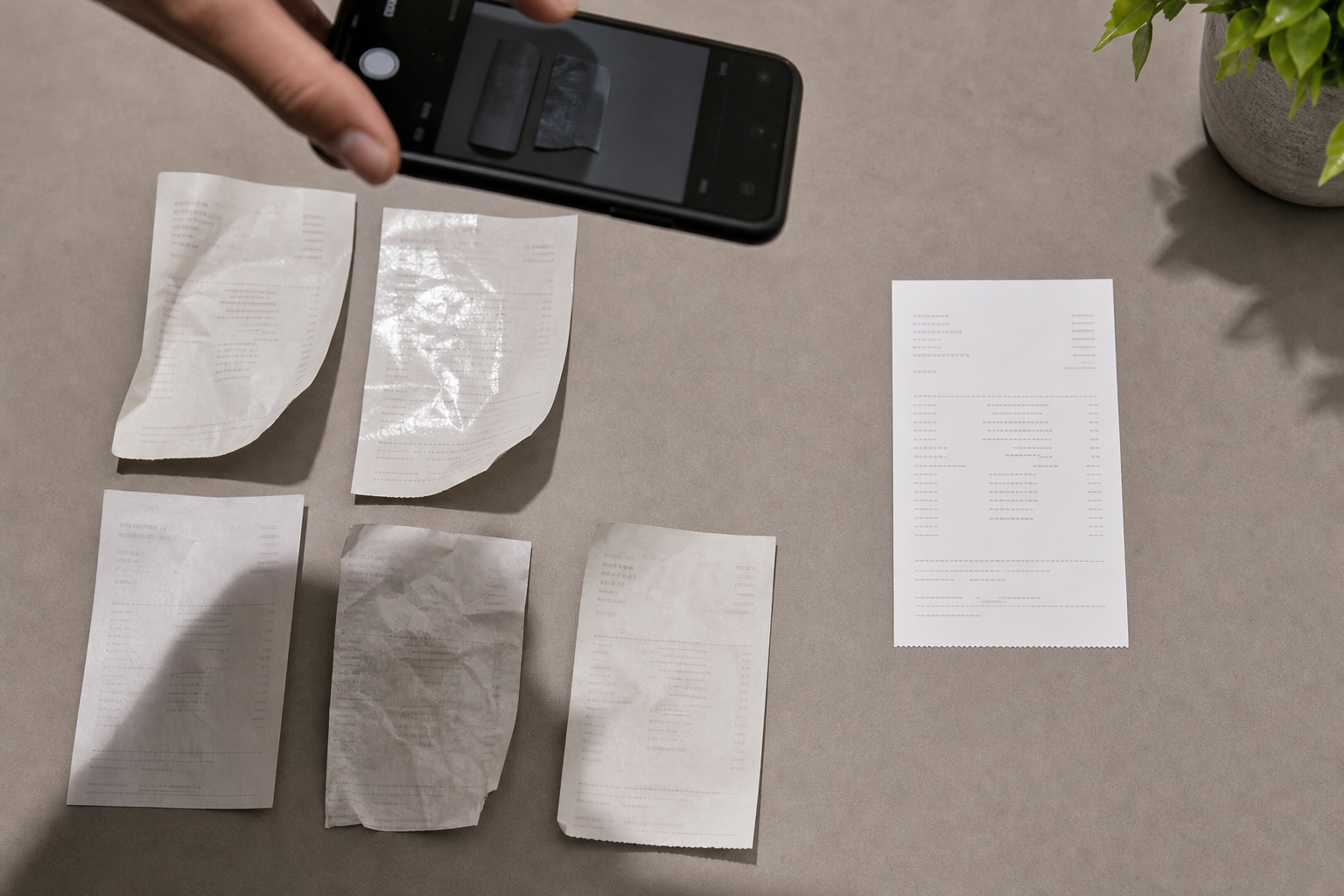
Thermal paper is not ink on paper in the usual sense. The visible marks come from heat-reactive coating, which means receipts can degrade from light, heat, friction, and time. A receipt that looked clear at the checkout counter may become pale gray two weeks later. If someone folded it into a wallet, the crease can erase part of a tax line. If it sat near a dashboard or heater, whole sections may become blotchy.
OCR tools struggle because they need contrast, stable character shapes, and predictable lines. Thermal receipts often break all three rules at once. The paper is narrow, the text is tiny, the baseline curves when the receipt curls, and the background may be uneven. Add a phone photo taken at an angle and the OCR engine may confuse numbers, drop decimals, or read totals from the wrong line.
The most common failure patterns are predictable:
| Receipt problem | What OCR may do | Audit risk |
|---|---|---|
| Faded gray print | Drops merchant name or line items | Reviewer cannot confirm vendor or purpose |
| Curled edges | Cuts off dates, totals, or card details | Expense may need manual follow-up |
| Glare from glossy coating | Creates blank white bands | Tax and total fields disappear |
| Dark background | Blends receipt edges into table | Crop may remove important data |
| Skewed phone angle | Warps narrow columns | Amounts and quantities become unreliable |
| Handwritten notes | Mixes typed and handwritten text | OCR output becomes noisy |
The fix is not one magic enhancement. It is a sequence: capture or recapture when possible, crop tightly, improve contrast without destroying faint text, resize for readability, run OCR, review critical fields, then package the original and cleaned versions appropriately.
Start With a Receipt Intake Rule
A receipt workflow becomes much easier when everyone follows a few capture rules before the audit team ever sees the files. You do not need a formal studio. You need consistency.
Ask contributors to photograph each receipt on a plain, matte surface with the entire receipt visible. A dark gray or muted blue surface often works better than pure white because white receipts can disappear into a white background. The phone should be parallel to the receipt, not tilted from the top. Overhead shadows should be avoided, and flash should usually be off unless the environment is extremely dim.
For long receipts, one full-length photo is useful for context, but it may not be enough for OCR. A second closer photo of the top section and a third closer photo of the totals section can save time later. This is especially important for restaurant, hotel, fuel, parking, taxi, hardware, and grocery receipts where the critical details are spread across the top, middle, and bottom.
Use this intake checklist:
- Capture the full receipt, including all edges.
- Keep the phone square to the paper.
- Place the receipt on a plain matte background.
- Avoid fingers covering corners or totals.
- Take an extra close-up of the total if the receipt is long.
- Photograph the receipt before folding it.
- Keep the original file until the audit is complete.
If contributors already sent imperfect images, do not immediately ask for recapture. First check whether the receipt contains the required fields. Recapture requests slow down the process, so reserve them for missing totals, missing dates, unreadable vendor names, or cut-off payment evidence.
Sort Files Before Editing
Before cleanup, separate receipt photos into three groups: usable, repairable, and recapture needed.
Usable files are already legible. They may need only crop, resize, and compression. Repairable files have skew, weak contrast, or background clutter, but the important fields are visible to the human eye. Recapture-needed files are missing data, severely blurred, overexposed, or cropped through critical lines.
This triage step protects the audit team from wasting time on hopeless images. It also prevents over-editing clean receipts. Every adjustment introduces the possibility of changing the visual impression of the document. The safest edit is the smallest edit that makes the receipt readable.
A practical file naming pattern helps too. Use a stable convention such as:
YYYY-MM-DD_vendor_amount_submitter_01-original.jpg
Then keep edited versions connected:
YYYY-MM-DD_vendor_amount_submitter_01-cleaned.jpg
YYYY-MM-DD_vendor_amount_submitter_01-ocr.txt
YYYY-MM-DD_vendor_amount_submitter_packet.pdf
Do not rely on phone filenames like IMG_4837.jpg. They are fine for capture, but poor for audit review. When dozens of receipts arrive, stable names reduce duplicate review and make exceptions easier to discuss.
Crop for Evidence, Not Beauty
A receipt crop should remove distracting background while preserving the evidence. Leave a small border around the receipt so reviewers can see that the edges are intact. Cropping exactly to the printed text can make the image look suspicious and may remove context such as torn paper, attached notes, or the bottom line where tax and total appear.
If the receipt is skewed, straighten it only enough to improve readability. Avoid aggressive perspective correction that stretches character shapes. Some OCR engines handle mild skew better than distorted text.
For most receipt photos, the crop priorities are:
- Keep the full paper edge visible.
- Keep merchant name, date, subtotal, tax, tip, and total visible.
- Remove unrelated desk clutter.
- Keep handwritten audit notes only if they are part of the record.
- Avoid cutting off the payment method area.
If you need to crop multiple receipt images quickly, use a consistent output size only when the receipts are similar. For mixed receipts, preserve natural proportions. A fuel receipt, a restaurant receipt, and a parking kiosk ticket should not be forced into the same shape if it makes one of them harder to read.
Improve Contrast Without Losing Faint Text
Contrast is the most delicate part of thermal receipt cleanup. Increasing contrast can make dark print more readable, but it can also erase faint gray characters or turn background noise into false text. The goal is not to create a dramatic black-and-white document. The goal is to help human reviewers and OCR read the same fields.
Start with exposure and contrast before using any sharpness or filter effect. If the whole image is too dark, brighten it slightly. If the receipt paper is gray and the text is pale, increase contrast modestly. If the background has a color cast, convert to grayscale only after confirming it does not hide faint marks.
Avoid these edits:
- Heavy sharpening that creates halos around tiny numbers.
- Extreme black-and-white thresholding on faded receipts.
- Beauty filters, texture smoothing, or background blur.
- Cropping out torn or stained areas that explain missing text.
- Replacing receipt backgrounds with synthetic white space.
For receipts with very faint text, a slightly flat image may be better than a punchy one. Human reviewers can often read pale gray text when the OCR cannot. Keep the original image as backup and use the cleaned version for extraction.
ConvertAndEdit’s image tools can help with the practical parts of this workflow. Use /resize-image when phone photos are huge but need consistent working dimensions, /compress-image when packets must be small enough to email or upload, and /convert-image when a mixed set of HEIC, PNG, and JPEG files needs to become a predictable format before review.
Resize for OCR and Review
Phone cameras often produce receipt photos far larger than needed. A 12-megapixel image may be useful for archiving, but it can slow down uploads, OCR, and PDF packaging. On the other hand, resizing too small can blur tiny receipt text.
A good working rule is to keep the receipt text visibly sharp at 100 percent zoom. For narrow receipts, the cleaned image usually does not need to be enormous, but the text columns should not collapse. If you can no longer distinguish 8 from 3, or a decimal point from dust, the image is too small or too compressed.
Use this decision table:
| Situation | Recommended action | Reason |
|---|---|---|
| Huge phone photo with lots of background | Crop first, then resize | Cropping preserves useful pixels on the receipt |
| Long receipt with tiny line items | Keep higher resolution | OCR needs character detail |
| Simple parking receipt | Moderate resize is usually safe | Fewer fields and larger text |
| Faded receipt | Avoid aggressive compression | Compression artifacts can hide pale text |
| Packet for upload limit | Compress after OCR review | Do not optimize before checking extraction |
The order matters. Crop before resizing. Clean before OCR. Compress after critical fields are verified. If you compress too early, artifacts can become part of the OCR problem.
Run OCR in a Field-Oriented Way
OCR output from receipts is rarely perfect. Treat it as a searchable aid, not as the final accounting truth. The visual receipt remains the source of evidence. The extracted text should help reviewers find and compare fields faster.
Use /image-ocr to extract text from the cleaned receipt image. Then review the OCR result against the image and mark the key fields:
- Merchant or vendor name
- Transaction date
- Transaction time, if required
- Subtotal
- Tax
- Tip or service charge
- Total
- Currency
- Payment method or card last four digits, if present
- Invoice, order, or receipt number
Receipts contain many numbers, and OCR can read the wrong one as the total. A fuel receipt may show gallons, price per gallon, subtotal, tax, and total. A restaurant receipt may show suggested tip amounts near the actual total. A hotel folio may include daily room rates, deposits, taxes, and balance due. Never trust the largest number automatically.
A practical review note can look like this:
OCR checked: vendor readable, date readable, total verified visually, tax line faint but visible, card last four present.
For audit work, that note is often more useful than a raw block of OCR text. It tells the next reviewer what was checked and where uncertainty remains.
Handle Long, Curled, and Faded Receipts
Some receipts need special handling. Long grocery or hardware receipts may be readable in sections but impossible to capture sharply as one image. Curled receipts may cast shadows along both sides. Faded receipts may require multiple versions to make different fields readable.
For long receipts, keep the full receipt photo for context, then add section images. Name them in order:
receipt-01-full.jpg
receipt-01-top.jpg
receipt-01-middle.jpg
receipt-01-total.jpg
Run OCR on the section images, not only the full image. The full image proves completeness. The section images improve extraction.
For curled receipts, flatten the paper without covering data. A clear acrylic sheet can help during capture, but it may introduce glare. If using one, place the light source at an angle and check that no reflection crosses the total line. If a receipt curls inward, photograph it from slightly farther away to keep all edges in focus, then crop.
For faded receipts, make two cleaned versions if necessary: one optimized for the header and one optimized for the total. This is acceptable as long as the original is kept and the versions are clearly named. Do not present enhanced images as replacements for the original record. Present them as readability aids.
Build the Audit Packet
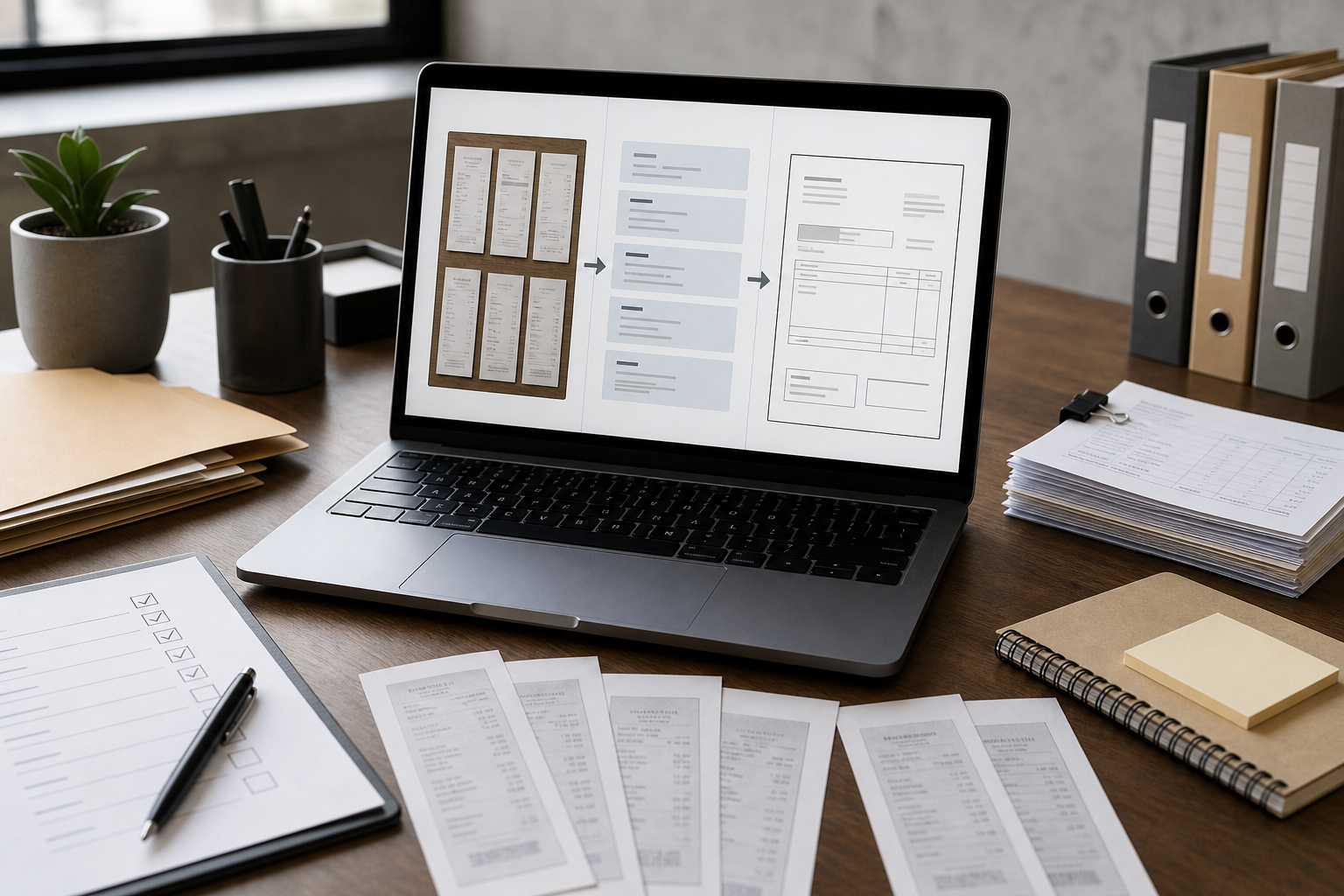
Once receipts are cropped, cleaned, resized, and OCR-checked, package them for review. The packet should answer the reviewer’s basic questions without forcing them to open dozens of loose files.
A clean packet structure might include:
- Cover page or summary sheet created outside the image workflow.
- Receipt images in transaction order.
- OCR text or field notes after each receipt, if needed.
- Exception page listing missing, faint, or disputed fields.
- Original images retained separately for backup.
Use /image-to-pdf to convert cleaned receipt images into a PDF packet. If receipts are already grouped by employee, trip, project, or month, create one packet per group. If you receive multiple PDFs from different submitters, use /pdf-merge to combine them into a review set after confirming the order.
The packet should be compact but not blurry. Compress the source images carefully, then check the final PDF at normal zoom and 150 percent zoom. The total, date, and vendor should still be readable. If upload limits are strict, reduce image dimensions slightly before applying heavy compression. A smaller clean image often reads better than a large image with harsh compression artifacts.
Use an Exception Log
The exception log is where the workflow becomes audit-friendly. Instead of burying uncertainty in a folder of images, collect it in one place.
An exception log can be simple:
| File | Issue | Suggested action |
|---|---|---|
2026-04-18_parking_18-00_alex.jpg | Date faint but readable | Accept if matched to card statement |
2026-04-22_cafe_42-15_mina.jpg | Tip line unclear | Ask submitter to confirm total |
2026-04-25_hardware_118-90_sam.jpg | Bottom cut off | Request recapture or statement match |
This is useful because it separates document processing from policy decisions. The person cleaning receipts should not have to decide whether an expense is allowed. They should identify whether the evidence is readable enough for the reviewer to decide.
The exception log also prevents duplicate follow-up. If three reviewers notice the same faint tax line, they can see that it was already flagged.
Preserve Originals and Track Edits
Receipt cleanup should be reversible. Keep the original file, the cleaned file, and the final packet. If storage is limited, keep originals at least until the audit period closes or until the organization’s retention policy allows deletion.
A lightweight folder structure works well:
/receipts/originals/
/receipts/cleaned/
/receipts/ocr/
/receipts/packets/
/receipts/exceptions/
Do not overwrite originals. If a file must be revised, add a version suffix. For example:
2026-04-18_parking_18-00_alex_cleaned-v2.jpg
This may feel tedious, but it prevents confusion when a reviewer asks why a total looks clearer in one version than another. You can point back to the original and explain that the cleaned file was used for readability.
Quality Control Before Sending
Before delivering the packet, do a short final check. This should take minutes, not hours, but it catches the mistakes that cause audit delays.
Check every packet for these items:
- The PDF opens without missing pages.
- Receipt order matches the summary or expense report.
- Each receipt has a visible vendor, date, and total, or an exception note.
- OCR text does not replace visual review for critical amounts.
- File size meets upload or email limits.
- Originals are retained outside the final packet.
- Duplicate receipts are marked or removed according to the review process.
Pay special attention to duplicates. A submitter may photograph the same receipt twice, once blurry and once clear. Keep the better image in the packet and move the weaker one to backup, unless your audit process requires both. Duplicate totals can create confusion when reviewers reconcile against expense reports.
A Practical End-to-End Workflow
Here is the full receipt audit workflow in a compact sequence:
- Collect receipt photos and keep the originals.
- Rename files using date, vendor, amount, and submitter where known.
- Sort images into usable, repairable, and recapture-needed groups.
- Crop each receipt while preserving paper edges and key fields.
- Adjust exposure and contrast conservatively.
- Resize only after cropping and cleanup.
- Run OCR on cleaned images with
/image-ocr. - Verify vendor, date, tax, tip, total, and payment details visually.
- Convert cleaned receipt images to PDF with
/image-to-pdf. - Merge grouped packets with
/pdf-mergewhen needed. - Compress only after confirming readability.
- Add an exception log for missing or uncertain fields.
- Retain originals until the review period is complete.
This sequence keeps the workflow practical. It does not require specialized document scanning hardware, but it still respects the receipt as an audit record.
Common Mistakes to Avoid
The biggest mistake is treating OCR output as if it were the receipt. OCR is helpful, but receipts are full of ambiguous numbers. Always verify the key fields against the image.
Another mistake is over-cleaning. A receipt image that looks crisp at first glance may have lost faint tax or card details during editing. If the cleaned version removes information that exists in the original, the edit has gone too far.
Teams also run into trouble when they combine everything into one giant PDF too early. Keep receipts grouped in a way that matches the review process: by submitter, month, project, trip, or cost center. Smaller packets are easier to correct when one receipt needs replacement.
Finally, avoid compressing the packet until the end. Compression is useful, especially when portals have upload limits, but it should be the last step after OCR and visual review. For final delivery, /compress-image can help reduce source image weight before PDF creation, but always inspect the result.
When to Request a New Receipt Photo
Not every bad image needs a recapture request. If the vendor, date, and total are readable, the receipt may be good enough for review even if line items are imperfect. But some problems should be escalated quickly.
Request a new image when:
- The total is cut off or unreadable.
- The transaction date is missing and cannot be matched elsewhere.
- The image is blurred across the whole receipt.
- Glare covers the merchant name or total.
- The receipt is photographed on a busy background and edges are unclear.
- The submitter captured only the middle section of a long receipt.
- The amount in the expense report does not match the visible receipt total.
When requesting recapture, be specific. Instead of saying, “Please resend,” say, “Please send a new photo with the full bottom section visible, including subtotal, tax, tip, and total.” Specific requests get better results and reduce back-and-forth.
Make the Workflow Repeatable
The best receipt audit workflow is boring in the right way. Files arrive, they are sorted, cleaned, checked, packaged, and reviewed with the same rules each time. That consistency matters more than any single enhancement trick.
For small teams, a shared checklist and consistent file naming may be enough. For larger teams, create a short intake guide with example photos: one acceptable, one too blurry, one cut off, one with glare. People learn receipt capture faster from visual examples than from policy text.
ConvertAndEdit fits into the middle of this process: resize oversized phone images, convert mixed formats, extract OCR text, compress final assets, and turn cleaned receipt images into PDF packets. The tools do not replace accounting judgment, but they make the document side of the work cleaner and less repetitive.
Thermal receipts will always be imperfect evidence. They fade, curl, and resist automation. A careful workflow gives reviewers the best possible version of the record while preserving the original. That is the balance expense audits need: readable enough to process, honest enough to trust, and organized enough to review without hunting through scattered photos.