Mobile Bug Report Screenshot Packs for Faster QA Triage
A practical guide for turning messy mobile bug screenshots into compact, readable QA evidence packs with cropping, OCR checks, PDF assembly, and clean handoff habits.
Mobile Bug Report Screenshot Packs for Faster QA Triage
A mobile bug report often starts with a screenshot, but one screenshot is rarely enough. The first image may show the symptom, while the second proves the screen state, the third captures the device chrome, and the fourth reveals the error message hidden behind a modal. By the time the report reaches QA triage, product, design, and engineering may all be looking at different clues.
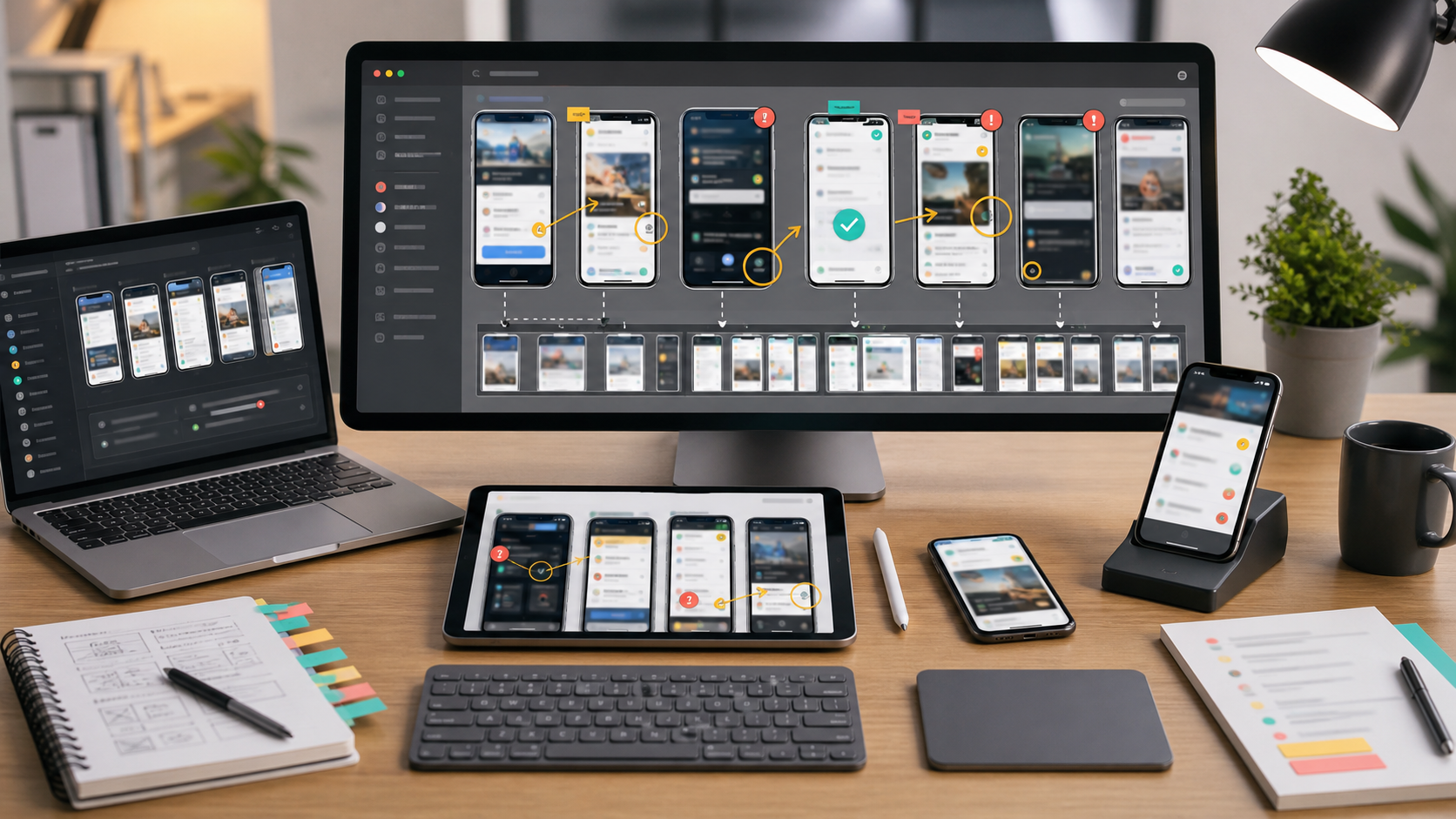
That is where a small screenshot pack helps. Instead of attaching a random pile of images to a ticket, you prepare a tight visual packet: the full screen, the cropped defect, the surrounding state, any system-level detail, and a lightweight PDF version for people who review reports outside the issue tracker. The goal is not to make evidence decorative. The goal is to make the bug easier to reproduce, prioritize, assign, and verify.
This guide focuses on a niche but common problem: mobile app bug screenshots that are visually busy, inconsistently sized, too large to share, or difficult to search later. It is written for QA leads, support engineers, product managers, and small teams that do not have a dedicated test evidence system. You can use the same habits whether you file bugs in Jira, Linear, GitHub Issues, Trello, Notion, or a shared folder.
Why Mobile Bug Screenshots Need More Structure
Desktop screenshots are usually wide, stable, and easy to skim. Mobile screenshots are different. They are narrow, tall, device-specific, and often full of content that is irrelevant to the defect. A bug in a checkout button may be surrounded by account names, notification bars, gesture indicators, promotional banners, and dynamic product content.
The problem gets worse when screenshots come from several testers. One tester uses a simulator, another uses a physical Android phone, another sends a compressed chat image, and another records a screen video but only extracts a blurry frame. The result is evidence that technically exists but is slow to use.
A structured pack solves four triage problems:
- Reviewers can see the defect without zooming repeatedly.
- Engineers can compare the local symptom against the full screen state.
- Product and design can evaluate severity without opening every attachment.
- Future regression checks have a stable visual reference.
This matters most for bugs that depend on layout, text wrapping, localization, permissions, logged-in state, edge-case data, or browser-like webviews inside mobile apps. Those bugs are often real but hard to communicate in a single image.
The Minimum Evidence Set for a Mobile Bug
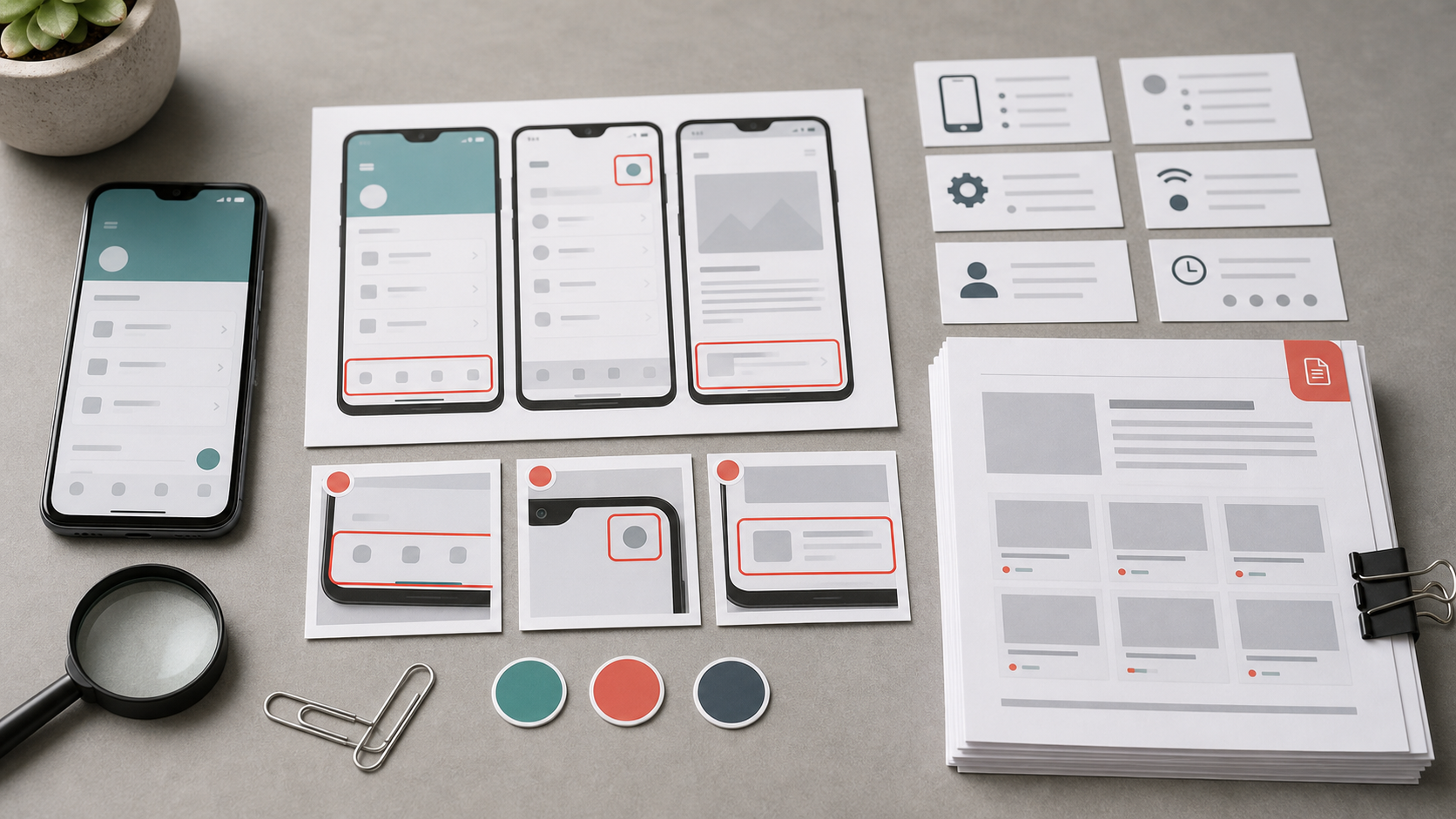
For most mobile UI bugs, a useful screenshot pack contains five pieces. You do not need a large archive. You need just enough context to remove ambiguity.
| Evidence item | What it proves | When to include it |
|---|---|---|
| Full-screen capture | The complete visible state at the moment of failure | Almost always |
| Cropped defect view | The exact UI area that is wrong | Always for visual, spacing, or text issues |
| Previous step screen | How the user reached the broken state | When reproduction is not obvious |
| Device or browser context | OS, viewport, orientation, safe area, keyboard, or webview behavior | When device differences matter |
| Expected reference | What the screen should look like | When comparing platforms, builds, or designs |
The full-screen capture should remain untouched except for privacy redaction. It is the anchor image. If someone questions whether a crop removed important context, the full screen answers that question.
The cropped defect view is the fast-reading image. It should remove empty space, unrelated content, and background noise while keeping enough surrounding UI to prove where the issue appears. If a button is clipped, keep the label above it and the container around it. If text wraps badly, include the column or card boundary.
The previous step screen is useful when the bug depends on state. For example, a failed payment page may not be enough if the actual trigger was a coupon applied on the prior screen. The previous step does not need annotation. It simply needs to exist.
Device context matters when the defect is likely tied to screen size, orientation, notch areas, keyboard behavior, dynamic type, dark mode, locale, or operating system version. Capture the system chrome when it provides evidence, but crop it away when it distracts.
Expected reference can be a screenshot from another platform, a previous release, a design handoff, or a known-good environment. It should be clearly separate from the broken screenshot in the ticket description, because reviewers should not have to guess which image is expected and which is actual.
Capture Rules That Prevent Confusion Later
The best preparation starts before editing. A screenshot captured with stable habits needs less explanation later.
First, capture the entire screen before taking close-ups. Crops are excellent for attention, but they should not be the only evidence. A cropped image can hide whether a keyboard was open, whether the screen was scrolled, or whether an overlay was active.
Second, avoid chat-app screenshots of screenshots. Messaging apps often recompress images, strip filenames, and alter color. If testers must send evidence through chat first, ask them to also upload originals to the ticket or shared folder.
Third, preserve the order of events. A sequence named step-01, step-02, and step-03 is easier to understand than a folder full of timestamped camera roll names. Even if your issue tracker reorders attachments, the filenames can preserve the path.
Fourth, take a fresh screenshot after opening the keyboard, changing orientation, switching themes, or altering font size. Many mobile bugs happen only after the viewport changes. The screenshot should show the actual state that created the symptom.
Fifth, be careful with personal data. Mobile app screenshots often include names, addresses, payment snippets, location indicators, message previews, or account IDs. Redact only the sensitive fields, not the whole region, or the evidence may lose meaning.
Preparing Images Without Damaging the Evidence
Editing a QA screenshot is different from editing a marketing image. You are not trying to make the app look better. You are trying to make the evidence legible and honest.
Start by duplicating the original image. Keep one untouched version in case the ticket needs a raw capture later. Then prepare a reviewed version for triage.
Use cropping to focus attention. ConvertAndEdit's resize image tool is useful when screenshots arrive in inconsistent dimensions or when you need a smaller preview that still keeps the important UI readable. Keep phone screenshots proportional; stretching a screenshot can make spacing bugs look worse or better than they really are.
Use compression carefully. Thin UI lines, small labels, icon strokes, and red validation messages can degrade quickly when compression is too aggressive. If the file is too large for your ticket system, use compress image and inspect the result at 100 percent zoom before attaching it. A smaller file is helpful only if it still proves the bug.
Use format conversion when needed. PNG is usually safest for screenshots because it preserves sharp UI edges. JPEG can be acceptable for camera photos of devices, but it may blur small app text. WebP can be compact, though some older tools and ticket previews may handle it inconsistently. If your team receives mixed formats, convert image can standardize the set before assembly.
Avoid filters, sharpening presets, color enhancements, and beautification. They can alter the appearance of gradients, contrast, disabled states, or shadows. For QA evidence, the image should look like the user saw it.
A Compact Screenshot Preparation Checklist
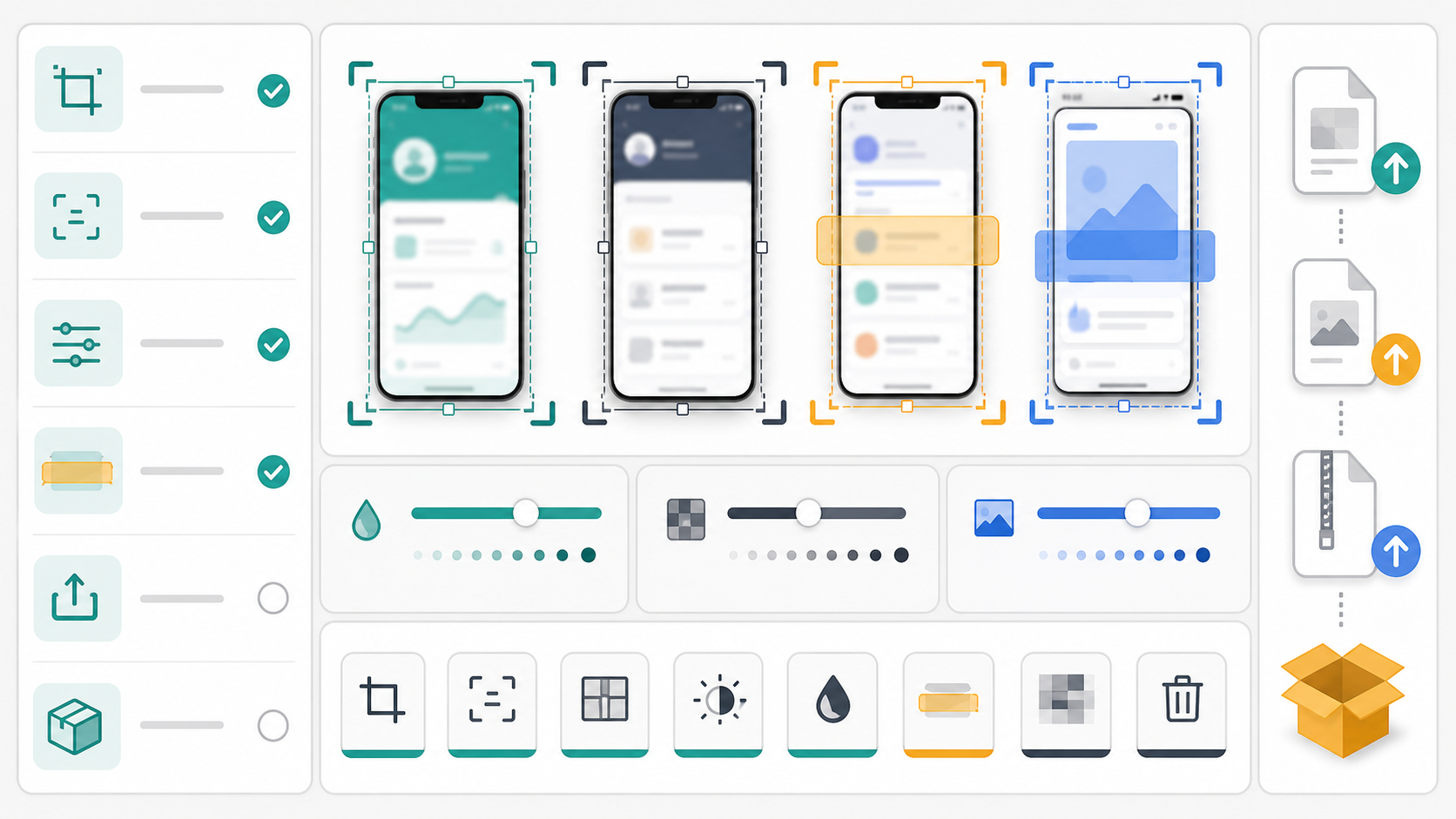
Use this checklist before attaching images to a bug report. It is intentionally short enough to run during normal triage.
| Check | Pass condition |
|---|---|
| Original preserved | Raw screenshot is saved or still available |
| Defect visible | The bug is obvious without guessing |
| Context included | Full screen or nearby UI explains where it happened |
| Sensitive data removed | Personal, payment, and private account details are hidden |
| File size reasonable | Images open quickly in the issue tracker |
| Text readable | Labels, errors, and values survive compression |
| Sequence clear | Filenames or ticket notes show the order of steps |
| Expected state included | Comparison image is present when useful |
The most common failure is over-cropping. A screenshot that only shows three broken pixels may prove that something is wrong, but not where the user encountered it. Keep one or two parent UI elements in the crop. For example, include the field label with a broken input, the card boundary around a clipped title, or the tab bar beneath a layout issue.
The second common failure is compressing before cropping. If the original screenshot is huge, crop first, then compress. Compression works better when the file contains less irrelevant detail, and you are less likely to blur the one area that matters.
The third common failure is treating dark mode and light mode as interchangeable. If the bug is about contrast, readability, disabled states, shadows, or overlays, capture both modes only when both are relevant. Otherwise, one precise mode is better than two vague images.
OCR Checks for Error Messages, Codes, and Tiny UI Text
Many mobile bugs include important text: error codes, validation messages, transaction IDs, server messages, build labels, coupon codes, or localized strings. If the text is small or partially obscured, reviewers may misread it.
An OCR pass is a practical way to catch that before the ticket spreads. Use image OCR on the screenshot or a cropped section, then compare the extracted text against what you can see. The goal is not to replace the screenshot. The goal is to add searchable text to the bug report and reduce transcription mistakes.
OCR is especially helpful for:
- Error codes shown in toast messages or modals.
- Long validation messages in forms.
- Localized copy that may wrap or truncate.
- Debug labels from staging builds.
- Product IDs, order IDs, or reference numbers after redaction.
- Accessibility labels captured in test overlays.
Do not blindly trust OCR output. Mobile screenshots can contain icons, brand marks, small numerals, and overlapping text. Copy the useful extracted text into the ticket, but mark uncertain characters clearly. For example, if a code could be O or 0, add a note rather than pretending the OCR result is definitive.
If the screenshot includes private user data, crop to the relevant error message before running OCR. That keeps the extracted text focused and reduces the chance that unrelated personal details end up in the ticket body.
Building a One-Page PDF Packet
A PDF packet is useful when a bug needs cross-functional review, external vendor escalation, release sign-off, or attachment to a test summary. It should not replace the ticket. It should give reviewers a compact visual record they can open without downloading five separate images.
For most bugs, a one-page PDF is enough. Put the full-screen capture first, followed by one or two cropped details and the expected reference if needed. If you have multiple pages, use them for distinct states, not for minor variations.
ConvertAndEdit's image to PDF tool is a direct way to turn prepared screenshots into a shareable packet. Before exporting, order the images as a reader would inspect them: actual full screen, actual crop, previous step, expected reference. This mirrors how triage usually thinks: what happened, where it happened, how it happened, and what should have happened.
For longer vendor evidence sets, separate issues into separate PDFs instead of creating one large packet with unrelated bugs. A payment button layout bug and a push notification permission bug may belong to the same release, but they do not belong in the same evidence document unless they are causally linked.
If the packet includes existing PDFs, such as a design reference or test run summary, PDF merge can combine them with the screenshot packet. Keep the final document lean. A QA evidence PDF is most useful when it opens quickly and answers one question well.
Naming Files So People Can Sort Them
File naming is not glamorous, but it saves time when a bug reappears weeks later. A good filename lets someone understand the screenshot before opening it.
Use a pattern like this:
BUG-1842-ios17-checkout-address-overlap-step-01-full.png
BUG-1842-ios17-checkout-address-overlap-step-02-crop.png
BUG-1842-ios17-checkout-address-overlap-step-03-expected.png
The exact pattern can vary, but include the bug ID when available, platform or device context, a short screen name, the evidence role, and the sequence number. Avoid vague names like image1.png, screenshot-final.png, or new-bug.png.
For teams without ticket IDs at capture time, use a temporary prefix:
triage-2026-07-07-android-cart-total-step-01-full.pngOnce the ticket exists, you can rename the final packet or leave the original capture names intact and reference the ticket in the folder name. The important part is that related images stay together.
Decision Table: Screenshot, Video, GIF, or PDF?
Not every bug is best explained with the same evidence format. Use the format that matches the behavior.
| Bug type | Best evidence | Why |
|---|---|---|
| Static layout issue | Full screenshot plus crop | Shows exact placement and context |
| Flicker or animation glitch | Short video or GIF plus key screenshot | Motion matters more than still state |
| Form validation error | Screenshot plus OCR text | Error copy must be searchable |
| Multi-step state bug | Ordered screenshots or PDF packet | Sequence matters |
| Vendor escalation | PDF packet | Easy to review outside your tracker |
| Tiny visual regression | High-quality PNG crop | Compression can hide the defect |
| Subtitle or caption issue in app video | Video evidence plus screenshot | Timing and frame state both matter |
For motion bugs, a GIF can be useful if the loop is short and the problem is visual. Avoid long, heavy GIFs in tickets. They can slow the page and distract from the written reproduction steps. If you do need a compact visual loop, a tool like GIF maker can help turn a short capture into something easier to skim.
For static bugs, do not force a video. Reviewers often pause videos repeatedly to inspect the same frame. A clean screenshot pack is faster.
Privacy Redaction Without Destroying Repro Clues
Mobile app screenshots frequently contain sensitive information. Redaction is necessary, but clumsy redaction can remove the very evidence needed to debug the issue.
Redact names, emails, phone numbers, addresses, payment fragments, personal messages, authentication tokens, private account IDs, and precise location details. Keep UI labels, field positions, button states, validation messages, and layout boundaries visible.
For example, if a shipping address pushes a button below the fold, do not cover the entire address card. Replace the personal lines with blocks while preserving the number of lines and the rough text length. If a long email causes truncation, redact the characters but leave the length visible, because length may be the trigger.
When a bug depends on user-generated content, create a sanitized reproduction case if possible. If that is not possible, explain in the ticket that the redacted content length or shape is relevant. This prevents an engineer from testing with a short placeholder and concluding the bug cannot be reproduced.
Common Mistakes That Slow QA Triage
The first mistake is attaching too much. Ten screenshots with no order can be slower than two good screenshots with clear labels. More evidence is useful only when each item answers a different question.
The second mistake is using annotations that cover the defect. Arrows and boxes can help, but they should sit outside the broken area or use enough spacing that the original UI remains visible. If an annotation changes the apparent layout, provide an unannotated crop as well.
The third mistake is mixing expected and actual images without labels in the ticket text. If two screenshots look similar, state which one is broken. A reviewer should not have to infer that from upload order.
The fourth mistake is ignoring zoom. A screenshot may look readable on your large monitor and unreadable in the issue tracker preview. Open the ticket after attaching images and inspect it as a reviewer would.
The fifth mistake is losing the raw capture. Edited evidence is easier to read, but raw captures are useful when someone needs to verify device chrome, exact dimensions, or metadata.
A Practical Template for the Ticket Body
Use a short, consistent structure in the ticket so the screenshot pack has a place to land.
Observed:
The checkout address field overlaps the primary payment button on iPhone 15 Pro, iOS 17, portrait orientation.

Expected:
The payment button remains below the address field with normal spacing and is fully tappable.

Evidence:
1. Full screen: shows the complete checkout state.
2. Crop: shows overlap between address field and payment button.
3. Expected reference: same screen on Android, where spacing is correct.
4. OCR note: validation message reads "Address line 2 is too long".

Reproduction notes:
Occurs after entering a long apartment value and dismissing the keyboard.
This template keeps the visual evidence connected to a claim. It also reduces back-and-forth because each attachment has a role.
Final Review Before Sending the Pack
Before you send the bug onward, do one final pass as if you are seeing it for the first time. Can you identify the broken screen in five seconds? Can you tell which image is actual and which is expected? Can you read the important text without zooming twice? Is private data hidden? Is the file size reasonable? Does the ticket still include written reproduction steps?
A good mobile bug screenshot pack is not fancy. It is compact, readable, ordered, and honest. It preserves the raw state, highlights the defect, protects sensitive details, and gives every reviewer enough context to make a decision.
When teams treat screenshots as structured evidence instead of loose attachments, triage becomes calmer. Fewer people ask for clarification. Fewer bugs get misassigned. Regressions are easier to verify. And when a small visual defect turns out to be a release blocker, the evidence is already clear enough for the people who need to act on it.