Quiet Batch Image Conversion Workflow for Small Ecommerce Catalogs
A practical image conversion workflow for small ecommerce teams that need consistent product photos, lean file sizes, clean names, and fewer upload mistakes.

Quiet Batch Image Conversion Workflow for Small Ecommerce Catalogs
Small ecommerce catalogs rarely fail because one product image is bad. They fail because image work becomes noisy. A founder exports five photos from a phone, a freelancer sends twenty PNGs with random names, a supplier provides compressed JPEGs inside a ZIP file, and someone uploads the wrong version because every file looks almost identical in a folder.
That kind of mess is not dramatic, but it creates real friction. Product pages load slower. Variant images do not match. Transparent backgrounds disappear. Marketplace uploads reject files for the wrong dimensions. A sale goes live with one blurry thumbnail because nobody had a reliable way to separate source images from upload-ready images.
This guide is for small teams that manage ecommerce images without a full digital asset management system. The goal is a quiet workflow: predictable folders, clear conversion choices, reusable checks, and a repeatable path from raw product photos to clean catalog assets. You can do it with simple browser tools, a naming convention, and a short decision process that does not require design software for every image.
The workflow is especially useful when you publish seasonal drops, add supplier products weekly, maintain a marketplace catalog, or prepare image sets for Shopify, WooCommerce, Etsy-style marketplaces, Amazon-style listings, or custom storefronts.
What Makes Ecommerce Batch Conversion Different
Batch conversion for ecommerce is not only about changing file formats. It is about keeping product trust intact while making images easier to publish.
A product image has several jobs at once. It has to show the item clearly, load quickly, match the rest of the catalog, survive cropping on mobile, and avoid confusing the customer. A file can technically be converted correctly and still be wrong for the store. A huge PNG might preserve quality but slow down collection pages. A tiny JPEG might pass an upload form but make texture details unreadable. A transparent WebP might look perfect in a modern browser but fail in a marketplace that expects JPEG.
Small teams usually need three outputs from the same source image set:
- A clean master version for future editing.
- A storefront version for product pages and collection grids.
- A lightweight version for thumbnails, emails, ads, or support docs.
The mistake is trying to create all three casually in one folder. Once original files, edited files, converted files, and rejected files sit together, the team starts making decisions by guesswork. A quiet workflow separates the stages so every file has a clear status.
The Three-Folder System That Prevents Most Mistakes

Use three working folders for every catalog batch: 01-source, 02-working, and 03-upload-ready. This sounds basic, but it solves more problems than any naming trick.
The 01-source folder is where untouched files live. These might come from a camera, phone, supplier ZIP, photographer delivery, or exported design mockup. Do not resize, compress, crop, or rename destructively inside this folder. If a mistake happens later, this is where you return.
The 02-working folder is where you normalize files. This is where you rotate images, remove obvious duplicates, convert unusual formats, fix transparency issues, crop inconsistent borders, or prepare a standard base size. Files in this folder are not final. They are clean enough to process.
The 03-upload-ready folder contains only files that can be uploaded as-is. If a file in this folder still needs cropping, renaming, compression, or approval, it does not belong there.
For a small catalog update, the folder might look like this:
spring-socks-drop/
  01-source/
  02-working/
  03-upload-ready/
  notes.txt
If you handle multiple channels, add subfolders inside 03-upload-ready:
03-upload-ready/
  store-product-pages/
  store-thumbnails/
  marketplace-jpeg/
  email-lightweight/
This prevents a common ecommerce mistake: uploading a channel-specific image to the wrong place. A marketplace file may need a white background and strict dimensions. A direct storefront file may look better as WebP with a softer crop. An email thumbnail may need much stronger compression than either of those.
The rule is simple: the folder name should tell a teammate what the file is for before they open it.
Start With an Intake Pass, Not a Conversion Pass
Before converting anything, review the batch once. The intake pass is not editing. It is sorting and risk detection.
Look for these issues:
- Mixed file types, such as HEIC, PNG, JPEG, WebP, TIFF, and screenshots in one delivery.
- Duplicate angles with different names.
- Images that are much smaller than the rest.
- Supplier images with logos, borders, watermarks, or embedded labels.
- Transparent files that appear on a black or white preview but may have messy edges.
- Product variants that do not have the same number of angles.
- Lifestyle images mixed with cutout product images.
Move obvious rejects to a rejected folder inside 01-source or mark them in a tracking sheet. Do not delete them during intake unless your team has a separate backup system. A rejected image may still be useful as evidence when asking a supplier for replacements.
The intake pass should answer four questions:
- What formats did we receive?
- What image types do we need to publish?
- Which files are too risky to batch process blindly?
- What is the minimum manual cleanup needed before conversion?
This is where small teams save time. If five images have transparent edges that need cleanup, identify them now instead of discovering the issue after uploading thirty product pages.
A Conversion Decision Table for Catalog Teams
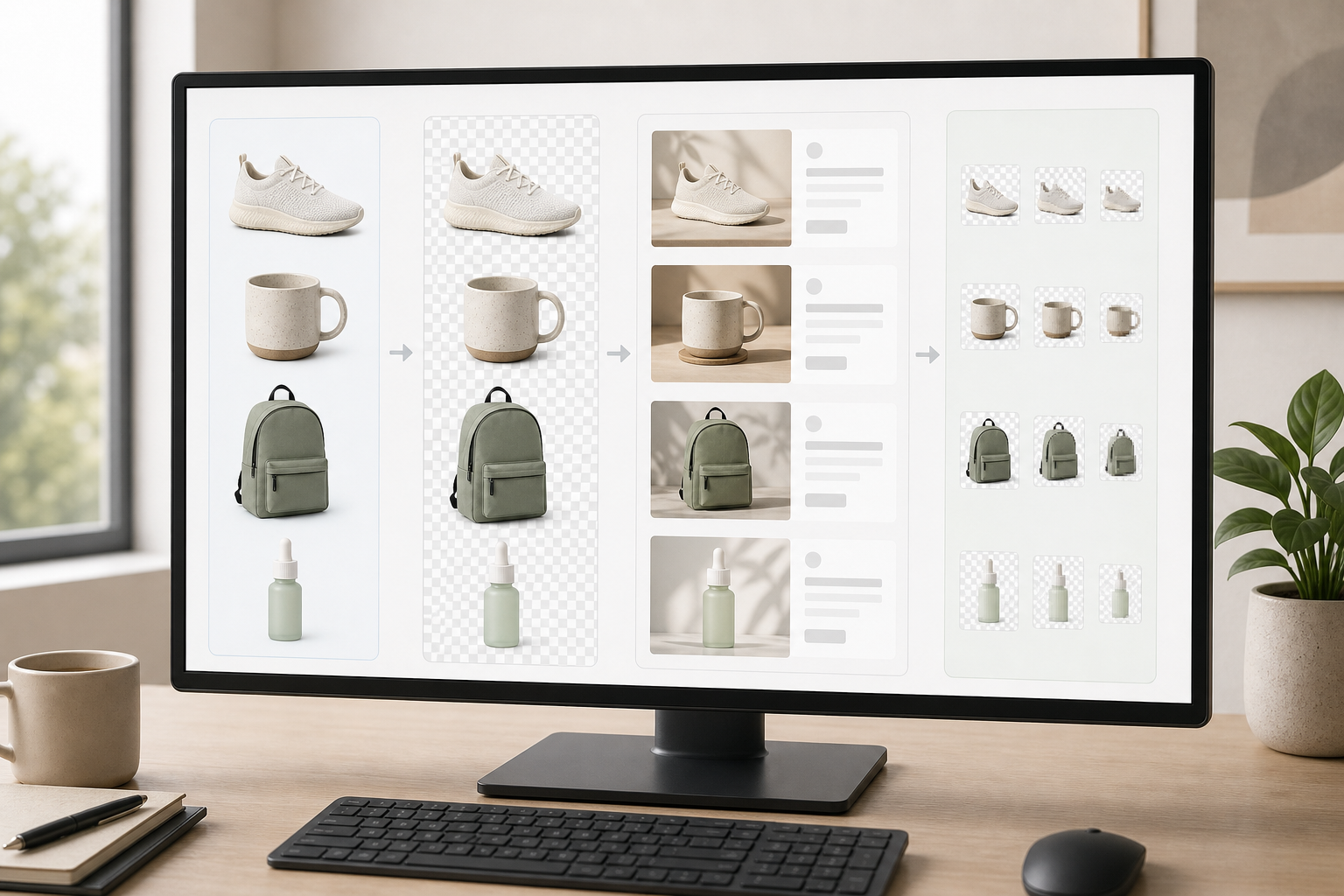
Choosing the right output format becomes easier when you define the use case first. Do not start with “JPEG or WebP?” Start with “Where will this image appear, and what does it need to preserve?”
| Use case | Best starting choice | Why it works | Watch out for |
|---|---|---|---|
| Product page hero | WebP or high-quality JPEG | Good balance of detail and file size | Marketplace or older system compatibility |
| Collection grid thumbnail | WebP or compressed JPEG | Fast loading across many items | Over-compression can blur texture |
| Marketplace upload | JPEG | Widely accepted and predictable | Transparency is usually lost |
| Transparent product cutout | PNG or WebP | Keeps alpha transparency | PNG can become large quickly |
| Email image | Compressed JPEG or WebP if supported | Keeps file weight down | Some email clients have format limitations |
| Support documentation | Compressed PNG, JPEG, or WebP | Depends on whether text or product detail matters | Thin text can blur after compression |
| Printable product sheet | JPEG or PDF-ready image | Simple handoff for sales or ops teams | Resolution must stay high enough |
If you need to change formats quickly, use a dedicated converter like Convert Image rather than exporting manually from several apps. The advantage is not only speed. It also reduces the chance that one teammate uses different export settings without realizing it.
For most small ecommerce stores, a practical default is:
- Keep source images untouched.
- Use WebP for storefront performance when your platform supports it.
- Use JPEG for marketplace and compatibility uploads.
- Use PNG only when transparency or crisp graphic edges are necessary.
- Compress final images after resizing, not before.
That last point matters. Compressing a 4000-pixel source image and then resizing it later can create softness twice. Resize to the target display range first, then compress the final output.
Build a Naming Convention That Humans Can Read
File naming should be boring. Clever names fail when a tired teammate is uploading thirty variants on a Friday afternoon.
A good ecommerce image name usually includes:
- Product handle or SKU.
- Color or variant.
- Angle or use case.
- Output size or channel when needed.
- Version only when the team actually uses versioning.
Example:
linen-apron-olive-front-1600.webp
linen-apron-olive-side-1600.webp
linen-apron-olive-detail-pocket-1600.webp
linen-apron-olive-thumb-600.webp
For SKU-based teams:
LA-042-olive-front-1600.webp
LA-042-olive-side-1600.webp
LA-042-olive-detail-1600.webp
Avoid names like:
final-image-new.webp
product_photo_edited2.jpg
IMG_4938-converted-compressed-final.jpg
These names do not age well. They also make it harder to search for all assets connected to one product.
If your catalog has many variants, decide the order of naming fields and never improvise. For example:
producthandle-color-angle-size.formator:
sku-angle-channel-size.formatThe exact convention matters less than consistency. The person uploading files should be able to scan a folder and know whether every required angle exists.
Normalize Dimensions Before You Compress
Image compression is often blamed for bad ecommerce photos when the real issue is inconsistent dimensions. If one product image is 1200 by 1200, another is 2000 by 1500, and another is 900 by 1200, your storefront grid may crop them differently. The catalog feels uneven even if every file is sharp.
Before compression, decide your target sizes. A simple setup might be:
| Asset type | Suggested working target | Notes |
|---|---|---|
| Product page main image | 1600 px on the longest side | Enough for zoom on many stores without huge files |
| Collection thumbnail | 600-900 px square or near-square | Keep consistent crop behavior |
| Detail crop | 1200-1600 px | Preserve texture, stitching, labels, or material detail |
| Email image | 600-1000 px wide | Keep lightweight for inbox performance |
| Marketplace image | Follow the marketplace requirement | Do not assume your store size is accepted everywhere |
Use Resize Image when the batch needs consistent dimensions before final export. The safest approach is to resize copies in 02-working, then save final compressed files into 03-upload-ready.
For products photographed on white or neutral backgrounds, decide whether the image should be square. Square crops are predictable in grids, but they can waste space for tall products. Tall bottles, posters, tools, and apparel may need a portrait frame. The key is to define the frame by product family, not by individual photo.
A practical catalog rule:
- Accessories: square frame.
- Apparel flat lays: square or 4:5 frame.
- Tall packaging: 4:5 frame.
- Wide kits or bundles: 4:3 frame.
- Detail shots: flexible, but consistent within the product page.
This creates rhythm across the store without forcing every product into the same visual box.
Compression Rules That Preserve Product Trust
Compression should make pages faster without making the product look cheaper. For ecommerce, the danger is not just visible blur. It is losing the small cues customers use to judge quality: fabric texture, label edges, grain, stitching, gloss, and color boundaries.
Use Compress Image after resizing and conversion. Review a few representative images at actual storefront size, not only as thumbnails in a folder. Thin lines and material texture can look fine in a file preview but soft on a product page.
A useful compression review set includes:
- One light product on a white background.
- One dark product on a light background.
- One product with fine texture.
- One product with small label text.
- One transparent cutout if your catalog uses transparency.
- One lifestyle image with shadows and skin tones, if relevant.
Check these details:
- Does the product edge stay clean?
- Are small labels still readable where they need to be?
- Does fabric or material texture still look believable?
- Are gradients, shadows, or glossy reflections banding?
- Does color shift between source and final output?
- Is the file size reasonable for its role?
Do not chase the smallest possible file for every image. A thumbnail can be aggressive. A hero image should be more careful. A detail crop may deserve a larger file if it helps the customer understand the product.
The quiet workflow principle is to define budgets by image type instead of arguing about every file manually. For example, your team might aim for smaller thumbnails, moderate collection images, and higher-quality product page images. Exact numbers depend on platform, dimensions, and product detail, so use your store performance goals as the guide rather than a universal file size promise.
Handling Transparent Product Images Without Surprises
Transparent product images are useful for product education, help centers, marketplace graphics, and visual comparison blocks. They are also easy to break during conversion.
The main risk is accidentally converting transparency to a white, black, or gray background. Another risk is keeping transparency but leaving rough edge pixels that look bad on colored sections of a website.
If the image needs a transparent background, keep a transparent master in 02-working. Then create channel-specific exports:
- PNG for maximum compatibility when file size is acceptable.
- WebP for smaller transparent assets when the publishing environment supports it.
- JPEG with a deliberate white or neutral background when the destination does not support transparency.
For product cutouts that need retouching or background cleanup, AI Photo Editor can be part of the workflow, especially when the team needs a quick correction before conversion. Use it for specific fixes, such as cleaning a background, removing a small distraction, or improving an edge. Keep the edited file separate from the original so you can compare results.
Before publishing transparent images, preview them on at least three backgrounds:
- White.
- Dark gray.
- A mid-tone brand color or page background.
This reveals edge halos that are invisible on a white file preview. It also catches semi-transparent shadows that may look too strong on dark surfaces.
The Batch Workflow From Intake to Upload
Here is a complete workflow you can run for a small catalog update of 20 to 200 images.
Step 1: Create the Batch Folder
Create one parent folder named after the catalog update, supplier delivery, or product drop. Add 01-source, 02-working, and 03-upload-ready.
Store the original delivery in 01-source. If the files arrive in a ZIP archive, keep the ZIP too. It gives you a reference if anything is missing later.
Step 2: Sort by Product and Image Type
Inside 01-source, group files by product or SKU if the delivery is large. For small batches, a flat folder may be fine, but do not mix unrelated campaigns in one batch.
Separate image types:
- Main product images.
- Variant images.
- Detail shots.
- Lifestyle photos.
- Size charts or graphic panels.
- Supplier reference images.
Size charts and graphic panels often need different treatment because they contain text or lines. Do not compress them with the same settings as lifestyle photos unless you have checked readability.
Step 3: Convert Unusual Source Formats
If you receive HEIC, TIFF, or oversized PNG files that your store workflow does not handle well, convert copies into a working format. For photos, JPEG or WebP may be enough. For transparent graphics, PNG or WebP is safer.
Use Convert Image for this stage and save the results into 02-working. The original files stay in 01-source.
Step 4: Fix Orientation, Crop, and Background Issues
Open the working files and check orientation, framing, and background consistency. Rotate sideways images, remove accidental borders, and flag anything that needs a new source image.
For background cleanup or small visual corrections, use focused edits. Avoid turning batch conversion into a full retouching project unless the product really needs it. A quiet workflow does not mean perfect images. It means controlled decisions.
Step 5: Resize by Output Type
Create size-specific versions based on where the images will appear. For example:
02-working/
  product-page-1600/
  thumbnails-700/
  marketplace-2000-jpeg/
Use Resize Image to normalize dimensions. If your platform automatically creates thumbnails, you may still want a clean product page size so the uploaded originals are not unnecessarily huge.
Step 6: Convert to Final Formats
Export the final formats by channel. For example:
03-upload-ready/
  store-webp/
  marketplace-jpeg/
  email-jpeg/
Do not mix final WebP and final JPEG files in the same folder unless the names make their use obvious. Channel folders reduce upload mistakes.
Step 7: Compress Final Files
Compress final files after resizing and format conversion. Check representative samples, especially fine-detail products and images with small text.
Use Compress Image for final optimization. Keep compression settings consistent within each output type so the catalog does not look uneven.
Step 8: Run the Upload-Ready Checklist
Before uploading, review the 03-upload-ready folder as a batch.
Checklist:
- Every product has the required main image.
- Variants are named consistently.
- File extensions match the destination requirements.
- Dimensions are consistent within each output folder.
- Transparent files still have transparency where needed.
- JPEG marketplace files have intentional backgrounds.
- File sizes are reasonable for their use.
- No source files, rejects, or drafts are in the upload folder.
- No names contain spaces, random camera numbers, or unclear final labels.
This checklist should take minutes, not hours. If it takes too long, the batch was not organized enough earlier.
Example: A 36-Image Product Drop
Imagine a small store launching twelve ceramic mugs, each with three images: front, handle angle, and detail. The photographer sends 36 high-resolution JPEGs with camera names.
The team creates:
ceramic-mug-may-drop/
  01-source/
  02-working/
  03-upload-ready/
During intake, they find two images are slightly crooked and one detail shot is much darker than the others. They mark those files for manual review and move the rest into the working stage.
They rename working files using this pattern:
ceramic-mug-sage-front.jpg
ceramic-mug-sage-angle.jpg
ceramic-mug-sage-detail.jpg
They resize product page images to a consistent longest side, then export storefront versions as WebP. They also create JPEG versions for a marketplace that does not accept WebP. Finally, they compress both sets separately and compare one light mug, one dark mug, and one detailed glaze image.
The final upload folder becomes:
03-upload-ready/
  store-webp/
    ceramic-mug-sage-front-1600.webp
    ceramic-mug-sage-angle-1600.webp
    ceramic-mug-sage-detail-1600.webp
  marketplace-jpeg/
    ceramic-mug-sage-front-2000.jpg
    ceramic-mug-sage-angle-2000.jpg
    ceramic-mug-sage-detail-2000.jpg
Nobody has to remember which version belongs where. The folder structure carries the decision.
Common Batch Conversion Mistakes
The most common mistake is converting too early. If you convert messy source files before sorting, cropping, and naming, you create a larger mess in a new format.
Another mistake is treating PNG as a quality upgrade. PNG is excellent for transparency and crisp graphics, but it is often inefficient for product photos. A photo saved as PNG can become much larger without looking better to customers.
Teams also forget that marketplaces and storefronts may need different files. A direct store can use modern formats and flexible layouts. A marketplace may enforce background, dimension, and format rules. One final folder for every destination creates avoidable rework.
Over-compression is another quiet problem. It may not be obvious during upload, but customers notice when product texture looks muddy. This matters for clothing, jewelry, ceramics, cosmetics, paper goods, and anything where material quality affects trust.
Finally, small teams often fail to preserve a clean source copy. Once the only version has been resized and compressed, future edits become harder. Always keep the original delivery untouched.
When to Use PDF or OCR in an Image Catalog Workflow
Most ecommerce image workflows are about photos, but supporting materials often appear in the same batch: care cards, supplier spec sheets, handwritten packing notes, certificates, labels, or photographed instruction sheets.
If you need to collect visual proof or create a simple review packet, Image to PDF can turn selected images into a shareable document for internal approval. This is useful when a founder, buyer, or operations lead wants to review product visuals without opening a folder of separate files.
If supplier images include photographed labels or packaging text that needs to be captured, Image OCR can help extract text for checking product names, ingredients, model numbers, or care instructions. OCR should not replace human review for critical compliance content, but it is useful for catching mismatches before upload.
The key is to keep these support files out of the upload-ready image folders. They belong in review or documentation folders, not next to final product photos.
A Lightweight Role Split for Small Teams
Even a two-person ecommerce team benefits from role clarity. You do not need formal production management. You just need to know who owns each stage.
A simple split:
| Stage | Owner | Output |
|---|---|---|
| Intake | Catalog lead | Source folder sorted, rejects flagged |
| Cleanup | Visual editor or founder | Working files corrected and named |
| Conversion | Content operator | Sizes and formats created |
| Compression | Content operator | Final files optimized |
| Approval | Catalog lead | Upload-ready folder checked |
| Upload | Store manager | Files published to the correct channel |
One person can own multiple stages, but the stage still exists. This prevents a familiar problem: everyone assumes someone else checked the final folder.
For recurring catalog work, save a small batch-notes.txt file in every parent folder. Include the date, destination channels, target formats, and any exceptions. For example:
Batch: May ceramic mugs
Store format: WebP, 1600 longest side
Marketplace format: JPEG, 2000 square
Notes: Blue glaze detail image replaced after first review
This note becomes useful months later when someone asks why one product family was exported differently.
Final Upload-Ready Standard
A quiet batch image workflow is not about making every product photo perfect. It is about making the path from source to upload predictable enough that mistakes stand out.
By the time images reach 03-upload-ready, they should meet a clear standard:
- The file name identifies the product and use.
- The format matches the destination.
- The dimensions are intentional.
- The compression level fits the image role.
- The visual style is consistent with the product family.
- The source file still exists untouched.
- A teammate can upload without asking which file is final.
That last point is the real test. If someone has to ask whether new-final-export-2.jpg is safe to publish, the workflow is still too noisy.
For small ecommerce teams, image quality is partly visual and partly operational. Good product photos matter, but so does the system that carries them through conversion, resizing, compression, approval, and upload. A calm folder structure, a practical format table, and a short checklist can remove hours of avoidable rework from every catalog update.
Start with the next small batch. Build the three folders, keep the source files untouched, convert only after intake, resize before compression, and separate final files by destination. Once the process feels boring, it is doing its job.