Pop-Up Menu Board Photo OCR Cleanup for Allergen and Price Updates
A practical guide for turning pop-up menu board photos into reliable OCR notes for allergen checks, price updates, seasonal menus, and vendor handoffs.
Pop-Up Menu Board Photo OCR Cleanup for Allergen and Price Updates
Temporary menu boards are useful because they are fast. A chalkboard can change before lunch. A laminated sheet can be taped over yesterday's prices. A farmers market sign can be rewritten when one ingredient sells out. The same flexibility that makes pop-up menus practical also makes them hard to document.
If your team needs to keep allergen notes, price changes, seasonal item names, or vendor menu records, a quick phone photo is often the only source. The problem is that menu board photos are rarely OCR-friendly. They include glare, handwritten lettering, decorative borders, logos, crossed-out prices, shadows from customers, and background clutter from the stall.
This guide is for restaurant operators, event vendors, catering coordinators, shared kitchen managers, and market teams who need to turn messy menu board photos into cleaner text records. It is not about creating a perfect design file. It is about getting reliable enough OCR output to support review, correction, filing, and handoff.
The practical goal is simple: capture better photos, clean only what matters, run OCR with realistic expectations, and package the result so a manager or vendor can verify it quickly.
Why Pop-Up Menu Boards Need a Different OCR Approach
A printed invoice or typed form has predictable spacing. A pop-up menu board does not. It may be handwritten, partly erased, photographed at an angle, or surrounded by visual noise. OCR tools can still help, but they need a cleaner input than a casual photo from across the counter.
The most common failure is treating the photo as if it were a normal document scan. That leads to missing item names, incorrect prices, and confused allergen notes. A better approach is to separate the job into three parts:
- Preserve the original photo as evidence of what was displayed.
- Create a cleaned OCR copy that emphasizes legibility.
- Review the extracted text against the photo before it becomes a record.
This matters most when the menu text affects customer safety or operational accountability. If a temporary board lists nuts, dairy, gluten, shellfish, sesame, or vegan substitutions, the OCR result should never be accepted blindly. It should be used to speed up the first pass, then corrected by a person who can compare it to the image.
Good OCR cleanup does not mean making the image beautiful. It means making the letters easier for software and humans to read.
Common Menu Board Problems That Break OCR
Menu board photos fail for predictable reasons. Knowing them helps you fix the right issue instead of over-editing the image.
| Problem | What it does to OCR | Best fix |
|---|---|---|
| Glare on plastic or glass | Creates blank white areas over words | Re-shoot from an angle or crop around glare |
| Chalk dust and eraser marks | Adds false strokes around letters | Increase contrast carefully and remove background haze |
| Decorative script | Turns letters into unrelated words | Use manual review for item names |
| Crossed-out prices | Reads both old and new prices | Crop or annotate the valid price area |
| Busy stall background | Confuses page boundaries | Crop tightly to the board |
| Skewed photo angle | Distorts character shapes | Straighten before OCR |
| Low resolution | Merges thin strokes and punctuation | Re-capture closer or resize from the original |
| Mixed languages or symbols | Creates partial lines or substitutions | Review line by line with context |
The important pattern is that most fixes should happen before OCR. Once incorrect text has been extracted, cleanup becomes slower because you are guessing what the image said. A sharper, straighter, tighter image gives the OCR tool less room to make bad assumptions.
Decide What Record You Actually Need
Before cleaning the photo, decide what the finished record must support. Different use cases need different levels of detail.
For a quick price update, you may only need item names and current prices. For an allergen review, you need ingredients, modifiers, preparation notes, and any warnings visible on the board. For a vendor archive, you may need the board photo, date, location, stall name, and a corrected text version.
Use this decision table before you start editing:
| Record type | Keep original photo | OCR text needed | Human review level |
|---|---|---|---|
| Daily price check | Yes | Item and price lines | Medium |
| Allergen review | Yes | Full visible menu and notes | High |
| Seasonal menu archive | Yes | Item names, descriptions, dates | Medium |
| Event vendor handoff | Yes | Menu lines plus vendor context | High |
| Social media caption draft | Optional | Item names and descriptions | Low |
If allergens are involved, keep the source photo and the corrected OCR output together. A plain text note without the photo is weaker because nobody can verify whether a word was extracted correctly.
The Capture Checklist for Busy Service Windows
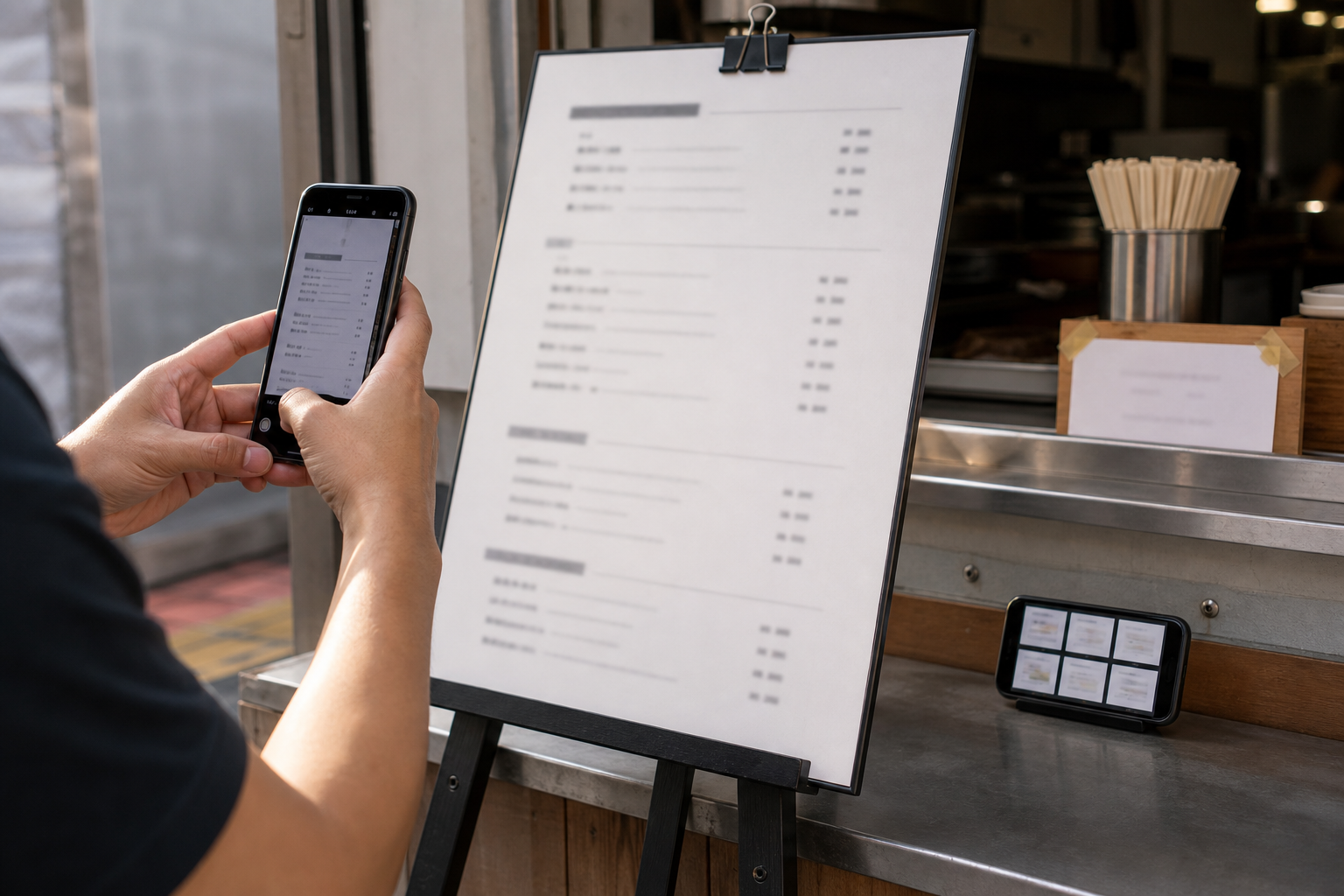
The best OCR cleanup happens before editing. A careful photo saves more time than any later correction.
Use this checklist when photographing a temporary board during a busy service window:
- Take one full-board photo to preserve context.
- Take close-up photos of each menu section.
- Stand slightly off-center if glare appears.
- Keep the phone parallel to the board whenever possible.
- Tap to focus on the lettering, not the background.
- Avoid digital zoom; move closer instead.
- Capture prices and allergen notes in separate detail shots if they are small.
- Include a date or location photo in the set if the record will be archived.
- Retake any image where a customer, hand, reflection, or utensil blocks text.
Do not rely on a single wide shot if the board contains small handwriting. A wide photo is useful for proof, but a close-up is usually better for OCR. If the board has three columns, photograph each column separately after taking the full image.
Lighting matters more than camera model. Even a recent phone camera will struggle with reflective laminate under overhead market lights. If possible, tilt the board slightly, move to the side, or wait for a moment when shadows are not crossing the text.
Create an OCR Copy Without Damaging the Original
Keep two versions of every important menu photo. The original is the record. The edited version is the OCR helper.
A simple naming pattern keeps the set understandable:
| File | Purpose |
|---|---|
2026-07-05-stall-a-menu-original.jpg | Untouched source photo |
2026-07-05-stall-a-menu-cropped.jpg | Cropped OCR copy |
2026-07-05-stall-a-menu-ocr.txt | Extracted and corrected text |
2026-07-05-stall-a-menu-review.pdf | Final review packet |
Start by cropping the OCR copy tightly around the board or menu section. Remove table edges, people, lights, bags, and signage that is not part of the menu. If the photo is angled, straighten it before extracting text. If the image is too large for easy sharing, use an image tool after preserving the original.
For quick preparation, ConvertAndEdit's resize image tool can help create a manageable copy, while compress image is useful when you need to send a set to a manager or vendor without oversized attachments. Compression should happen after you have made the OCR copy, not before. Heavy compression can blur thin strokes, decimal points, and small allergen notes.
Clean the Image for Reading, Not for Design
The goal is not to make the board look polished. It is to make the text easier to read. Over-editing can remove clues that a reviewer needs.
Use a restrained cleanup pass:
- Crop to the relevant board or section.
- Straighten the image so lines are as horizontal as possible.
- Increase contrast just enough to separate letters from the background.
- Reduce shadows if they cover words.
- Avoid filters that create artificial edges around handwriting.
- Keep color if color identifies allergens, prices, or item categories.
- Save the cleaned copy separately from the original.
Black-and-white conversion can help printed text, but it can hurt chalk menus and colored allergen marks. If the board uses red for spicy items, green for vegan items, or colored dots for allergens, keep a color version available.
For photos with distracting objects near the board, the AI photo editor can be useful for cleaning non-text background clutter. Use it carefully. Do not remove, rewrite, or visually alter the menu text itself when the image is being used as an operational record. The safe use is to reduce distractions around the text, not to change the displayed information.
Run OCR in Smaller Sections
A common mistake is sending one large, busy board photo into OCR and expecting clean output. Smaller sections usually perform better.
If the board has columns or categories, crop each one separately. Run OCR on breakfast, lunch, drinks, specials, or add-ons as separate images. This helps preserve line order and makes review easier.
Use ConvertAndEdit's image OCR tool on the cleaned section images. After extraction, paste the result into a structured note with clear labels:
Source photo: 2026-07-05-stall-a-menu-original.jpg
Section: Specials board, upper left
Reviewer: [name]
Status: Needs allergen verification

OCR draft:
- Roasted vegetable tart
- Lemon herb chicken bowl
- Strawberry basil lemonade
The structure matters because OCR text alone has no context. If a manager later sees a corrected line, they should know which source image it came from.
Correct OCR Output With a Line-by-Line Pass
OCR cleanup is not complete until a human compares the extracted text to the photo. This is especially important for prices, allergens, modifiers, and similar item names.
Use a three-pass review:
Pass 1: Structure
Check whether the OCR preserved the rough order of the menu. Are categories separated? Are prices attached to the correct items? Did a side note get inserted into the middle of an item description?
Do not fix every spelling issue yet. First, make sure the text structure matches the board.
Pass 2: Critical Terms
Review high-risk terms carefully:
- allergen names such as peanut, tree nut, milk, egg, wheat, soy, fish, shellfish, sesame
- dietary labels such as vegan, vegetarian, gluten-free, dairy-free, halal, kosher
- warnings such as contains, may contain, cooked in, shared fryer, substitute, seasonal
- prices, decimal points, currency symbols, and add-on charges
- item names that look similar, such as crab and corn, almond and amaranth, oat and goat
If a word is unclear in the photo, mark it as uncertain instead of guessing. A bracketed note like [unclear: possible sesame] is more useful than a confident but wrong correction.
Pass 3: Plain-English Review
Read the corrected text as if you were a customer or kitchen lead. Does each line make sense? Are there duplicate prices? Is a modifier attached to the wrong item? Did the OCR turn a handwritten abbreviation into a real but incorrect word?
This pass catches errors that look plausible in isolation.
Handle Prices and Allergen Notes Separately
Prices and allergen notes deserve their own attention because small OCR mistakes can change meaning.
A price error can be subtle. $4.50 may become $450, $45.0, or $4.SO. A plus sign for an add-on may be missed entirely. If the board includes old prices that were crossed out, OCR may read both the old and new price.
Allergen notes are even more sensitive. A missing word can invert meaning. contains nuts and contains no nuts are not close enough to leave to software interpretation. The same is true for gluten-free option versus not gluten-free.
For allergen review, create a small verification table:
| Menu item | OCR allergen note | Photo checked? | Needs kitchen confirmation? |
|---|---|---|---|
| Example item | Contains dairy | Yes | No |
| Example special | Shared fryer unclear | Yes | Yes |
| Example dessert | Nut note partially blocked | Yes | Yes |
This table is not a substitute for your formal allergen controls. It is a practical way to keep photo-derived menu records from becoming loose, unverified text.
Convert Photos When Vendors Send Odd Formats
Pop-up teams often receive menu images from vendors by text message, chat apps, shared folders, or email. The files may arrive as HEIC, WebP, PNG screenshots, JPEG photos, or exported PDFs.
Before OCR, standardize the images enough that everyone can open them. Convert unusual image formats to a common format when needed. ConvertAndEdit's convert image tool can help when a phone or vendor sends a file type that is awkward for your review process.
A practical standard is:
| Source type | Suggested handling |
|---|---|
| HEIC phone photo | Convert to JPEG for broad compatibility |
| PNG screenshot | Keep PNG if text is sharp |
| WebP vendor image | Convert only if reviewers cannot open it |
| PDF menu snapshot | Export or capture the relevant page as an image for OCR |
| Blurry chat image | Ask for the original photo if possible |
Avoid converting the same file repeatedly. Each unnecessary conversion can soften text or create artifacts. Keep the best available source and make one clean OCR copy from it.
Build a Review Packet for Managers, Cooks, and Vendors
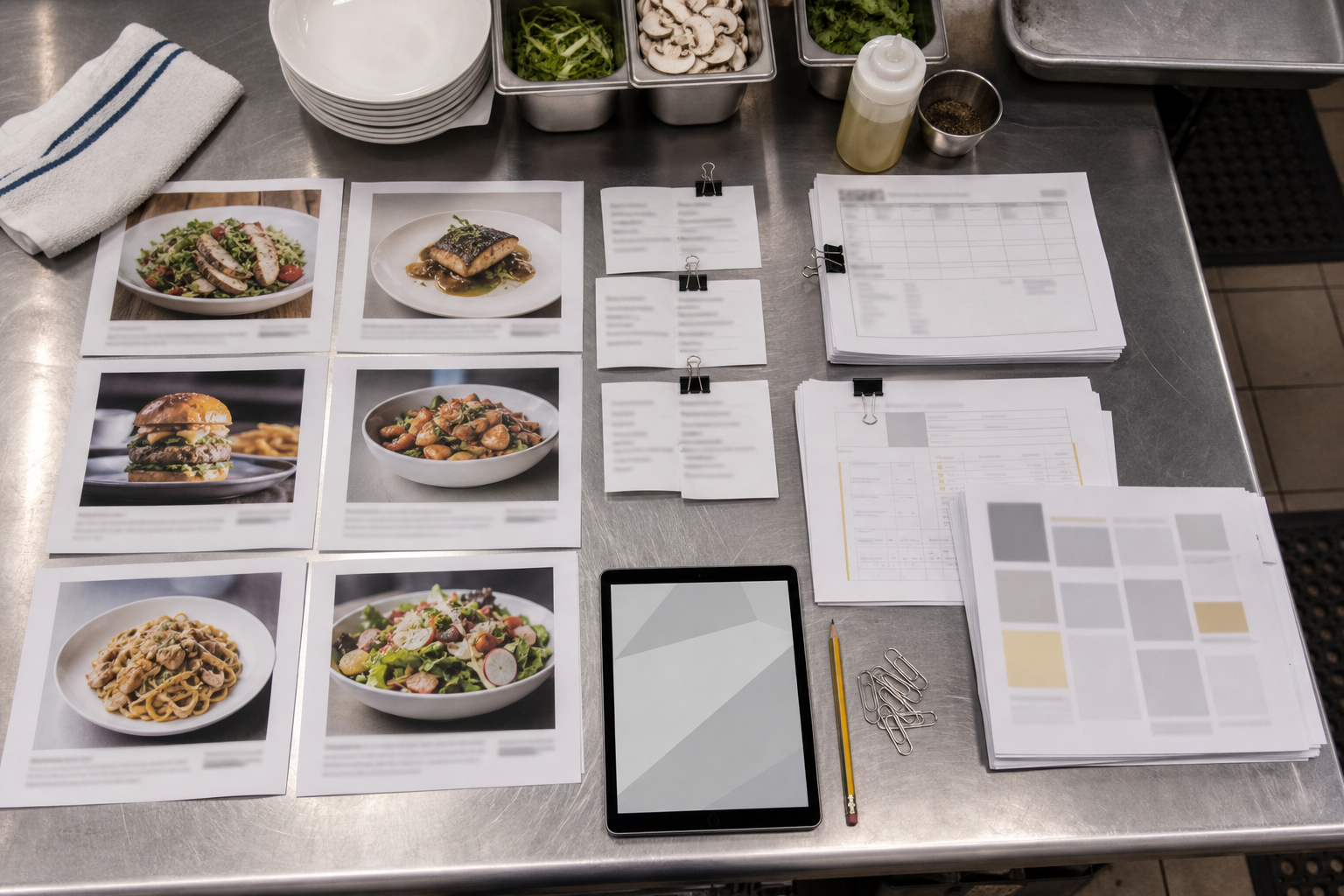
Once the photos are cleaned and the OCR text is corrected, package the record so other people can review it without hunting through loose files.
A useful review packet includes:
- the original full-board photo
- close-up section photos
- cleaned OCR copies if they are different
- corrected text notes
- allergen verification table if relevant
- date, event, location, and vendor name
- open questions for the kitchen or vendor
If your team needs a single file for storage or sign-off, ConvertAndEdit's image to PDF tool can turn the photo set into a PDF review packet. Put the original image before the cleaned OCR copy so reviewers can see the source first.
For larger event packs, keep one packet per vendor or stall. Mixing several vendors into one long file makes later searching and accountability harder. A small, clear packet is better than a giant archive that nobody wants to open.
A Practical Menu Board Cleanup Example
Imagine a weekend market vendor sends three photos after service:
- A wide shot of the stall menu.
- A close-up of the mains section.
- A close-up of the drinks and desserts section.
The wide shot shows the board context but is too distant for OCR. The mains close-up has glare over the right edge. The dessert photo is sharp but includes a customer's sleeve over one price.
A practical cleanup would look like this:
| Step | Action | Reason |
|---|---|---|
| Preserve originals | Save all three source photos unchanged | Keeps the record intact |
| Crop mains | Remove stall background and focus on the board | Reduces OCR confusion |
| Retake or flag glare | Ask for a new photo if the glare covers allergens | Avoids guessing |
| Crop desserts | Keep the sleeve visible if it blocks text | Shows why a value is uncertain |
| OCR sections | Extract text from mains and desserts separately | Improves line order |
| Review prices | Compare every price against the image | Prevents decimal errors |
| Verify allergens | Mark unclear notes for kitchen follow-up | Keeps safety review explicit |
| Make packet | Combine source photos and corrected notes | Makes handoff easier |
The key decision is not to fake certainty. If glare blocks an allergen note, the output should say so. The cleaned record is useful because it identifies what is known and what needs confirmation.
File Naming and Folder Habits That Prevent Confusion
Menu board records get messy when teams rely on camera-roll filenames like IMG_4821.jpg. Rename files early, especially when multiple vendors or dates are involved.
Use names that answer the basic questions:
2026-07-05-riverside-market-stall-12-full-board-original.jpg
2026-07-05-riverside-market-stall-12-mains-cropped.jpg
2026-07-05-riverside-market-stall-12-desserts-ocr-reviewed.txt
2026-07-05-riverside-market-stall-12-review-packet.pdf
A good name includes date, event or location, vendor or stall identifier, section, and status. Keep status words simple: original, cropped, ocr, reviewed, packet.
For folder structure, avoid overcomplicating it:
menu-records/
  2026-07-05-riverside-market/
    stall-12/
    stall-18/
    stall-24/
This is enough for most small teams. The point is to make it easy to find the source photo when someone questions a menu line later.
Quality Checks Before You Archive the Record
Before considering the record complete, run a short audit. It should take minutes, not hours.
Check the following:
- Every corrected OCR note links back to a source image.
- Original photos are preserved and not overwritten.
- Crops do not remove important price or allergen context.
- Unclear words are marked as unclear, not guessed.
- Prices include decimal points where needed.
- Crossed-out or replaced prices are explained.
- Allergen notes have been reviewed by a responsible person.
- The final packet has the right date, event, and vendor.
- The file size is reasonable for sharing.
- The archive folder contains no duplicate mystery versions.
If the final PDF or image set is too large to email or upload, compress only the sharing copy. Keep the original source images in your archive. For web-based or shared-folder handoff, a lighter packet is useful, but the original photos are still the stronger reference.
What Not to Do
Some shortcuts create more risk than they save.
Do not edit menu text directly inside the image to make it look cleaner. If the displayed board said one thing and the corrected note says another, that difference should be visible in the text record, not hidden in a manipulated image.
Do not crop away allergen notes just because they are hard to read. If they are visible, they belong in the review set. If they are not readable, mark them for confirmation.
Do not accept OCR output without checking prices. Decimal and currency errors are among the easiest mistakes to miss.
Do not use one large PDF as a dumping ground for every vendor at an event. Split by vendor or date so later review is realistic.
Do not compress the only copy of a photo before OCR. Compression may make a menu image easier to send, but it can make OCR worse.
When to Ask for a Better Photo
Cleanup has limits. Ask for a better photo when the source image cannot support a reliable record.
Request a retake if:
- glare covers item names, prices, or allergen notes
- the board is too far away to read small text
- motion blur affects more than a few letters
- a person or object blocks critical information
- the photo was sent through a chat app at very low quality
- handwriting is too faint to verify
- the board is angled so sharply that lines are distorted
A retake request should be specific. Instead of saying, send a clearer photo, ask for one straight-on close-up of the specials section, including the allergen note under the last item. Specific requests save time and reduce back-and-forth.
Final Takeaway
Pop-up menu board OCR is valuable when it is treated as a review aid, not a magic transcript. The strongest records keep the original photo, prepare a cleaner OCR copy, extract text in small sections, and require a human pass for prices, allergens, and unclear handwriting.
For small restaurants, caterers, market vendors, and event teams, this approach turns scattered menu photos into usable operational records without requiring layout software or a heavy documentation system. The result is simple: better handoffs, clearer price updates, stronger allergen checks, and fewer mystery screenshots sitting in a camera roll.