Whiteboard Photo to Searchable Project PDF: A Practical Cleanup Workflow
Turn messy whiteboard photos into readable, searchable project PDFs with a repeatable workflow for cleanup, OCR, compression, naming, and team handoff.
Whiteboard Photo to Searchable Project PDF: A Practical Cleanup Workflow
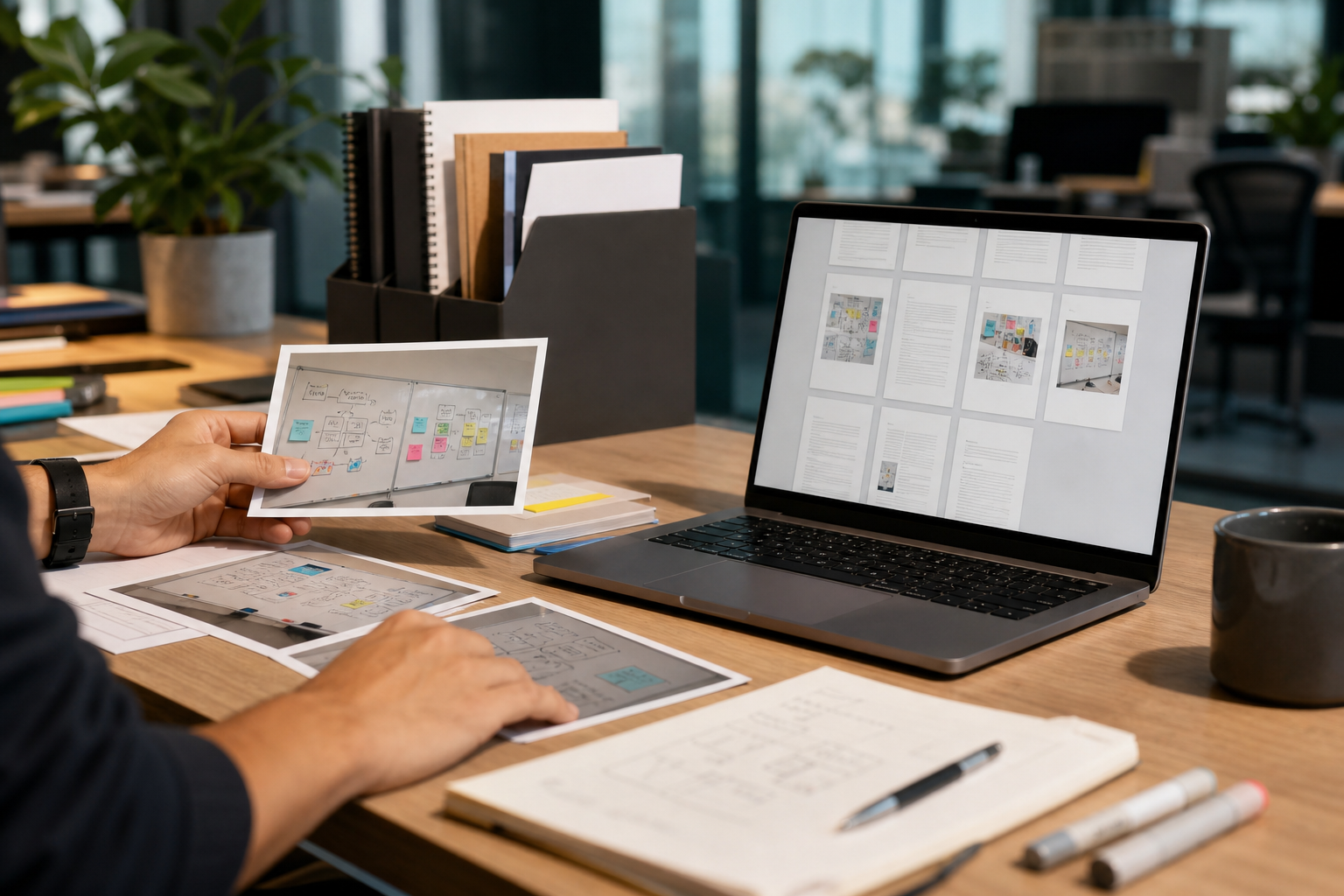
Whiteboard photos are often the only surviving record of a useful meeting. A product team maps an onboarding flow. A construction crew sketches a revised access plan. A workshop group clusters sticky notes by theme. Everyone agrees that someone should save the board before it gets erased, so a few photos are taken quickly on a phone.
The problem shows up later. The photos are slightly angled. Some marker colors are too faint. Reflections hide the top corner. Sticky notes overlap. The file names are meaningless. When the project comes back up three weeks later, nobody can search for the phrase they remember because the content is trapped inside an image.
This workflow turns those imperfect whiteboard photos into a clean, searchable project PDF without pretending that every board can become a perfect digital diagram. The goal is practical documentation: readable images, usable OCR, predictable file order, and a packet that can be shared with teammates, vendors, or clients.
It is especially useful for teams that document workshops, retrospectives, research synthesis sessions, planning walls, design critiques, and operational handoff meetings. You do not need layout software. You need a disciplined pass through capture, cleanup, OCR, PDF assembly, and final compression.
When This Workflow Is Worth Doing
Not every whiteboard photo deserves a formal packet. A quick parking-lot list may only need one photo dropped into a chat thread. This workflow is worth the extra effort when the board is part of a project record.
Use it when the whiteboard contains decisions, scope notes, client feedback, research themes, technical diagrams, risk lists, timelines, or anything that someone may need to search later. It also helps when multiple boards were used in the same session and the sequence matters.
Skip the full workflow when the photo is purely disposable, the board has already been transcribed accurately, or the information is sensitive enough that it should stay in a controlled documentation system instead of being passed around as a file.
A useful rule: if the board may be referenced after the current week, make a packet. If it only supports the current conversation, a cleaned image may be enough.
The Output You Are Building
The final result should be a single PDF with three qualities.
First, it should be visually readable. The board content should be straight enough, bright enough, and large enough that a teammate can zoom in without fighting blur or glare.
Second, it should be searchable. OCR will not capture every arrow, icon, or sticky-note abbreviation, but it should recover enough words that someone can search for a project name, feature label, topic cluster, or decision phrase.
Third, it should be small enough to share. Whiteboard photos from modern phones can be huge. A packet made from ten original images can become unnecessarily heavy if you do not resize and compress with intent.
The best packet usually contains cleaned board images, optional OCR text pages or captions, a consistent page order, and a file name that explains what the packet is before anyone opens it.
Capture Rules Before You Clean Anything
The cleanup process is easier if the source photos are decent. When you can influence capture, take thirty seconds to improve the raw material.
Stand directly in front of the board, not at a dramatic angle. Take one full-board photo, then take closer section photos from left to right. If sticky notes are involved, capture both the overall grouping and the individual clusters. If the board is glossy, move slightly to avoid glare instead of relying on editing later.
Use normal room light when possible. Flash can create bright spots that destroy marker detail. If the board is near a window, watch for reflections and shadows from the photographer.
Do not crop too tightly while taking the photo. Leave a small margin around the board. You can crop later, but you cannot recover missing corners, arrows, or note labels.
For multi-board sessions, take a quick separator photo between boards if needed. It can be as simple as a hand holding up one finger for board one, two fingers for board two, and so on. You can delete those separator images later, but they make sorting easier.
The Whiteboard Photo Triage Pass
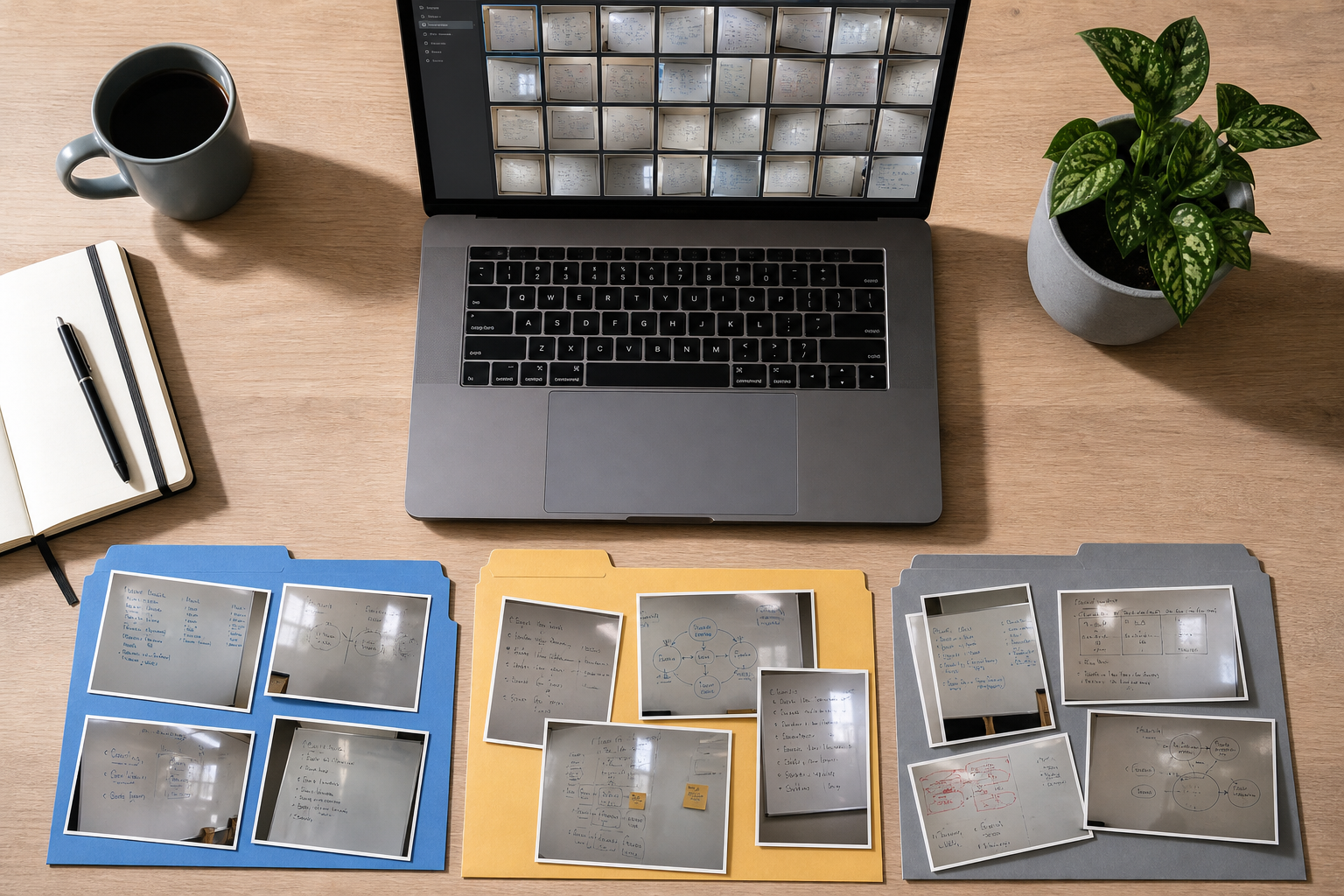
Before editing, sort the photos. This step saves time because whiteboard sessions often produce duplicates, blurry attempts, and near-identical angles.
Create three groups: keep, retake if possible, and archive. Keep photos that are readable and cover unique content. Put photos in the retake group if they are missing a critical section, heavily blurred, or blocked by glare. Archive duplicates instead of deleting them immediately; sometimes a duplicate contains one readable corner that the main shot does not.
When choosing between similar photos, zoom into the smallest handwriting first. A photo that looks clean at thumbnail size may fail at the detail level. Favor the image where thin marker strokes are readable, even if the overall framing is less elegant.
For sticky-note boards, check whether the note edges are visible. OCR tools and human readers both benefit from separation between notes. A photo with slightly lower contrast but clearer note boundaries may be more useful than a brighter photo where everything blends together.
A simple triage table helps keep decisions consistent:
| Photo issue | Keep, retake, or archive? | Why it matters |
|---|---|---|
| Slight angle but all text is readable | Keep | Perspective can be tolerated if content survives |
| Severe glare across key words | Retake if possible | Editing rarely restores hidden marker strokes |
| Duplicate with same framing | Archive | Keep only the sharpest version in the packet |
| Full board is readable but tiny | Keep with section crops | Use it as context, not the only record |
| Close-up has missing edge labels | Archive or use as support | Missing labels can confuse later readers |
At this stage, do not try to make everything beautiful. Your job is to decide which images deserve cleanup.
Straighten, Crop, and Normalize the Board
Whiteboard photos usually need three basic corrections: straighten the image, crop distractions, and normalize brightness. These edits make the PDF easier to read and improve OCR accuracy.
Start by cropping out walls, people, table edges, and room clutter. Keep a narrow border around the board so the viewer can understand the frame, but remove anything that distracts from the content. If the board has important labels at the edge, leave enough margin so they do not feel clipped.
Next, straighten the image as much as practical. A perfectly rectangular board is not always possible from a phone shot, but even a modest correction helps. If the board remains skewed, prioritize readability over geometry. Over-correcting can stretch handwriting and make it harder to read.
Then adjust brightness and contrast carefully. Whiteboards often need a brighter background and slightly stronger dark strokes. Avoid aggressive contrast that turns light marker colors into noise or makes sticky-note colors harsh. The best version looks clean but still natural.
If the image is very large, use a resizing step before building the PDF. For most documentation packets, the photo does not need to remain at the full phone resolution. A cleaned image that is wide enough for zooming but not enormous will keep the final PDF manageable. ConvertAndEdit's resize image tool is useful here when you want consistent dimensions across several board photos.
For boards with mixed media, such as marker lines plus printed screenshots taped to the board, inspect the smallest printed text after resizing. If it becomes mushy, use a larger size or keep that page less compressed.
Preserve Marker Colors Without Making the File Huge
Whiteboard photos are deceptively complex. A plain white board with black marker compresses well. A board full of sticky notes, colored marker, photos, and shaded diagrams can become a large file quickly.
Before choosing a format, consider what the board contains. PNG can preserve crisp edges and flat colors, but it may produce large files for phone photos. JPEG is often smaller for photographic whiteboard shots, but too much compression can blur thin handwriting. WebP can be a strong option for web use, but PDF workflows and recipient systems may vary in how they handle it.
For a project PDF, the safest intermediate choice is usually a high-quality JPEG for full-board photos and PNG for screenshots, diagrams, or images with very sharp interface text. If you need to change formats before assembly, use convert image to standardize the set.
Compression should be done with the content in mind. Thin marker strokes, faint colors, and small handwriting are the first things to suffer. After using compress image, zoom into a few difficult areas: pale yellow notes, red marker annotations, and any small labels near arrows.
Do not judge compression by the full page view only. A compressed whiteboard may look fine at 50 percent zoom and fail when someone tries to read the one note that matters.
OCR: What To Expect From Whiteboard Images
OCR is helpful, but whiteboards are not ideal OCR sources. Handwriting, arrows, abbreviations, curved photos, and sticky-note shadows all reduce accuracy. The goal is not perfect transcription. The goal is enough searchable text to make the packet discoverable.
Use OCR after the image is cropped, brightened, and straightened. Running OCR on the original messy photo often captures wall signs, meeting-room posters, or random interface text instead of the board content. A cleaned image gives the OCR engine a better target.
ConvertAndEdit's image OCR tool can help extract text from each cleaned board image. Review the output manually. Whiteboard OCR may confuse short product names, initials, numbers, and arrows. It may also split words across sticky notes or ignore faint marker colors.
A practical review pass should focus on terms people are likely to search later. Correct project names, customer names if appropriate for your documentation rules, feature labels, milestone names, risk categories, and decision words such as approved, blocked, deferred, owner, launch, or follow-up.
If OCR output is messy, do not spend an hour fixing every fragment. Create a short cleaned note below the image or on a companion page with the most important searchable phrases. That can be more useful than a full but unreliable transcript.
Build the Searchable PDF Packet
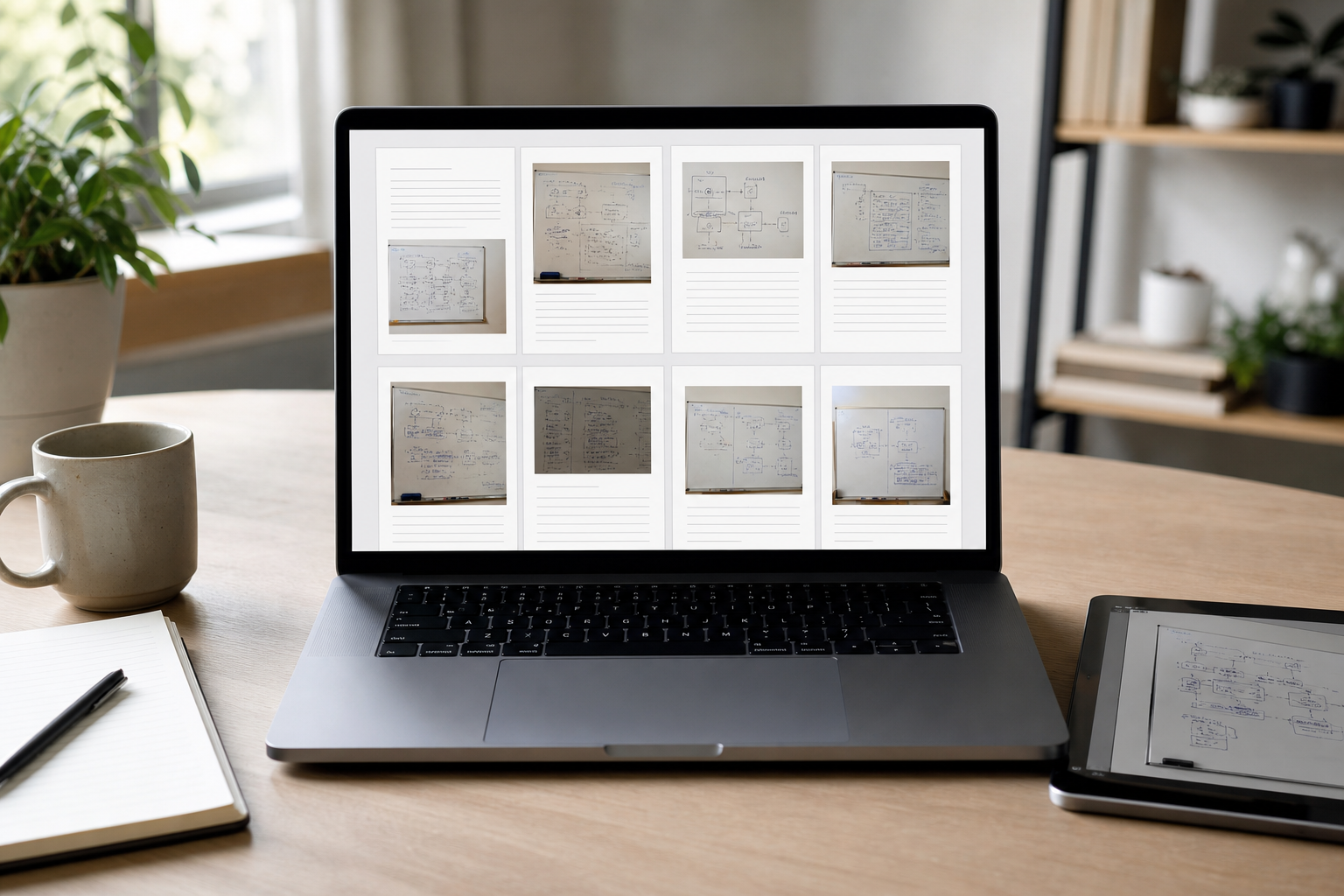
Once the images are cleaned and the useful OCR text is available, assemble the PDF. The packet should reflect how the session happened and how someone will revisit it.
A strong order is usually: cover or title page if needed, full-room context board, board one close-ups, board two close-ups, supporting images, then OCR notes or summary pages. If the meeting had a clear sequence, preserve that sequence. If it was a workshop with stations, group by station instead.
Use image to PDF when you want to turn cleaned board images into a single document. If you have separate PDFs, such as a meeting agenda, exported notes, or a prior decision record, combine them with PDF merge so the final packet lives in one file.
For each board, consider including both a full-board page and close-up pages. The full-board image gives context: clusters, arrows, sections, and relationships. The close-ups carry the detail. This is especially important when the board contains diagrams or sticky-note groups that only make sense spatially.
If you add OCR text pages, keep them plain. The searchable layer is useful, but the whiteboard image remains the source of truth. A short transcription or keyword list after each board is often enough.
Example packet structure:
| Page range | Content | Purpose |
|---|---|---|
| 1 | Session title and date | Gives the file context outside chat or email |
| 2 | Full board overview | Preserves spatial relationships |
| 3-5 | Close-up sections | Makes small handwriting readable |
| 6 | OCR cleanup notes | Adds searchable terms and corrected phrases |
| 7-10 | Second board and close-ups | Continues the meeting sequence |
| 11 | Action summary if available | Helps future readers jump to outcomes |
If your PDF tool supports selectable OCR text directly on the image pages, use that. If not, companion text pages still make the packet searchable in many document systems once indexed.
Naming and Version Control for Whiteboard Packets
Bad file names are one reason whiteboard documentation disappears. A name like IMG_4821.pdf is not a project record. Use a predictable naming pattern that includes the date, project, session type, and version.
A practical format is:
2026-05-13_project-name_workshop-whiteboards_v1.pdf
Use the date of the session, not the date you processed the file, unless those are meaningfully different for your team. Keep the project name short and stable. Avoid spaces if the file will move through multiple systems.
If the packet is revised, increase the version number rather than replacing the old file silently. A revised OCR note or added close-up can change how people interpret decisions. Versioning protects the record.
For teams with client or vendor sharing, add a review status:
| Status | Example file name | Use case |
|---|---|---|
| Draft | 2026-05-13_alpha_workshop-whiteboards_draft.pdf | Internal cleanup still in progress |
| Review | 2026-05-13_alpha_workshop-whiteboards_review.pdf | Ready for stakeholder confirmation |
| Final | 2026-05-13_alpha_workshop-whiteboards_final.pdf | Archived project record |
| Redacted | 2026-05-13_alpha_workshop-whiteboards_redacted.pdf | External-safe copy |
Do not overcomplicate this. The naming system only works if people can remember it during a busy week.
Redaction and Sensitivity Checks
Whiteboards can contain more sensitive information than people realize. They may include customer names, roadmap dates, hiring notes, security concerns, budget numbers, or internal disagreements. Before sharing the packet, do a sensitivity pass.
Look at the board image itself, not just the OCR text. Sensitive details may be visible in a corner that OCR ignored. Also check reflections. A glossy whiteboard or nearby screen can accidentally show faces, laptops, or room details.
If the PDF will leave the internal team, decide whether to remove, crop, blur, or replace sensitive sections. Be careful with casual redaction. Drawing a black rectangle on top of an image inside a document editor may not always remove the underlying content depending on the workflow. For external packets, create a flattened redacted copy and keep the original in a controlled internal location.
Common things to check:
| Item | Why it matters |
|---|---|
| Customer or patient names | Privacy and contractual exposure |
| Unreleased product names | Roadmap leakage |
| Security diagrams | Operational risk |
| Budget or pricing notes | Commercial sensitivity |
| Personal feedback | HR and trust concerns |
| Reflections and background screens | Accidental disclosure |
When in doubt, make a separate external version. The internal packet can preserve the full context, while the external packet carries only what the recipient needs.
Compression Without Killing Readability
After assembly, check the PDF size. If it is too large for email, chat, or your documentation system, compress it carefully. Whiteboard PDFs often contain high-resolution images, so compression can reduce size dramatically.
The risk is over-compression. If the final PDF turns handwriting into gray fuzz, the packet has failed. Use a test-based approach: compress, open the result, and inspect the hardest pages.
Check three zoom levels. At fit-to-page, the packet should look clean. At normal reading zoom, the main labels should be readable. At close zoom, small notes should remain interpretable even if they are not beautiful.
If one page is responsible for most of the file size, go back to the source image. A single oversized photo can bloat the entire packet. Resize or compress that image separately, then rebuild the PDF. This is often better than applying harsh compression to every page.
For image-heavy project packets, a moderate file size with readable content is better than an impressively tiny file nobody can use.
A Repeatable Checklist
Use this checklist when converting a whiteboard session into a project PDF:
| Step | Done? | What to verify |
|---|---|---|
| Sort photos | Duplicates archived, best shots selected | |
| Check readability | Smallest handwriting readable when zoomed | |
| Crop images | Room clutter removed, board edges preserved | |
| Straighten images | Board is not distractingly angled | |
| Adjust brightness | Faint marker colors still visible | |
| Resize if needed | Images are consistent and not oversized | |
| Compress images | Thin strokes are not blurred away | |
| Run OCR | Key project terms are captured or corrected | |
| Assemble PDF | Pages follow session logic | |
| Add supporting notes | Searchable phrases and decisions included | |
| Review sensitivity | Private details removed from shareable copies | |
| Compress final PDF | File is shareable and still readable | |
| Name final file | Date, project, session, and version are clear |
This checklist is intentionally plain. A whiteboard workflow has to survive real project conditions, not just ideal documentation habits.
Example: Turning a Planning Wall Into a Packet
Imagine a small product team runs a two-hour planning session for a checkout redesign. The room ends with three boards: a current-flow sketch, a sticky-note wall of customer pain points, and a release-risk matrix.
The team takes one full photo of each board and several close-ups. During triage, they archive two blurry duplicates and keep nine images. They crop out the room background, straighten the boards, and resize the images so each close-up remains readable without preserving the original phone resolution.
Next, they run OCR on the cleaned images. The flow sketch produces limited OCR because it contains arrows and short labels. The sticky-note wall produces useful fragments but misses some pale notes. The risk matrix OCR works well because the handwriting is larger. The team corrects the most important project terms and adds a short searchable note page with phrases like payment retry, guest checkout, address validation, fraud review, and launch blocker.
They assemble the packet with a full-board overview before each set of close-ups. The final PDF includes the session date, project name, three board sections, and cleaned OCR notes. Before sharing, they redact one customer name and remove a photo that showed a laptop screen in the background.
The result is not a polished design artifact. It is better: a faithful project record that can be searched, shared, and revisited during implementation.
Common Mistakes That Make Whiteboard PDFs Less Useful
The most common mistake is keeping only the prettiest full-board photo. Full-board shots preserve context, but they often hide detail. If people cannot read the sticky notes, the packet is not useful. Pair overview images with close-ups.
Another mistake is compressing too early. If you heavily compress the original image before cropping, straightening, and OCR, you may destroy details that later steps need. Clean first, compress later.
Teams also forget to correct OCR terms. Search depends on the words people actually use. If the OCR reads a feature name incorrectly, future search will fail at the exact moment it is needed.
A fourth mistake is mixing unrelated boards into one generic PDF. If a workshop covered three separate projects, make three packets. Search and retrieval are much better when each file has a clear scope.
Finally, many teams skip the external-sharing review. Whiteboards are informal, which makes them risky. Treat them like meeting notes with images attached, not like harmless photos.
When To Use AI Editing Carefully
AI editing can help with whiteboard photos when the goal is cleanup, not invention. It may be useful for removing background clutter, reducing glare, or improving overall clarity. ConvertAndEdit's AI photo editor can support this kind of visual cleanup when a manual crop or brightness adjustment is not enough.
Set strict boundaries. Do not use AI editing to rewrite board content, invent missing notes, replace illegible decisions, or beautify diagrams in a way that changes their meaning. A whiteboard packet is evidence of a discussion. The cleaned version should remain faithful to the original.
A safe approach is to keep the original files in an archive folder and use edited versions only for the readable packet. If a decision is challenged later, the original capture remains available.
Final Quality Pass
Before sending the packet, open it as if you were not in the meeting. Can you tell what session it documents? Can you read the important notes? Does the page order make sense? Can you search for a known project term and land near the right board?
Check the first page, the smallest handwriting, the OCR notes, the file name, and the final size. If the packet will be sent outside the team, check sensitive content one more time.
The point of this workflow is not to turn every whiteboard into a perfect archive. It is to rescue useful thinking from temporary surfaces and make it durable enough for real project work. A clear, searchable PDF gives the meeting a memory without forcing the team to rebuild every sketch from scratch.